
Introduction
iPhone battery drain is easier to fix when you first check when it happens. A fast drop during calls, navigation, syncing, standby, weak signal, or Lock Screen use does not point to the same setting.
Start by separating the problem by timing. Check whether the iPhone loses power while locked, connected to a network, using a specific app, syncing photos, or running a visible Lock Screen feature.
Use the section that matches that moment first. That gives you a cleaner starting point without changing unrelated iPhone settings.
Step-by-Step Guide: iPhone Battery Drain
Step 1: Separate the Battery Drop by Situation
Start with the moment when the battery fell. Check whether the iPhone lost power while locked, during calls, while using navigation, during photo syncing, in a weak signal area, or while a Lock Screen feature stayed active.
Keep battery settings unchanged for this first check. Open Settings, then Battery, and compare the change with screen time, app activity, and the time of day. This helps you choose the right section without turning off unrelated features.
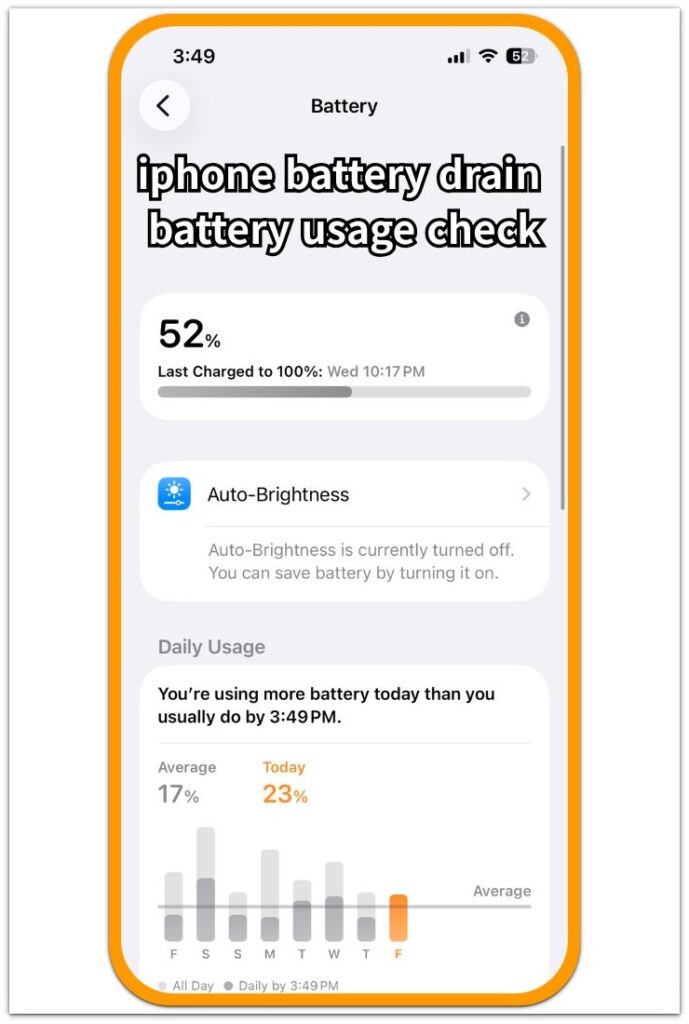
Battery percentage alone is not enough. Standby, cellular use, syncing, app use, and Lock Screen activity each need a different fix, so match the battery drain to that use pattern before changing more settings.
Idle and Lock Screen Battery Drop
Idle Time — iPhone Not in Use
This fits battery loss that happens while the iPhone sits unused.
Standby Break — Lower Percentage Between Checks
Choose this when the battery percentage is lower after a locked break.
Home and Lock Screen — Activity Near the Drop
Check this when Battery shows Home and Lock Screen near the battery change.
Lock Screen Widgets — Widgets Refreshing While Locked
Start here when widgets stay visible or refresh often on the Lock Screen.
Live Activities — Timers, Rides, Scores, and Deliveries
This covers timers, rides, sports scores, or delivery updates that keep running on the Lock Screen.
Step 2: Check Network and Connection Conditions
A fast battery loss often starts when the iPhone spends more power staying connected. Cellular data, weak signal, Wi-Fi, Bluetooth, VPN, and hotspot use all change the battery reading during the same period.
Open Settings, then Battery. Compare the drop with what was connected at that time. Check whether the iPhone was using cellular data, sitting in a weak signal area, connected to Wi-Fi or Bluetooth, using VPN, or sharing a hotspot.
Keep the same setup for one more check before changing wider battery settings. When the loss appears only under one connection type, start with that network or accessory first.
Connection and Signal Battery Drop
Cellular Data — Mobile Data Instead of Wi-Fi
Cellular data belongs first when the battery falls faster on mobile data than on Wi-Fi.
Weak Signal — Basements, Cars, and Unstable Areas
A worse result in elevators, basements, cars, offices, or unstable signal areas points to signal conditions first.
WiFi On — Idle Time With Wi-Fi Connected
Check this section when Wi-Fi stays on and the iPhone loses power during a locked or quiet period.
Bluetooth — Earbuds, Watches, and Car Systems
Nearby earbuds, watches, car systems, speakers, or other devices belong here when they stay connected or reconnect often.
Hotspot — Personal Hotspot Sharing Session
Personal Hotspot belongs in this section when sharing is on and the battery falls faster during that session.
Step 3: Check Apps, Access, and Recent Changes
Some battery loss begins after one app, permission, or system change starts working in the background. A new app install, Background App Refresh, Location Services, VPN, or a restart often shows up in Battery while the screen stays quiet.
Open Settings, then Battery. Compare the drop with the apps and activity shown during that period. Look at which app appears near the drop, whether location access was active, whether VPN was running, or whether the change began after a recent install or restart.
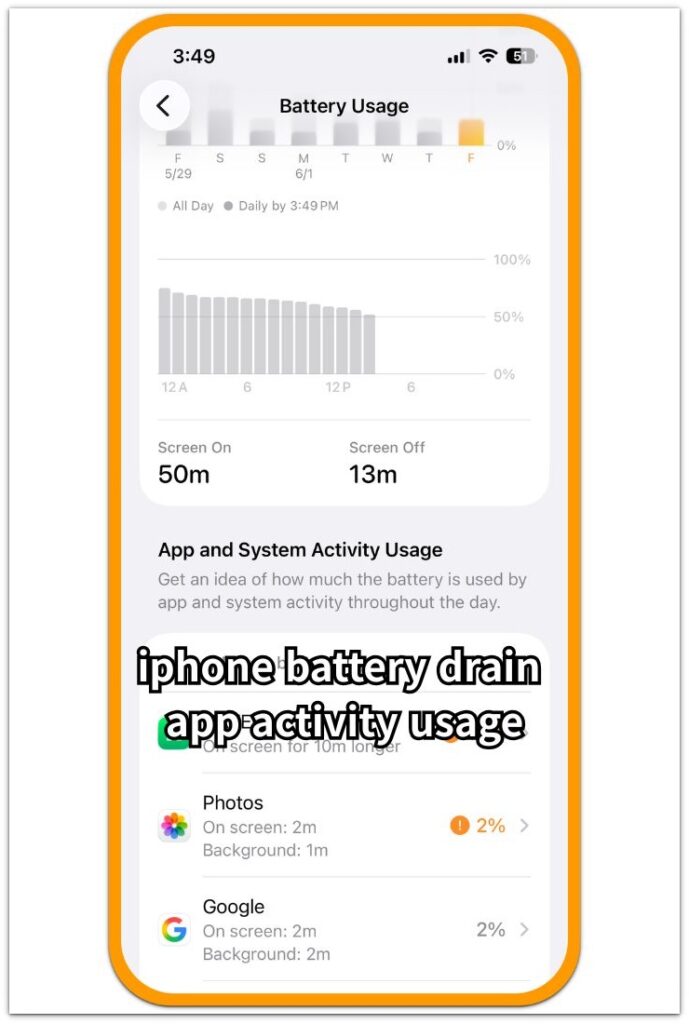
Change only the item that matches the timing first. Check one app, one permission, or one recent system change before turning off features that do not match the drop.
App, Access, and Recent Change Battery Drop
App After Install — New App Added Recently
A newly installed app belongs first when the battery loss begins right after adding it.
Background App Refresh — Apps Updating Behind the Scenes
This section fits battery loss that appears while apps refresh in the background.
Location Services — Maps, Weather, and Always-Allowed Apps
Location access matters first when the drop lines up with maps, weather, tracking, or always-allowed apps.
VPN — Protected Connection Running
Check VPN separately when Battery shows higher use during a protected connection.
After Restart — Drain Returns After Reboot
Restart-related drain fits this section when the battery falls again soon after the iPhone turns back on.
Step 4: Check Heavy Use, Media, and Sync Activity
Some battery loss happens during a clear task instead of idle time. FaceTime, Camera, Maps, Photos upload, and iCloud updates all use power in different ways, so compare the drop with what the iPhone was doing during that period.
Open Settings, then Battery. Look at the app or service active near the faster drain. Check whether the iPhone was on a call, using the camera, running navigation, uploading photos, or updating data through iCloud.
Keep that use separate during the next check. When the faster drain follows one visible task, start from that task instead of changing general battery settings.
Heavy Use, Camera, Navigation, and Sync Battery Drop
FaceTime — After a Video or Audio Call
FaceTime is the first section to use when the battery falls quickly during or right after a video or audio call.
Camera — Photos, Videos, and Repeated Camera Use
Photos, videos, or repeated camera sessions matter first when they match the battery loss.
Maps — Driving, Walking, and Long Route Guidance
Check Maps separately when the battery falls during driving, walking directions, or long route guidance.
Photos Upload — New Photos or Videos Syncing
Photo upload belongs here when the battery falls while new photos or videos are uploading.
iCloud Updates — Backups, Files, and Account Data
Use iCloud first when the battery falls while backups, files, photos, or account data update in the background.
Troubleshooting
Troubleshooting 1: Several Causes Overlap
A fast drain does not always point to one clean cause. A locked iPhone might sit on weak Wi-Fi, stay connected to Bluetooth, use Location Services, or follow a recent app change during the same period.
Use the clearest time match first. Open Battery, look at the period where the percentage fell, and choose the part of this guide tied to the strongest activity. Locked loss belongs with standby or Lock Screen checks. Calls, navigation, hotspot use, or photo syncing belong with that active task.
Troubleshooting 2: Battery Shows an App, but the Time Does Not Match
Battery might place one app near the top even though the faster drain began earlier or later. The app often appears because it was opened during the same period, not because it caused the whole loss.
Compare the app entry with the time the percentage fell. Work on that app only when the timing lines up with its use, background refresh, location access, or recent install. A mismatch points back to the situation itself.
Troubleshooting 3: One Setting Changes the Next Battery Check
A smaller drain after one setting is turned off gives a better direction, but it does not prove the full cause. Signal strength, syncing, heat, or another active feature still affects the next result.
Keep the next check simple. Leave other settings unchanged, use the iPhone in a similar way, and compare Battery again. A smaller loss makes that setting the first place to fix. A similar loss points to another section of the guide.
Official Source: Apple Battery Insights
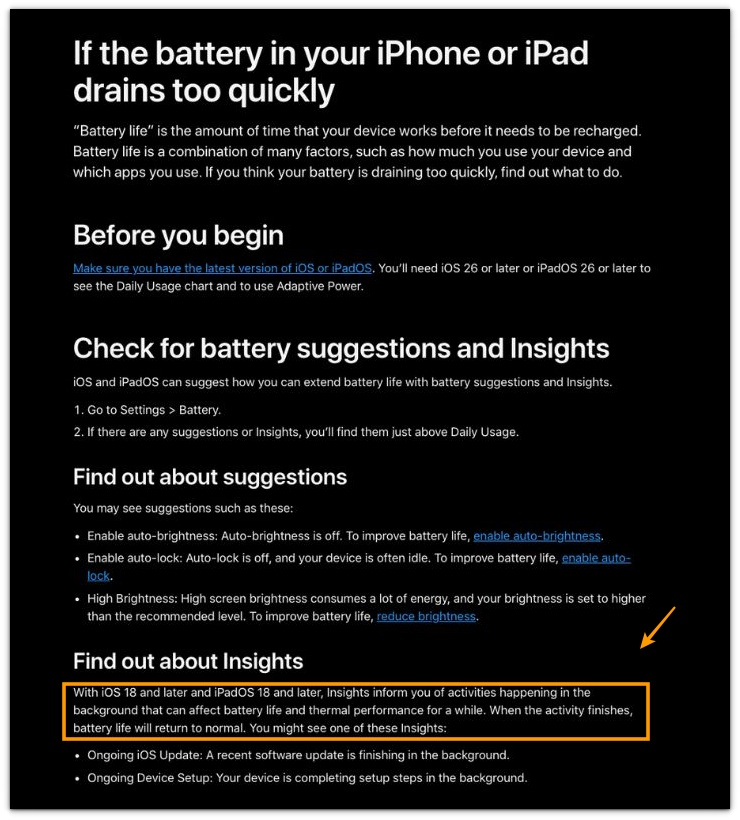
Apple explains that Battery Insights shows activity that affects battery life, including background activity. Use it when checking what happened during the battery drain.
Additional Tips
A very short battery check gives a weak reading. Use a longer period before treating one small change as a real battery drain problem.
Heat changes the result. Let the iPhone cool down first when the fast drop happens after charging, gaming, video calls, navigation, or long camera use.
A recent iOS update needs a separate reading. Let Battery Insights or setup activity settle before you treat the first result as a repeated battery drain problem.
Final Notes
iPhone battery drain is easiest to fix when the timing points to one clear use case. Standby, weak signal, app use, syncing, calls, and navigation all need different checks.
The strongest starting point is a repeated result under the same condition. Fix the app, connection, permission, sync activity, or Lock Screen feature tied to that moment, then check Battery again before making wider changes.
Checklist
- Check when the iPhone battery drain happens.
- Compare it with standby, signal, app use, syncing, or Lock Screen activity.
- Use the section that fits that moment.
- Check Battery again after one focused change.
- Fix the related app, connection, permission, sync activity, or Lock Screen feature first.