
Introduction
iPhone live activities battery drain becomes easier to notice when a score update, delivery progress, ride status, or timer stays on the Lock Screen or Dynamic Island while the battery keeps dropping.
The iPhone does not look busy in the usual way because the app is not open on the screen. The Live Activity remains visible, keeps updating, and makes the battery drop easier to match with that session.
This check starts with the time the Live Activity stayed on the screen and compares it with the faster battery drop.
Step-by-Step Guide: iPhone Live Activities Battery Drain
Step 1: Check the Live Activity on the Lock Screen or Dynamic Island
Start with the card that stayed on the Lock Screen or Dynamic Island when the battery dropped faster than usual. Check whether a score, delivery, ride, or timer is still updating there.
Keep the iPhone in the same kind of situation for the first check. Change only one thing after you know whether the drop happens during that live session.
Check the battery percentage after a short period and note whether the drop happens during that session.
Step 2: Repeat the Check With the Same Type of Live Activity
Use the same type again, such as another sports score, delivery update, ride progress, or timer. The app name matters less than the kind of live session that stays on the screen.
Keep the screen use, location, and general phone use similar during the next check. Compare whether the battery drops faster again while that session continues.
A repeated drop during the same type of session gives you a cleaner reason to keep checking Live Activities before changing unrelated battery settings.
Step 3: Compare the Battery Page With the Live Activity Time
Open Settings, then Battery, and look at the part of the day when the battery dropped faster. Compare that time with the period when the card stayed on the Lock Screen or Dynamic Island.
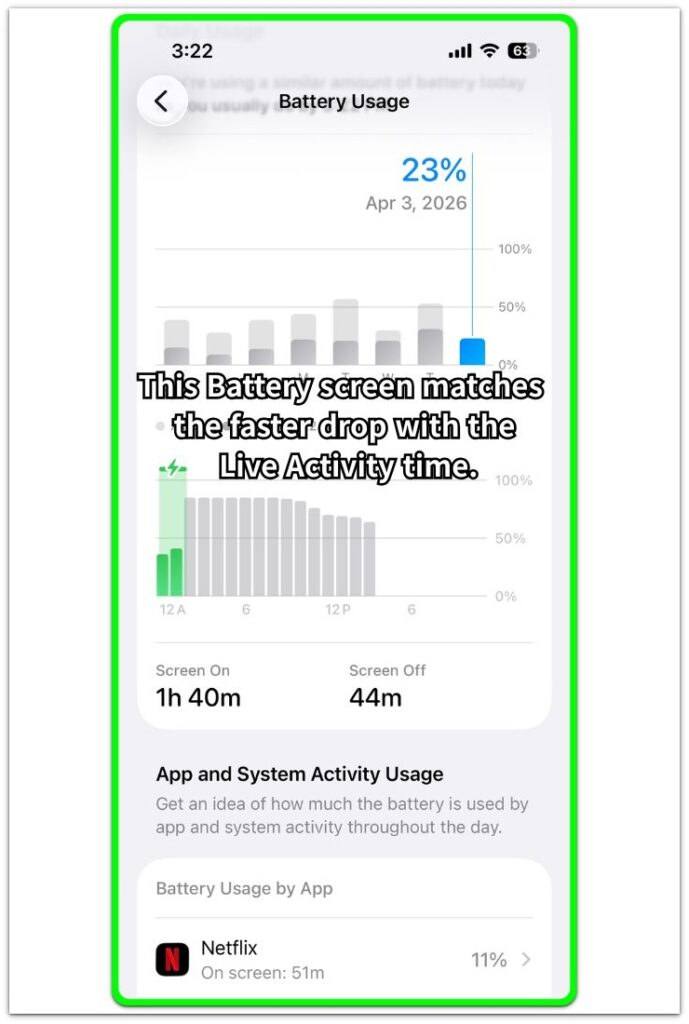
Check Screen On, Screen Off, and the app list near that battery drop. The goal is to see whether the faster drop lines up with that live session instead of guessing from the app name alone.
Use that timing result before changing the app’s Live Activities setting.
Troubleshooting
Troubleshooting 1: The Battery Drops Even After the Live Activity Disappears
A Live Activity is not the only part to check when the battery keeps dropping after it leaves the Lock Screen or Dynamic Island. Location, streaming data, navigation, or background updates often keep running after the visible Live Activity disappears.
Open Settings, then Battery, and check whether the same app appears near the later battery drop. A drop outside the Live Activity time points more toward the app’s battery behavior, location access, or background activity.
Troubleshooting 2: The Live Activity Looks Small but Keeps Refreshing
A small score, timer, ride status, or delivery card often stays active longer than it first appears. The battery check becomes more useful when you look at how long that card stayed on the Lock Screen or Dynamic Island, not only how small it looked.
Check the time span and the update frequency. A short timer is different from a long sports score, ride, or delivery update that keeps changing while the phone sits unused.
Troubleshooting 3: The Battery Page Does Not Point to One Clear App
Battery usage does not always point to one obvious app after a Live Activity session. Screen On, Screen Off, location use, and notifications often leave clues in different parts of the Battery page.
Look at the time of the faster drop first, then check the nearby app list and activity bars. When the app name is unclear, use the timing, Screen Off activity, and location-related clues before changing wider battery settings.
Extra Section 1: A Sports Score That Stayed Active Longer Than Expected
A sports score Live Activity often looks too small to matter, especially when you lock the iPhone and the game only shows a score, clock, or short play update. The app is not open, so the battery drop does not feel connected to normal screen use. The better clue is how long the score stayed visible and how often it changed during that time.
For example, a score card that stays on the Lock Screen through most of a game is different from a short timer that ends after a few minutes. The card only takes a small part of the screen, but it still keeps the live session visible while the game changes. The first check should follow the score session itself, not the size of the card.
Extra Section 2: A Ride or Delivery Card That Kept Changing
A ride or delivery Live Activity feels different from a sports score because the card often follows a moving status. The iPhone often shows a driver location, delivery progress, pickup time, or arrival estimate while the app is not open. The battery drop is harder to judge from the card alone.
A delivery card that changes from preparing to nearby to arriving soon is not only a small Lock Screen item. It belongs to a live session that keeps receiving changing information. A better check follows the ride or delivery period as one session and separates the visible card from the app activity during that time.
Official Source: Apple Explains Where Live Activities Appear
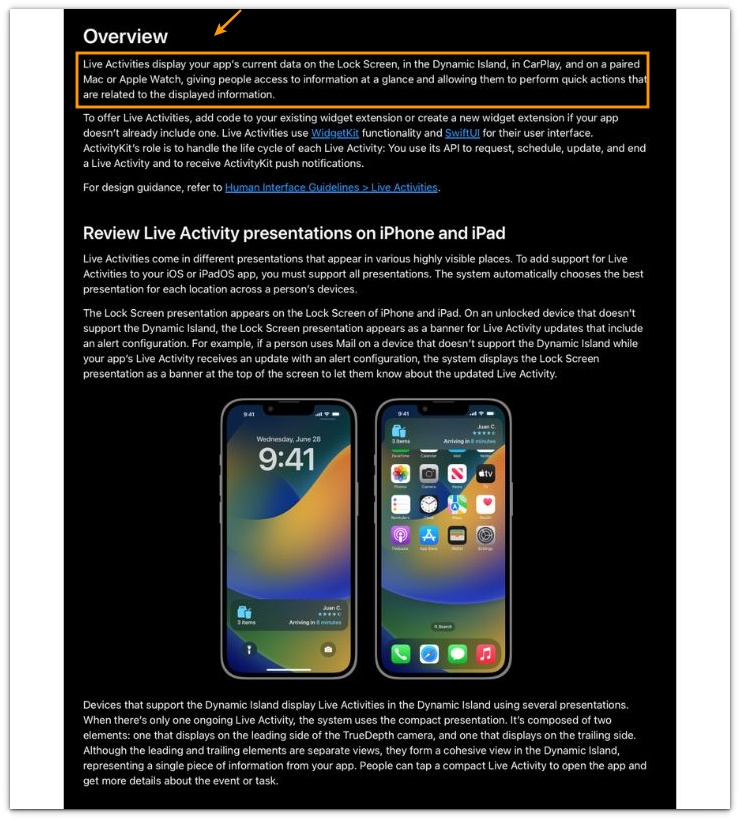
Apple explains that Live Activities display an app’s current data on the Lock Screen and in the Dynamic Island. That supports this article’s main check: compare the battery drop with the time the Live Activity stayed visible and kept showing changing information.
Additional Tips
A Live Activity check works best after one clear session, not during a day full of mixed app use. Sports, delivery, rides, and timers each refresh in different ways, so compare one type at a time.
Low Power Mode changes how some background behavior feels during the test. Run the first check with the phone in its normal setup, then use Low Power Mode only as a separate comparison.
Final Notes
iPhone live activities battery drain comes down to timing, not the size of the card. A small Lock Screen or Dynamic Island item still matters when it stays active and keeps changing during a long session.
The strongest clue appears when the faster battery drop lines up with the time the card stayed active. Once the timing matches, adjust the app’s Live Activity behavior first, then check wider battery settings only when the drop continues.
Checklist
- Check whether the card stayed visible during the faster battery drop.
- Compare one Live Activity type at a time, such as a score, ride, delivery, or timer.
- Open Settings, then Battery, and match the battery drop with the live session time.
- Review Screen On, Screen Off, and the nearby app list before changing settings.
- Limit the app’s Live Activity behavior first when the timing clearly matches.
- Check wider battery settings only when the drop continues outside the Live Activity session.
Use the main iPhone Battery Drain guide when the drop does not clearly match one Live Activity and you need to check other battery causes first.