
Introduction
iCloud battery drain iPhone becomes noticeable when the battery drops faster while photos, mail, files, or backup data are still syncing.
The problem is not just that iCloud stays on. The useful check is whether the drop appears during the same period when iCloud activity is still catching up.
Start from the Battery screen and the items that are still syncing. The next step checks whether the battery drop lines up with that sync period before changing unrelated settings.
Step-by-Step Guide: iCloud Battery Drain iPhone
Step 1: Check the Battery Drop Time First
Use the iPhone normally until the battery drop shows up again. Do not change Photos, Mail, backup, or background settings before this first check.
Open Settings, then Battery. Look at the Battery Usage screen and check when the battery level started falling faster.
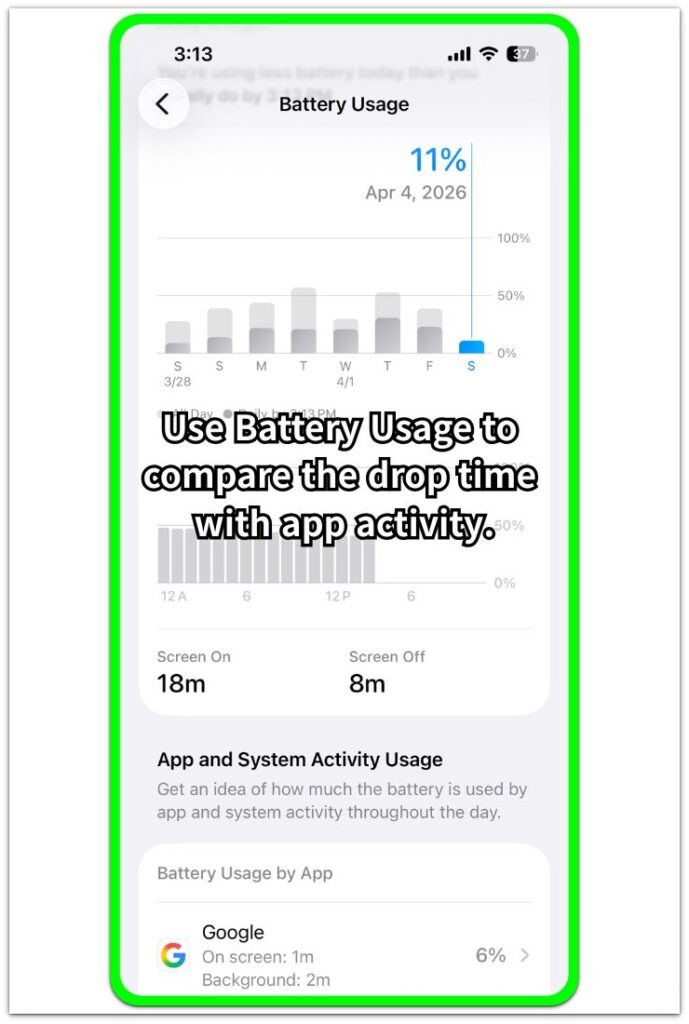
Compare that drop time with the period when Photos, Mail, files, or backup data were likely still syncing. This gives you the first timing clue before you change any setting.
Step 2: Check Whether the Drop Returns During Another Sync Period
Wait for the next normal stretch of use instead of judging the issue from one battery drop. Keep the phone close to your usual routine so the next check is easier to compare.
Open Settings, then Battery again after Photos, Mail, files, or backup data had time to sync. Look for another faster drop near that same kind of sync activity.
A repeated drop during another sync period is stronger than one drop that happened only once. Keep the check focused on timing before turning off several iCloud features at once.
Step 3: Check Which iCloud Item Matches the Battery Drop
Open Settings, tap your name, then iCloud. Look at the items that are still active, such as Photos, iCloud Drive, Mail, Messages, or iCloud Backup.
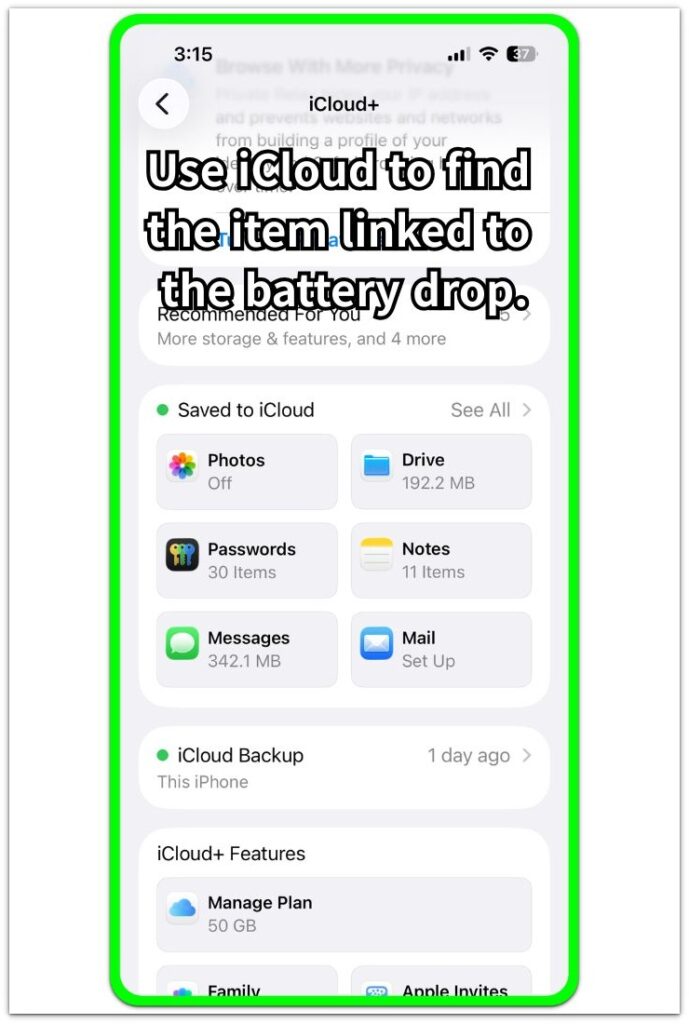
Match the active item with the battery drop you saw in Battery Usage. For example, a drop after many photos upload points toward Photos, while a drop near backup activity points toward iCloud Backup.
Change only the iCloud item that matches the repeated drop. After that, use the phone normally and check Battery again before changing anything else.
Troubleshooting
Troubleshooting 1: Battery Drops Even After iCloud Sync Looks Finished
The battery can keep falling even after Photos, Mail, files, or backup activity no longer looks active. Start by checking Battery again instead of turning off more items right away.
Open Settings, then Battery, and compare the new drop with the earlier sync period. A drop that continues long after the sync period points away from one iCloud task and needs a wider battery check.
Keep the iCloud setting unchanged for this check. Changing several items at once makes it harder to know whether sync caused the drop or another app was using power.
Troubleshooting 2: Photos Sync Returns After New Pictures
Photos starts syncing again when the iPhone adds new pictures, screenshots, or videos. The battery drop returns because the phone has new items to upload or organize.
Check whether the drop appears after taking many photos, saving videos, or restoring pictures from another device. Open Settings and look at Photos before changing Mail, Drive, or Backup.
When the drop keeps matching photo activity, keep the check focused on Photos first. Do not turn off unrelated items just because the battery number moved.
Troubleshooting 3: iCloud Battery Drain iPhone Appears Near Backup Activity
iCloud Backup lines up with a battery drop when the phone has recent app data, messages, settings, or files to back up. The timing matters more than the backup label alone.
Open Settings, tap your name, then iCloud, then iCloud Backup. Check the last backup time and compare it with the drop you saw in Battery.
A drop that keeps appearing near backup activity gives you a stronger clue. Leave other iCloud items alone until backup timing clearly matches the repeated battery drop.
Extra Section 1: Photos Catch Up After New Pictures and Videos
A user takes many pictures, saves a few videos, and receives more photos from another device. Later, the battery drops faster than usual, and iCloud looks suspicious because the change happened soon after new media appeared on the iPhone.
Keep the check focused on Photos first. Open Settings and look at Photos before changing Mail, iCloud Drive, or Backup. When that photo activity is still catching up, leave Mail, iCloud Drive, and Backup unchanged for this round.
Use the phone normally again after the photo activity settles, then check Battery one more time before turning off other features.
Extra Section 2: Backup Runs After App and Data Changes
A user installs a few apps, receives more messages, changes settings, or moves data onto the iPhone. Later, the battery drops faster than usual, but Photos does not explain the timing because no large photo or video change happened.
Start with iCloud Backup in this situation. Open iCloud Backup and check whether the last backup happened after those app, message, or data changes. Keep this check on Backup first, especially when Photos has no new media to explain the timing.
Check the next backup period after another normal round of app, message, or data changes. A single close match only gives you a starting clue. Backup timing becomes more useful when the same kind of drop appears again after another round of changes.
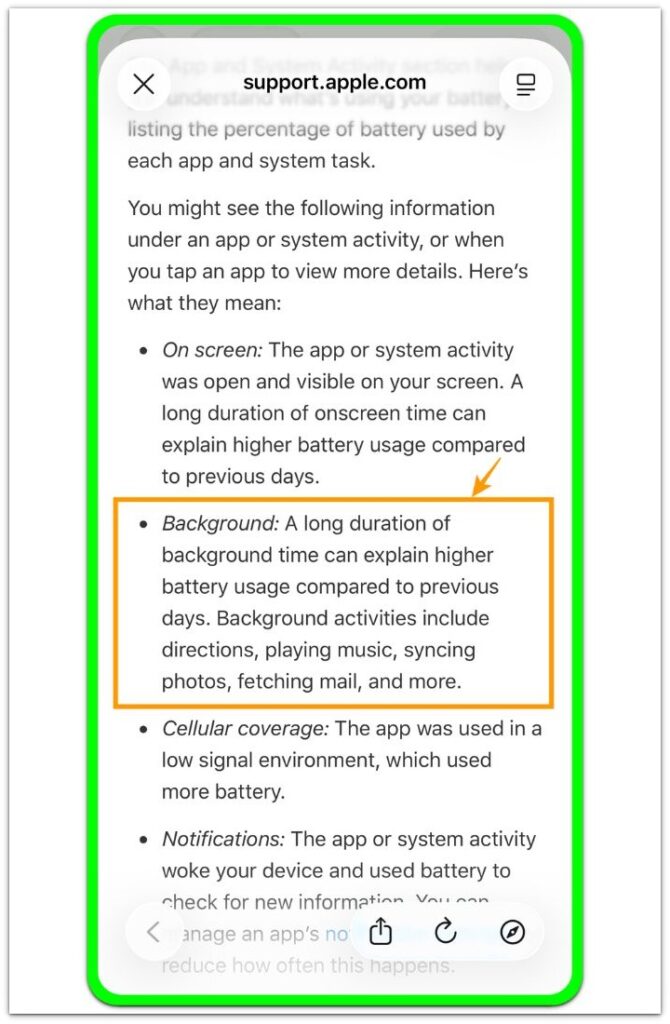
Official Source: Apple Background Activity Includes Syncing Photos and Fetching Mail
Apple explains that background activity can include syncing photos and fetching mail. Use this source when checking whether the battery drop lines up with photo or mail sync activity, instead of judging the issue from the iCloud setting alone.
Additional Tips
A large iCloud sync is easier to read when the iPhone is on stable Wi-Fi and has enough battery left. A weak connection or low power can stretch the activity out and make the battery drop look harder to separate.
Recent setup changes can make the first Battery check harder to read. Let one normal use period pass before treating the first drop as the main clue.
Keep the first check tied to the item that changed most recently. Treat Photos, Mail, Drive, and Backup separately when only one of them matches the battery drop.
Final Notes
iCloud battery drain iPhone becomes a stronger clue when the battery drop keeps matching a real sync period. A single drop near iCloud activity gives you a starting point, but a repeated drop near Photos, Mail, files, or Backup carries more weight.
The right fix is not to shut off iCloud broadly. Start with the item that matches the repeated battery drop, leave unrelated items unchanged, and check Battery again after normal use.
When the drop stops following that sync period, that iCloud activity likely caused the issue. When the drop continues outside sync periods, the battery check needs to move beyond iCloud.
Checklist
- Check the Battery screen before changing iCloud settings.
- Compare the battery drop with the time when Photos, Mail, files, or Backup syncs.
- Focus on the iCloud item that changed most recently.
- Change only the item that keeps matching the repeated battery drop.
- Check Battery again after normal use before changing other iCloud features.
For a wider iPhone battery check, start with the main guide above.