
Introduction
iPhone Bluetooth battery drain becomes suspicious when the battery drops while AirPods, a car system, Apple Watch, speaker, or another device stays connected. The accessory still looks connected, the Bluetooth icon looks normal, and music is not playing, but the battery keeps dropping while the iPhone remains linked to that device.
The switch alone does not explain this kind of drain. A quiet accessory can still keep a connection active, so check whether the drain follows the connected device rather than the Bluetooth switch itself.
Step-by-Step Guide
Step 1: Check Whether Bluetooth Is Staying Connected in the Background
Open Settings → Bluetooth, but do not look at the switch only. Check the Devices list under the switch because connected AirPods, a car system, speaker, watch, keyboard, or another accessory means the iPhone is doing more than keeping Bluetooth available.
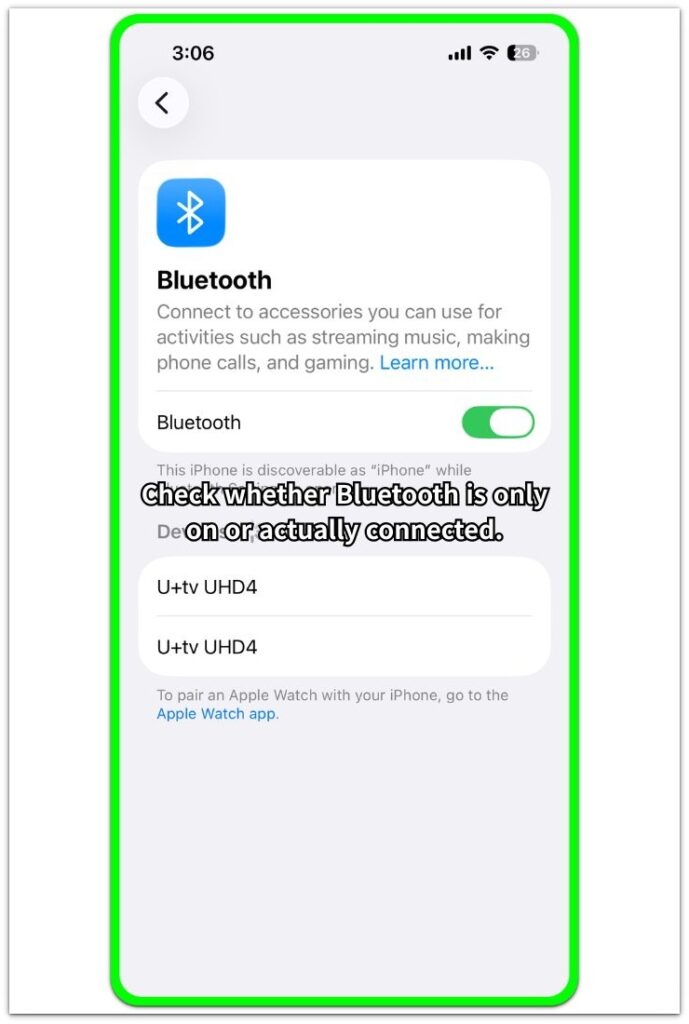
Use this screen to check whether the iPhone is only keeping Bluetooth on or staying connected to a real accessory. Leave the screen open for a moment and watch whether the same device reconnects or stays listed before judging the battery drop.
Step 2: Open Battery Usage and Check the Same Time Period
Open Settings → Battery, then check the battery graph first. Look at Battery Usage by App for the same period as the drop because the Bluetooth setting being on does not prove it caused the drain.
Check what else was active while the accessory stayed connected. A music app, the Phone app, a car audio app, a watch app, or an accessory app could still be working during that period.
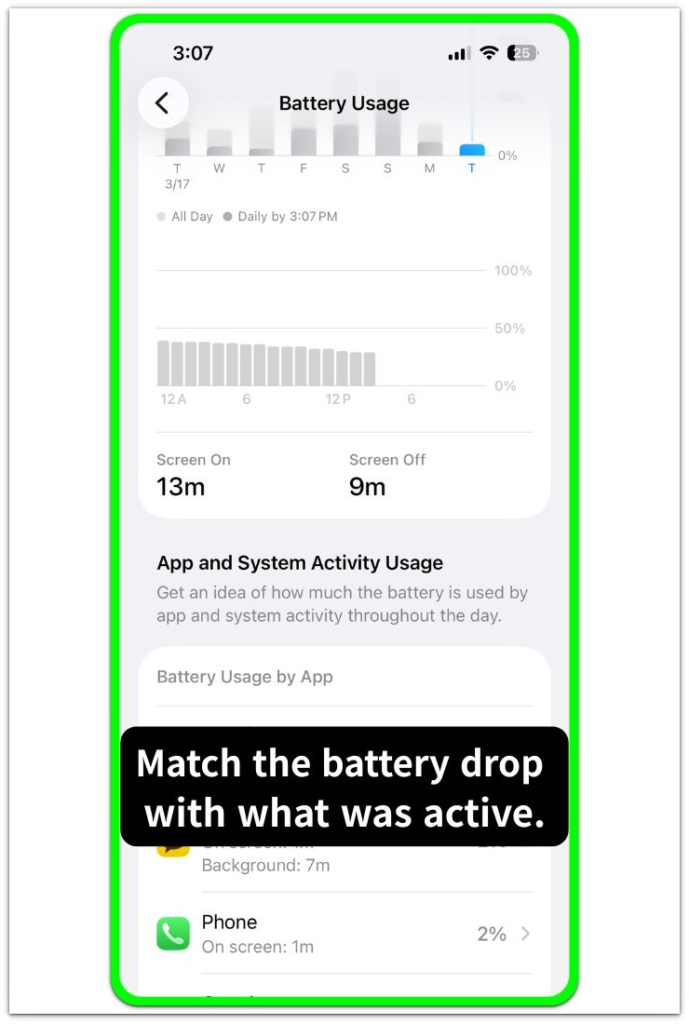
Use the Battery Usage screen to check which apps or services were active during the same connection window. Check whether the drop lines up with the connection, an app below the graph, or both.
This separates a real connection-related drop from a case where Bluetooth is only one visible clue.
Step 3: Separate Idle Mode From Real Device Use
Compare two different moments. First, leave Bluetooth on when no accessory is being used, then check the battery again after AirPods, a car system, Apple Watch, speaker, or another accessory stays connected.
A normal reading with idle Bluetooth is different from a faster drop during real device use. A faster drop during the connected test points more toward the accessory connection than the switch.
Troubleshooting
Troubleshooting 1: iPhone Bluetooth Battery Drain Still Appears After Bluetooth Checks
A drop that still appears after these checks should not be judged from the switch alone. Open Battery Usage again and match the drop with what was active during that window.
A weak signal, location access, hotspot use, or a heavy app session can happen while Bluetooth stays visible in Control Center. In that case, Bluetooth is only one clue, and another service may be doing the real work.
Troubleshooting 2: One Accessory Keeps Matching the Drop
The problem becomes clearer when the drop keeps coming after the same accessory connects. A car system, earbuds, speaker, watch, keyboard, or tracker can stay linked longer than expected, so check whether the drop starts after that device links again or wakes its companion app.
Test one device at a time. Keep that accessory away for one quiet window and compare the battery again. A lighter drop without that device points more toward the accessory connection than the switch.
Troubleshooting 3: No Device Stays Connected, But the Battery Still Falls
A fast drop with no connected device moves the problem beyond the Bluetooth screen. Check Battery Usage before changing more connection settings, then look for the app, signal condition, location access, or system activity that matches the same drop.
Turning Bluetooth off will not fix a drain that continues with no active connection. In that case, Bluetooth is only the visible setting, not the main cause.
Extra Section 1: One Car Bluetooth Connection Made the Drain Look Worse
One car system made this problem harder to judge. The iPhone looked normal before the drive, but the connection started as soon as the car turned on and did not show any warning.
The screen stayed quiet, and music was not playing the whole time. Still, the battery drop looked heavier after short drives with that same car connection. On lighter days without that car connected, the battery did not fall the same way.
Here, the drain followed one connection, not Bluetooth as a whole.
Extra Section 2: Bluetooth Stayed On, But Another App Caused the Drop
Another iPhone looked suspicious for a different reason. Bluetooth stayed on all day, but no device stayed connected long enough to explain the drop.
AirPods were back in the case, the car system was not nearby, and no speaker, watch, or keyboard stayed linked on the device list. Still, the battery kept falling during quiet time.
The visible setting looked guilty because it was easy to see, but Battery Usage told a different story. A social app and weak signal showed up around the same drop, so turning Bluetooth off would not have fixed that kind of drain.
Official Source: Apple Says Control Center Bluetooth Does Not Fully Turn Off Bluetooth
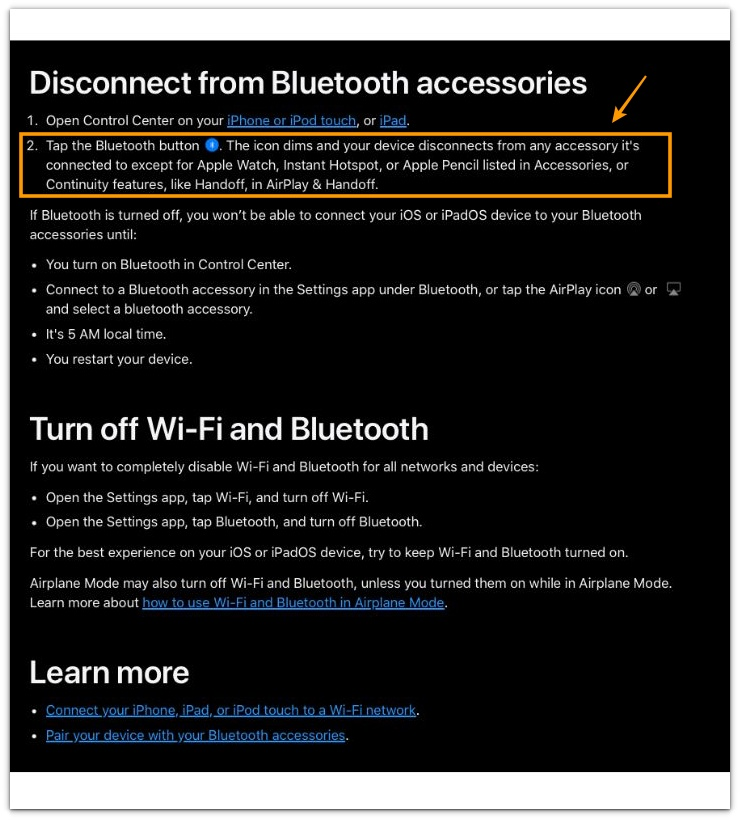
Apple explains that the Bluetooth button in Control Center disconnects Bluetooth accessories, but Bluetooth still remains available for features such as Apple Watch, Instant Hotspot, Apple Pencil, and Continuity.
Control Center Bluetooth, a disconnected accessory, and an active connection are three different battery situations. Use this point to separate Bluetooth being on from a background connection that keeps working.
Additional Tips for iPhone Bluetooth battery drain
Keep Bluetooth on if AirPods, a car system, Apple Watch, speaker, or another accessory is part of normal daily use. Turning it off all day after one lower-battery day gives a weak clue.
Watch for the part that repeats. One device, one app, one car connection, or one daily routine gives a clearer clue than the switch itself.
A short drop while using a device is different from a steady drop while the iPhone sits mostly idle. Normal Bluetooth use should not look the same as a connection that keeps the phone active after the screen is off.
Final Notes
iPhone Bluetooth battery drain should not be judged from the Bluetooth switch alone. The real clue is whether the drop follows one device, one connection, or the same background activity.
A steadier reading without that device points more toward the connection than the setting itself. The same drain with no connected device is no longer a simple Bluetooth issue.
Bluetooth being on is normal. A repeated drop with one connection, one device, or no visible connection needs a deeper battery check, not another quick Bluetooth guess.
Checklist
- Check whether Bluetooth is only turned on or actually connected to a device.
- Open Battery Usage before blaming the Bluetooth switch.
- Compare idle Bluetooth with real accessory use.
- Check whether the battery drop follows one specific device.
- Check whether the drop still appears without an active Bluetooth connection.
For broader iPhone battery drain patterns beyond Bluetooth alone, open the main iPhone battery drain guide above.