
Introduction
FaceTime battery drain on iPhone becomes noticeable when the battery drops more than expected right after a normal call. The call does not feel unusually long, but the percentage looks lower once you hang up and check the phone again.
Start with the period right around the call. Check whether the faster drop happens again after another similar session, then compare that result with call length, screen time, and recent battery activity before changing settings.
Step-by-Step Guide: FaceTime Battery Drain on iPhone
Step 1: Check the Battery Right After One Normal FaceTime Call
Start with one normal FaceTime call that is close to the session where the faster battery drop first appeared. Keep the check simple and leave battery settings, background app settings, cellular settings, and display settings unchanged before this first check.
After it ends, open Battery and look at the drop during that period. Compare the battery change with call length and Screen On time. A bigger drop after a normal-length call is enough reason to check one more similar call before changing settings.
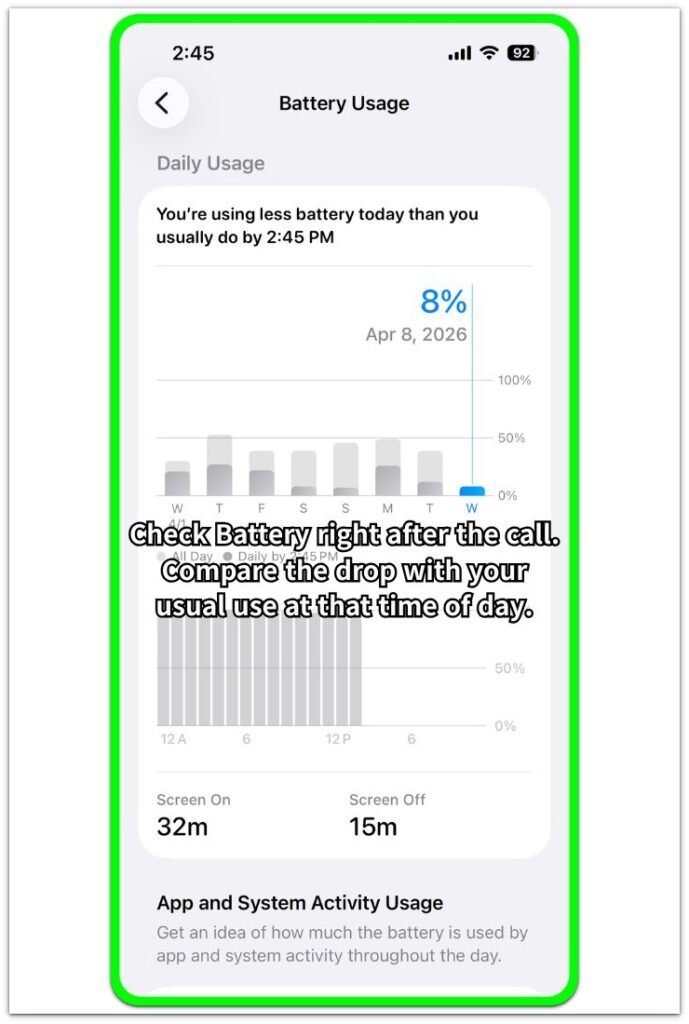
Repeat the same kind of call only when the drop looks stronger than your usual battery use at that time of day.
Step 2: Repeat the Test With a Similar Call
Repeat the test with another similar call in length and timing. Use the phone normally during that session, and keep the main settings unchanged between the two checks.
Open Battery again after the second call ends. Compare the new drop with the first result, then check whether Screen On time and recent activity look similar. A repeated drop after a similar session carries more weight than one unusual result.
Keep the comparison focused on that video session, not the whole day. A single long day, heavy app use, or a different time of day makes the result weaker.
Step 3: Check Whether the Call Used Wi-Fi or Cellular
Go back to the sessions that showed the stronger drop and check the connection during those periods. Look at whether the iPhone stayed on Wi-Fi, moved to cellular data, or switched between connection types during the call period.
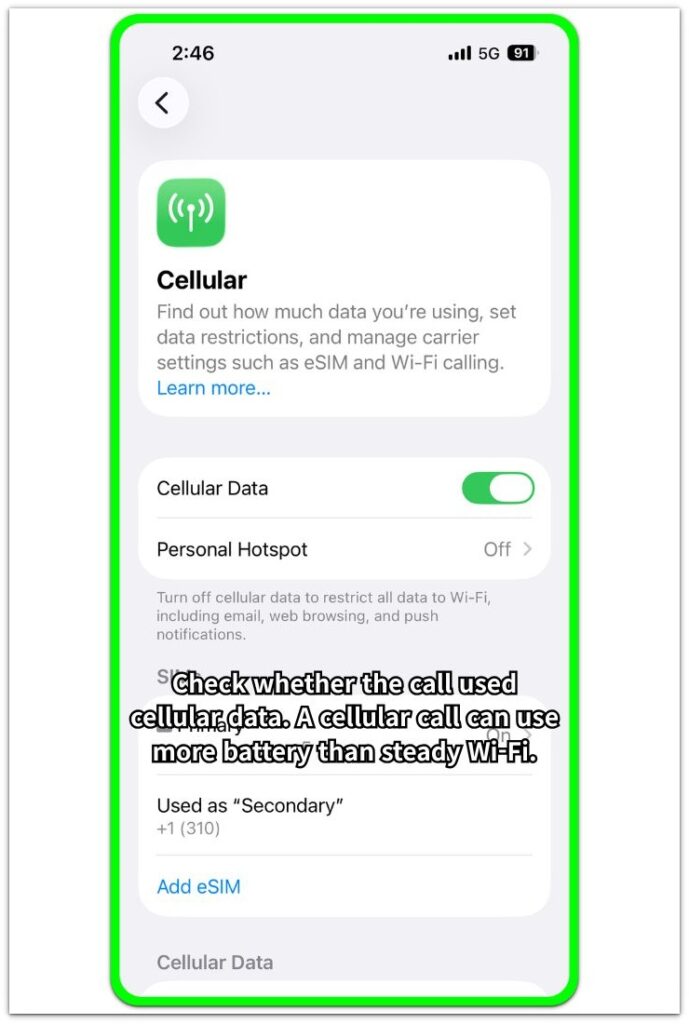
Compare the battery drop with the connection type, call length, and Screen On time together. A stronger drop on cellular points first to the connection during that period. A similar drop on steady Wi-Fi puts more weight on call length, screen time, and recent activity.
Use the strongest detail from this check as the first troubleshooting point. Keep the next check focused on the FaceTime call condition before changing unrelated battery settings.
Troubleshooting
Troubleshooting 1: Cellular Calls Use More Battery
A FaceTime call that uses cellular data often leaves a stronger battery drop than the same kind of call on steady Wi-Fi. The difference often stands out outside the house, in a moving car, inside a building, or anywhere the signal changes during the session.
Check the next video call in a steadier signal area. Compare that result with the cellular session that drained faster. A slower drop in a better signal area points more to the connection during the call than to FaceTime alone.
Troubleshooting 2: FaceTime Battery Drain During Long Screen-On Calls
A FaceTime battery drop looks larger when the screen stays on for most of the session. This matters more when the call ran longer than usual, the screen stayed bright, or the iPhone stayed warm by the end.
Open Battery afterward and compare the drop with Screen On time. A larger loss during a longer screen-on session needs one similar-length check before changing unrelated battery settings.
Troubleshooting 3: Battery Keeps Falling After the Call Ends
The battery clue becomes stronger when the percentage keeps falling after the FaceTime session ends. This stands out after you lock the phone again, but the percentage keeps dropping more than it usually does after normal use.
Check Battery again after a short locked period. Look for recent activity around the app, network use, or another app that stayed active afterward. A repeated post-call drop points first to that follow-up activity, not only to call length.
Extra Section 1: A Short Ride Makes the Battery Drop Look Worse
A normal FaceTime call leaves a larger battery drop when it runs on cellular data instead of steady Wi-Fi. The difference is easier to notice outside the house, inside a large building, or during a short ride where the signal changes while the call stays connected.
The call length still looks normal, so the first Battery check feels easy to misread. Check whether the session ran on cellular before changing FaceTime or battery settings. A smaller drop on steady Wi-Fi points more to the cellular connection during the call than to the app alone.
Extra Section 2: The Drop Shows Up After the Lock Screen Returns
A FaceTime call ends, and the iPhone goes back to the lock screen. A few minutes later, the battery percentage still looks lower than expected. The session itself was not unusually long, so the extra drop needs a closer look right afterward.
This check matters when the battery keeps falling after the call, not while the call is still active. Open Battery after the phone has stayed locked for a short period and review recent activity near that time. Look for FaceTime, network use, or another app that stayed active right after it ended.
A repeated post-call drop points more to follow-up activity than to call length alone. Start there before changing unrelated battery settings.
Official Source: Apple’s Wi-Fi Battery Guidance
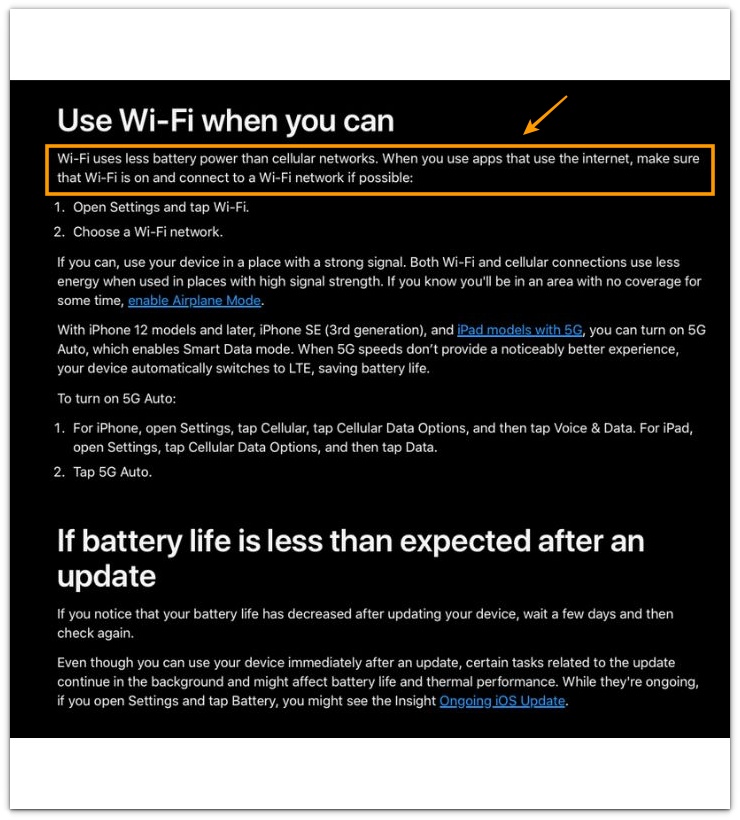
Apple explains that Wi-Fi uses less battery power than cellular networks. Separate Wi-Fi calls from cellular calls before treating the battery drop as a FaceTime-only issue.
Additional Tips
A very short FaceTime call gives a weak battery clue. Use a normal session length before treating the drop as a real calling issue.
A warm iPhone makes the result harder to read. Check the battery again after the phone cools down, especially when the call happened while charging or in a warm room.
Low Power Mode changes the comparison between calls. Keep the same battery mode for both checks so the second call does not look better only because the iPhone used a different power setting.
Final Notes
FaceTime battery drain on iPhone matters when the stronger drop repeats around similar calls. One normal call with a larger drop is only the starting clue. A second similar session, the connection type, Screen On time, and recent battery activity decide whether the call pattern deserves attention.
The strongest check is whether the drop follows the call condition. Cellular use, long screen-on calls, weak signal, or post-call activity each points to a different fix. Repeated drops around the same condition deserve action before unrelated iPhone battery settings.
Checklist
- Use one normal FaceTime call before changing settings.
- Compare the battery drop with call length and Screen On time.
- Repeat the check with a similar call.
- Separate Wi-Fi calls from cellular calls.
- Notice whether the iPhone stayed warm during or after the call.
- Review recent activity when the battery keeps falling after the call ends.
- Change only the setting that matches the strongest clue.
For a broader battery check, use the main iPhone battery drain guide to see what else could be causing the drop before changing call settings.