
Introduction
iPhone battery drain on cellular data becomes easier to notice when the battery drops faster after Wi-Fi turns off and the iPhone stays on mobile data.
The first clue is not the cellular switch by itself. It is the battery drop that appears during a mobile data session, especially when your use does not feel heavy enough to explain the change.
Start by checking the battery level before using cellular data for a short period. Then compare it with the level afterward, before changing other battery or network settings.
iPhone Battery Drain on Cellular Data Step-by-Step Guide
Step 1: Check Whether the Battery Drop Starts on Cellular Data
Start by checking the battery level before you change any battery or network settings. Turn off Wi-Fi and use the iPhone on cellular data the way you normally would for a short period.
Keep the test simple. Use one ordinary activity, such as browsing, messaging, or watching a short video, instead of jumping between several different tasks. The goal is to see whether the faster drop starts during that short session, not to prove the exact cause right away.
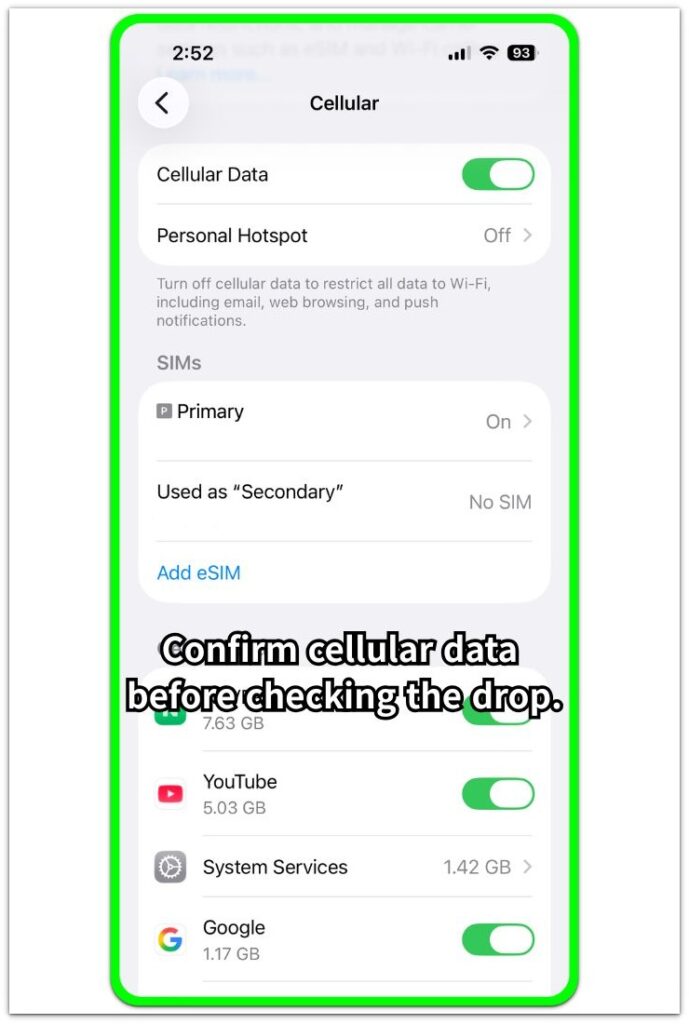
Check the battery level again afterward. A faster drop after Wi-Fi turns off gives you the first clue to compare with another normal mobile data check.
Step 2: Keep the Same Kind of Use and Check Whether the Drop Returns
Use mobile data again with a similar type of activity. Keep it short and ordinary so the result stays easy to compare with the first check.
Avoid changing brightness, Low Power Mode, background settings, or app permissions during this part. Too many changes make the next battery result harder to read.
Check whether the battery still drops faster than expected during that similar session. A repeated drop during similar use carries more weight than one random drop after Wi-Fi turns off.
Step 3: Check Whether the Faster Drop Stays Tied to Cellular Data or One App
Open Settings, then Battery, and compare the battery drop with the apps shown during the same cellular data period. Look for one app that rises clearly during that session, but do not stop at the app name alone.
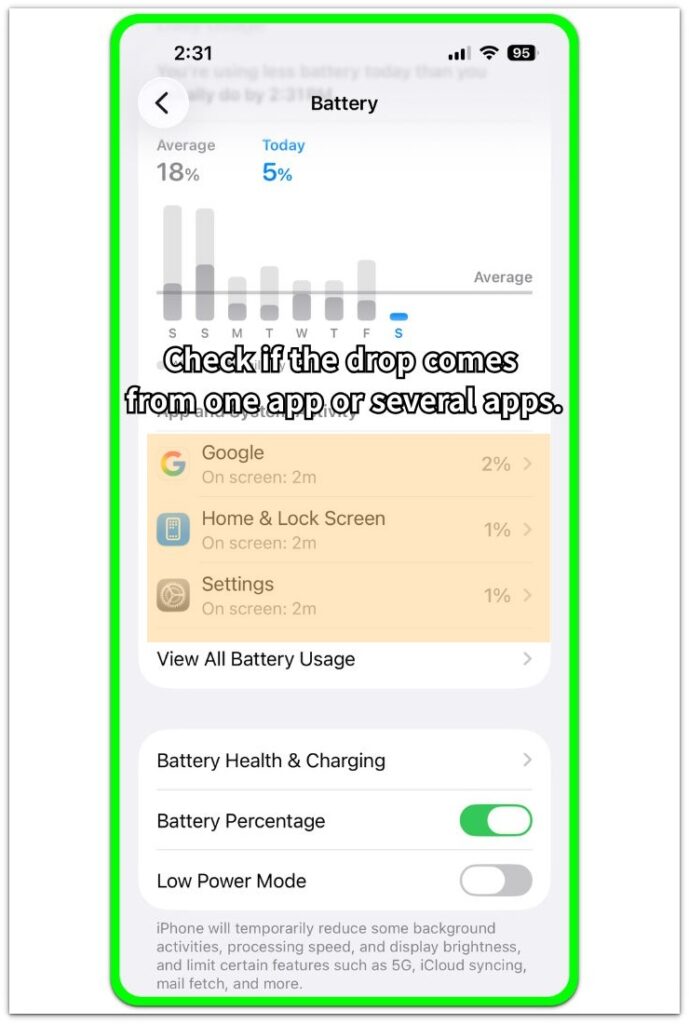
Use two or three ordinary apps on cellular data and check the Battery screen again. When the faster drop appears across different apps, the pattern points beyond one single app.
When one app keeps matching the drop, start there before changing wider network settings. Several normal apps showing the same kind of drain on cellular data point the next checks toward signal strength, background activity, and mobile data use.
Troubleshooting
Troubleshooting 1: When the Battery Drops Faster Only in Weak Signal Areas
A fast drop on cellular data does not always come from the app you are using. The iPhone works harder when the signal is weak, unstable, or switching between coverage areas.
Check where the faster drop happens. Underground spaces, elevators, moving cars, crowded buildings, and edge-of-coverage areas can drain more battery than stronger coverage during similar use.
Try a short cellular data session in a place with better signal. A slower drop there points more toward signal strength than a broken battery or one app problem.
Troubleshooting 2: When One App Uses More Battery on Cellular Data
Some apps use more power on cellular data because they load video, refresh feeds, upload files, or keep location active while you use them. A single app that keeps matching the faster drop deserves the first check.
Start with that app before changing wider network settings. Lower video quality, stop auto-play, pause uploads, or limit background activity for that app.
Check cellular data again after changing only that app’s behavior. A smaller drop after that change points back to app activity, not the whole mobile data connection.
Troubleshooting 3: When the Drop Continues Across Several Normal Apps
A wider cellular data problem becomes more likely when several ordinary apps all match the faster battery drop. Browsing, messaging, email, and light video should not all create the same sharp drop unless something else is adding load.
Check signal strength, Background App Refresh, location access, and any cloud sync that keeps running while cellular data stays on. Keep the test narrow and change one area at a time.
Test again after each change. The result is easier to trust when each check changes only one signal or background setting.
Extra Section 1: When Moving Around Makes Cellular Data Drain Look Worse
A short cellular data session can look normal in one place but drain faster while the iPhone keeps moving. This often happens during a commute, inside a car, near subway exits, or between buildings where the signal keeps changing.
The app on the screen may not be the real reason for the faster drop. The iPhone is also trying to keep the mobile connection stable while the signal moves between stronger and weaker coverage. That extra connection work can make a light session look heavier than it really was.
Compare it with the same kind of use in one steady place. A smaller drop there points more toward changing signal conditions than the cellular data switch itself. Keep that difference in mind before blaming one app or changing several network settings at once.
Extra Section 2: When Light App Use Still Moves Too Much Data
A mobile data check can look light on the screen while one app quietly moves a lot of data. This often happens when a messaging app uploads media, a cloud app syncs photos, or a social app keeps loading video and new posts.
The battery drop can look confusing when screen time does not seem high. The app was not just sitting open. It was using the mobile connection to send, load, or refresh content while the session looked ordinary.
Check what the app was doing during that short cellular data period. A smaller drop after pausing uploads, lowering video quality, or stopping auto-play points back to app activity over mobile data, not the cellular connection by itself.
Official Source: Apple Battery Usage and Low Signal Details
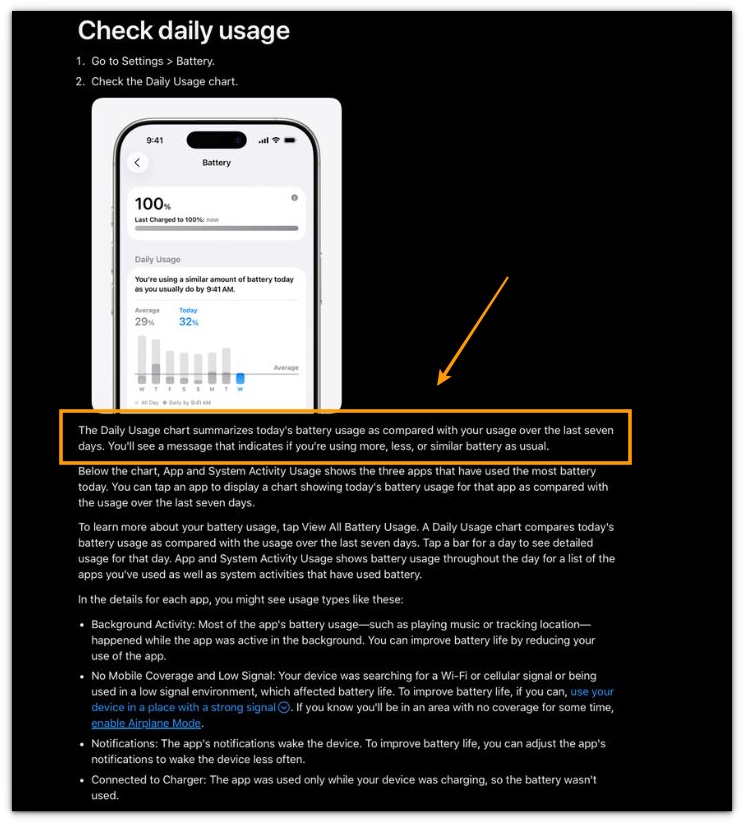
Apple explains that the Daily Usage chart compares today’s battery use with recent usage. In Battery details, Apple also lists “No Mobile Coverage and Low Signal” as a usage type when the iPhone searches for a cellular signal or stays in a low-signal area.
Before changing more settings, check those Battery details and compare the drop with signal strength and recent cellular use.
Additional Tips
Keep Low Power Mode out of the first cellular data check. It changes background activity and makes the result harder to compare.
Avoid testing cellular data right after a large iOS update, app update, or photo sync. Those short windows can make mobile data look worse even when the normal pattern is not back yet.
Check roaming or travel settings separately when the faster drain happens away from your usual area. A different carrier connection, weaker coverage, or travel-related syncing can change the battery result for that session.
Final Notes
iPhone battery drain on cellular data becomes a real issue when the faster drop returns during similar use and matches what the Battery screen shows.
A single app points to an app activity problem first. A faster drop in weak or changing signal areas points more toward coverage. A faster drop across several normal apps points toward a wider cellular data, signal, or background activity issue.
The strongest clue comes from matching the battery drop with one clear condition. Compare the session length, signal strength, app activity, and Battery details before changing more settings. Once the same signal, app, or background clue returns, fix that area first instead of treating cellular data as the whole problem.
Checklist
- Check the battery level before using cellular data.
- Use one normal cellular data session with Wi-Fi off.
- Compare the Battery screen with that session.
- Look for one app, weak signal, or background activity.
- Change only one setting at a time.
- Treat it as cellular-data related only when the faster drop returns with the same clear clue.
For a wider iPhone battery check, use the main battery guide to compare cellular-data drain with screen use, signal strength, and background activity.