
Introduction
iPhone battery drain with VPN becomes noticeable when the battery starts dropping faster after the VPN connection stays on for a while.
The phone still works normally. You use it the same way as usual, but the battery graph falls faster while VPN remains connected in the background.
Battery does not always show one clear app during a VPN-connected drop. No warning appears, and the VPN app can still look normal while the connection keeps running.
Start with the VPN-connected period. Compare the battery drop with screen time, VPN status, and the apps used during that stretch.
Step-by-Step Guide
Step 1: Check When the Battery Drop Starts
Start by turning VPN on the same way you normally use it. Keep the connection active instead of changing battery settings first.
Open Settings, go to General, then tap VPN & Device Management. Check whether VPN is connected, and note the time when the connection starts.
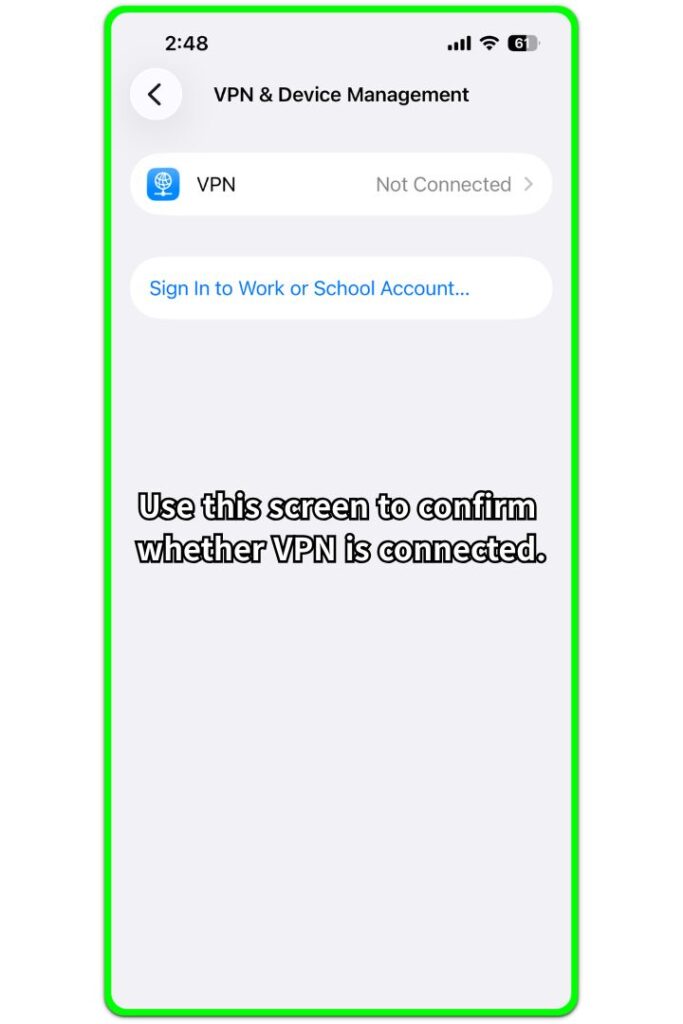
Then use the iPhone normally for a while. Keep the screen use, apps, and network conditions as close to normal as possible.
Use this step only to mark the VPN-connected period. The battery comparison comes next, after you know when the VPN session started.
Step 2: Compare the Drop During Normal Use
Use the iPhone the way you normally would with VPN on. Open similar apps and stay on one network if possible.
Now compare the battery drop during that normal VPN session. Keep gaming, long video calls, navigation, downloads, and other heavy tasks out of this check.
A fast drop during heavy use belongs in a separate check. For this step, use the normal VPN session as the comparison point.
Step 3: Check Whether the Connection Is the Main Change
Run one cleaner check after the normal VPN session. Keep screen use, apps, network, and charging state close to the earlier test.
Open Settings, go to General, then tap VPN & Device Management. Tap VPN and check the VPN screen so the connection status is clear before you compare the next battery drop.
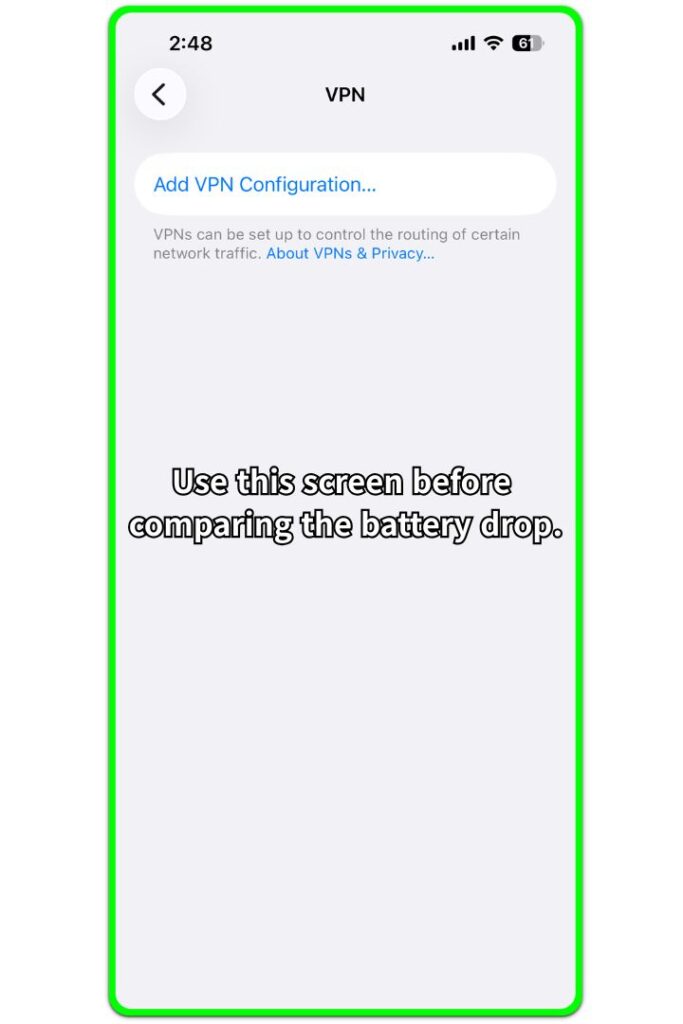
Leave VPN connected and use the iPhone normally for another short period. Then compare the battery drop with the earlier result.
If the faster drop returns during this cleaner check, open Battery usage next. Compare the apps or system entries that appear during that VPN-connected period.
Troubleshooting
Troubleshooting 1: The Battery Drop Only Shows Up With One VPN App
A faster drop tied to one VPN app needs a separate check from general VPN use. Keep your iPhone use similar, then compare that VPN app with another VPN app or turn the connection off for a short period.
Use a similar session for each check. Stay on one network, open similar apps, and keep downloads, navigation, hotspot use, and long video streaming out of the comparison.
When the drop becomes lighter with another VPN app or with VPN off, keep the next check focused on the first app. Leave wider iPhone battery settings alone until that app has been checked in Battery usage.
Troubleshooting 2: iPhone Battery Drain With VPN Looks Worse During Heavy Use
Streaming, navigation, downloads, hotspot use, and long screen-on time add their own battery load. They can make iPhone battery drain with VPN look worse than it really is.
Run another check during a quieter VPN session. Keep the connection on, but leave heavy tasks out for a short period. Then compare the drop with the earlier heavy-use session.
A quieter session helps separate the connection from normal power-heavy activity. If the drop slows down, the first result was too crowded to use by itself.
Troubleshooting 3: The Battery Drop Does Not Show Up Every Time
A VPN-related battery drop does not have to appear in every session. The result can change when the network changes, the VPN server changes, or the phone stays connected for a longer period.
Narrow the next check instead of forcing one broad answer. Use one VPN app, one Wi-Fi or mobile network, one server region, or a longer connected period.
One mixed session is too weak for a clear answer. Repeated drops under the same VPN condition give Battery usage a cleaner period to compare.
Extra Section 1: When One VPN App Drained Faster During the Same Routine
One iPhone showed a faster battery drop during the same evening routine. VPN stayed on while the user checked messages, browsed a few pages, and left the phone locked between short sessions.
The connection stayed active the whole time, so the drain looked like a general issue. Battery did not point to one clear app, and nothing unusual appeared on the screen.
A second check kept the Wi-Fi network, light app use, and connected period similar. Only the VPN app changed. Streaming, downloads, navigation, and hotspot use stayed out of the comparison.
With the second app, the battery drop became lighter. That made the first VPN app worth checking more closely in Battery usage before changing wider iPhone battery settings.
Repeated routine checks made the difference clearer. Battery loss stayed closer to one VPN app than to every VPN-connected session.
Extra Section 2: When Heavy Use Made VPN Battery Drain Look Worse
During a long video session, the connection stayed active while the screen remained on and files downloaded in the background. The battery dropped quickly, but too many things were happening in the same window.
Battery showed the loss clearly. Separating the VPN connection from streaming, downloads, and long screen-on time was the harder part.
A quieter session gave a cleaner comparison. The connection stayed active, but video streaming and downloads stopped. The phone was used only for light browsing and messages.
Battery still dropped, but the fall was slower than before. Now the heavy-use period sat apart from the quieter connected session.
That separation makes the Battery usage check clearer. One drop came from a crowded usage window, while the quieter check gave a better period to compare.
Official Source: Apple Virtual Private Network Security
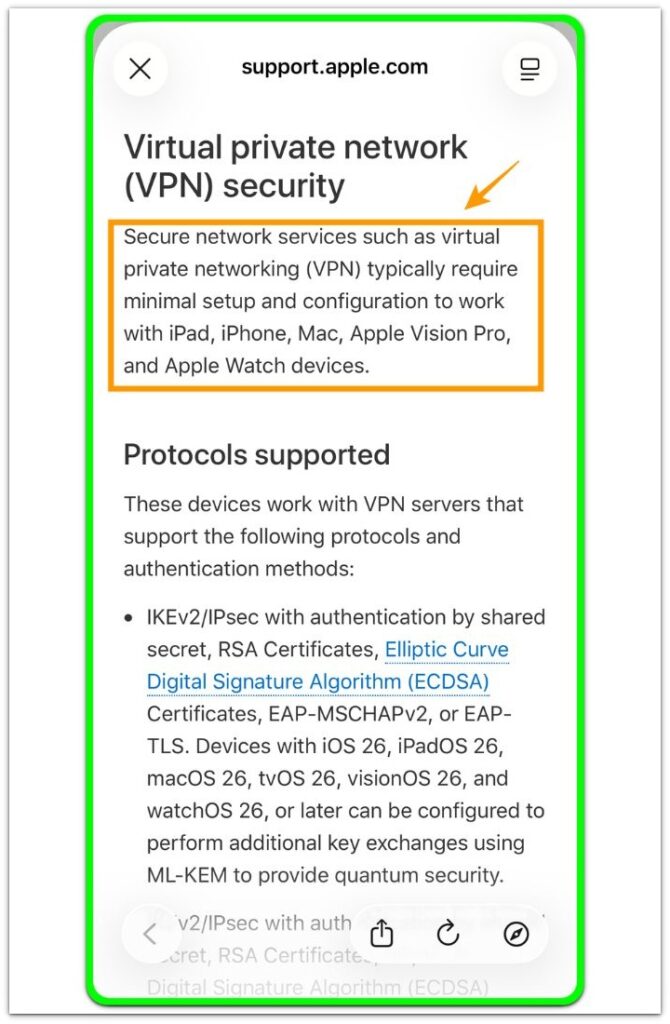
Apple’s official Virtual Private Network security page explains that secure network services such as VPN usually need setup and configuration to work with iPhone and other Apple devices.
The connection is not just a random app switch. Keep the check tied to Battery usage and compare the battery drop during that VPN-connected period before moving to wider iPhone battery settings.
Additional Tips
Test the drain after the network has stayed steady for a while. Switching between Wi-Fi and mobile data can add its own battery use.
Keep server changes separate. A slow or distant VPN server can make one session heavier than another.
Leave hotspot use, navigation, large downloads, and long video sessions out of the normal VPN check.
One short VPN session is too weak. Use a normal connected period before comparing Battery usage.
Final Notes
One fast drop while VPN is connected does not prove iPhone battery drain with VPN.
The stronger clue is repetition during normal use. When the battery drops faster again with VPN connected, while screen time stays reasonable and heavy tasks are out of the test, open Battery usage for that period.
When the drop follows one VPN app, focus on that app first. If the drop appears across different VPN sessions, move to a wider iPhone battery check instead of changing random settings again.
Checklist
- Confirm VPN was connected during the faster battery drop.
- Compare the drop with screen time in Battery usage.
- Keep heavy streaming, hotspot use, navigation, and downloads out of the test.
- Check whether the drop follows one VPN app.
- Run a normal VPN session on the same network.
- Compare the same period again in Battery usage.
- Move to a wider iPhone battery check if the drop appears across different VPN sessions.
For a wider iPhone battery check beyond VPN, use the main iPhone battery drain guide.