
Introduction
iPhone battery drain weak signal problems become easier to notice when the battery drops faster in places where cellular coverage stays low.
The screen does not show one obvious cause. You are not using hotspot, streaming, or a heavy app, but the battery number still falls faster than expected.
A weak signal can make the phone work harder in the background while it tries to stay connected.
Start by checking whether the faster battery drop appears after the iPhone stays in a low-coverage spot for a while, before changing every battery setting at once.
Step-by-Step Guide for iPhone Battery Drain Weak Signal Problems
Step 1: Check Whether the Battery Drop Starts in One Weak Signal Place
Start by checking where the weak signal battery drain begins to stand out. Do not change several battery settings first, because that makes the signal clue harder to read.
Stay in one place where the signal usually looks weak, then use the phone the way you normally do for a short time. After that, compare the battery drop with a place where cellular coverage stays stable.
Check whether the battery starts falling faster only after the phone stays in that low-coverage location for a while. Also note whether the drop begins almost right away or builds up after some time in the same place.
If the faster drain keeps matching that location, use that place as the first test spot before checking the signal behavior in the next step.
Step 2: Check Whether the iPhone Keeps Switching Between Weak Signal and No Signal
Open Settings, then tap Cellular. Stay on that screen for a moment in the same location and watch whether the signal stays low, disappears, or keeps changing.
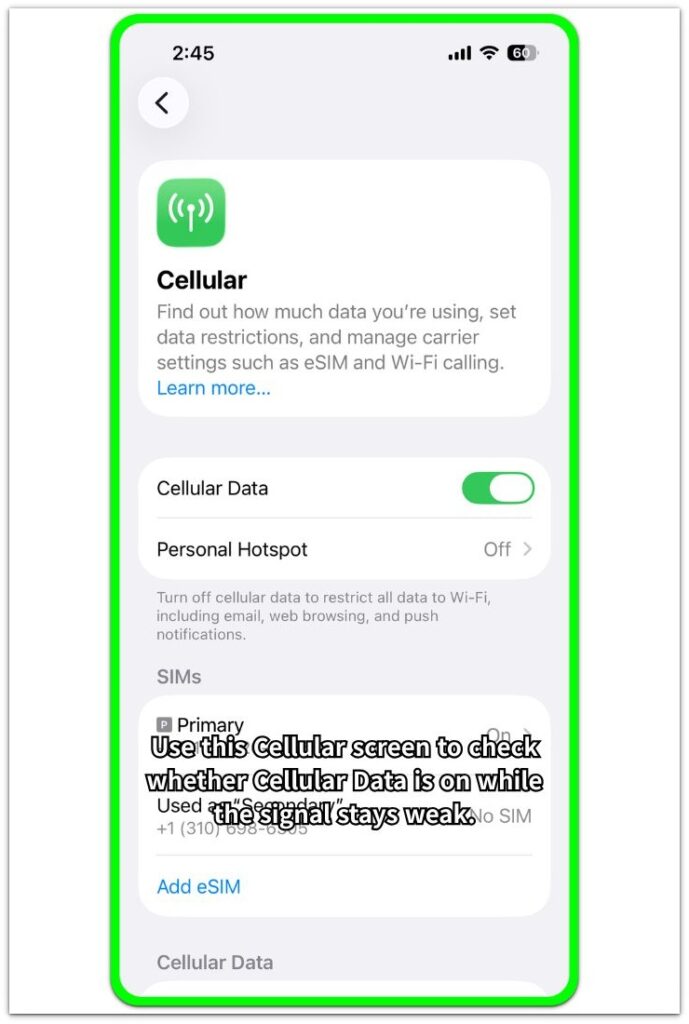
Check whether Cellular Data is on, but do not turn it off yet. This step is only to see whether the phone is still trying to hold a cellular connection while coverage stays poor.
If the iPhone keeps moving between weak signal and no signal, the battery drop is easier to connect to the connection problem. The phone is not just sitting idle. It is still trying to stay connected in a place where the signal is unstable.
When the signal stays weak but does not disappear, treat that as a separate result. A steady weak signal and a signal that keeps dropping out do not point to the same kind of battery behavior.
Step 3: Check Whether Battery Drop Gets Worse When Mobile Data Stays Active
Keep the iPhone in the same poor-coverage area and use one normal mobile data task for a short time. Open a webpage, send messages, or do another light task you would normally do on mobile data.
Then open Settings, go to Battery, and check whether the battery starts falling faster during that mobile data use.
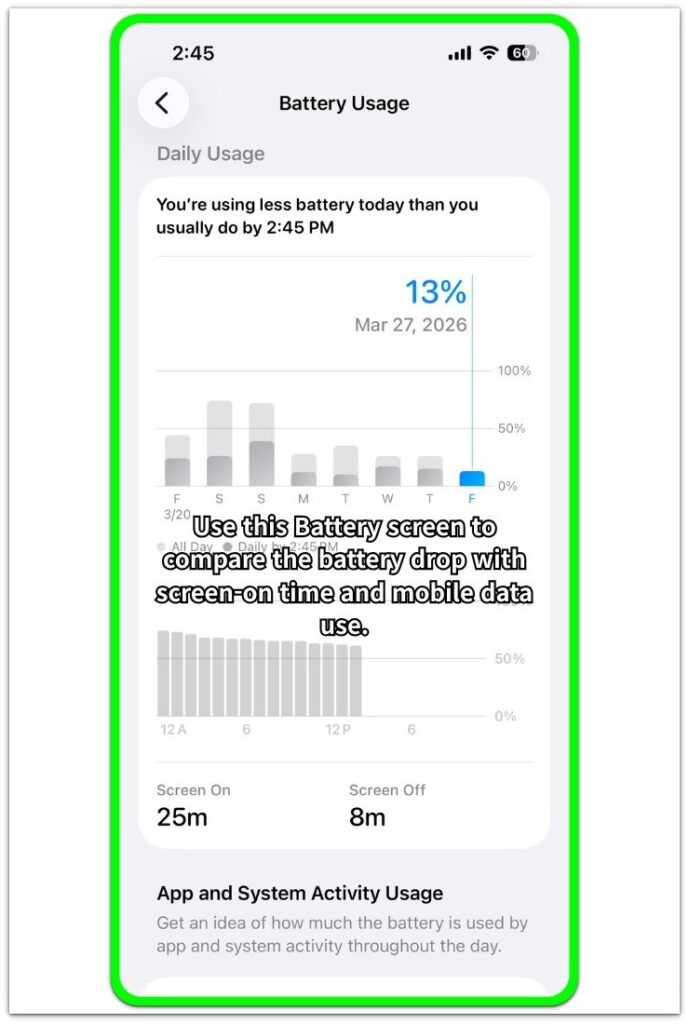
Compare that result with the same kind of light use in a place with stable coverage. Do not jump to app cleanup yet, because this step is checking whether the connection works harder when mobile data stays active.
If the faster drop keeps showing up during this test, treat that result as the next clue before checking apps, background activity, or other battery settings.
Troubleshooting
Troubleshooting 1: The Battery Keeps Dropping After You Leave the Weak Signal Area
If the battery keeps falling after you move back to a stable signal area, check the timing before changing more settings.
Compare what happened in the low-coverage place with what happened after coverage improved. The key point is whether the faster drop slowed down after the signal became stable.
When the battery keeps falling at the same speed in both places, do not keep focusing only on the signal area. Check Battery again and see whether another app, background activity, or system activity also appears during that same time.
Use the weak signal result as one clue, not as the only possible cause.
Troubleshooting 2: The Signal Looks Weak, but the Battery Drop Does Not Always Happen
Some low-signal places do not cause the same battery behavior every time. A short visit, a quick message, and a longer mobile data session can show different results.
Go back to the same place and check whether the faster drop appears only during certain tasks, certain times, or longer stays.
If the battery does not fall faster every time, do not force the whole problem onto signal strength too early. Keep the result as one clue, then compare it with the task you were doing and how long the phone stayed there.
A one-time drop in the same location is not enough to blame the signal by itself.
Troubleshooting 3: The Signal Bars Keep Changing, but the Battery Drop Still Looks Unclear
When the signal bars keep moving up and down, the battery result can be hard to judge. Do not watch too many things at once.
Use one short test, one place, and one normal mobile data task. Then check Battery again and compare the drop with a more stable coverage area.
If the battery still does not show a clear difference, stop treating weak signal as confirmed. Move on to apps, background activity, location, Bluetooth, or other battery entries shown in Battery.
Do not use one unclear test as the final answer.
Extra Section 1: When the Drain Only Happened Inside One Building
The first iPhone did not lose battery faster everywhere. The drain mostly appeared in one large building, especially in rooms farther from windows and entrances.
During those times, the user was only doing light things: checking messages, opening a few pages, and locking the screen between short uses. There was no hotspot, no long video, and no heavy game running.
Closer to a window, the signal stayed stronger and the battery dropped more slowly. Deeper inside the building, the same kind of use drained the battery faster again.
A different room, hallway, floor, or seat was enough to change the battery result, even inside the same building.
Extra Section 2: When the Battery Dropped During a Commute
The second iPhone lost more battery during a morning commute than it did during a similar amount of time at home. The screen was off for most of the trip, and the user was not watching videos, using hotspot, or playing games.
The route passed through stations, tunnels, streets, and weak-signal spots. Service was normal in one area, dropped in another, and came back again after the next stop.
After arriving at work, the same light use did not drain the battery as quickly. The phone stayed in one stronger signal area instead of moving through changing coverage.
The commute made more sense after comparing it with the same amount of time in one place where the signal stayed stable.
Official Source: Apple Explains Why Strong Signal Uses Less Energy
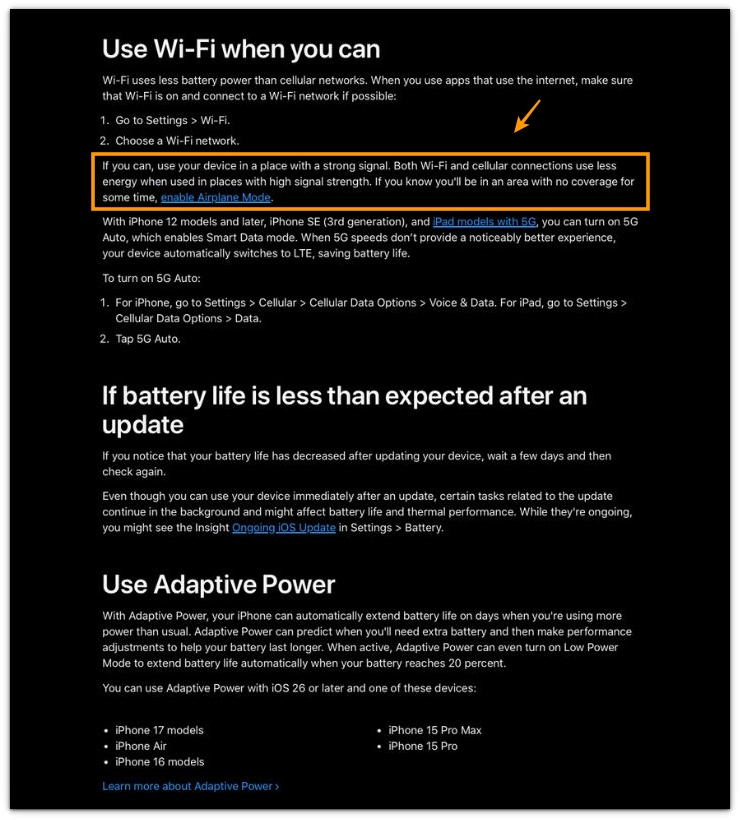
Apple says the iPhone uses less energy for Wi-Fi and cellular connections in a place with a strong signal.
This supports the weak signal check in this guide. If the battery drops faster in a low-coverage place, compare that result with the same use in a stronger signal area before blaming apps or changing every battery setting.
Additional Tips
A short battery dip is not enough to confirm weak signal drain. A temporary task, a brief connection change, or normal use at the same time can create the same kind of drop.
Avoid testing while the iPhone is charging, downloading updates, restoring from iCloud, or using navigation. Those situations add other battery activity and make the signal result harder to read.
If the same place gives mixed results, shorten the test instead of adding more checks. One normal task in one low-coverage spot gives a cleaner result than watching several settings at once.
Final Notes
iPhone battery drain weak signal problems should be judged by repeated timing, not by low signal bars alone.
Repeated timing matters more: the battery drops faster in poor coverage, then slows down when the iPhone stays in a stronger signal area.
Once that comparison stays consistent, check signal conditions before changing every app or battery setting.
When the same drop continues in strong coverage too, stop treating weak signal as the main cause. Check Battery for apps, background activity, location, Bluetooth, or system activity instead.
Checklist
- Check whether the battery started dropping faster in one weak signal place.
- Use the same location for the test before changing several settings.
- Watch whether the signal stays weak, drops out, or reconnects.
- Check whether mobile data makes the battery drop faster in that same area.
- Compare the weak signal area with one place where coverage stays normal.
- Change one setting only after the weak signal test gives a clear result.
When weak signal does not fully explain the battery drop, compare it with the main iPhone battery drain guide before changing more settings.