
Introduction
iPhone battery drain when not in use becomes noticeable when the battery drops during a quiet stretch, even though you left the phone locked and mostly untouched. You put the iPhone down, check it later, and the battery level is lower than the short use before that moment would explain.
Start by separating real idle drain from normal use. The first check should compare the battery level before and after a locked, screen-off period, before changing apps, background settings, or charging habits.
iPhone Battery Drain When Not in Use Step-by-Step Guide
Step 1: Check Whether the Battery Drop Happens While the iPhone Is Not in Use
Check the battery level before you set the iPhone down. Lock the screen and leave the phone the way you normally would, without opening extra apps just to test it.
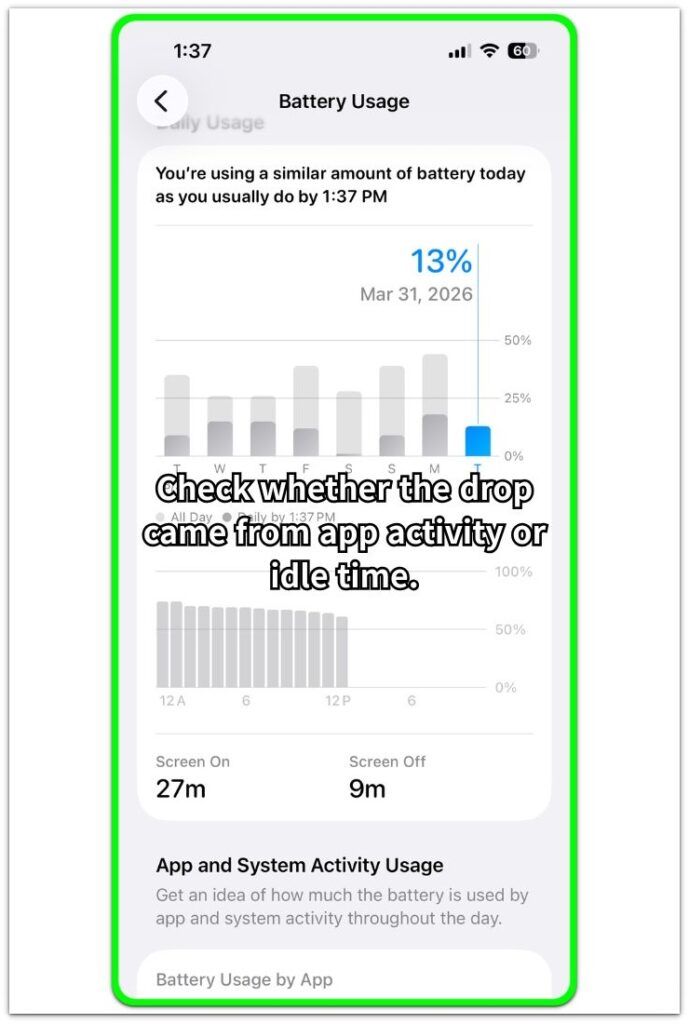
Use this Battery Usage screen to compare the battery drop with Screen On and Screen Off time. A drop during a mostly screen-off period is the first clue to check before changing battery settings.
Step 2: Check Whether the Faster Drop Keeps Showing Up During Ordinary Idle Time
If you notice one drop, check again during another ordinary idle period. Keep the next check close to normal use before changing several battery settings.
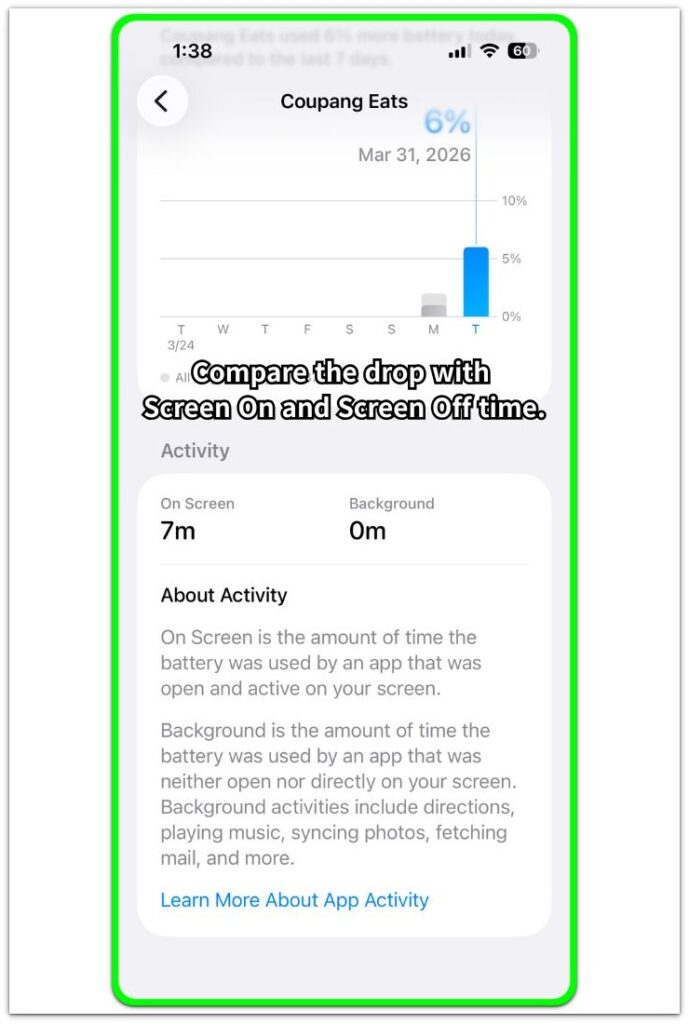
Use the activity details to compare On Screen and Background time. This helps you see whether the battery drop came from real app activity or showed up while the iPhone was mostly idle.
Leave the iPhone locked for a normal quiet stretch, then check whether the battery falls faster again.
Step 3: Check Whether the Drop Still Shows Up in a Cleaner Unused Period
When the drop returns, separate the cleaner check from recent heavy use. Set the iPhone down without adding extra use right before it.
Keep gaming, long calls, video streaming, and other heavy activity out of that check. Those actions add normal battery use before the idle period and make the result harder to read.
At the end of that cleaner stretch, open Battery again and compare the drop with Screen Off time.
Troubleshooting
Troubleshooting 1: When Background Activity Still Appears During Idle Time
Some drops look like idle drain until the Battery screen shows background activity around the drop. You locked the iPhone, but Battery still shows one app using power in the background.
Open Settings, then Battery, and check the app list under the time period where the drop happened. Look for an app with background time that lines up with the battery drop.
A background entry is only the first clue. Start by limiting that app’s background refresh or notifications, then check another locked period before changing several apps at once.
Troubleshooting 2: When iPhone Battery Drain When Not in Use Happens Overnight
Overnight battery drain can look stronger because the iPhone sits unused for longer. A small hourly drop becomes more noticeable after several hours of sleep.
Check the battery level before bed and again in the morning. Keep the charger disconnected for the test, and avoid starting the check right after gaming, video calls, or long streaming.
The useful clue is whether the drop repeats across more than one night. One unusual night is weaker than a repeated overnight drop under similar conditions.
Troubleshooting 3: When Battery Health Makes Idle Drain Look Worse
A weaker battery can make normal standby use look heavier. The iPhone loses charge faster during quiet periods when the battery has less usable capacity than before.
Open Settings, then Battery, then Battery Health & Charging. Check Maximum Capacity and look for any service message before blaming one app or one setting.
Battery health does not explain every idle drop by itself. Use it as a second clue when the same screen-off drop keeps returning and the battery condition already looks weak.
Extra Section 1: When a Short Locked Period Reveals the First Clue
A short locked period gives you the first useful clue before you start changing settings. The iPhone sits on a desk for 30 to 60 minutes, with no video, game, call, or charging session mixed into that time.
Check the battery level before you lock the screen, then leave the iPhone alone. When you come back, open Battery and compare the drop with Screen Off time. A small drop is normal, but a clear drop during a mostly screen-off stretch gives you a better reason to keep checking idle drain.
This first check works best as a starting point, not the final answer. Run one more ordinary idle check when that kind of drop keeps returning during quiet periods.
Extra Section 2: When Recent Use Makes Idle Drain Look Worse
Recent use can make idle drain look worse than the unused period itself explains. You lock the iPhone later, but recent video, gaming, navigation, camera use, or a long call can still make the next battery drop harder to read.
Start the next check without heavy use right before you lock the screen. Use the iPhone normally earlier in the day, but keep the last few minutes quiet before the unused period begins. That gives you a cleaner screen-off stretch to compare.
Open Battery at the end of that cleaner period and check whether the drop still looks too high. When the battery drops again without recent heavy use mixed in, the idle drain clue becomes stronger.
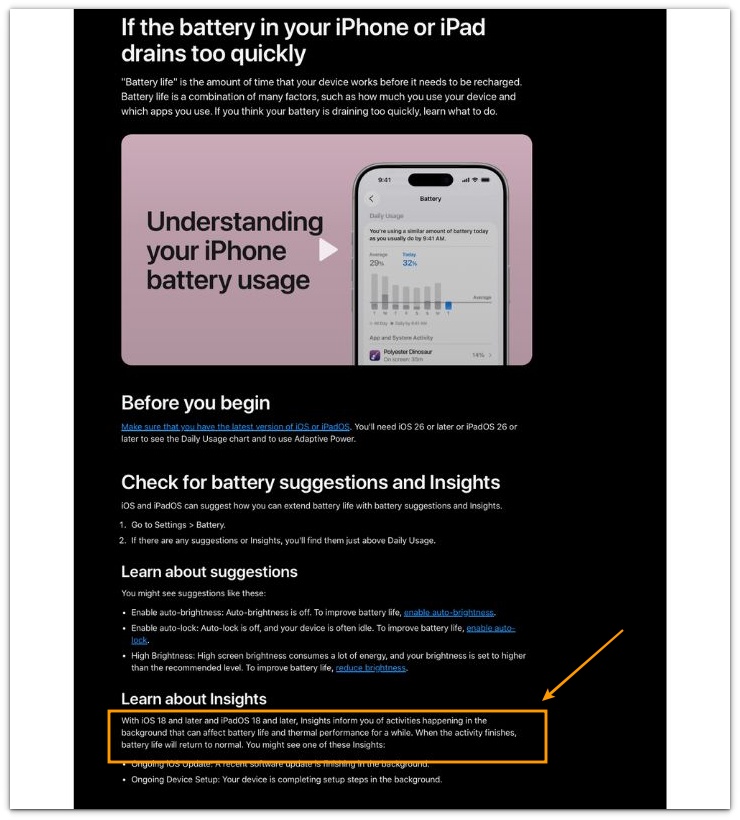
Official Source: Apple Says Background Activity Can Affect Battery Life After Use
Apple’s iPhone battery guide explains that background activity can affect battery life for a while, even after the activity is no longer on screen.
This supports a cleaner unused check before judging the drop right after heavy use.
Additional Tips
Keep Low Power Mode unchanged during the check. Turning it on or off in the middle of the test changes the condition, so the next result becomes harder to compare.
Pick a quiet time when notifications are not constantly waking the screen. A busy message thread can make the iPhone look unused while the screen still lights up again and again.
After unplugging, wait a little before the check. Let the battery level settle, then begin the unused period from a clearer starting point.
Final Notes
iPhone battery drain when not in use becomes clearer through repeated screen-off drops, not one random percentage change. The strongest clue appears when the battery keeps falling during cleaner screen-off periods, even after you separate recent heavy use, noisy notification windows, and battery health clues.
A real idle drain problem does not come from the lock screen alone. It becomes clear when the iPhone loses too much battery while Screen Off time is high, Screen On time stays low, and the same type of drop keeps returning under cleaner conditions.
Checklist
- Check the battery level before the unused period starts.
- Lock the screen and leave the iPhone alone during the check.
- Compare the battery drop with Screen Off time in Battery.
- Run one more ordinary idle check before making the final call.
- Keep Low Power Mode, charging, notifications, and recent heavy use out of the test.
Still unsure after the idle check? Use the main iPhone battery drain guide before changing more settings.