
Introduction
Location services draining battery iPhone becomes easier to notice when the battery drops faster after Location Services stays on, but Battery does not always show one app that explains the drop.
The clue often appears in Location Services instead of the main battery list. A recent location arrow, a background permission, or a location-based app can keep showing activity while the battery keeps falling.
Instead of turning off every location setting at once, start with the location activity that actually appears on the iPhone. Then compare it with the battery drop before changing more battery settings.
Location Services Draining Battery iPhone Step-by-Step Guide
Step 1: Check Which App Used Location Most Recently
To narrow down location services draining battery on iPhone, start in Settings. Open Privacy & Security, then tap Location Services.
Leave the main Location Services switch alone at first and check the app list. Look for apps that show recent location activity.
The small location arrow matters because it points to the app that used location before the battery drop became obvious. Start with the app that stands out in that list before changing anything else.
Step 2: Open the Apps Set to Always
Stay inside Location Services and look for apps set to Always. This setting lets an app use location even when it is not open on the screen.
An Always setting is not automatically a problem, but it is worth checking when the battery drops faster with Location Services on. Start with apps that do not need constant location access, such as shopping, delivery, travel, weather, or social apps.
Change one suspicious app first instead of changing the whole list at once. The next battery result will be easier to connect to that app’s location access.
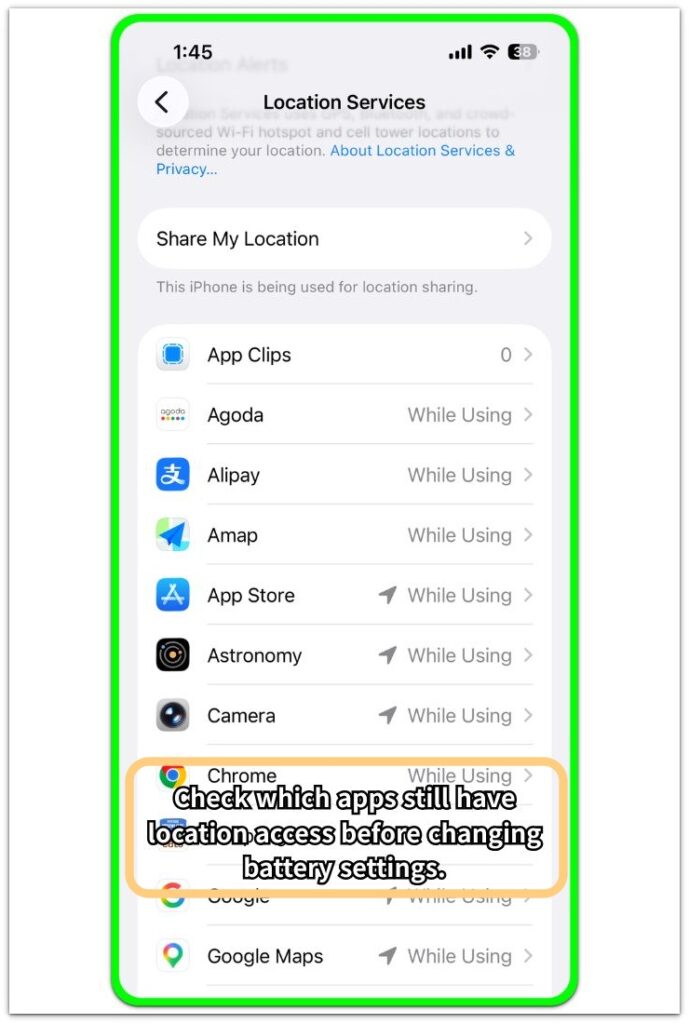
This Location Services screen helps you compare recent location activity with apps set to Always before changing more battery settings.
Step 3: Check System Services at the Bottom
Scroll to the bottom of the Location Services page and open System Services. The app list is only the first check, so move lower when no app clearly stands out.
Check whether system location items still show recent activity. Look for items related to network, time zone, emergency, suggestions, or iPhone services that use location in the background.
Change only the item that clearly does not match your normal use instead of turning everything off at once. Then compare the next battery result in Battery.
Troubleshooting
Troubleshooting 1: Battery Still Drops After Changing One App
The battery can keep dropping after one app permission changes because another app still has active location access. Go back to Settings → Privacy & Security → Location Services and check the app list again.
Change one app at a time and look for another app set to Always or an app that recently showed the location arrow.
With location services draining battery iPhone, the next clue often comes from the second app that still has permission, not the first app you changed. Keep the check on apps that actually used location before moving to wider battery settings.
Troubleshooting 2: No App Looks Wrong in the List
The app list looks clean even when location activity still ties into the drain.
Scroll to the bottom of Location Services and open System Services. This part matters when no third-party app clearly explains the battery drop.
Look for iPhone location features that stayed active while the screen was off or while no one was using the phone.
A clean app list is not always the end of the check. System Services keeps the search inside Location Services before moving to wider battery settings.
Troubleshooting 3: Battery Usage Points to a Different App
Battery Usage and Location Services do not always point to the same app right away. The app using the most power is not automatically the app causing the location-related drain.
Before trusting the Battery list, go back to the location clues first. Compare Battery Usage with the apps or location features that showed recent activity.
Change one battery or privacy setting at a time. The next battery drop becomes easier to connect to the location setting you adjusted.
Extra Section 1: The Normal App Was the Easy One to Miss
The app that confused me was not unusual. I used that normal app during the day, so I left it out of the battery check at first.
The Location Services list told a different story. After I opened that app, checked something quickly, and locked the screen again, it kept showing recent location activity near the battery drop.
The issue became easier to trace once I stopped looking only for strange apps. The clearer clue came from a normal daily app that kept asking for location often enough to appear near the battery drop.
Extra Section 2: The First Change Did Not Prove Enough
The first change seemed to work at first. I changed one app from Always to While Using, and the next battery drop looked smaller.
That smaller drop felt convincing for a moment, but the test did not match the first one. The phone had stayed on the table longer, and I had not opened the same apps before locking it again.
The second test gave a cleaner answer because I used the same app and kept the same location setting. I left the other privacy settings alone, so the smaller drop pointed back to the permission change.
A cleaner second test made the result easier to trust.
Official Source: Apple — Turn Location Services and GPS on or off on your iPhone
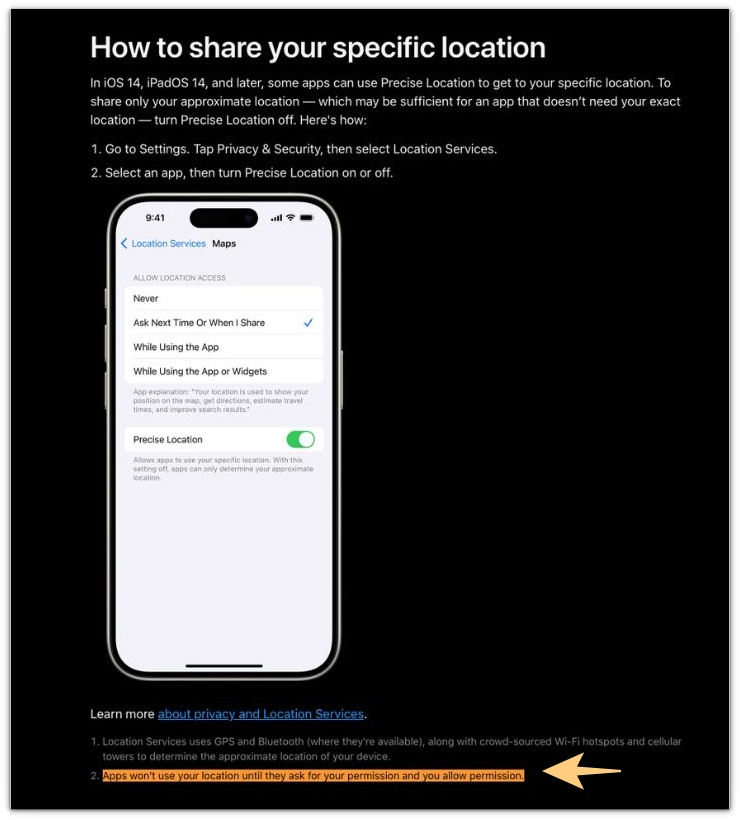
Apple’s Location Services guidance matters here because location access starts with permission, not with the Battery screen. Use Battery only after checking recent location activity, Always access, and System Services.
Battery Usage alone is not enough for this check. Go back to Location Services and compare the permission setting with the battery drop.
Additional Tips
Changing too many location permissions at once makes the next battery result harder to read. Start with one or two apps that recently used location or still have Always access, then leave the iPhone alone long enough to see whether the battery drop slows down.
Strange apps are not the only ones worth checking. Daily apps can matter more because they open often, refresh in the background, and keep location permission active longer than expected.
A weather app, delivery app, fitness app, travel app, or social app is easier to miss because its location access feels normal.
Final Notes
Location services draining battery iPhone is not a battery failure right away. The stronger clue is whether the same app, Always permission, or System Services activity keeps showing up before the battery drops.
A smaller drop after one location permission change points back to location access, not the whole iPhone battery.
Repeated battery drops with the same location activity show an active location setting problem, not normal standby drain.
Checklist
- Check which app used location recently.
- Review apps set to Always.
- Check System Services at the bottom.
- Use Battery only to compare with Location Services.
- Change only one or two location permissions first.
- Recheck daily apps that still have location access.
- Treat repeated drops with the same location activity as a location setting problem, not normal standby drain.
Use the main guide for a wider iPhone battery drain check, especially if the battery still drops after you review Location Services.