
Introduction
iPhone battery drain after restart becomes noticeable when the battery drops again soon after the phone turns back on. The restart looks finished, but the first normal use period still leaves the percentage lower than expected.
This often shows up after unlocking the phone, checking a few apps, reconnecting to Wi-Fi, or leaving the iPhone idle for a short time after reboot. Start with the first period after the phone turns back on and check whether the drop follows that routine again.
Step-by-Step Guide: iPhone Battery Drain After Restart
Step 1: Check the First Battery Drop Right After Restart
Restart the iPhone and use it the way you usually do once it turns back on. Do not change battery settings, background app settings, Wi-Fi settings, or app limits before this first check.
Leave the iPhone in its usual state for a short period. Unlock it, check a few regular apps, or set it down the way you normally do after restart. This shows the original battery drop before another setting changes the result.
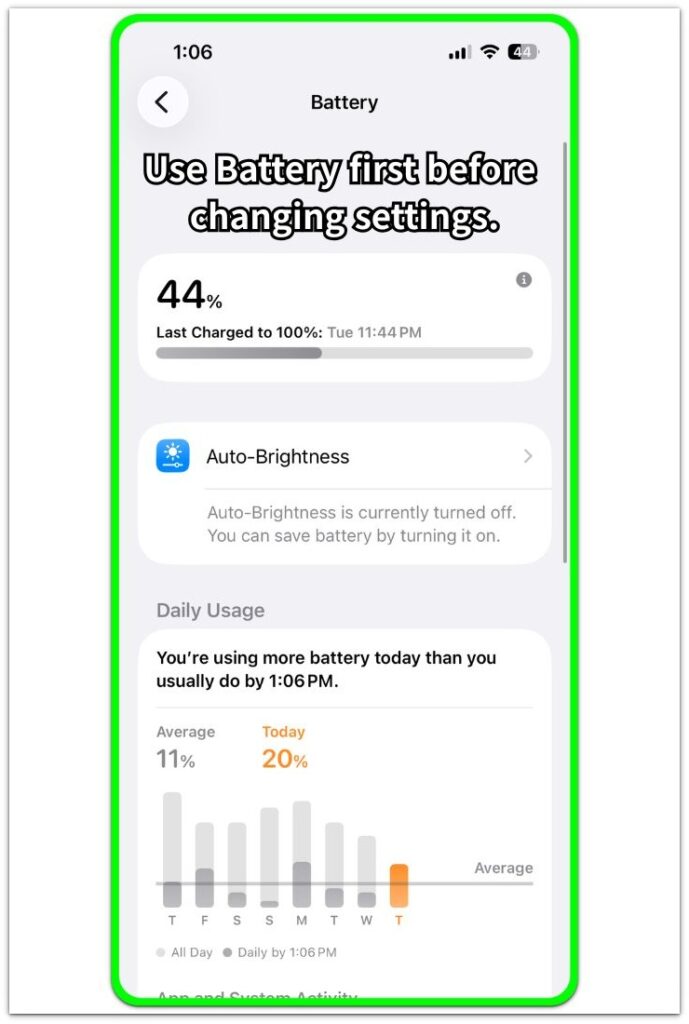
Open Battery afterward and look at the early drop. Compare the battery change with Screen On time and recent activity. A faster drop during this first period gives you a clear place to continue the check.
Step 2: Compare the Drop With the First Activity After Restart
Focus on what happened during the first part of use after restart. Check whether the drop started while you were opening apps, reconnecting to Wi-Fi, checking notifications, or leaving the iPhone idle.
Open Battery again and compare the battery change with the activity shown for that period. Look at Screen On time, Screen Off time, and the apps listed around the drop. Light activity with a clear battery loss needs one more comparison before unrelated settings change the result.
Match the battery change with what the iPhone was doing right after it turned back on. That comparison is stronger than looking at the percentage by itself.
Step 3: Repeat the Restart Check With the Same Early Use
Repeat the check later during the same part of the day or in the same place. Use the iPhone normally after restart, with a similar connection and a matching early-use routine.
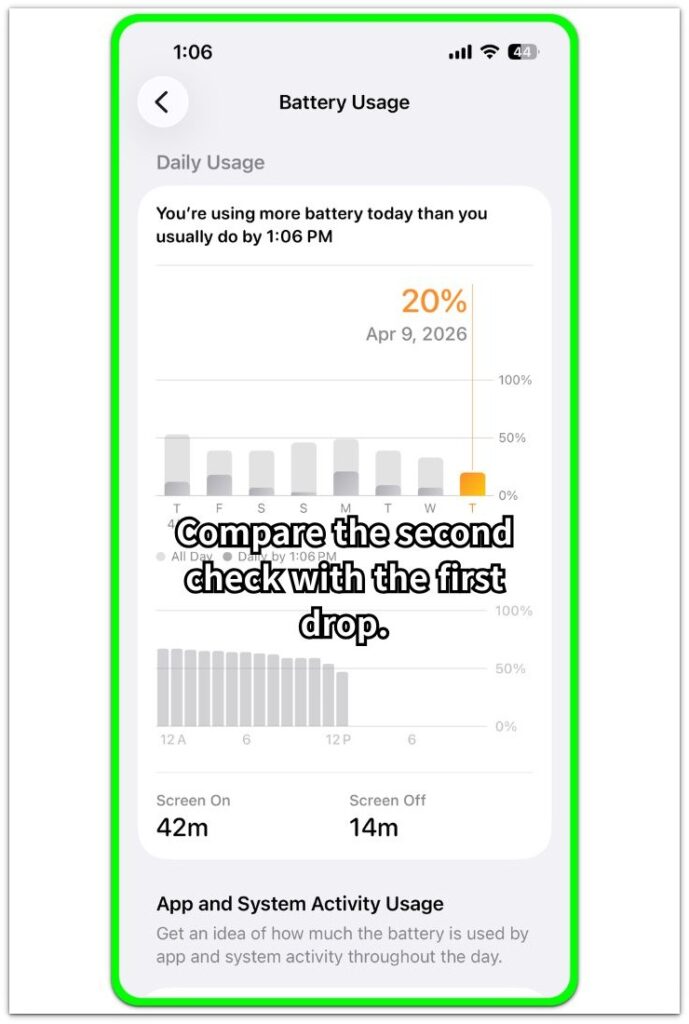
Check Battery again after that first period. Compare the new drop with the earlier restart result, Screen On time, Screen Off time, and recent app activity.
A repeated early drop gives a stronger clue than one restart. When the drop returns during a matching routine, continue with the next checks instead of changing unrelated battery settings.
Troubleshooting
Troubleshooting 1: Apps Reopen and Use Battery After Restart
Some battery drops appear when several apps reopen or refresh soon after the iPhone turns back on. This often happens after you unlock the phone and quickly open messages, mail, browser tabs, or social apps.
Open Battery after the first drop and look at the apps listed around that time. When one or two apps show more activity than expected, reduce those apps first and review the next restart before changing unrelated battery settings.
Troubleshooting 2: Wi-Fi or Cellular Reconnects After Restart
A restart makes the iPhone reconnect to Wi-Fi and cellular service. The battery drop often looks stronger when the connection changes right after the phone turns back on, especially in a weak signal area or near an unstable Wi-Fi network.
Check again in a steadier connection area. Compare that result with the earlier battery change. A slower drain in a stronger signal area points more to reconnection or signal strength than to the restart itself.
Troubleshooting 3: The Drain Continues After the Early Restart Period
Some restart-related drops continue after the iPhone has already turned back on. The battery keeps falling even after you finish the first normal checks and stop actively using the phone.
Open Battery again later and compare the later drain with Screen On time, Screen Off time, and recent app activity. When the drain continues beyond the early period, check the apps or services that stayed active after reboot.
Extra Section 1: Usual Apps Become Active Right After Restart
A common restart pattern starts with a normal unlock. The iPhone turns back on, the Home Screen appears, and the user opens the apps they usually check first, such as Messages, Mail, Safari, or a social app.
The battery change often looks sharper during this short period because those apps are not just sitting open. They refresh conversations, reload tabs, check new mail, or update recent content soon after the phone turns back on. Screen time still looks short, but Battery shows activity from the apps opened during that period.
Repeat the next restart without opening every usual app right away. Open only one or two important apps first, leave the rest alone for a short period, and check Battery again. A smaller early battery change makes the app refresh routine a stronger clue than the restart itself.
Extra Section 2: The iPhone Uses Power While Sitting Idle
Another restart situation happens when the user barely uses the iPhone. It turns back on, reaches the Home Screen, and stays on a desk or table while the user does something else.
This short idle period still shows battery movement when the phone is settling back into its normal state. Notifications arrive, accounts sync, and small background tasks finish after reboot. Screen On time looks low here, so the Battery check should focus on Screen Off time and recent activity instead of app use alone.
For the next restart, leave the iPhone in the same place for a similar short period before opening apps. Check Battery again and compare the idle result with the earlier one. A smaller battery change in a steadier idle period points more to early background activity than to normal screen use.
Official Source: Apple Says Update Tasks Continue in the Background
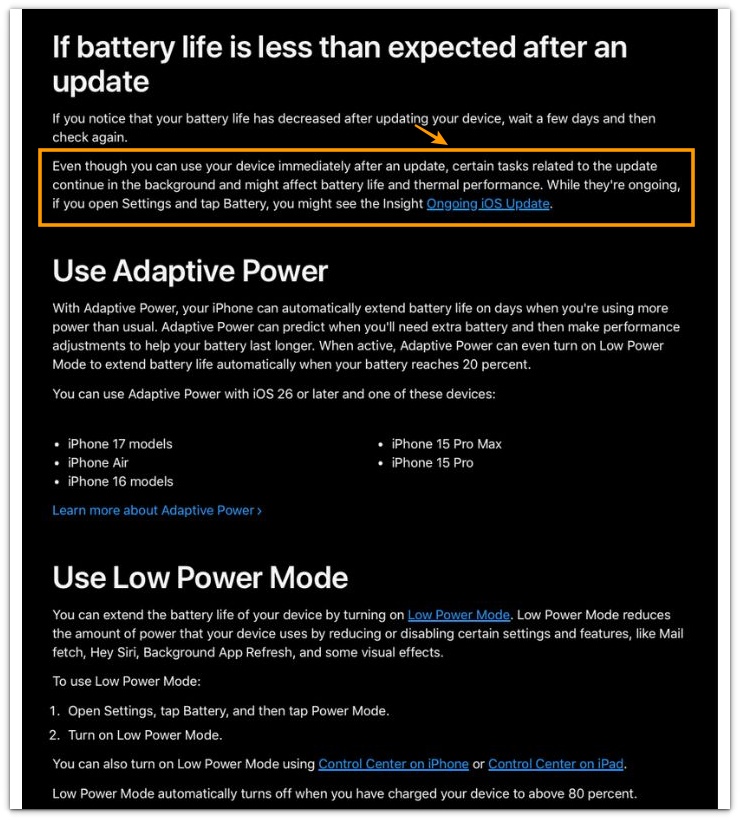
Apple explains that some update-related tasks continue in the background even after the iPhone is ready to use. These tasks affect battery life and thermal performance while they are still ongoing.
This source does not mean every restart causes battery drain. It supports one narrow point: after a restart connected to an update, check the first battery change in Battery instead of judging it from the percentage alone.
Additional Tips
A restart right after an iOS update gives a different reading from a normal restart. Give the phone more time after the update before treating the first battery change as a repeated restart problem.
Charging right before restart also makes the percentage feel unclear. Check again after the battery level has stayed steady for a while.
A warm iPhone changes the result. Let it cool down first when the phone turns back on after gaming, navigation, video calls, or charging.
Final Notes
iPhone battery drain after restart matters when the faster battery change returns during the same early-use period. One restart is too weak by itself, but the clue becomes stronger when the result repeats with similar screen time, similar app use, and a steady connection.
The strongest clue comes from the short period after the iPhone turns back on. Compare Battery with Screen On time, Screen Off time, recent app activity, and connection changes. When the faster drain keeps returning in that early window, the restart routine becomes the first place to check before changing wider battery settings.
Checklist
- Check one normal restart before changing settings.
- Compare the early battery change with Screen On time and Screen Off time.
- Review app activity during the first use period.
- Repeat the check with a matching early routine.
- Separate app refresh from idle background activity.
- Change only the setting that matches the strongest restart clue.
Still seeing the battery drop? Check the main iPhone battery drain guide before changing more settings.