
Introduction
────────────────────
You delete apps, photos, or videos from the iPhone and expect storage to open up.
The free space looks better for a moment.
The gray storage bar grows again.
The iPhone still shows Other, System Data, or a similar storage category taking up too much space.
That makes the problem frustrating because there is no clear file to delete.
iPhone system data too large becomes confusing when the number keeps growing even after normal cleanup.
A few temporary files can return after regular use, but that does not explain every storage jump.
The harder part is knowing whether the number is still settling, rebuilding, or staying high for another reason.
This guide focuses on why System Data stays large after cleanup and what to check before deleting more personal files.
──────────────────────
Step-by-Step Guide
──────────────────────
──────────────────────
Step 1: Confirm the Exact Category Growth
──────────────────────
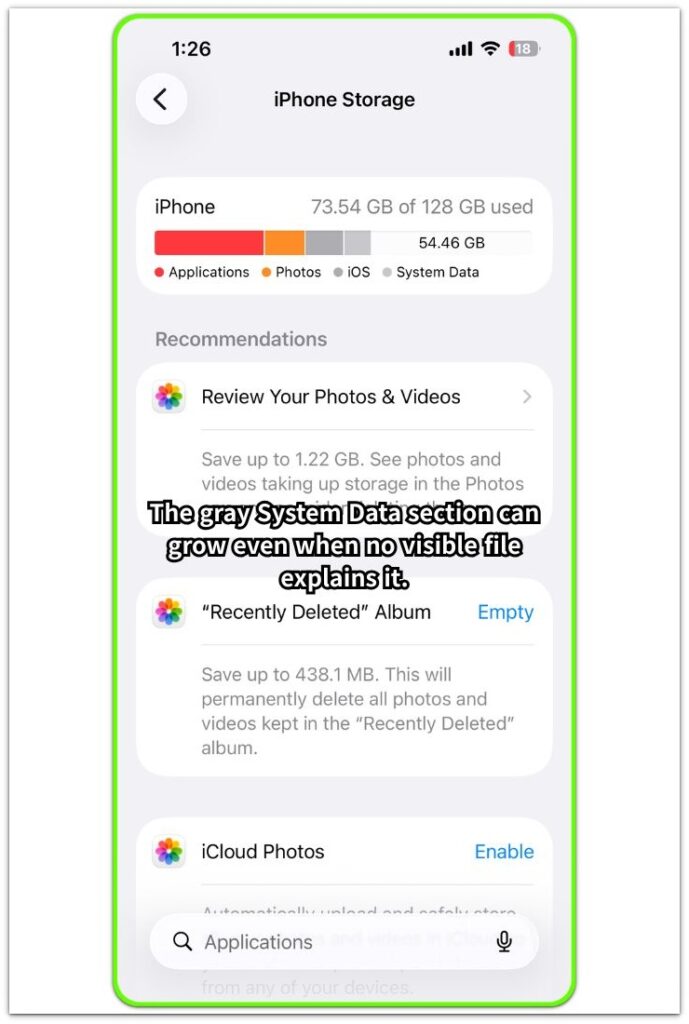
Open Settings → General → iPhone Storage.
This screen helps you check whether the storage problem is coming from visible files or from the gray System Data category.
Wait until the storage graph fully loads.
Do not judge the number while the iPhone is still checking storage.
Look at the gray part of the bar first.
Compare it with Apps, Photos, Messages, and Media.
If Photos, Messages, or Apps take up most of the space, the problem is still tied to visible storage.
But if Other, System Data, or a similar gray storage category keeps taking up more space, the problem is different.
iphone system data too large is not just about deleting another app or photo.
Visible storage gives you something to remove.
System-level storage does not always give you a clear file, folder, or app to delete.
Before you try another cleanup, confirm whether the iPhone is running out of space because of visible files or because the gray system category keeps expanding.
────────────────────
Step 2: Check What Happened Before Storage Grew
────────────────────
Think about what happened right before the iPhone storage changed.
A large iOS update often makes System Data look bigger for a while.
Heavy Safari browsing, video streaming, message attachments, offline downloads, or repeated AirDrop transfers also add temporary storage.
This alone does not prove the iPhone has a storage failure.
The important question is whether the storage stops growing after normal use.
When System Data grows after an update or heavy activity, give the iPhone time to finish its background work.
Keep the phone on stable Wi-Fi and avoid deleting random apps during this check.
But if iphone system data too large keeps getting worse every day without a clear recent reason, it no longer looks like normal temporary storage.
Regular cleanup is no longer enough when the gray storage category keeps growing without a visible cause.
────────────────────
Step 3: Restart the iPhone and Let Storage Recalculate
────────────────────
Restart the iPhone completely.
Connect it to stable Wi-Fi and leave it charging for a while.
Do not keep opening the Storage screen every few minutes.
The iPhone needs time to finish storage checks, background cleanup, and system indexing.
Check iPhone Storage again later from Settings → General → iPhone Storage.
If System Data drops after the restart and idle time, the storage was likely tied to temporary system work.
If the gray storage category stays large or keeps growing again, normal cleanup did not fix the problem.
Deleting more photos or apps is not the best next move here.
The issue is no longer just visible storage.
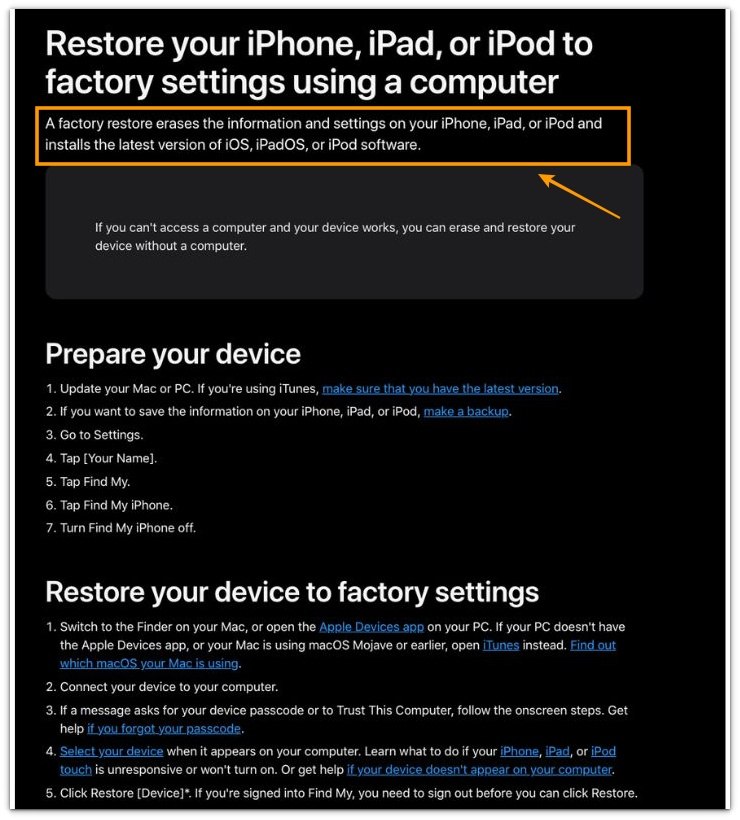
Before using stronger options such as a computer restore, understand that Apple treats a restore as a full erase-and-reinstall process, not a simple storage cleanup.
Do not use a restore as the first storage fix. Use it only after System Data keeps growing and normal cleanup no longer gives you a clear file or app to remove.
────────────────────
Troubleshooting
────────────────────
────────────────────
Troubleshooting 1: System Data grows again after heavy Safari use
────────────────────
You clear space on the iPhone, but the gray storage category grows again after browsing.
This often happens after heavy Safari use, long video pages, repeated tab switching, or sites that reload a lot of media.
The confusing part is that the storage does not show up as a normal photo, video, or app download.
Open Settings → Safari → Clear History and Website Data.
Return to Settings → General → iPhone Storage.
Wait until the storage graph finishes loading again.
If System Data drops after clearing Safari data, the growth was likely tied to web activity.
If there is little or no change, Safari was not the main cause.
Do not keep clearing Safari again and again when the gray storage category keeps growing the same way.
The problem is no longer just browser data.
The iPhone is holding storage outside the part Safari clears directly.
────────────────────
Troubleshooting 2: Messages storage still looks high after deleting chats
────────────────────
You delete conversations or old message threads, but iPhone Storage still shows Messages taking space.
This is confusing because the chat list looks cleaner, but the storage number does not drop as much as expected.
Open Settings → General → iPhone Storage → Messages.
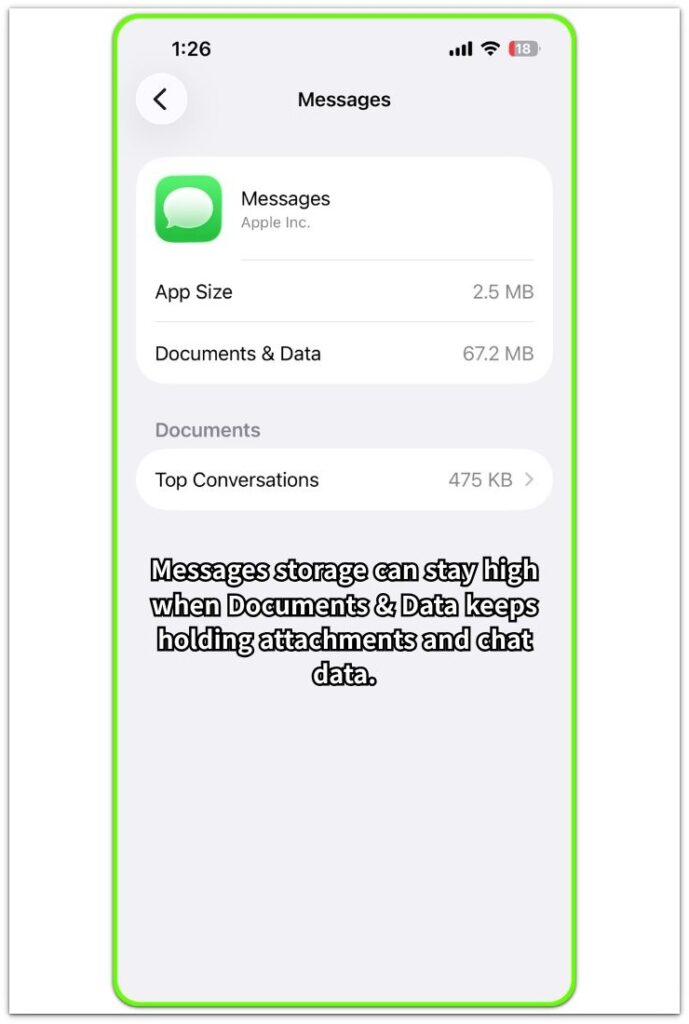
This screen helps you check whether Messages is still holding storage inside Documents & Data, not just inside visible conversations.
Look for large attachments, photos, videos, and conversation data inside the Messages storage screen.
Deleting a chat from the main Messages app does not always make the storage number drop right away.
Return to iPhone Storage after the phone recalculates storage.
If Messages drops, the problem was tied to message attachments or stored conversation data.
If Messages stays low but the gray System Data category keeps growing, the issue is not mainly a Messages problem.
That difference matters because deleting more chats will not fix iphone system data too large when the growth is coming from the gray system category instead of Messages itself.
────────────────────
Troubleshooting 3: System Data stays large after an iOS update
────────────────────
System Data often stays large after an iOS update.
The confusing part is that the update looks finished, but the gray storage category still does not shrink.
Open Settings → General → Software Update.
Check whether another update is still waiting.
Restart the iPhone and leave it on stable Wi-Fi while charging.
Check iPhone Storage again later.
If System Data drops, the iPhone was still finishing update-related cleanup.
If iphone system data too large stays the same for several days, the issue is no longer just normal update cleanup.
Do not keep deleting random apps at that stage.
The problem is now tied to system storage that the iPhone is not clearing on its own.
────────────────────
Additional Tips
────────────────────
Avoid installing and deleting large apps repeatedly when iphone system data too large is already the problem.
That kind of repeated change makes the storage screen harder to read.
Keep some free space available before judging the gray storage category.
When the iPhone is almost full, storage cleanup has less room to finish normally.
Do not trust third-party cleaner apps to fix System Data.
They remove some visible junk, but they do not give you full control over iOS system storage.
Check the same screen over a few normal charge cycles.
A one-time increase often settles down after normal charging and use.
A gray storage category that stays large after restart, Wi-Fi, charging, and normal use is a different problem.
────────────────────
Final Notes
────────────────────
When iphone system data too large stays the same for several days, the problem is no longer just normal temporary storage.
Deleting more photos, apps, or old chats will not help much if the gray System Data category is the part that keeps growing.
The key sign is clear.
No clear new file explains the space being used, but the iPhone still shows storage pressure.
Regular cleanup is no longer enough when the iPhone keeps using storage without pointing to a clear file.
A restore should not be the first fix, because it erases and rebuilds the device.
But if System Data keeps growing after restart, stable Wi-Fi, charging, and normal cleanup, treat it as a real system storage problem, not just a messy storage screen.
────────────────────
Checklist
────────────────────
□ Check whether System Data is the storage category still growing.
□ Clear Safari website data once, then check iPhone Storage again.
□ Open Messages storage and check whether attachments or Documents & Data are still large.
□ Restart the iPhone and leave it charging on stable Wi-Fi before judging the result.
□ Compare the gray storage category after a few normal charge cycles.
□ Treat it as a system storage problem when no clear file or app explains the used space.
────────────────────
Structural Expansion and Related Scenarios
────────────────────
────────────────────
Part 1: Structural Expansion and Related Scenarios
────────────────────
iPhone Other Storage So Large — When System Allocation Expands
Other storage keeps growing when the iPhone stores system files that do not show up as normal photos, apps, or downloads.
→ internal link
iPhone Storage Full Even With Free Space — Reporting Boundary State
The iPhone shows free space, but storage still acts full when that space is not ready to use yet.
→ internal link
iPhone Storage Not Decreasing After Deleting Files — Reallocation Phase
Deleted files disappear from the screen before the storage number finishes updating.
→ internal link
iPhone Storage Bar Wrong — Visualization vs Actual Allocation
The storage bar looks wrong while the iPhone is still sorting space into categories.
→ internal link
iPhone Storage Increased After iOS Update — System Reindex Period
After an iOS update, storage often grows for a while before the iPhone finishes sorting system files.
→ internal link
Offloaded Apps but iPhone Storage Still Full — Sandbox Storage Boundary
Offloading an app removes the app itself, but saved app data stays on the iPhone.
→ internal link
iPhone Messages Taking Up Too Much Storage — Attachment Persistence Layer
Message attachments still take up space when the chat list looks cleaner but the storage number has not dropped.
→ internal link
Deleted Photos but iPhone Storage Not Changing — Sync Retention State
Deleted photos do not always free space right away when Recently Deleted or iCloud sync still holds them.
→ internal link
────────────────────
Part 2: System Data Recalculation and Background Storage Activity
────────────────────
iCloud Sync Not Freeing Up iPhone Storage — Dual Allocation Condition
iCloud sync does not always free local storage right away while the iPhone is still sorting files.
→ internal link
System Data Bigger Than Apps on iPhone — Runtime & Log Allocation
System Data grows when logs, indexing, and temporary work do not show up as normal files.
→ internal link
iPhone Storage Calculation Taking Long Time — Index Reconciliation Phase
iPhone Storage takes longer to update when the phone is still sorting each category.
→ internal link
iPhone Safari Data Cleared but Storage Not Reduced — Persistent Cache Layer
Clearing Safari data does not always make the storage number drop right away.
→ internal link
iPhone Storage Changed After Restart — Memory Reconciliation Event
After a restart, iPhone Storage often changes because the phone checks each storage category again.
→ internal link
iPhone Storage Full After Update — System File Expansion State
After a system update, storage often increases for a while before the iPhone finishes sorting system files.
→ internal link
iPhone Logs Taking Up Storage — Background Diagnostic Allocation
Background logs and diagnostic data build up over time and make System Data larger.
→ internal link
What Is Other in iPhone Storage — Non-User Allocation Layer
Other storage includes system cache, logs, and indexing data that do not show up as normal user files.
→ internal link
────────────────────
Part 3: App, Media, and Index Storage Problems
────────────────────
iPhone Storage Full After Reset — Allocation Rebuild Condition
After a reset, the iPhone takes time before the available space looks stable.
→ internal link
iPhone Storage Recommendations Not Showing — Suggestion Limit Condition
Storage recommendations stay hidden when the iPhone does not have a clear cleanup suggestion to show.
→ internal link
iPhone Mail Attachments Taking Up Storage — Hidden Message Storage Allocation
Mail attachments still take up space after old messages look cleaned up.
→ internal link
iPhone Photos Using Too Much Storage — Local Index Expansion State
Photos use more storage while the iPhone sorts, indexes, or optimizes the library.
→ internal link
App Clips Taking Storage on iPhone — Temporary Runtime Container
App Clips leave temporary app data in iPhone storage after use.
→ internal link
iPhone Maps Taking Up Storage — Cached Region Storage Layer
Maps data stays stored locally after routes, places, or cached regions stop being used.
→ internal link
iPhone Mediaanalysisd Storage — Background Media Processing
Media analysis adds hidden storage while the iPhone processes photos and videos in the background.
→ internal link
iPhone Spotlight Index Storage — Search Database Allocation
Spotlight search data grows while the iPhone indexes apps, files, messages, and other content.
→ internal link
iPhone Storage Not Accurate — System Data Mismatch State
The storage number looks wrong when System Data and visible storage update at different times.
→ internal link
────────────────────
Extra Section 1
────────────────────
I once checked an iPhone where the storage problem looked simple at a glance.
The owner had already deleted photos, removed a few apps, and cleared Safari data.
The iPhone showed more free space for a short time.
Later, the gray System Data bar grew again.
That made iPhone system data too large look like a cleanup mistake, but the real clue was what did not grow.
The storage screen made the problem easier to separate.
Photos did not grow.
Messages did not grow.
No new large app appeared in iPhone Storage.
Only the gray system category kept taking space back.
After a restart and a few normal charging cycles, part of the storage dropped.
The rest stayed the same.
That separated temporary storage that settles down from system storage that does not clear through normal cleanup.
Deleting more visible files would not have changed the real problem.
────────────────────
Extra Section 2
────────────────────
I also checked an iPhone that looked full even after the owner followed the usual cleanup steps.
Photos were reduced.
Old chats were removed.
Safari data was cleared once.
The storage screen still did not move much.
Deleting more things right away would have made the check less clear.
Waiting and checking the same iPhone Storage screen later gave a clearer result.
After one restart and a night on stable Wi-Fi, the storage number changed, but not evenly.
Some space came back.
The gray category stayed larger than expected.
The later check changed what needed to be checked next.
The iPhone was not simply holding one obvious file.
It was still sorting storage in the background, and some of that space did not come back through normal cleanup.
That was the point where another cleanup stopped making sense.
When visible categories stay low but the gray category stays high, the next move should be checking the storage pattern again, not deleting random files.