
Introduction
iPhone storage bar wrong shows up when the graph appears almost full while smaller storage tasks still work. Photos still save, files still download, and a small app still installs, while a larger app install or iOS update refuses to finish.
Instead of a simple full-storage warning, the problem shows up as a mismatch between the Storage screen and the task that fails. Start with the colored bar, the available space number, and the larger task that keeps stopping.
Step-by-Step Guide: iPhone Storage Bar Wrong
Step 1: Check the Storage Bar Against the Number
Open Settings → General → iPhone Storage, then wait until the storage bar finishes loading. Look at the colored bar and compare it with the used storage number above it.
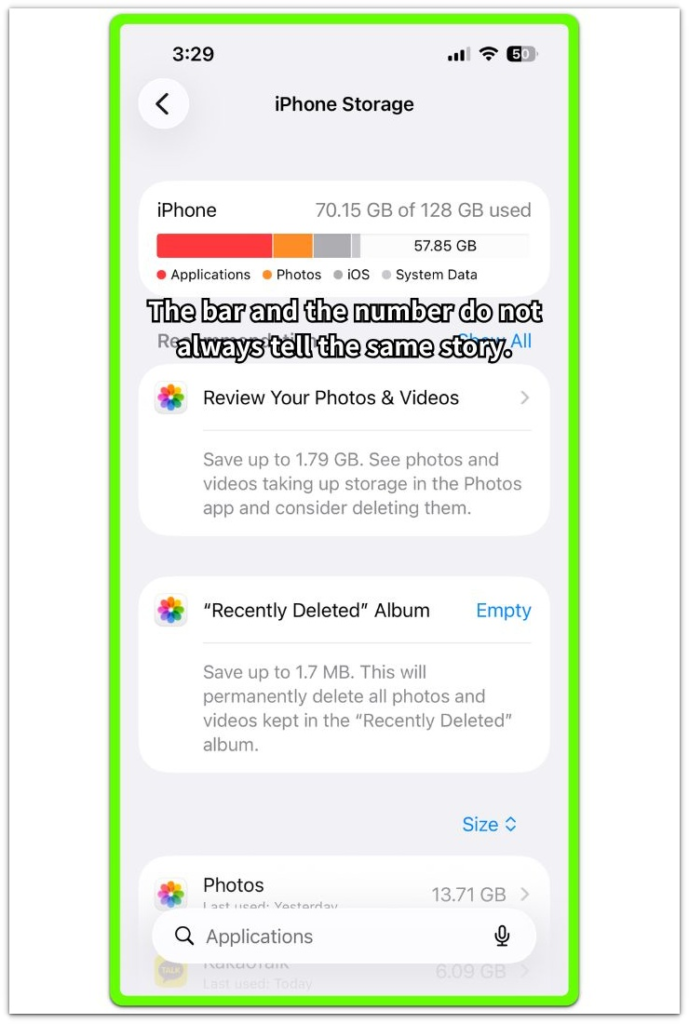
A nearly full-looking bar does not tell the whole story when the number still shows usable space left. Read the bar and the number together before deciding whether the screen is showing old storage data or the iPhone is actually running out of usable space.
Step 2: Reload the Storage Screen After Restart
Restart the iPhone, then go back to Settings → General → iPhone Storage after the phone fully turns on. Wait for the storage bar and app list to finish loading again.
Check whether the colored sections change while the total used storage stays about the same. A changed bar after the restart shows that the old graph was behind the actual storage number.
When the bar still looks wrong, move to the next check before deleting anything.
Step 3: Check the Categories Below the Bar
Scroll below the iPhone Storage bar and compare the main categories with the available space number. Look at Photos, Messages, apps, iOS, System Data, and any category that looks larger than expected.
A full-looking bar matters more when one category below it also explains the space loss. When the bar looks full but the list below it does not show a clear jump, keep the check on the categories before treating the whole phone as full.
A category that keeps rising after the screen reloads explains why the bar still looks full. A bar that stays crowded without a matching category change points to a slow Storage screen, not another round of deleting.
Troubleshooting
Troubleshooting 1: App Install Fails Even Though Space Looks Available
An app install that stops while free space still appears on the iPhone needs a closer check. Deleting photos too early can hide the real blocker before the Storage screen finishes showing what changed.
Close the App Store, reopen Settings → General → iPhone Storage, and check whether the install warning appears again. A repeated warning carries more weight than a storage bar that still looks unclear.
Before removing personal files, look for one large app, the available space number, or a pending App Store item. Treat it as more than a bar issue only when the same warning returns after the Storage screen reloads.
Troubleshooting 2: The Bar Looks Full but the iPhone Still Works Normally
A full-looking storage bar does not mean storage is stopping the iPhone. Apps still open, downloads finish, and the camera records a short video without a storage warning, even though the graph looks more alarming than the phone’s actual behavior.
Normal tasks matter here. Compare the app list and available space before deleting anything important. A working phone needs a Storage screen check first, not a cleanup based only on the graph.
Troubleshooting 3: The Bar Changes but the Available Space Number Does Not
After the iPhone Storage screen reloads, the colored sections move while the available space number stays close to the same point. The graph looks more dramatic, but the actual storage change is small.
Check the number above the bar first, then look at the largest category below it. A moving color section matters less when the number barely changes.
Wait for the screen to finish loading again before deleting more files. The problem is stronger when the number drops too, not when only the color layout shifts.
Extra Section 1: Message and Photo Viewing Makes the Bar Look Worse
After a morning of opening old message threads and shared photo albums, the storage bar looked worse. The owner had not installed a large app or downloaded a long video, but the iPhone Storage screen looked more crowded later that day.
The phone seemed to have lost a large amount of space for no clear reason. That impression did not hold up because new photos still saved, a small app installed, and a normal download finished without a storage warning.
Instead of clearing the main photo library, the owner reopened iPhone Storage later and checked Messages, Photos, System Data, and large apps. Heavy message and photo viewing makes the bar look fuller before the rest of the Storage screen gives a clearer answer.
The category list gives the cleaner clue because it shows what actually changed.
Extra Section 2: Cleanup Works Before the Bar Changes
After cleanup, the opposite problem showed up. The owner deleted several large videos and emptied Recently Deleted, but the colored storage bar barely moved.
The cleanup looked like it had failed, and he nearly started removing apps too. The better clue came from the phone’s behavior: the failed app update started downloading again, a new photo saved normally, and a short screen recording finished without a storage warning.
Once those blocked tasks worked again, the slow bar change was no longer the main warning. The phone was no longer acting blocked, even though the storage bar still needed more time to reflect the cleanup.
Official Source: iPhone Storage Categories Explain the Bar
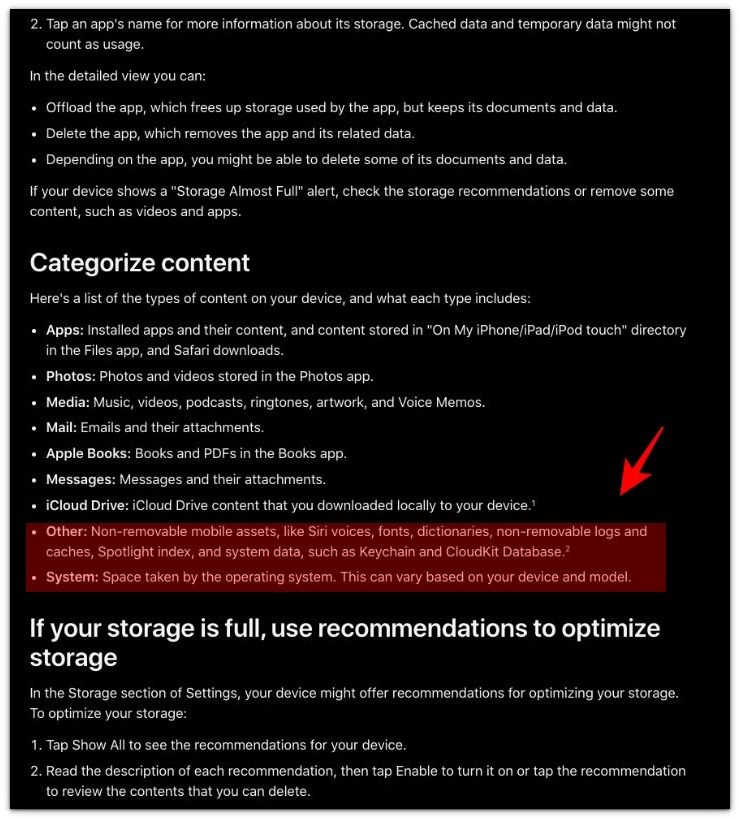
Apple explains that iPhone storage uses categories such as Apps, Photos, Messages, iOS, and System Data. This supports checking the category list below the storage bar when the graph looks wrong or does not match the available space number.
Additional Tips
Not every color change means the iPhone lost storage. The iPhone Storage screen updates the bar, app list, System Data, and available space number at slightly different moments.
The screen looks uneven right after deleting videos, opening large message threads, or returning from a failed update. Let the storage screen finish loading before making another cleanup decision.
Check whether one category actually changed, not only whether the top bar looks crowded. Keep the cleanup tied to that changed area.
Final Notes
Check the iPhone storage bar wrong problem from the full Storage screen, not from the colored graph alone. A crowded-looking bar matters less when photos still save, downloads finish, and smaller apps still install normally.
The number and the category list matter more when they move in the same direction. That carries more weight than the first color change at the top of the screen.
Compare the colored bar, available space number, and category list before removing more photos, messages, or apps. The right fix depends on whether the graph is only slow to update or the numbers below it also show a real storage change.
Checklist
- Check the colored storage bar after it finishes loading.
- Compare the bar with the available space number.
- Look below the bar for Photos, Messages, apps, iOS, and System Data.
- Check whether small tasks still work normally.
- Separate a strange-looking bar from a real block on updates, installs, or downloads.
- Do not delete more photos, messages, or apps based on the bar alone.
For iPhone storage problems that keep affecting installs, updates, downloads, or cleanup, use the main iPhone storage guide.