
Introduction
iPhone storage full after reset usually happens when the setup screen still shows used space during a restore or the first restart. The number changes while the iPhone rebuilds categories, restores app data, syncs media, and recalculates System Data.
Photos, apps, messages, and iCloud data return during setup, while iOS recalculates background space. The bar changes again after indexing, downloads, and restore tasks finish.
Check iPhone Storage first, compare restored data with System Data, then see whether the number changes after setup finishes.
Step-by-Step Guide: iPhone Storage Full After Reset
Step 1: Check The Storage Screen After Setup
Open Settings, tap General, then open iPhone Storage. Check the storage bar, category list, and app list after setup finishes.
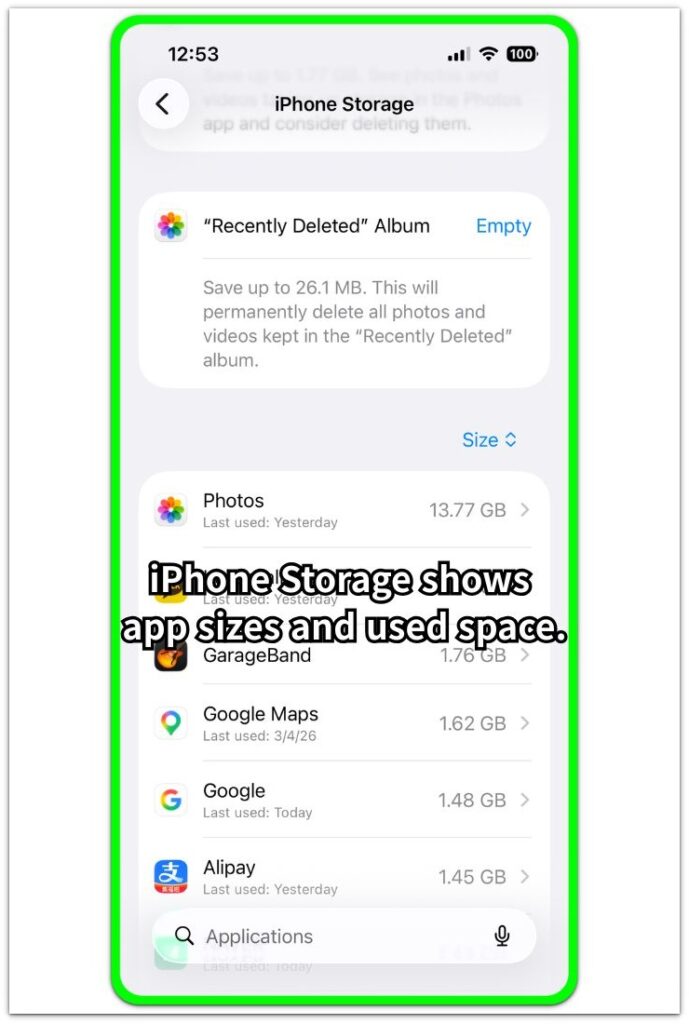
Look for large app entries, Photos, Messages, and System Data. Restoring a backup or signing in with the same Apple ID brings data back into these sections while the phone rebuilds the list.
Step 2: Compare Restored Apps With System Data
Scroll through the app list and check which apps take up the most space again. Messaging, photo, maps, streaming, and browser apps often bring back saved files, offline content, cache, or documents after setup.
Then compare those app sizes with System Data. Large app sizes show that restored data is keeping the number high. When that section stays high while the app list looks small, the phone is still recalculating background space.
Step 3: Let Setup, Sync, And Indexing Finish
Keep the phone connected to Wi-Fi and power after the reset while photos, apps, messages, or iCloud data finish syncing. The number changes during this period because downloads, indexing, thumbnails, and account sync continue after the home screen appears.
Check iPhone Storage again after syncing and indexing settle. When the same category stays large, open the related app or category and remove saved data from there.
Troubleshooting
Troubleshooting 1: Storage Number Still Changes
A changing storage number usually means setup activity has not finished. Photos, messages, downloads, and account data continue updating after the home screen appears.
Leave the phone on Wi-Fi and power, then check the storage screen again later. A number that keeps moving usually comes from rebuilding and syncing, not from one fixed file.
Troubleshooting 2: System Data Stays High
System Data often remains large while the phone rebuilds indexes, app support files, update records, and temporary setup data. It does not open like a normal folder or show every item inside.
Restart the phone after setup and sync finish, then check the screen again. A high number with small app entries points to background recalculation rather than restored app content.
Troubleshooting 3: One App Brings Back Too Much Data
One app often brings back saved chats, offline maps, downloaded videos, browser files, or documents after sign-in. The app list shows this more clearly than the top storage bar.
Open that large app and check its options. Remove saved downloads, offline content, or app documents from that screen.
Extra Section 1: Reset Without Restore Still Shows Used Space
Erasing an iPhone does not leave storage at zero. Even when you set up the phone as new and skip backup restore, iOS still needs space for the operating system, built-in apps, setup files, language data, and basic system files.
Even with no personal photos, downloaded apps, or restored messages, the iPhone Storage screen still shows used space. That number usually comes from the new setup itself, not old files that survived the reset.
The number also changes during the first setup period. iPhone rebuilds categories, creates indexes, prepares app support files, and recalculates System Data after the home screen appears. A clean reset removes personal content, but it does not remove the storage that iOS needs to run the phone.
Extra Section 2: Restored Data Fills Storage Again After Sign-In
Storage often fills again after reset when you sign in with the same Apple ID or restore from a backup. The phone looks clean at first, but photos, messages, app documents, and account data return as setup continues.
The increase often starts after the home screen appears. Photos start syncing, Messages reload conversations, apps reinstall, and some apps bring back saved files after you open them again. Streaming apps restore offline downloads, map apps return saved areas, and browsers rebuild site data after sign-in.
That does not mean the reset failed. The reset removed the local copy on the phone, but account sync and app restore bring personal data back. When the number rises after sign-in, compare Photos, Messages, large apps, and System Data before deleting anything.
Official Source: Apple iPhone Storage Screen
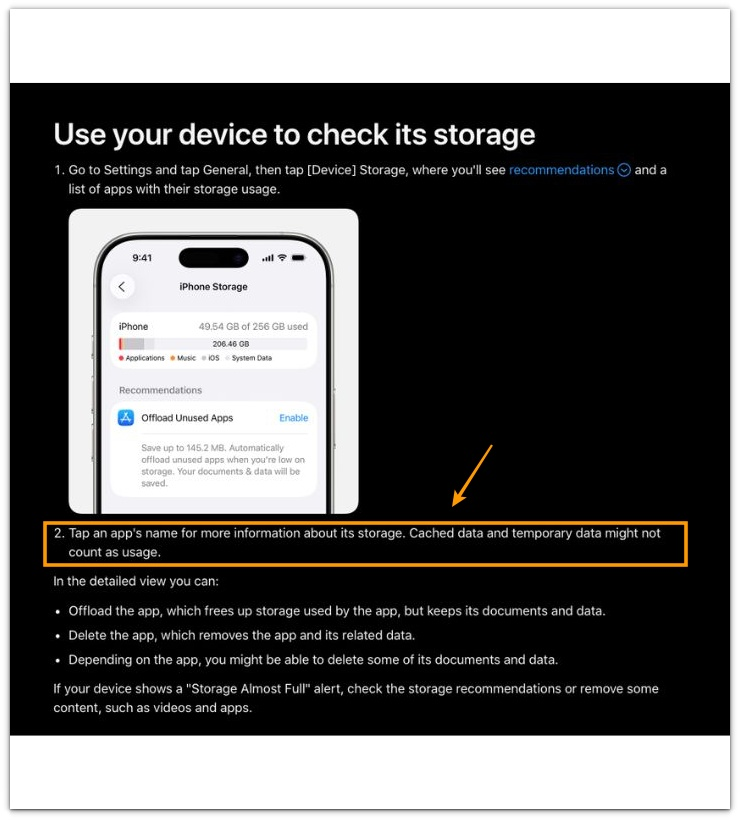
Apple says iPhone Storage shows recommendations and app storage details. It also notes that cached and temporary data do not always appear as counted usage, so users should check the storage bar and app list together before judging used space after reset.
Additional Tips
A reset followed by a full backup restore usually brings the same storage pressure back. The phone looks new for a short time, but the restored account, apps, photos, and messages rebuild the old storage pattern.
Large iCloud Photos libraries need time before the number looks stable. The phone shows temporary changes while thumbnails, previews, and optimized copies settle after sign-in.
App-based downloads need their own cleanup after restore. Streaming apps, map apps, podcast apps, and browsers often keep their own saved content outside the main Photos or Messages categories.
Final Notes
iPhone storage full after reset does not always mean the reset failed. The cause usually falls into one of three areas: restored personal data, System Data recalculation, or app content returning after sign-in.
Use the storage screen first. Review the largest categories, compare restored apps with System Data, and wait for setup and sync to finish before judging the final number.
A reset clears local data on the phone, but it does not stop iCloud, backups, apps, and system files from using storage again. The categories and app list give the answer when you read them together.
Checklist
- Check which categories returned in iPhone Storage after reset.
- Compare large app entries with Photos, Messages, and System Data.
- Wait for setup, sync, and indexing to finish before judging the final number.
- Separate a clean reset from a backup restore or Apple ID sign-in.
- Check app-based downloads inside the app that brought them back.
- Consider cached and temporary data when the storage bar and app list do not match.
For a broader iPhone storage troubleshooting guide, see the main storage article above.