
Introduction
iPhone Storage taking long to calculate becomes noticeable when the storage bar keeps loading and the category numbers keep changing. The screen opens, but the total space and app sizes stay unfinished for longer than expected.
Nothing looks stuck outside the Storage screen. Other screens still open normally, but the list recalculates.
The first check is whether the page is still loading or one category is keeping the list from settling.
Step-by-Step Guide: iPhone Storage Taking Long To Calculate
Step 1: Check Whether The Storage Bar Is Still Loading
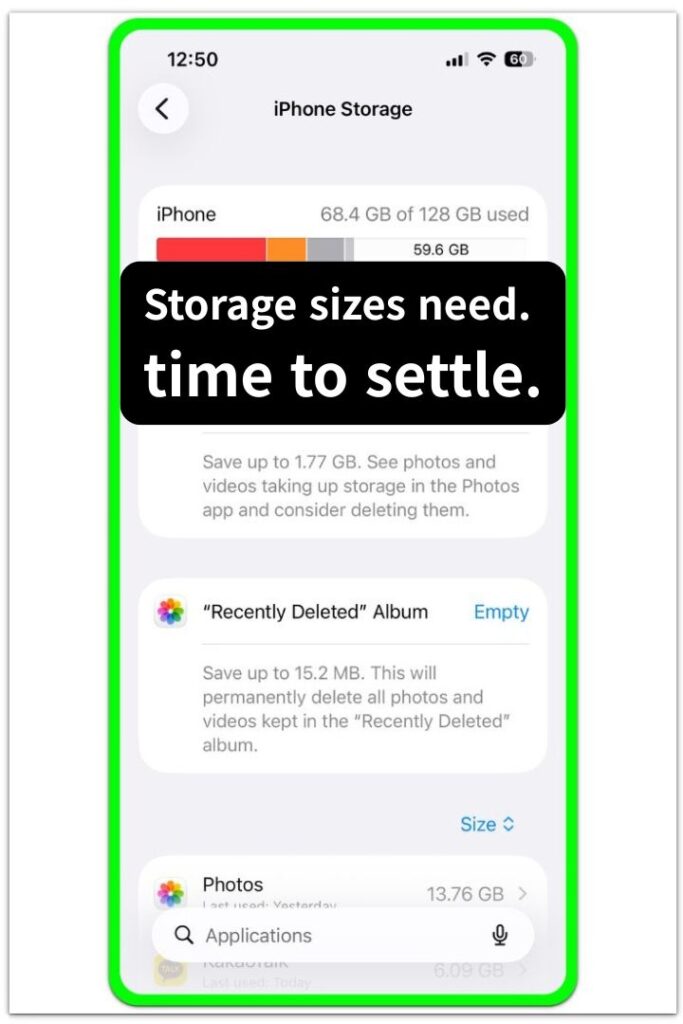
Open Settings → General → iPhone Storage and stay on the same screen. Keep the screen open for a moment and check whether the storage bar is still calculating or already settled.
Look at the bar, the used storage, and the category labels under the bar. A page that changes is still recalculating. Check whether the list below is also updating.
Step 2: Compare The Category List Below The Bar
Scroll only after the storage bar appears. Check whether the app list, Photos size, iOS size, and System Data size load normally while the page stays open.
When the storage bar appears first but the list below still moves, the page has not finished calculating yet. Wait on the same screen for a short time, then compare again before deleting anything.
Step 3: Check Whether One Category Is Keeping The List From Settling
Look for the part that changes after the rest of the page looks finished. That part takes longer while the iPhone updates the storage view.
Use that part as the next path. Photos points to Recently Deleted or large videos first. System Data needs more time before judging the final number.
Troubleshooting
Troubleshooting 1: iPhone Storage Taking Long To Calculate After Deleting Photos
The storage page changes after you delete large photos or videos. The bar looks like it should update right away, but Photos and Recently Deleted leave the total unfinished.
Open Photos and check Recently Deleted first. Empty it only if you no longer need the deleted items, then return to Settings → General → iPhone Storage and compare Photos again after the page reloads.
Troubleshooting 2: App Sizes Keep Loading But The Storage Bar Already Appears
The storage bar appears before the app list finishes loading. The top number looks ready while individual app sizes still change below it.
Stay on the app list and check the largest apps near the top. Confirm whether those entries finish loading. A list that settles after the biggest apps load points to delayed app size calculation, not a missing storage problem.
Troubleshooting 3: System Data Keeps Changing After Other Categories Settle
System Data still moves after Photos, Apps, and iOS already look stable. The storage page is still matching temporary files, caches, logs, and system-managed data with the final number.
Leave the iPhone connected to Wi-Fi and power, then check the same Storage screen again later. A smaller or stable System Data number later means the page needed time to finish the background calculation.
Extra Section 1: Photos Keeps Recalculating After Deleted Items
Photos often leaves the iPhone Storage page unfinished after a large photo or video deletion. The videos or photos no longer appear in the main library, but the storage number does not always settle at the same moment the delete action finishes.
A few long videos in Recently Deleted hold enough space to make Photos the first check before treating the whole Storage screen as stuck.
A changing Photos number points to library cleanup, not a broken Storage screen. Confirm that it settles after clearing Recently Deleted and removing large videos before deleting unrelated apps.
Extra Section 2: System Data Keeps Changing After Cleanup
System Data becomes the next place to check when Photos and the app list look mostly settled, but the iPhone Storage page still changes. An update, app cleanup, large file removal, or a recent restart often leaves temporary data moving while the iPhone organizes it.
Treat moving System Data differently from a large app. Leave the phone unused for a while, then open Settings → General → iPhone Storage and compare whether it settles or grows. A lower or level result points to cleanup still finishing in the background.
A System Data number that keeps rising after the page has had time to settle needs a different check. Review recent updates, large downloads, offline files, and apps that recently rebuilt their data instead of deleting random apps only because the Storage screen looked unfinished.
Official Source: iPhone Storage Categories Explained by Apple
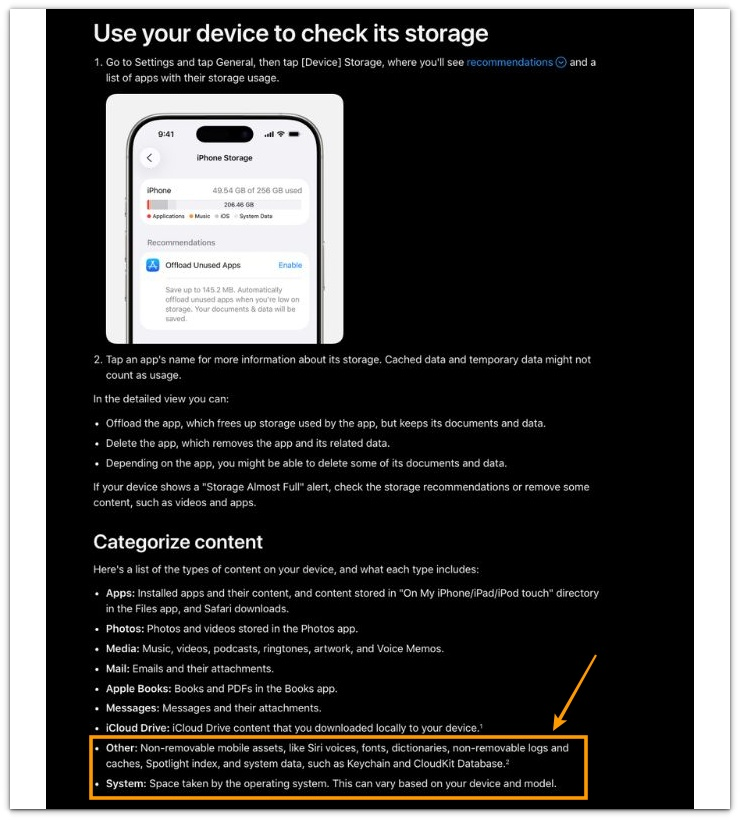
Apple explains that iPhone Storage separates used space into categories such as Apps, Photos, iOS, and System Data. That layout makes the next check clearer: compare Photos and System Data first before treating the whole Storage page as wrong.
Additional Tips
A restart helps when the Storage page still looks unfinished after several checks. Restart the iPhone once, then open the same iPhone Storage screen.
A very full iPhone takes longer to show stable sizes. Leave a little free space before judging whether the storage number is wrong.
Large downloads, offline videos, and app updates often make the numbers move again. Compare the Storage screen after those items finish updating.
Items in Recently Deleted affect Photos more than small app files. Check that album first when Photos keeps changing after deletion.
Final Notes
iPhone Storage taking long to calculate usually means the page has not finished matching the storage bar with the category list.
The clearest result comes from finding the part that moves after the rest of the page looks stable. Photos points to Recently Deleted or large videos, while System Data points to cache, temporary data, or background cleanup.
The right fix starts with the category that refuses to settle, not with deleting random apps while the Storage screen is still calculating.
Checklist
- Check whether the storage bar settles before deleting anything.
- Compare the category list below the bar after it loads.
- Find the part that moves after the rest looks stable.
- Check Recently Deleted when Photos keeps changing.
- Give System Data time to settle after an update, cleanup, or large file removal.
- Use that part as the next fix path instead of deleting random apps.
See the main guide above if System Data is the part that keeps crossing the storage boundary.