
Introduction
iPhone storage not decreasing after deleting files feels confusing when the deleted photos, videos, or downloads no longer appear, but iPhone Storage still shows almost the same amount used. Deleting more random items too soon can make the real leftover space harder to find.
Start with the places that can still hold the removed items. Open Recently Deleted, check the app that held the files, and look for app data that still counts inside iPhone Storage even after the files disappear from the folder you opened.
iPhone Storage Not Decreasing After Deleting Files Step-by-Step Guide
Step 1: Check Recently Deleted Before Deleting More Files
Open Photos, then go to Recently Deleted. Check whether deleted photos or videos are still there. Items in Recently Deleted can still use storage even though they no longer appear in the main photo library.
Do the same check in the Files app if the removed items came from downloads or folders. Open Browse, check Recently Deleted, and remove anything you no longer need.
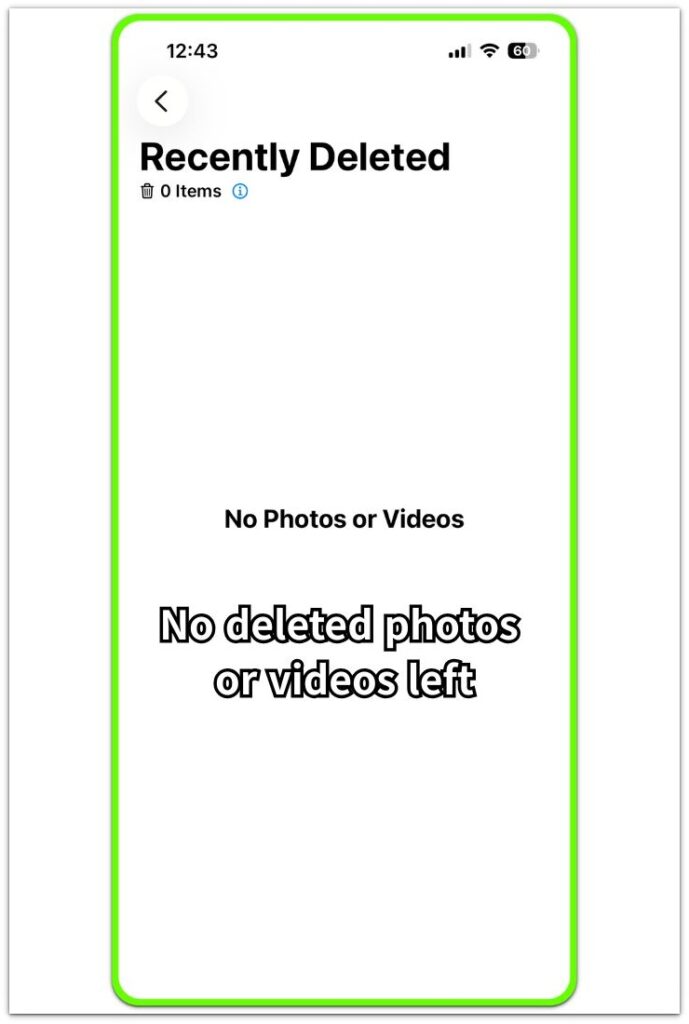
Once Recently Deleted is empty, return to iPhone Storage before removing anything else. This gives you a cleaner starting point for the next check.
Step 2: Check iPhone Storage After the Deleted Items Are Gone
Open Settings, then General, then iPhone Storage. Wait for the storage list to finish loading before you read the total used space.
Look at the total storage number first, then check the largest categories underneath it. The useful clue is whether the number starts to move after the deleted items are fully removed.
A short delay is normal. Close Settings, wait a little while, then reopen the storage screen and compare the number before removing anything else.
Step 3: Check Whether System Data Changed Instead
Scroll down in iPhone Storage and check System Data. Use this screen to see whether System Data changed instead of the total dropping right away.
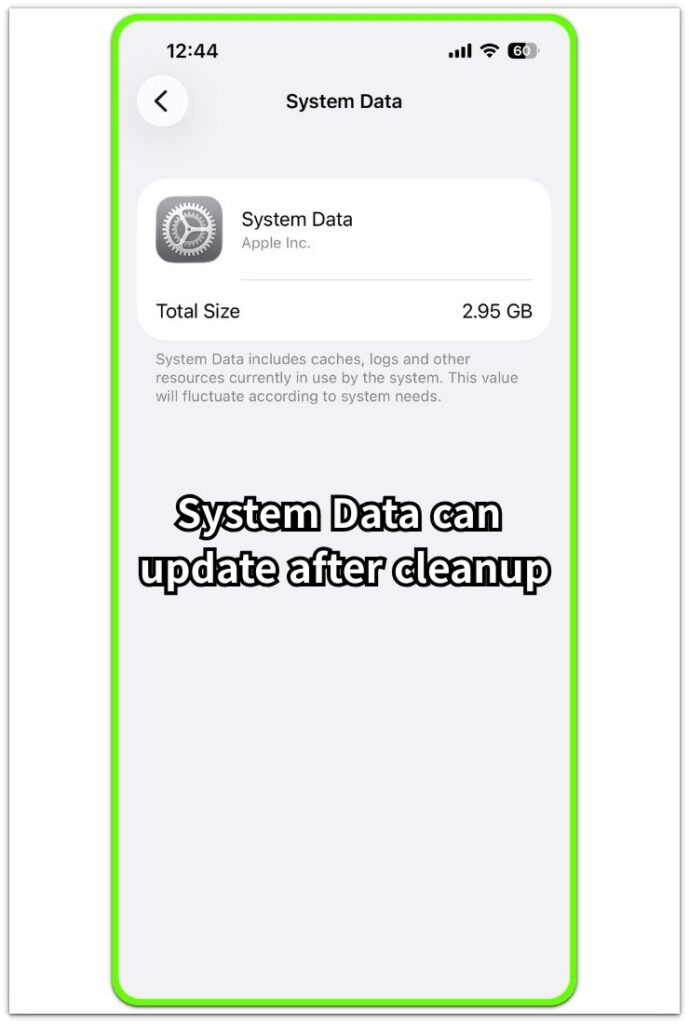
When photos, videos, or downloads get smaller but System Data stays higher for a while, the iPhone is often still clearing temporary storage in the background. The useful check is whether the total starts to settle after the deleted files are gone.
System Data that stays high after the files are gone needs a pause, not another cleanup round. Check iPhone Storage again later before removing more photos or downloads.
Troubleshooting
Troubleshooting 1: When the Total Stays the Same but a Category Changes
Sometimes iPhone Storage still shows the same total even though one category starts to look different. Photos, Files, or an app category may drop first while the main storage number stays behind.
Open Settings, then General, then iPhone Storage. Check the total at the top, then look at the categories and the largest apps underneath it.
A category that changes first is a useful clue. The deleted files are no longer showing in the same place, but the full storage total has not settled yet. Use that changing category as the next clue before starting another round.
Troubleshooting 2: When One App Still Takes Too Much Space
A single app can still keep storage after you remove files from inside it. This often happens with downloads, offline videos, edited media, or files saved inside the app instead of the Files app.
Open iPhone Storage and check the app connected to the deleted files. Look at the app size and its documents or data area before removing more photos, videos, or downloads elsewhere.
A large app entry after cleanup means the storage is still tied to that app. Open the app itself and check downloads, cache, saved media, or trash areas inside the app.
Troubleshooting 3: When the Storage Total Does Not Move After Several Checks
When the storage total does not move after several checks, the issue is no longer just one removed folder. The iPhone is either still recalculating storage, or another area is holding the space.
Open iPhone Storage again and compare the total with Photos, Files, app data, and System Data. Do not focus only on the place where the files were removed.
A lower total later means the cleanup worked, but the Storage screen needed time to settle. A total that stays flat while System Data keeps climbing needs a separate System Data check before you remove more personal files.
Extra Section 1: When an Editing App Saves a Separate Copy
An edited video or scanned document can stay on the iPhone even after the version in Photos or Files is gone. This happens when the editing app saves its own copy instead of only changing the original file.
The file looks deleted because it disappeared from the first place you checked. The storage clue comes from the app that created or edited the file, not only from the folder where you removed the final version.
Check the editing or scanner app connected to the file. Look for saved projects, exports, drafts, or local files inside that app before deleting more photos, videos, or downloads.
Extra Section 2: When Cloud-Linked Files Make the Cleanup Result Look Unclear
Cloud-linked files can make iPhone Storage harder to read after cleanup. A file still appears in iCloud Drive, Photos, or another cloud folder after the iPhone removes the downloaded local copy.
The file list can look unchanged, while the local storage count changes separately. The visible file name alone does not show whether the iPhone is still holding the full file.
Check whether the file is stored locally or only linked to the cloud before deleting more items. A cloud file that still appears in the list does not always use the same amount of iPhone storage.
Official Source: Apple iPhone Storage Guide
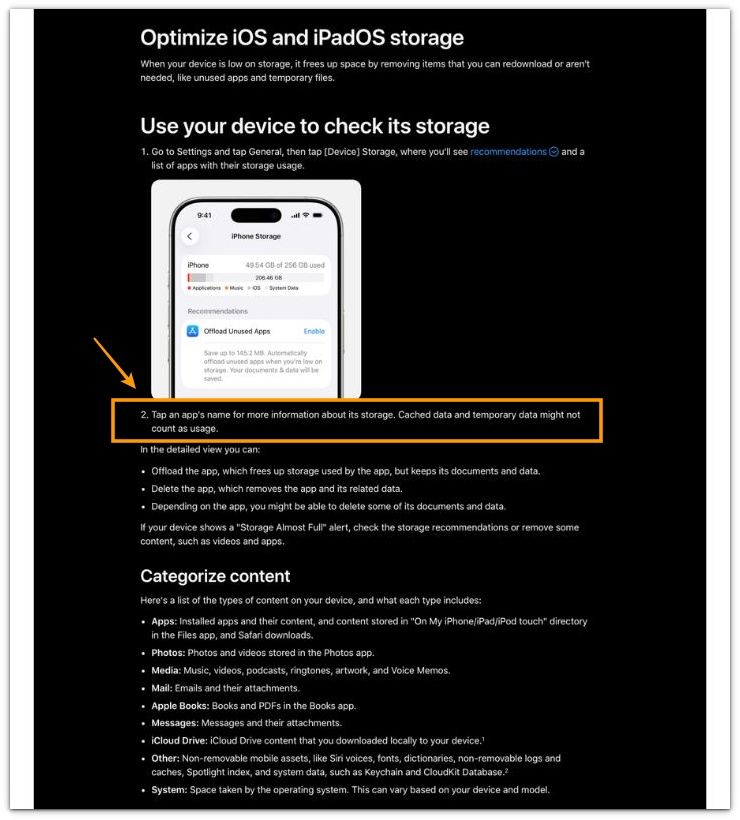
Apple says you can tap an app in iPhone Storage to see more details about its storage. It also notes that cached and temporary data do not always count as usage.
Before removing more files, use the app details in iPhone Storage to check whether the space is still tied to app data, cache, or temporary storage.
Additional Tips
Large iCloud files can still appear in a folder even when the iPhone is no longer storing the full local copy. Check whether the file has a download icon or needs to open from the cloud before treating it as active device storage.
Some apps keep draft files even after the exported file is deleted. Video editors, scanner apps, and document apps are worth checking when the final file is gone but the app still looks large in iPhone Storage.
Wait until iPhone Storage finishes recalculating before starting another cleanup round. One cleanup result should be checked first, or the next result becomes harder to match to the files you deleted.
Final Notes
iPhone storage not decreasing after deleting files usually means the space is still counted somewhere else, not that every removed item failed to clear. Start with Recently Deleted and the app that held or created the file. Then check iPhone Storage for app data, cloud-linked files, and System Data.
A real cleanup result needs more than the first storage number right after deletion. Check whether the deleted files are gone, the related app or category drops, and the total storage starts to settle.
When the same app, local file area, or System Data still shows the space, stop deleting random personal files and follow that storage clue directly.
Checklist
- Check Recently Deleted before removing more files.
- Check the app that held or created the deleted file.
- Open iPhone Storage and compare the related app or category.
- Check whether cloud-linked files are still stored locally.
- Wait for iPhone Storage to finish recalculating before starting another cleanup.
Still stuck after these checks? Compare this case with the broader iPhone storage guide before deleting more personal files.