
Introduction
Offloaded apps but iPhone storage still full is confusing when the app looks smaller, but the storage warning barely changes. The app shows a cloud icon on the Home Screen, and iPhone Storage no longer treats it like a normal installed app.
The offload looks finished, but the storage bar can stay almost unchanged after you offload a large game, editor, messenger, map app, or streaming app. The real issue is the difference between what the app looks like on the Home Screen and what iPhone Storage still counts.
Open iPhone Storage next and check App Size and Documents & Data separately.
Step-by-Step Guide
Step 1: Confirm What Offloading Actually Removed
Open Settings → General → iPhone Storage, then select the offloaded app that still seems to take up space.
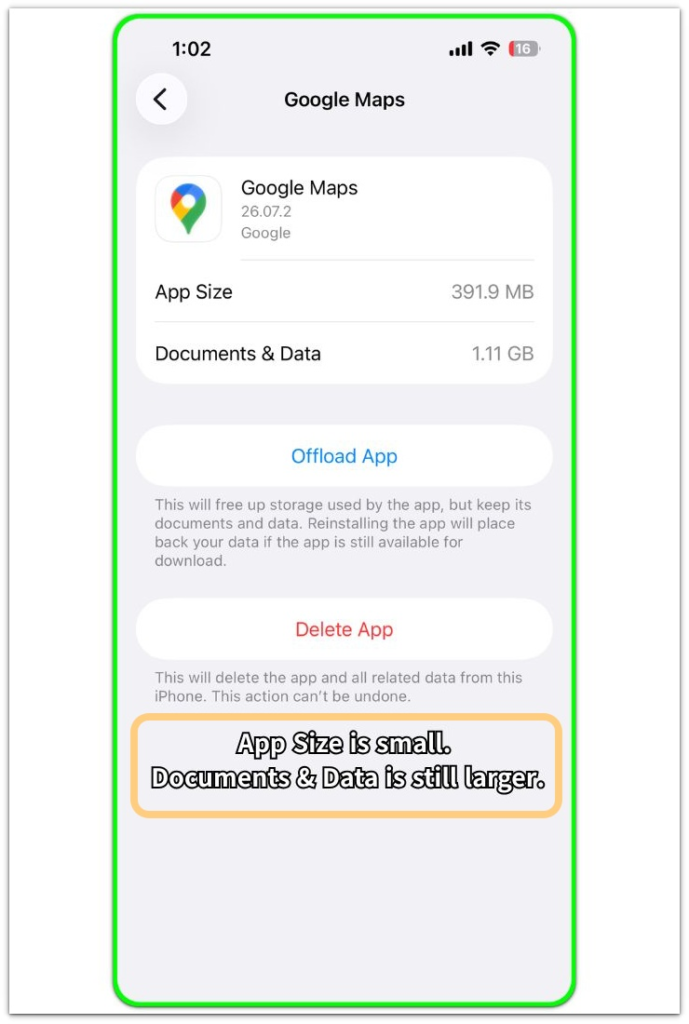
On the app detail screen, look at App Size and Documents & Data separately.
App Size is the part that offloading removes. Documents & Data is the part that stays on the iPhone. A small App Size with larger Documents & Data means offloading removed the app package, not the saved data.
With offloaded apps but iPhone storage still full, compare the storage warning with those two numbers, not only with the Home Screen icon.
Step 2: Compare Total Storage Before and After Reinstall
Write down the total used storage before you reinstall the app, then reinstall one offloaded app from the iPhone Storage screen.
Leave other storage settings unchanged during this check.
Open Settings → General → iPhone Storage again and look at the total storage bar.
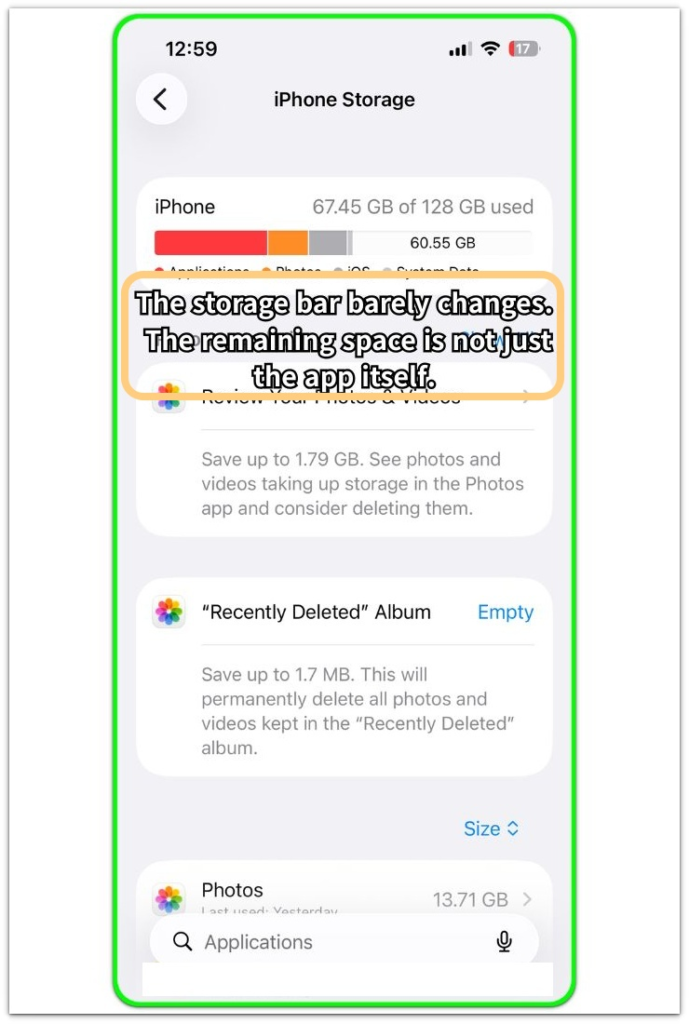
The iPhone Storage bar can barely move after the app is reinstalled. Write down that used amount before you open the app again, then compare it with the App Size and Documents & Data numbers from Step 1. The reinstall alone is not the full storage check.
When the bar stays almost flat after reinstall, check the app’s remaining details before changing anything else.
Step 3: Check Whether Only Full Delete Frees the Space
Use this step after checking App Size, Documents & Data, and the total iPhone Storage bar. Choose one offloaded app that is safe to remove.
Tap Delete App instead of reinstalling it, then go back to Settings → General → iPhone Storage and check the number again.
Delete only one app during this check. Compare the new total with the number you wrote down before deleting the app.
Keep that result as a single-app test. When the total barely changes, leave the result alone and move to the troubleshooting section.
Troubleshooting
Troubleshooting 1: Storage Does Not Drop Right After Delete App
Delete App can feel like the final step, so it is frustrating when the iPhone Storage number barely moves afterward. The app is gone from the list, but the total used storage still looks almost the same.
Pause before deleting more apps just because the number did not change right away. Go back to iPhone Storage and check whether that space is now showing under another storage line.
When the app disappears but the total stays flat, iPhone Storage is probably counting that space somewhere outside that one app.
Troubleshooting 2: Offloaded Apps but iPhone Storage Still Full with Large Documents & Data
The problem gets confusing when more than one offloaded app still shows large Documents & Data. A messenger, map app, video editor, or streaming app can keep saved files even when the app itself looks removed.
Each offloaded app needs its own check. Start with the app that has the largest Documents & Data number, then decide whether deleting that app completely is safe.
That remaining data still needs a separate decision. The Home Screen icon matters less than the data number that remains inside iPhone Storage.
Troubleshooting 3: The Storage Bar Changes Late After You Stop Checking
The iPhone Storage bar does not always update the moment you delete or reinstall an app. The app list changes first, but the top storage bar can lag behind.
This delay is easy to misread as a failed offload or deletion. Leave the iPhone idle for a short period, then return to Settings → General → iPhone Storage and check the same total again.
Avoid reinstalling, deleting another app, and restarting the phone all at once, because the storage change becomes harder to read. A later change points to a reporting delay, not a hidden app problem.
Wait until iPhone Storage finishes updating the number before you judge the offload result.
Extra Section 1: When a Messaging App Still Holds Storage
A messaging app is one of the easiest places to miss what offloading leaves behind. The Home Screen makes the app look mostly removed, but the iPhone Storage detail screen tells a different story.
Old attachments, voice messages, saved photos, and chat files can still make the app look heavy inside Documents & Data. These files do not appear like normal files because they stay under the app instead of sitting in Photos, Files, or Downloads.
A messaging app works differently from a simple game or shopping app because it keeps saved files inside conversations. Check whether those chat files still matter before you remove the app completely.
Extra Section 2: When Several Offloaded Apps Make the Storage Clue Harder to Read
A storage warning can push someone to offload several apps too quickly. A game, shopping app, editor, and streaming app all look like easy targets because you do not need them right away.
After offloading them, the Home Screen looks cleaner and the app list looks lighter, but the iPhone Storage bar still stays close to the same place. Several apps changed at once, so the storage screen no longer shows which app mattered.
The cleaner screen looks better, but the storage list gives the better clue.
Official Source: Apple Separates App Size from Documents & Data
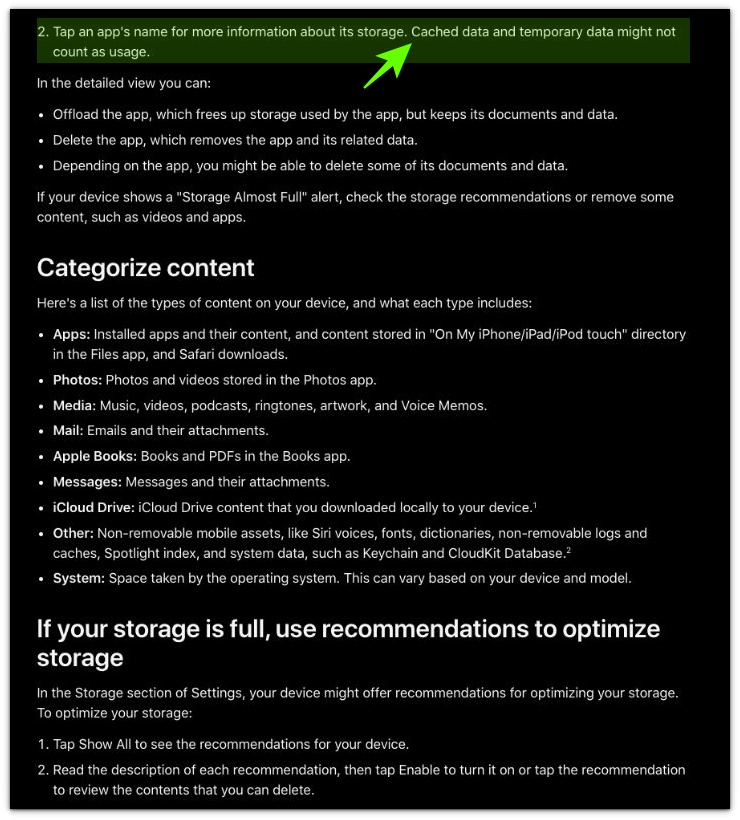
Apple’s iPhone Storage screen separates the app itself from Documents & Data on the app detail page.
This matters here because offloading removes the app package, but saved app data can still remain on the iPhone.
Look past the cloud icon and compare App Size, Documents & Data, and the total storage number after one controlled delete test.
Additional Tips
A large Documents & Data number does not always mean useless data. Some apps keep messages, saved maps, drafts, projects, offline videos, or saved login files there.
The offloaded icon only tells you that the iPhone no longer has the full app package installed. It does not tell you whether you can safely remove the remaining data.
For a messenger, editor, map app, or streaming app, the saved content can matter more than the app size. The safer choice depends on what the app stores, not only on how large the number looks.
Final Notes
When offloaded apps but iPhone storage still full keeps showing up, the app itself is not always the part still taking space. Offloading removes the app package, but Documents & Data can stay on the iPhone.
The icon, app size, and top bar can point to different parts of the problem. When Delete App frees room, stored app data caused the issue, not the offloaded package.
When iPhone Storage moves that space to another line, the issue is wider storage use, not a failed offload.
Checklist
- Check App Size and Documents & Data separately.
- Compare iPhone Storage before and after reinstalling one app.
- Delete only one safe app when testing full removal.
- Avoid deleting several apps at the same time.
- Start with the app that shows the largest Documents & Data number.
- Move to the wider storage guide when Delete App does not change the storage number.
If none of the checks above frees space, the problem is no longer just about the offloaded app. Use the main guide for the wider System Data issue before deleting more apps.