
Introduction
iPhone Other Storage so large feels confusing when the gray storage section stays high after normal cleanup. You already removed photos, offloaded unused apps, and cleared old message attachments, but the storage bar still does not move much.
The problem is hard to chase because Other does not open like a normal folder, album, or app list. It sits inside iPhone Storage as a system-managed category, so deleting more visible files often misses the storage iPhone is still counting.
Before removing more personal files, start with what the Other section is still holding.
Step-by-Step Guide
Step 1: Confirm the Category Is Truly “Other”
Wait until the storage bar finishes loading, then check the number after the calculation ends.
Look at the gray section first. When Other or System Data takes up the most space, this is not the same as a normal photo, app, or video cleanup problem.
Photos, Apps, or Media taking up most of the bar means the warning is probably coming from a visible category instead.
With iPhone Other Storage so large, the first job is to confirm that the gray section is really causing the low-storage message.
Use this screen as a visual checkpoint before deleting more files.
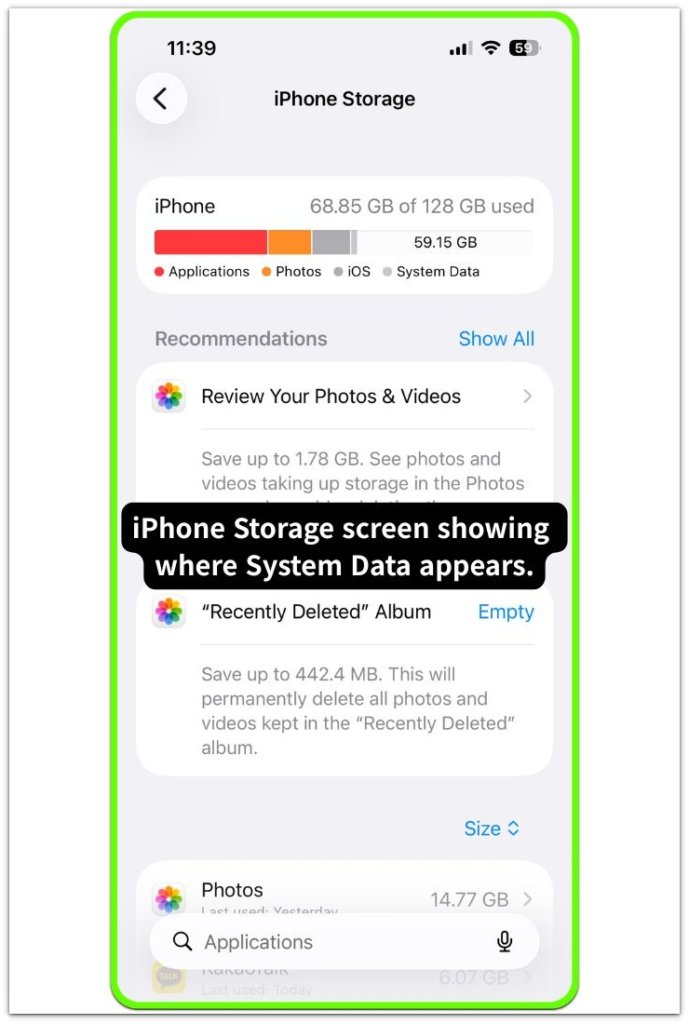
Step 2: Check for Visible Files Before Deleting More
Scroll through the iPhone Storage list slowly. Look for an iOS update or a downloaded update you have not installed yet.
A large Other or System Data number alone is not enough reason to remove anything. Remove an update only when the list clearly shows it.
No update in the list is still useful information. It means the large gray section is not coming from a visible update download.
Move to the next check before deleting more photos, videos, or personal files.
Step 3: Check Cache That Keeps Coming Back
Safari history, streaming apps, and old message attachments can add storage that does not look obvious in the main storage bar.
Start with Safari because it gives you a clean, controlled check before you touch personal photos or apps. Open Settings, search for Safari, then tap Clear History and Website Data.
Use one cleanup point first, then go back to iPhone Storage and see whether the gray section moves. A small change means Safari history did not cause most of the large Other section.
Use the Safari screen below as a checkpoint before confirming deletion.
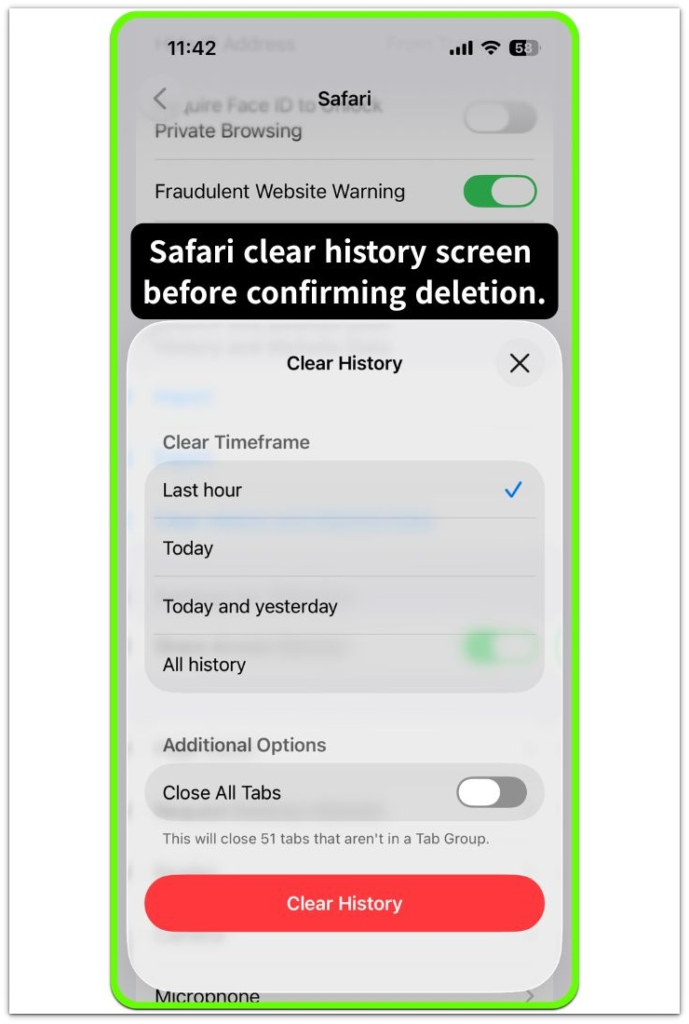
Troubleshooting
Troubleshooting 1: When “Other” Shrinks Then Grows Again
Other or System Data drops after cleanup, then climbs back a few hours later. That quick return does not prove that the user added new photos, apps, or videos.
The storage screen may look cleaner right after you clear Safari data, messages, or an update file. Later, the gray section can rebuild while iOS finishes sorting temporary storage.
Avoid repeating the cleanup right away. Leave the iPhone connected to power for a while, then open iPhone Storage again and check that category.
With iPhone Other Storage so large, repeated growth after a normal check matters more than the first drop after clearing data.
Troubleshooting 2: When Cleanup Does Not Change the Number
You already cleared Safari data, old attachments, and leftover update files, but Other or System Data barely moves.
The cleanup worked, but iPhone Storage is counting space beyond the easy items you removed.
Restart the iPhone once, wait for the storage graph to reload, and check the category again.
Stop deleting photos, videos, or apps just because the number looks stuck. When Photos, Apps, and Media stay low while the gray section stays high, the remaining space is not one obvious file in the list.
Troubleshooting 3: When “Other” Grows a Little Every Day
Other or System Data is more concerning when it keeps rising across several days without new downloads, videos, or app installs. A small one-day increase after normal use is not enough to judge.
Look for what changed during those days, such as heavy Safari use, streaming apps, message attachments, failed downloads, or a recent restore.
Restart the iPhone, reload iPhone Storage, and see whether the increase returns.
When those visible items do not explain the growth, stop treating it like a simple cleanup mistake.
Extra Section 1: When the First Cleanup Looked Successful Too Early
One iPhone looked cleaner right after the user cleared Safari history and website data. The gray section dropped enough to make the cleanup look successful.
The user added no new videos, installed no large apps, and left the photo library about the same. A few hours later, Other or System Data started climbing again.
That made the first result hard to trust. Instead of deleting random files again, the owner reopened iPhone Storage after the screen had time to reload.
The second reading showed whether the earlier drop was real space recovery or only a temporary shift after clearing data.
When iPhone Other Storage is so large, one cleaner reading needs a later comparison. A stable drop points back to normal cleanup, but a returning number shows that the pattern matters more than one forgotten photo or app.
Extra Section 2: When a 64GB iPhone Makes the Number Look Worse
A 64GB iPhone can make Other or System Data look worse than it would on a larger model.
One phone still had photos, messages, and a few streaming apps, but nothing looked huge by itself. The owner kept checking the app list and expected one obvious app to explain the full storage warning.
That app never appeared. The smaller limit made the gray section feel heavier than it really was.
A few gigabytes took up enough room to make the bar feel almost full. Deleting one small app did not change the warning much, so the result felt misleading.
The owner had to check total free space first, then read the gray section against that smaller limit.
On a low-storage iPhone, the same number feels more serious because there is less room around it. When the gray section keeps growing after normal use, trace the pattern instead of removing another small app.
Official Source: Apple’s iPhone Storage Guidance
Apple’s iPhone Storage guidance supports checking the storage screen again after it reloads instead of judging the result from one cleanup.
One cleaner number is not enough when the gray section returns after normal use.
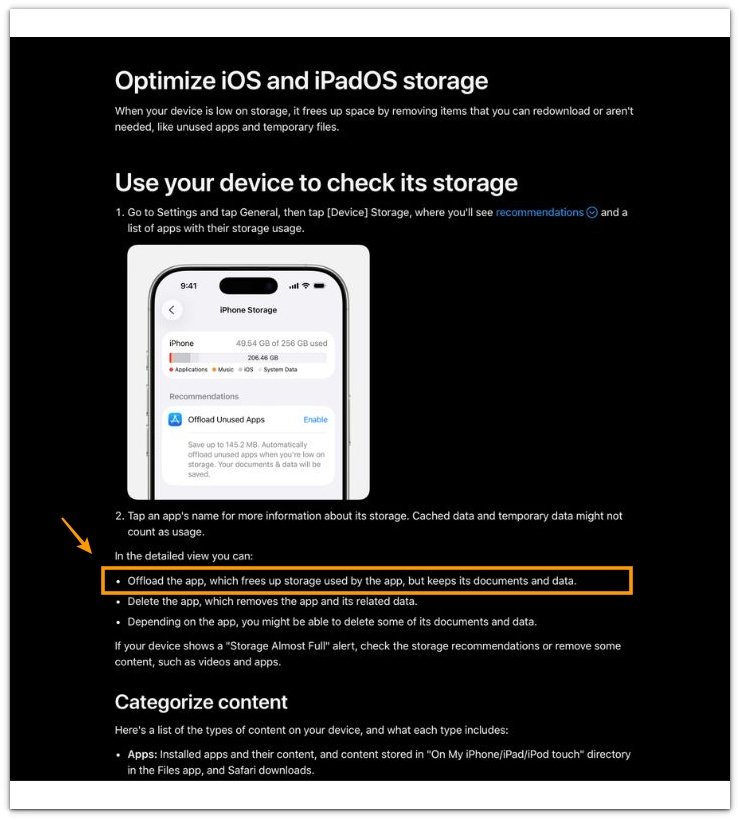
Additional Tips
Give iPhone Storage time to reload after a restore, iOS update, or large app offload. The gray section is easier to read after the number settles.
Background downloads can also confuse the check. Photos, messages, or app data still loading in the background can make the storage bar change again.
Change one area at a time instead of clearing every browser, streaming app, and message thread together. Reload iPhone Storage after each cleanup and check whether the gray section responds.
Keep some free space available before testing again. When the phone is nearly full, the storage bar often looks stuck even after one cleanup.
Final Notes
When iPhone Other Storage so large becomes the issue, treat the gray section as something different from a normal photo, video, or app problem.
Visible cleanup only matters when the visible categories explain the storage bar. Photos, Apps, Media, and Messages staying low while Other or System Data stays high means personal files are not the right target.
A one-time drop after cleanup is weak evidence. The stronger clue is what happens after the storage screen reloads and the phone returns to normal use.
A category that keeps coming back, refuses to shrink, or grows across several checks points to a system storage issue.
Checklist
- Check whether Other or System Data grows again after a few hours.
- Open iPhone Storage and wait for the storage bar to reload.
- Remove only update files or message attachments you can clearly identify.
- Restart the iPhone once before judging the number again.
- Stop deleting personal files when Other or System Data stays large after cleanup.
- Treat repeated gray-section growth as a system storage problem, not normal clutter.
If Other or System Data still does not explain the storage warning, the main iPhone storage guide can help you compare it with the bigger storage patterns.