
Introduction
iPhone storage changed after restart becomes confusing when the page shows a different number after the phone turns back on, with more free space, less free space, or a changed category size from the last check.
The confusing part is that it does not always show whether the difference came from files, app data, or the storage page recalculating after restart.
Step-by-Step Guide: iPhone Storage Changed After Restart
Step 1: Check The Storage Total After Restart
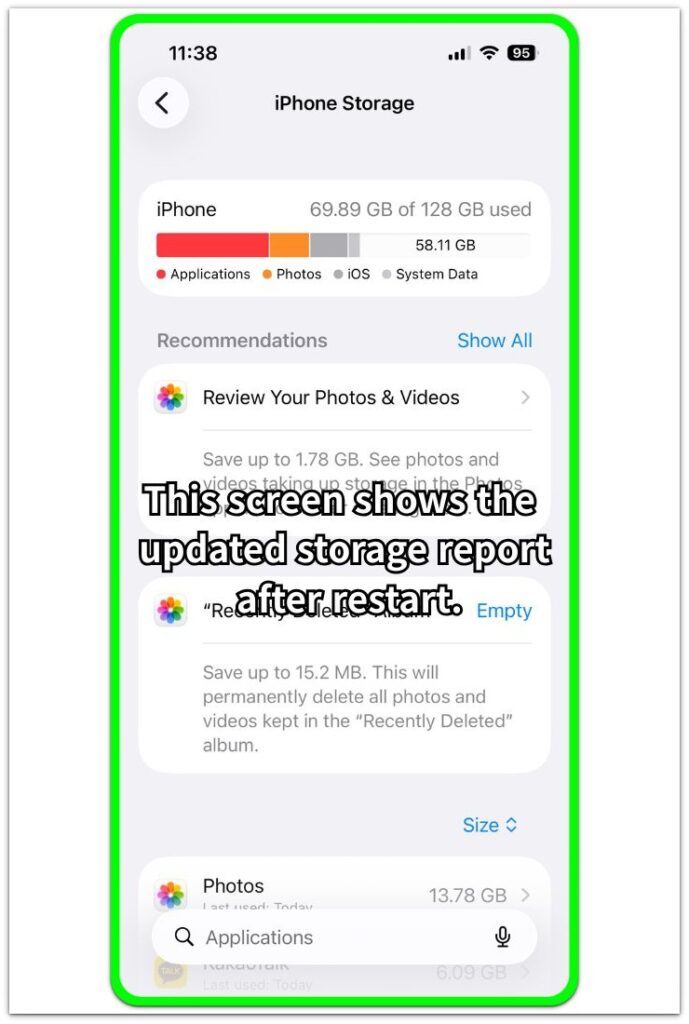
Open Settings → General → iPhone Storage after the phone turns back on. Look at the used space at the top first.
This is the new reference point after the restart. When it looks different from what you saw before, avoid judging it from the bar alone. Keep the page open and check which category moved with it.
Step 2: Match The Change With A Category
Look at the bar and the app list on the same iPhone Storage page. Check whether the new number matches Applications, Photos, iOS, or another large category.
When the largest category explains the number, keep it as the next place to check. When the visible categories do not explain it clearly, move to System Data instead of deleting apps or photos right away.
Step 3: Check System Data As A Separate Item
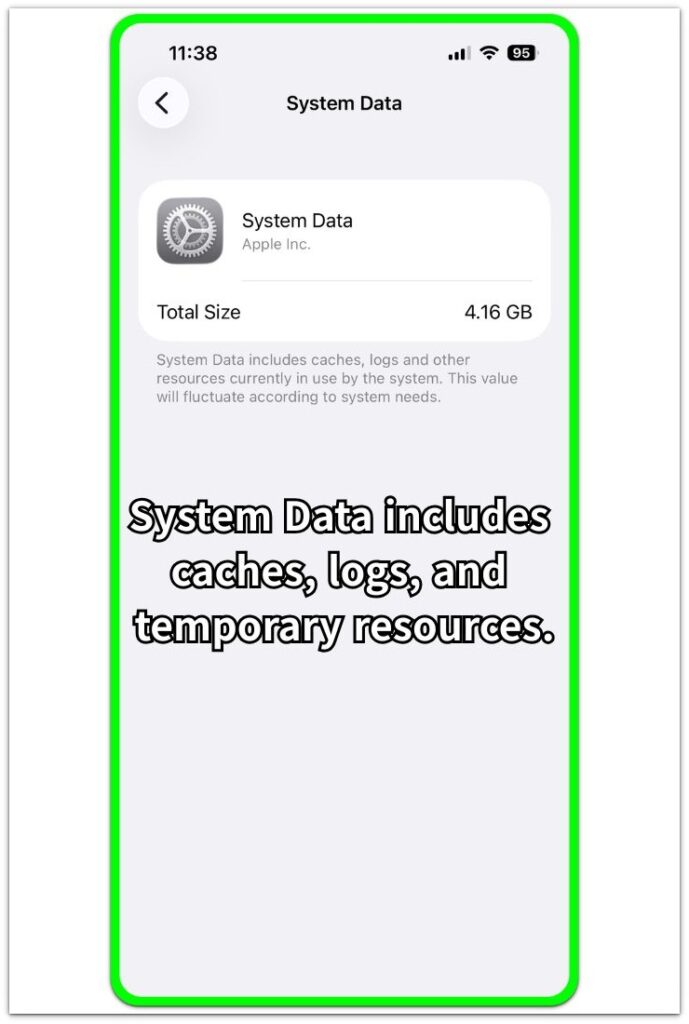
Check System Data in the storage list and compare its total size with the changed storage number. This screen shows whether caches, logs, and temporary resources are part of the changed result.
If System Data changed after the restart, compare it with the new total on the main page. Use this check before removing personal files, because the change may come from storage accounting rather than a file you need to delete.
Troubleshooting
Troubleshooting 1: iPhone Storage Changed After Restart But The Number Keeps Moving
The number changes again after the restart when the page is still loading app sizes and category details. The top total looks ready, but the list below it keeps updating.
Stay on Settings → General → iPhone Storage until the app list finishes loading. Check the largest apps first, then compare the total again after the page settles. Once the list loads and the number stops changing, use the settled result as the new reference.
Troubleshooting 2: The Used Space Looks Lower But You Did Not Delete A Large File
The used space sometimes looks lower after restart even when you did not delete a large file. The phone refreshes cached data, temporary files, and storage records when it starts again.
Check System Data and the largest app categories before deleting anything else. If the lower used space matches System Data or app cache changes, treat the restart result as a refreshed count, not a missing-file problem.
Troubleshooting 3: Photos Or Apps Still Show The Old Size
Photos, apps, and deleted items do not always update at the same speed as the main total. The total at the top changes first, while one category still shows the old size for a while.
Open the category that still looks wrong and check its detail screen. For Photos, check Recently Deleted. For apps, check the app size and Documents & Data. Then return to the main page and compare the category again.
Extra Section 1: Why The Number Changes After Restart
A restart does not only turn the iPhone off and on again. It also makes the system reload the information shown on the iPhone Storage page. App sizes, cached items, temporary files, and storage records appear differently after that reload.
After the phone turns back on, the number looks different from the last check. The change does not automatically mean a personal file disappeared, and it does not prove that a new large file was added. The page is showing a newer reading than it showed before the restart.
Treat the first result after restart as refreshed. Once the app list and category sizes finish loading, compare the same screen again before judging the change or deleting anything.
Extra Section 2: When You Should Not Delete Files Yet
Avoid deleting photos, videos, or apps just because the number changed once after restart. A single changed result is still only a comparison point. It does not prove that personal files are taking the space, and it does not show which item caused the difference.
Wait until the iPhone Storage page finishes loading the app list and category sizes. If the same difference remains after the page settles, check the largest item first. This keeps the check focused on one clear item instead of sending you into several files, apps, and albums at once.
Deleting too early makes the result harder to understand. The number often changes again after the page finishes loading, and a removed file makes the comparison less clear. Keep the first check focused on the largest item and System Data before deciding whether to remove anything.
Official Source: Cached And Temporary Data Does Not Always Count As Storage Usage
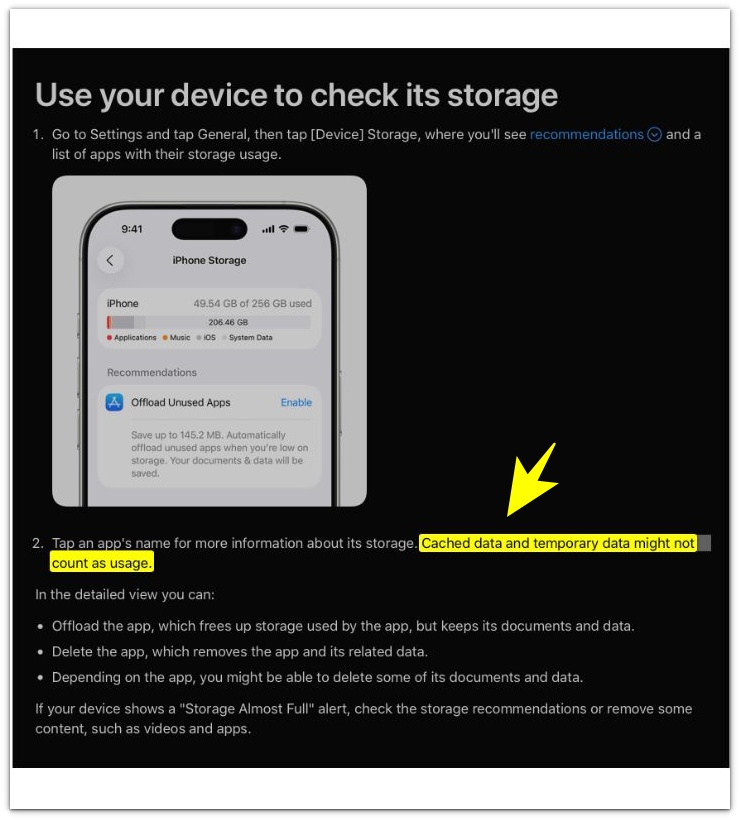
Apple explains that iPhone removes cached and temporary files when it needs more space, so you do not have to delete them yourself. A changed storage number after restart should be compared with categories and System Data before deleting personal files.
Additional Tips
Recently Deleted is worth checking only when Photos still shows a large size after the main storage number changes, because deleted photos or videos still remain inside the Photos count.
The app list often finishes later than the top total, so check the page again after the largest apps and categories finish showing their sizes.
System Data does not explain every change, but it is the right place to compare when the visible categories do not match the new number.
A cleaner app or a different storage tool makes the comparison harder, because the first check needs the same iPhone Storage page that showed the changed result after restart.
Final Notes
iPhone storage changed after restart is usually a storage calculation issue first, not proof that a personal file caused the change.
The safest check is to compare the new total with the largest category, System Data, cached data, and temporary data before removing anything, then review the category that still matches the changed number after the storage page settles.
Checklist
- Check the changed storage number on the same iPhone Storage page.
- Wait until the app list and category sizes finish loading.
- Compare the new total with the largest visible category.
- Check System Data when the visible categories do not explain the change.
- Review Recently Deleted only when Photos still keeps a large size.
- Remove personal files only after the changed number matches a clear category.
For the full storage flow, check the main iPhone storage guide above.