
Introduction
Deleted photos but iPhone storage not changing becomes noticeable when the app looks cleaner, yet iPhone Storage still shows nearly the same amount of space used.
Start with the screens that show whether the phone is still holding or syncing deleted photos. Check those photo storage areas first, then return to iPhone Storage and compare the number again.
Step-by-Step Guide: Deleted Photos But iPhone Storage Not Changing
Step 1: Check Recently Deleted Before Reading Storage
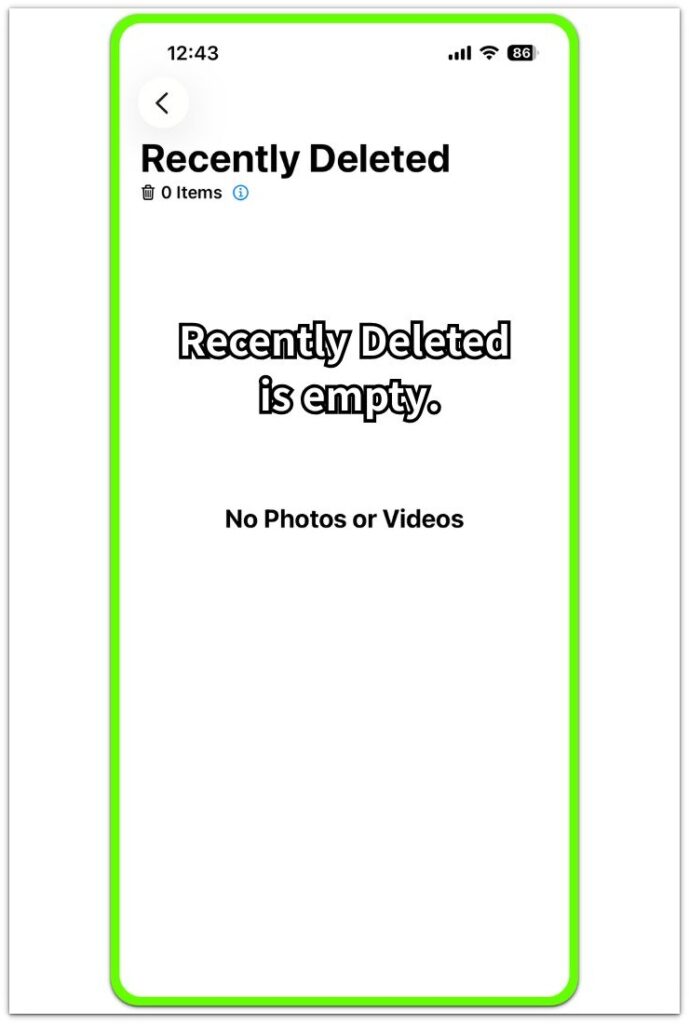
Open Photos, then go to Albums → Recently Deleted. This screen shows whether the phone is still holding deleted photos before they fully leave.
Look at the item count first. When Recently Deleted shows 0 items, the deleted photos are no longer waiting on that screen. Next, check Photos settings instead of going back to the main library.
Step 2: Check Whether Photos Is Still Syncing
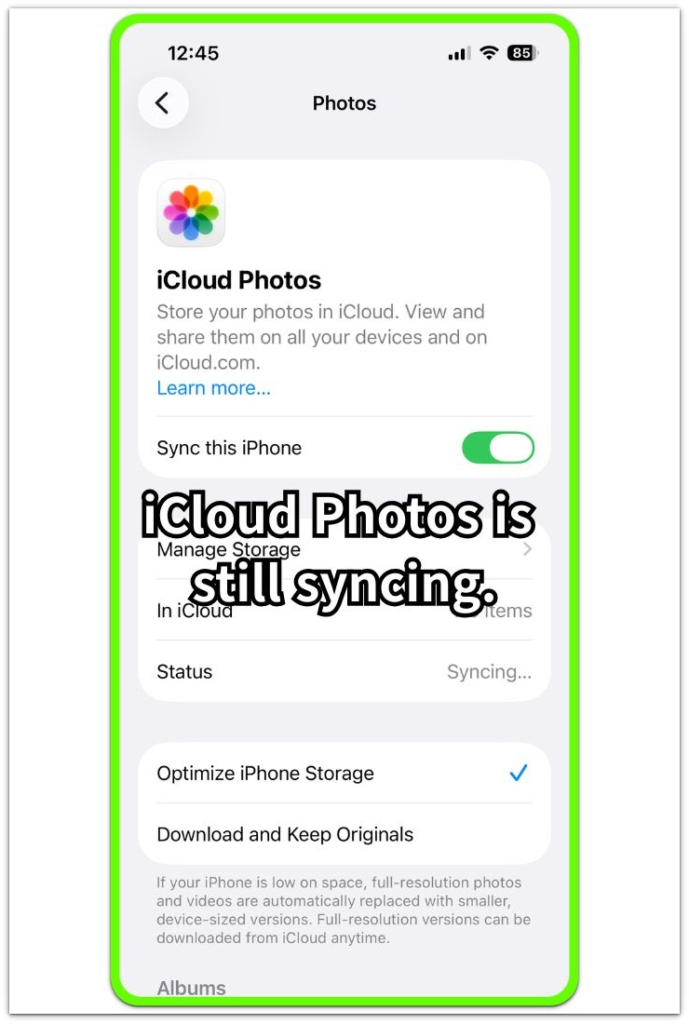
Open Settings → Photos and look at the iCloud Photos section. Check whether Sync this iPhone is on, then read the status line under it.
A syncing status means the phone is still working with iCloud to finish the Photos change. Keep this check separate from Recently Deleted, because an empty Recently Deleted screen does not always mean the storage number has already refreshed.
Step 3: Compare The Number In iPhone Storage
Open Settings → General → iPhone Storage and look for Photos. Use the number there as the final comparison point after checking Recently Deleted and sync.
Use it to decide whether the cleanup has actually changed the storage total.
Troubleshooting
Troubleshooting 1: Deleted Photos But iPhone Storage Not Changing After Recently Deleted Is Empty
Recently Deleted shows 0 items, but iPhone Storage still keeps the Photos number high. This feels confusing because the deleted album looks clean, yet the storage screen has not followed that change.
Open Settings → Photos and check the iCloud Photos status again. When syncing is still active, wait until the status settles, then return to iPhone Storage and compare the number once more. Use that result before deleting more items.
Troubleshooting 2: iPhone Storage Still Shows Media After iCloud Photos Is Off
Sync this iPhone is off, but Photos still takes up space in iPhone Storage. The next check should stay on the device because iCloud Photos is not the active sync path.
Open the Photos app and check Albums, Videos, Screenshots, and other large media sections. Delete only the items you no longer need, then clear Recently Deleted again. Return to iPhone Storage after that cleanup and compare the number from the same screen.
Troubleshooting 3: The Number Drops Later, Not Right Away
The number stays high right after deletion, then changes later. iPhone Storage has not refreshed the total at the exact moment you checked it.
Leave the phone unlocked for a short time, keep the app closed, and avoid deleting more items during that check. Return to Settings → General → iPhone Storage later and read the number again. A later drop points to iPhone Storage needing more time to refresh after the cleanup.
Extra Section 1: Recently Deleted Is Empty But iPhone Storage Still Looks High
You deleted the photos, and Recently Deleted already shows 0 items. The app looks clean, so it is easy to think the storage number should drop right away.
iPhone Storage does not always move at the same moment as the app. Recently Deleted only shows whether deleted items are still waiting there, while iPhone Storage shows the phone’s storage total after the system updates that number.
Instead of deleting more at random, open Settings → Photos and review the iCloud Photos status. Then return to Settings → General → iPhone Storage and compare the result again.
Extra Section 2: Large Videos Still Keep Storage High
Recently Deleted is empty, and iCloud Photos is not the reason the number is staying high. The number stays high because the app still holds large media.
This often happens when the main library looks lighter after deleting recent pictures, but older videos, screen recordings, screenshots, or saved images remain in Albums. A few large videos keep the number high even when the photo grid looks much cleaner.
Open Photos → Albums and check Videos, Screen Recordings, Screenshots, and other large media sections. Remove only the items you no longer need, clear Recently Deleted again, then return to iPhone Storage and compare the number from the same screen.
Official Source: Deleted Photos Stay In Recently Deleted Before Permanent Removal
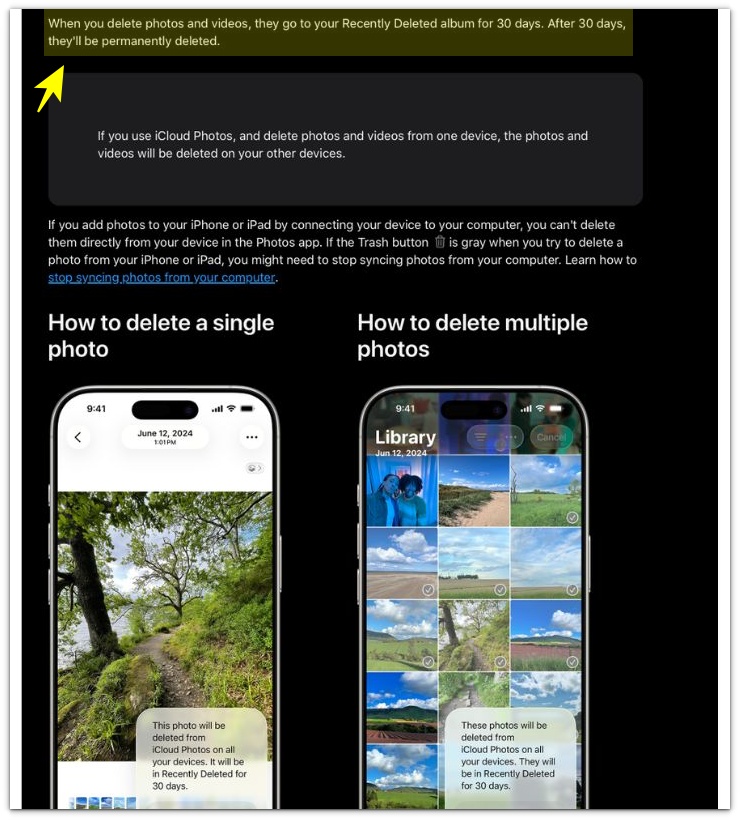
Apple explains that deleted photos and videos stay in Recently Deleted for 30 days before permanent removal.
The storage change is easier to read after the deleted items fully leave that album, not only after they disappear from the main photo grid.
This also explains why the app looks cleaner before storage changes. The app view and the storage total do not always update together, so clear Recently Deleted, review sync, and then return to iPhone Storage.
Additional Tips
A full-storage warning does not always come from Photos alone. Check the full iPhone Storage list when Photos is not the only large category.
Shared albums and saved images often make the app look mixed after cleanup. Focus on items stored in your own library when comparing the number.
Use Storage Recommendations after you finish the main steps. They help show whether the full warning is coming from another category, not from deleted photos.
Final Notes
Deleted photos but iPhone storage not changing needs a fixed check order: Recently Deleted first, Photos sync second, and the number in iPhone Storage last.
That order gives the cleanest answer. Recently Deleted shows whether deleted items are still waiting, Settings → Photos shows whether sync is still active, and iPhone Storage shows the final space number.
When the number stays high after those checks, treat it as more than a simple deleted-photo delay. The next check belongs in the full iPhone Storage list, not in repeated random photo deletion.
Checklist
- Check Recently Deleted before reading iPhone Storage.
- Review the iCloud Photos status in Settings → Photos.
- Compare the number from Settings → General → iPhone Storage.
- Check Albums for large videos or screen recordings.
- Use the full iPhone Storage list when Photos is not the only large category.
For a wider storage check, use the main iPhone storage guide before deleting more photos at random.