
Introduction
────────────────────────
iphone system data too large refers to a condition where the System Data or Other category expands beyond normal operating size and does not shrink even after deleting apps, photos, or media.
Storage appears available at first.
Then the gray bar grows again.
Free space disappears without visible new files.
This behavior does not begin in user-managed folders.
It develops inside temporary caches, logs, indexing layers, and system containers that operate below normal file visibility.
When that internal layer fails to compress or clear correctly, storage growth continues without direct user control.
────────────────────────
Step-by-Step Guide
────────────────────────
────────────────────────
Step 1: Confirm the Exact Category Growth
────────────────────────
Open Settings → General → iPhone Storage.
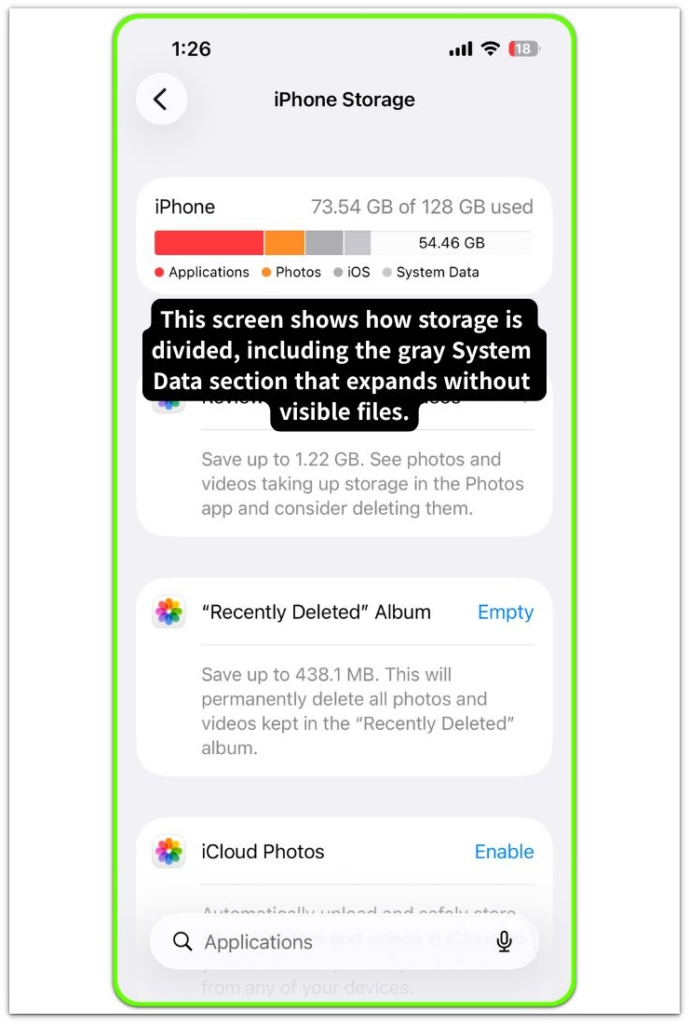
Wait until the graph fully loads.
Do not judge before the calculation finishes.
If System Data or Other Storage occupies an unusually large portion compared to Apps and Media, the growth is internal rather than file-based.
If Photos, Messages, or Apps dominate the chart instead, the issue sits in visible storage and follows a different path.
This distinction determines whether control remains at user level or has shifted below it.
────────────────────────
Step 2: Evaluate Recent Activity Patterns
────────────────────────
Review recent behavior.
Large iOS updates, Safari heavy browsing, video streaming, message attachments, or repeated AirDrop transfers increase temporary storage layers.
If storage expanded immediately after an iOS update, indexing and rebuild activity may still be in progress.
If no major system activity occurred and iphone system data too large continues expanding daily, compression failure or cache accumulation is more likely.
This is the first control boundary check.
────────────────────────
Step 3: Force Temporary Layer Reset
────────────────────────
Restart the device completely.
Then reconnect to stable Wi-Fi and leave the device idle for several hours while charging.
During this period, background cleanup routines may re-organize temporary layers.
If system data decreases after idle stabilization, the condition was transitional.
If iphone system data too large remains unchanged, cleanup routines did not resolve the accumulation.
Under those conditions, the storage layer is no longer self-correcting.
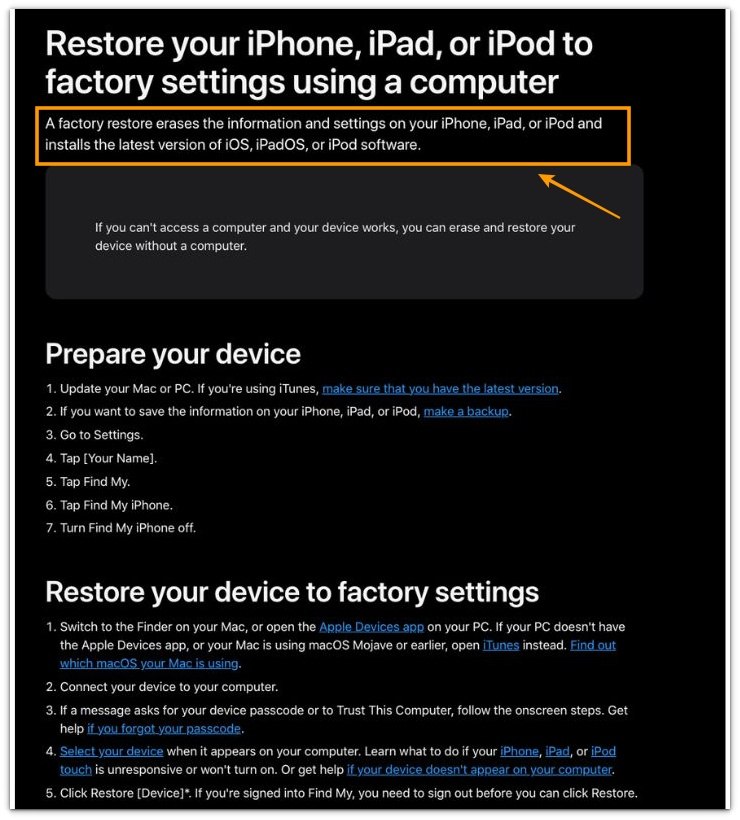
If you need further assistance, please refer to the official Apple support page below.
────────────────────────
Troubleshooting: iphone system data too large
────────────────────────
────────────────────────
Troubleshooting 1: Safari and Web Cache Accumulation
────────────────────────
Safari stores website data, scripts, session cookies, and rendering caches that do not appear inside the Photos or App categories.
Open Settings → Safari → Clear History and Website Data.
After clearing, return to iPhone Storage and wait for recalculation.
If System Data decreases noticeably, web cache was occupying part of the gray layer.
If there is little or no change, Safari cache was not the dominant contributor.
Repeated streaming sessions, large web-based video playback, and frequent tab switching increase temporary containers faster than users expect.
In these cases, growth reflects browsing intensity rather than hidden files.
Persistent growth after full cache clearing signals that the accumulation exists outside Safari-managed layers.
────────────────────────
Troubleshooting 2: Messages Attachment Expansion
────────────────────────
Large iMessage attachments remain indexed even after conversation cleanup if not removed through storage management.
Open Settings → General → iPhone Storage → Messages.
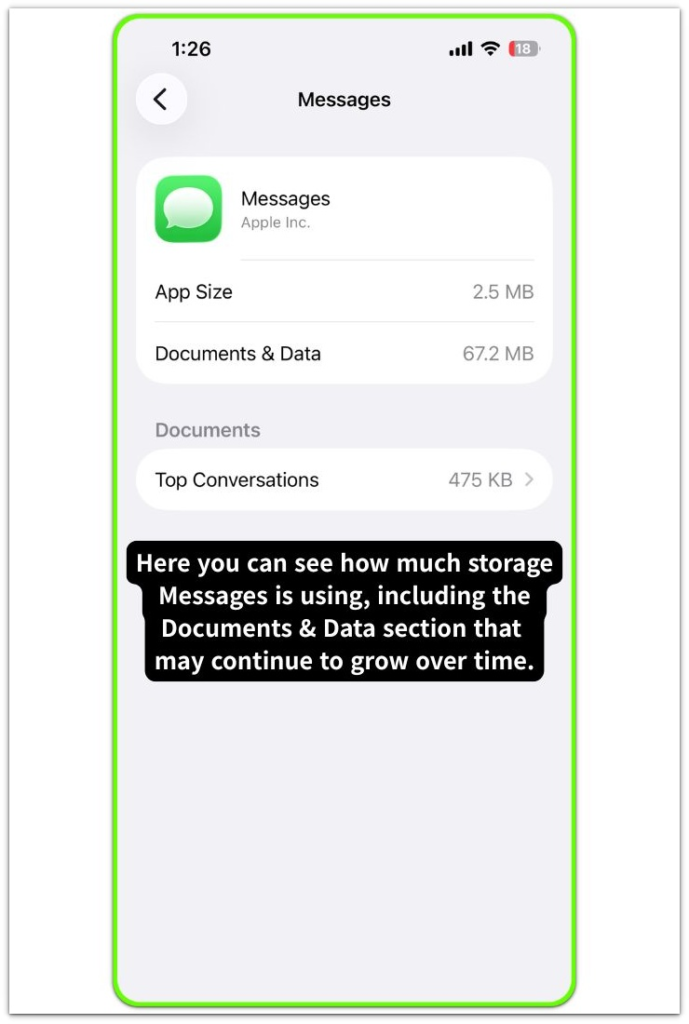
Review Top Conversations and Large Attachments.
Delete media directly from the storage overview, not inside the chat interface.
If storage decreases after structured deletion, attachment indexing was contributing to growth.
If System Data remains large despite removing heavy media, the expansion sits outside user-accessible message containers.
Video-heavy group chats, repeated forwarded clips, and high-resolution image threads accelerate attachment indexing growth.
In most cases, this pattern appears gradually rather than overnight.
Sudden growth without heavy messaging usually points elsewhere.
────────────────────────
Troubleshooting 3: iOS Update Residual Files
────────────────────────
Partial update packages, diagnostic logs, and temporary rebuild layers can remain stored in protected partitions.
Check Settings → General → Software Update.
If no pending update exists, residual files may still remain from previous installations.
Restart the device, then leave it connected to stable Wi-Fi and charging overnight.
If storage reduces after several idle cycles, rebuild routines completed successfully.
If iphone system data too large remains stable or continues expanding across multiple days, the accumulation is no longer transitional.
In this situation, the next step involves a full system-level rebuild rather than additional cache clearing.
────────────────────────
Additional Tips
────────────────────────
Avoid repeatedly installing and deleting large apps in short intervals when iphone system data too large is already elevated.
Each installation creates temporary unpacking layers.
Maintain sufficient free space.
iOS requires buffer capacity to compress and reallocate containers efficiently.
Devices operating under 10% free storage show higher container retention.
Do not rely on third-party cleaning utilities.
They cannot access protected partitions where most System Data resides.
Observe storage behavior over three to five charge cycles before forming conclusions.
Temporary expansion resolves.
Structural imbalance persists.
────────────────────────
Final Notes
────────────────────────
When iphone system data too large remains for several days and does not decrease after restart, cache clearing, and idle stabilization, the condition has moved beyond temporary allocation.
Temporary storage growth reduces after background rebalancing.
Structural container expansion remains stable.
When no visible files account for the occupied space and the gray bar stays unchanged, the allocation map has not been rebuilt.
This marks the control boundary.
Basic settings do not reverse structural container retention.
A full device restore rebuilds the system partition and resets the storage allocation layer.
────────────────────────
Checklist
────────────────────────
☐ Confirmed System Data is the dominant storage category
☐ Cleared Safari and Messages cache layers
☐ Completed full restart and idle stabilization
☐ Observed storage behavior across multiple charge cycles
☐ Verified measurable reduction in storage size
If every step above is completed and the gray bar still does not move, this is the point where users realize the problem is no longer something they can fix through normal settings.
────────────────────────
Structural Expansion and Related Scenarios
────────────────────────
iPhone Other Storage So Large — When System Allocation Expands
“Other” grows as internal logs, cache layers, and system indexes accumulate beyond what the interface reveals.
→ internal link
iPhone Storage Full Even With Free Space — Reporting Boundary State
Available space may appear on screen, yet the allocation layer remains effectively full.
→ internal link
iPhone Storage Not Decreasing After Deleting Files — Reallocation Phase
Files disappear from view first, while actual storage release depends on background restructuring.
→ internal link
iPhone Storage Bar Wrong — Visualization vs Actual Allocation
The storage bar represents categorized estimates, not real-time block availability.
→ internal link
iPhone Storage Increased After iOS Update — System Reindex Period
An update often triggers database rebuilding and temporary expansion before stabilization occurs.
→ internal link
Offloaded Apps but iPhone Storage Still Full — Sandbox Storage Boundary
Removing the app binary does not remove its container data, which can continue occupying space.
→ internal link
iPhone Messages Taking Up Too Much Storage — Attachment Persistence Layer
Attachments remain retained inside message containers even after visible cleanup.
→ internal link
Deleted Photos but iPhone Storage Not Changing — Sync Retention State
Photo removal clears the library display, but sync retention can delay actual release.
→ internal link
iCloud Sync Not Freeing Up iPhone Storage — Dual Allocation Condition
Cloud sync confirms replication, yet local structured copies remain until optimization reduces them.
→ internal link
System Data Bigger Than Apps on iPhone — Runtime & Log Allocation
System data expands through logs, indexing activity, and temporary processing buffers that are not user-managed.
→ internal link
────────────────────────
Extra Section 1
────────────────────────
System Data growth often appears unpredictable because the interface does not show individual files inside that category.
However, expansion follows internal logic.
Index databases, journaling layers, temporary decompression buffers, and logging systems allocate space dynamically.
When compression cycles fail to reclaim space efficiently, allocation increases to preserve performance stability.
The system prioritizes integrity over visibility.
Deleting photos or apps does not directly shrink these containers because they operate independently from user-managed folders.
In real-world observation, gradual reduction across several days usually indicates healthy rebalancing.
Static or expanding allocation signals structural retention.
The distinction matters because one resolves passively while the other requires intervention.
────────────────────────
Extra Section 2
────────────────────────
In practical experience, temporary System Data growth after a major iOS update typically settles within a week.
When it does not shrink after multiple idle cycles and structured cache clearing, the issue feels confusing because nothing visible explains the expansion.
Users often describe it as “hidden storage.”
What actually persists is container reservation.
On devices that repeatedly dropped below 5% free space, the gray bar tended to remain elevated longer.
After a full restore through Finder, the container map rebuilt cleanly and the allocation dropped to baseline.
That outcome demonstrates a structural reset rather than file deletion.
When iphone system data too large continues beyond ordinary stabilization, the storage boundary has moved outside normal settings control.
In this condition, only a full system rebuild changes the allocation map.