
Introduction
iPhone app battery drain after install becomes noticeable when the battery starts dropping faster only after you add one new app.
The timing matters most here. The battery looked normal before the install, then you noticed the drop more easily during the same daily use after adding that app.
Start by checking whether the faster drain follows the new app instead of blaming every background setting at once. First, compare the battery drop before and after normal use, then check whether the newly installed app appears in Battery usage.
Step-by-Step Guide for iPhone App Battery Drain After Install
Step 1: Check Whether the Faster Drop Started After You Installed the New App
Start with the install timing before changing battery settings. Check whether iPhone app battery drain after install began only after you added one new app.
Think back to the battery level before the install, then compare it with the same kind of use after the install. One quick drop is too weak. The new app deserves attention only when the iPhone keeps losing battery faster during normal use after that app appeared.
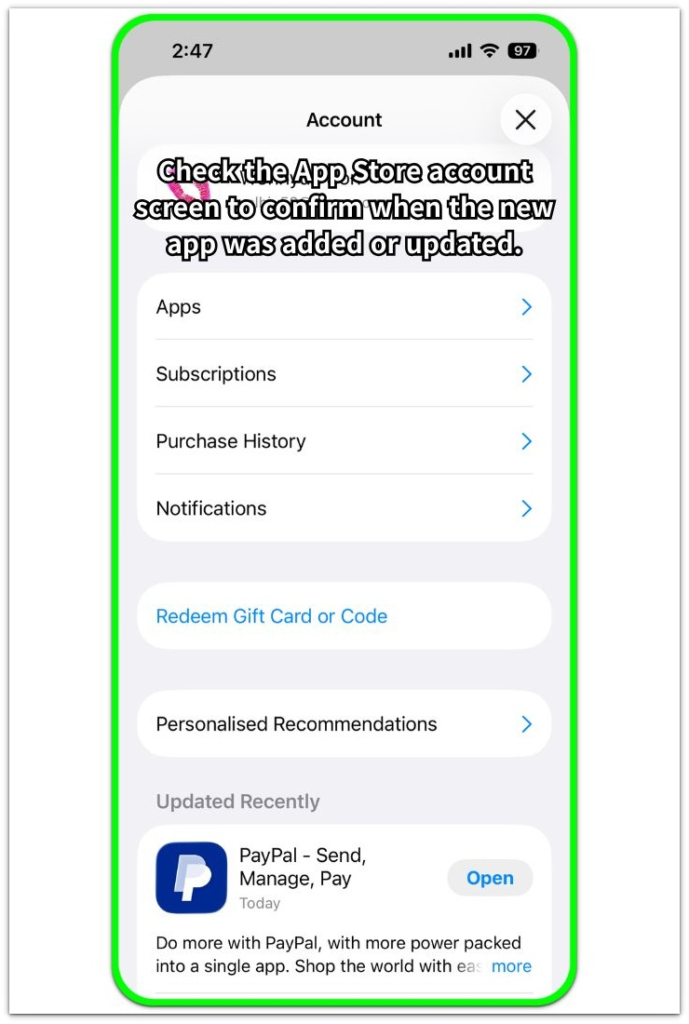
Keep your attention on that app first if the battery looked normal before the install and started dropping faster afterward. Leave other battery settings alone until you check whether the same app appears in Battery usage later.
Step 2: Check Whether the Battery Still Drops Faster During Normal Use
After checking the install timing, use the iPhone normally for a short while. Open messages, switch between a few apps, lock the screen, and come back later the same way you usually do.
Compare the battery drop with how the iPhone behaved before you installed the new app. You do not need a special test here. The useful check is whether the faster drain still appears during normal use.
A one-time drop right after the install is a weak clue. When the iPhone keeps losing battery faster during the same kind of daily use, move to the next check and look at the newly installed app more closely.
Step 3: Check Whether the New App Appears in Battery Usage
Open Settings, then Battery. Look for the newly installed app in the battery usage list and compare its battery use with how much you actually opened it.
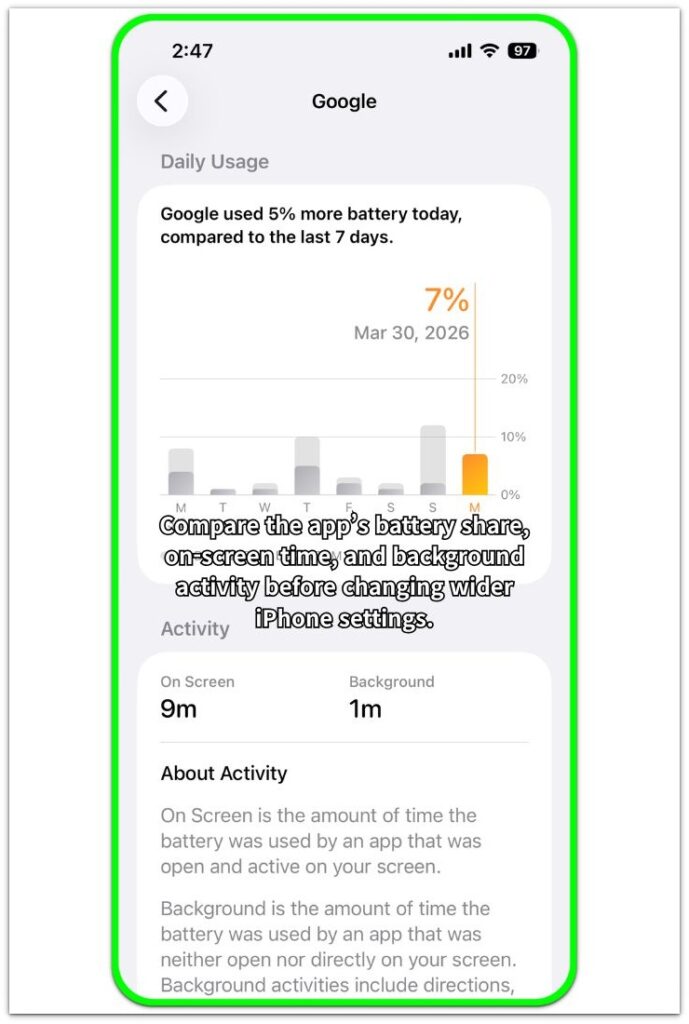
Pay attention to the app if it shows higher battery use than expected, especially when it has little screen time or shows background activity. A high battery percentage with low actual use makes the new app worth checking first.
Check this before changing several battery settings at once. When one new app is the clearest change and it also appears in Battery usage, start with that app first.
Troubleshooting
Troubleshooting 1: The Battery Was Already Dropping Faster Before the Install
Look at the battery behavior before blaming the new app. A faster drop that was already happening earlier in the day or the day before makes the install timing weaker.
Check what changed before you added the new app. A recent iOS update, poor signal, heavy camera use, navigation, or another app running in the background can make the new install look guilty when the drain had already started.
Use this check to separate a real app-related change from a battery problem that was already happening. If the faster drop clearly began before the install, go back to the earlier change first.
Troubleshooting 2: The Drop Shows Up Only During the First Setup Period
Some apps use more battery right after installation while they sign in, sync data, load content, or finish setup. That first period can look worse than normal use.
Wait until setup finishes, then use the iPhone normally again. Check Battery later and compare whether the same app still shows a high percentage.
A battery drop that settles after setup points to early app activity. Check Battery usage again if the same fast drop returns after normal use.
Troubleshooting 3: The Faster Drop Happens Only While the New App Stays Open
Check whether the battery falls fast only while the new app is on the screen. Some apps use more power during active use, especially video, maps, camera, games, shopping feeds, or apps that keep loading fresh content.
Leave the app and return to normal iPhone use for a while. Then check whether the faster battery drop continues after the app is no longer on the screen.
A battery drop that slows down after leaving the app points more toward active app use. A continued drop outside the app needs another Battery check, so compare screen time, background activity, and the app’s percentage before changing general iPhone settings.
Extra Section 1: When the New App Looks High Only During First-Day Setup
A user installs a new app, opens it for the first time, signs in, allows notifications, and lets the app load its first content. Later that day, the iPhone battery looks worse than usual, and the new app appears in Battery usage.
That first-day result does not always mean the app will keep draining the battery. The first launch often includes extra work, such as account sync, media loading, or restoring saved app content.
Use the app normally after setup finishes, then compare the Battery screen later. If the app’s percentage drops during normal use, the first-day setup was likely the reason. If it stays high the next time you check, move to the app’s battery settings.
Extra Section 2: When the App Keeps Showing Up After You Stop Using It
A user installs a new app, opens it a few times, then stops using it for the rest of the day. Later, the iPhone still feels like it is losing battery faster than usual, even though the app was not on the screen for long.
This is different from first-day setup. The app is no longer loading its first content or finishing sign-in, but it still appears in Battery usage after normal iPhone use continues.
Open Settings, then Battery, and compare the app’s screen time with its battery percentage. A high percentage with little screen time deserves a closer look, especially when Background Activity appears under the app name.
Official Source: Apple Explains How Battery Usage Is Listed
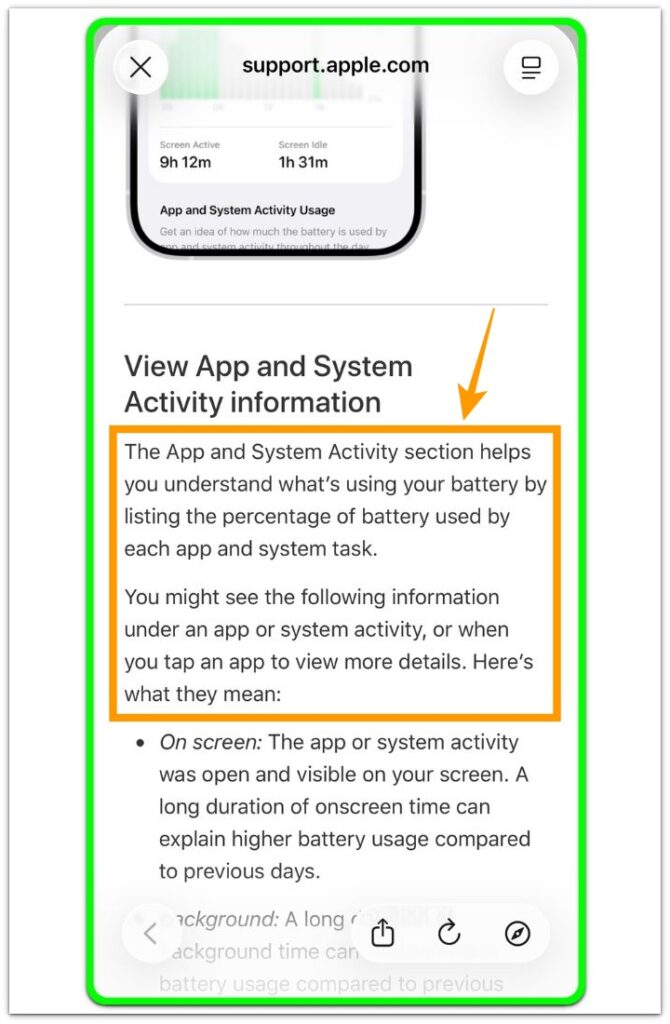
Apple explains that the App and System Activity section helps you understand what is using your battery by showing the percentage used by each app and system task.
This supports the check above because Battery usage lets you compare the newly installed app before changing broader iPhone settings.
Keep reading before removing the app right away. The same Battery screen can show whether the drain came from screen time, background activity, or a short first-day setup period.
Additional Tips
Start with app-level settings before changing the whole iPhone. For one newly installed app, notifications, location access, and Background App Refresh are better first checks.
Check whether the app uses a setting you approved during setup. Location, Bluetooth, photos, or notifications can keep using battery without looking obvious from the Home Screen.
Update or reinstall the app only after Battery keeps pointing to the same app. A one-time first-day spike is too weak. Repeated high usage gives you a clear reason to manage that app directly.
Final Notes
iPhone app battery drain after installing a new app needs more than one fast drop. The case becomes clear when three signs line up.
The battery was normal before the install. The drop continues during the same daily use. The newly installed app keeps appearing in Battery usage.
Start with that app first. Check screen time, background activity, notifications, location access, and Background App Refresh before changing wider iPhone settings.
Checklist
- Check when the battery drain started.
- Compare the same normal use.
- Open Battery usage and find the new app.
- Compare screen time and background activity.
- Reduce app-level settings first.
- Avoid removing random apps after one first-day drop.
For a broader check, go to the main iPhone battery drain guide and compare this problem with other drain patterns.