
Introduction
────────────────────
iPhone Safari Data Cleared but Storage Not Reduced describes a condition where device storage remains unchanged even after Safari history and website data have been removed because cached web resources persist inside the browser cache layer.
Safari browsing data may appear removed.
History disappears from the browser interface.
Website data entries may no longer appear in the storage list.
Storage usage, however, can remain unchanged.
Safari does not rely on a single cache location.
WebKit maintains multiple cache layers including resource cache, temporary rendering files, and persistent website storage containers.
Removing visible browsing data clears user-facing records.
Cached resources supporting page rendering can remain stored beneath that layer.
Those resources continue occupying storage blocks even after Safari removes browsing history.
User control reaches the Safari data removal interface.
Persistent cache management occurs beneath that boundary.
This article defines where iphone safari data cleared but storage not reduced begins and where cached web resources remain stored beyond the visible data removal layer.
────────────────────
Step-by-Step Guide
────────────────────
────────────────────
Step 1: Confirm Safari Data Removal
────────────────────
Open Settings → Apps → Safari.
Tap Clear History and Website Data.
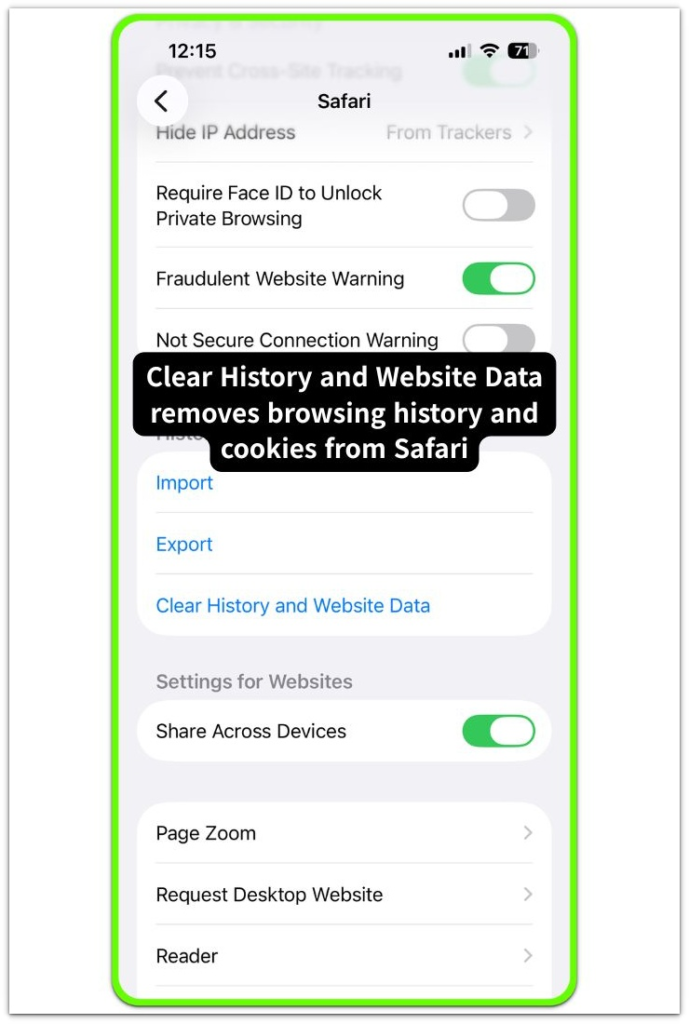
After confirmation, Safari removes browsing history, cookies, and visible website records associated with recent browsing sessions.
Reopen Settings → General → iPhone Storage.
Select Safari in the application list and observe the reported storage size.
If the storage value remains similar even after clearing Safari data, the condition described as iphone safari data cleared but storage not reduced is present.
────────────────────
Step 2: Review Safari Website Data Entries
────────────────────
Open Settings → Apps → Safari.
Scroll down and select Advanced → Website Data.
The list displays domains that currently store local website resources inside Safari storage containers.
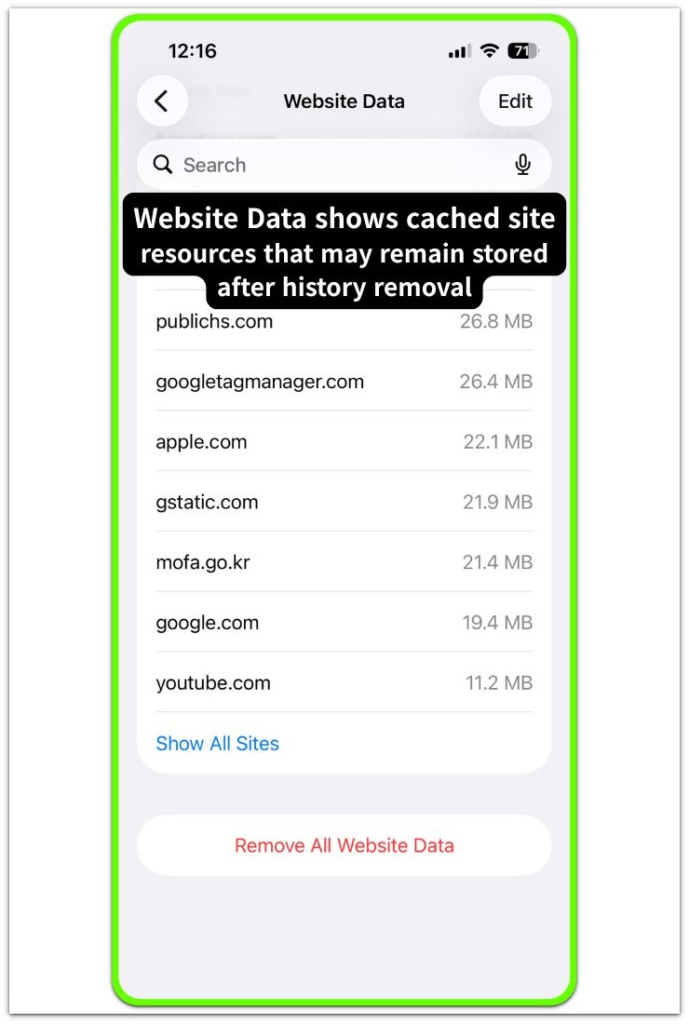
When the list still contains multiple domains after clearing browsing history, cached site resources remain allocated within Safari storage.
Removing individual entries may reduce part of the storage usage, although deeper cache layers may continue to exist beyond the visible domain list.
────────────────────
Step 3: Check Cached Resource Persistence
────────────────────
Open Settings → General → iPhone Storage.
Select Safari and review the storage category displayed for the browser.
Safari storage includes cached images, scripts, page resources, and temporary rendering files created during browsing sessions.
Some of these resources remain inside the persistent cache layer until the browser refresh cycle reorganizes storage allocation.
Storage therefore may not decrease immediately even though Safari browsing records have already been removed.
This behavior reflects a structural cache persistence condition within the Safari storage layer.
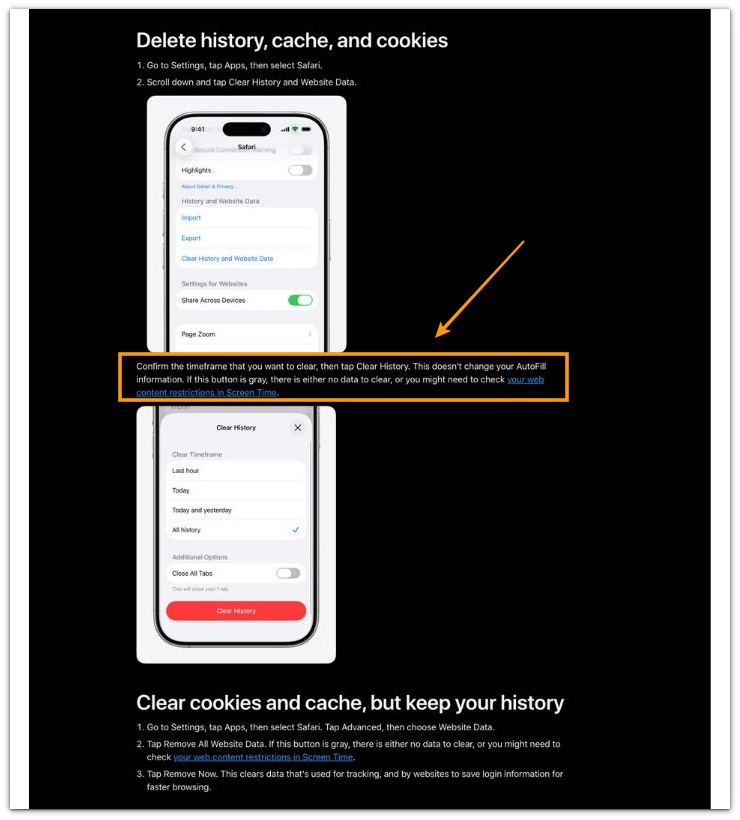
For additional technical details, refer to the official Apple support documentation below.
────────────────────
Troubleshooting: iphone safari data cleared but storage not reduced
────────────────────
────────────────────
Troubleshooting 1: Cached Web Resources Remain After History Removal
────────────────────
Safari storage may appear unchanged even though browsing data has already been removed.
This occurs because Safari does not store all temporary web resources inside the visible browsing history database.
The WebKit engine maintains several cache containers used for page rendering and resource reuse.
Images, scripts, style sheets, and partial page assets can remain stored in these containers after history and cookies disappear from the interface.
Storage reporting therefore may not change immediately.
When the device storage screen still reports the same Safari usage size after data removal, the remaining allocation often originates from these cached resource containers rather than from browsing records themselves.
────────────────────
Troubleshooting 2: Storage Index Refresh Delay Keeps Previous Allocation Visible
────────────────────
Another factor involves the timing of storage recalculation.
The iOS storage interface does not always update allocation values instantly after browser data removal.
Safari cache directories can remain referenced until the system refresh cycle rebuilds the storage index.
During that period, the storage system may continue showing the previous allocation size even though the browser has already released part of the cached data internally.
This reporting delay creates the appearance that Safari storage has not changed.
In the situation described as iphone safari data cleared but storage not reduced, the storage system can continue referencing cached resource entries until the index refresh process updates the allocation map.
────────────────────
Troubleshooting 3: Persistent Website Assets Stored in Safari Cache Containers
────────────────────
Persistent cache layers may also remain active when frequently visited websites store larger offline resources.
Modern websites store local data such as media assets, session resources, and temporary content used to accelerate page loading.
Safari keeps these resources inside browser cache containers rather than the visible history record.
Removing browsing history clears navigation logs and cookies.
Large cached resources associated with those domains may remain until Safari rotates or replaces them during later browsing sessions.
Storage usage therefore can remain stable even after Safari data removal.
This structural condition explains why Safari storage may remain unchanged even after users remove visible website data.
If further investigation becomes necessary, additional technical information may be required to determine the exact storage behavior.
────────────────────
Additional Tips
────────────────────
Safari cache persistence does not necessarily indicate storage malfunction.
The browser cache layer functions as a performance mechanism designed to reduce network loading time for frequently accessed content.
Because of that design, cached resources may remain stored temporarily even when browsing history has already been cleared.
Over time, the browser replaces older cached files as users load new pages.
The cache container gradually reorganizes itself during normal browsing activity.
As the cache refresh cycle progresses, the browser replaces previously retained resources and storage allocation may decrease naturally.
The situation described as iphone safari data cleared but storage not reduced therefore often reflects the behavior of the browser caching system rather than an error in Safari data removal.
────────────────────
Final Notes
────────────────────
Safari data removal clears browsing records, cookies, and visible website entries.
Storage allocation, however, is influenced by additional cache layers used by the WebKit browser engine.
Cached page resources may remain even after users remove visible browsing data.
The apparent inconsistency therefore originates from how browser cache containers manage stored web resources rather than from incomplete data removal.
Safari history removal and Safari cache persistence operate at different layers of the storage structure.
This behavior is not a storage reporting error but a structural result of how Safari separates browsing history from persistent cache containers.
────────────────────
Checklist
────────────────────
☐ Confirm that Safari browsing history and website data were removed from Settings → Safari
☐ Review Safari storage size inside Settings → General → iPhone Storage
☐ Check whether website data entries remain under Safari → Advanced → Website Data
☐ Observe whether storage changes after additional browsing sessions refresh cached resources
Safari browsing data removal affects the visible history layer, while persistent cache resources can remain stored until the browser cache cycle reorganizes storage allocation.
────────────────────
Extra Section 1
────────────────────
In everyday device use, Safari storage sometimes behaves differently from what the storage screen suggests.
A typical example appears after clearing Safari browsing data and checking iPhone Storage immediately afterward.
The history list disappears.
Website data entries may also appear empty.
Storage size, however, can remain almost identical.
This situation often occurs during normal browsing routines.
For instance, visiting media-heavy websites repeatedly stores page assets such as images, script libraries, and layout resources inside Safari’s cache directories.
Clearing browsing history removes the visible records of those visits, yet the cached assets supporting those pages can remain stored temporarily.
Because Safari expects those assets to be reused during later browsing sessions, the browser may keep them until new page activity replaces them.
During that interval, the storage screen may still display a similar Safari size even though browsing data was cleared successfully.
This behavior commonly leads users to assume that Safari data removal did not work.
In reality, the visible history layer and the internal cache containers operate independently.
That separation explains many real-world cases where iphone safari data cleared but storage not reduced appears during routine device use.
────────────────────
Extra Section 2
────────────────────
Another situation becomes noticeable when Safari browsing habits involve frequent use of the same websites.
During repeated visits, Safari gradually accumulates cached resources that allow pages to load faster.
These files may include compressed images, video thumbnails, script bundles, and page layout components.
When browsing history is cleared, the navigation record disappears from the browser interface.
The cached assets supporting those pages may still remain inside the WebKit cache layer.
Over time, continued browsing activity replaces older cached resources with newer ones.
The cache container reorganizes itself as pages are loaded and updated.
During that process, Safari storage may slowly change instead of decreasing immediately after data removal.
This pattern becomes especially noticeable when users clear Safari data and then check the storage screen without opening new pages afterward.
The cache refresh cycle has not yet replaced older resources, so storage reporting continues reflecting previously stored assets.
Real-world device usage frequently produces this pattern, which is why iphone safari data cleared but storage not reduced can appear even when Safari browsing data has already been removed successfully.