
Introduction
────────────────────────
iPhone Messages Taking Up Too Much Storage describes a condition where the Messages app occupies a disproportionate share of device storage because attachments remain structurally retained beyond visible conversation cleanup.
Photos appear deleted.
Old threads seem trimmed.
Storage usage remains high.
The visible message list does not represent the full allocation footprint.
Attachments are stored within a layered container that preserves media objects separately from text threads.
When a conversation is cleared, text entries may disappear while attachment objects persist inside the message database structure.
This separation forms the attachment persistence boundary.
User actions operate at the thread level.
Storage retention operates at the attachment layer.
The key distinction is whether storage growth originates from active conversations or from retained attachment objects that no longer appear in the visible thread list.
This article defines where that attachment persistence boundary forms and where user-level deletion stops reducing actual storage usage.
────────────────────────
Step-by-Step Guide
────────────────────────
────────────────────────
Step 1: Confirm Messages Storage Category Weight
────────────────────────
Open Settings → General → iPhone Storage.
Locate Messages in the application list and review its total storage size.
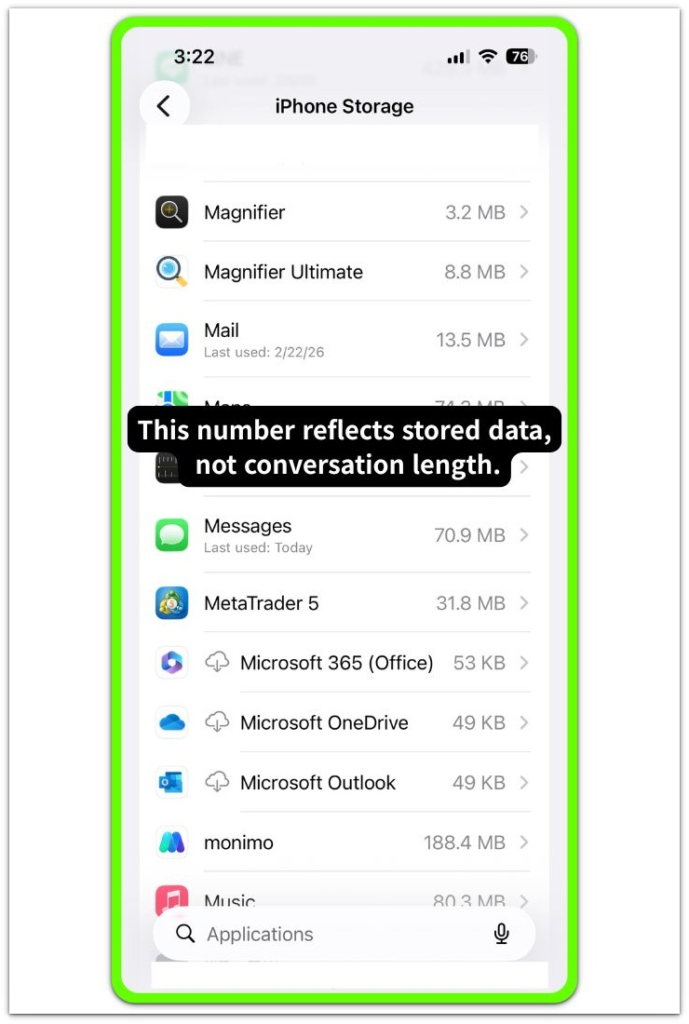
If Messages occupies a significantly larger portion than expected relative to recent usage, the condition matches iphone messages taking up too much storage.
Proceed only if the storage figure remains high despite limited recent messaging activity.
────────────────────────
Step 2: Inspect Attachment Distribution
────────────────────────
Tap Messages inside iPhone Storage.
Review the breakdown categories such as Photos, Videos, GIFs and Stickers, and Other.
Large media categories are the primary indicator of iphone messages taking up too much storage caused by accumulated attachment objects rather than text-based growth.
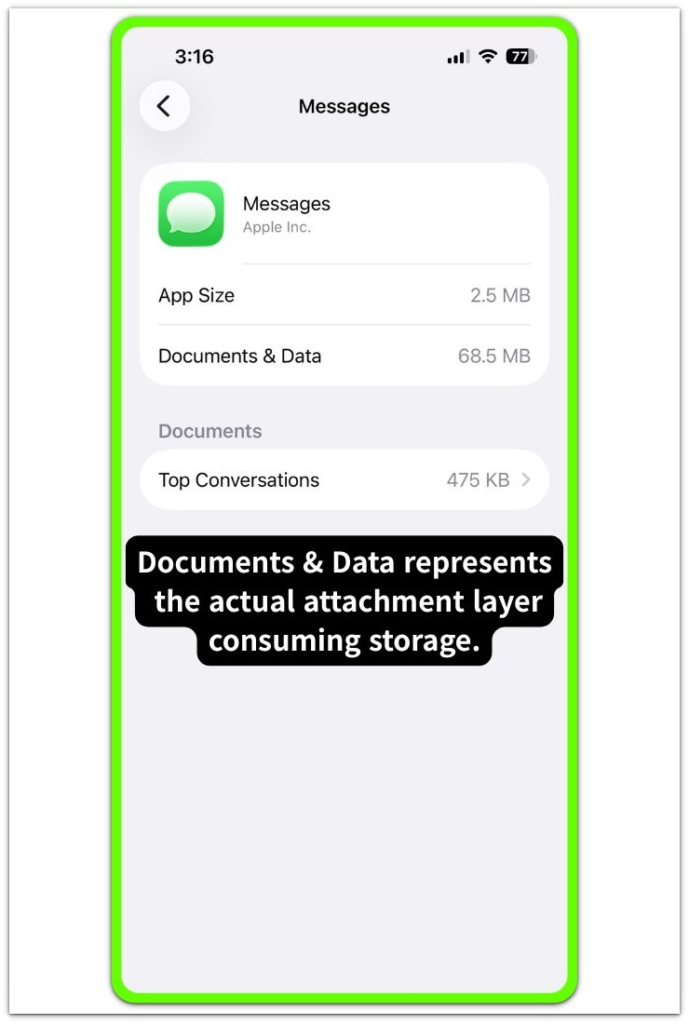
If media size remains substantial even after visible conversation cleanup, the persistence layer is active at the attachment level.
────────────────────────
Step 3: Compare Visible Threads With Allocation Footprint
────────────────────────
Open the Messages app and review conversation history length.
If few long threads are present but storage remains elevated, allocation is not aligned with visible thread count.
This mismatch indicates that attachment objects remain indexed inside the message database structure even when conversation previews appear minimal.
Proceed to troubleshooting only when the visible thread layer and storage layer clearly diverge.
Please refer to the official documentation.
────────────────────────
Troubleshooting: iphone messages taking up too much storage
────────────────────────
────────────────────────
Troubleshooting 1: Temporary Deletion Layer Verification
────────────────────────
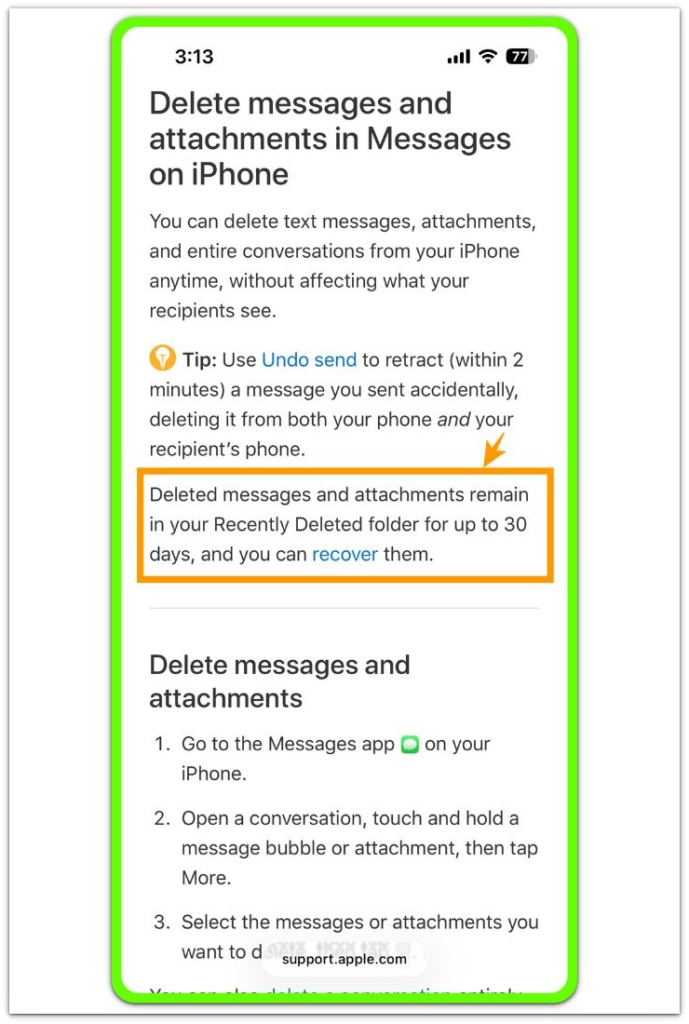
Open Messages → Edit → Show Recently Deleted.
If media was removed but not permanently erased, attachments remain inside the temporary retention window.
Deletion at the thread surface does not immediately collapse attachment allocation.
Storage will not meaningfully change until the recently deleted layer is cleared.
Permanently remove retained items and recheck iPhone Storage after several minutes.
If size remains unchanged, the retention is occurring deeper than the temporary deletion window.
────────────────────────
Troubleshooting 2: Retention Configuration Boundary Check
────────────────────────
Review message history settings under Settings → Messages → Keep Messages.
If message retention is set to Forever, attachments are preserved unless manually removed.
Changing the retention period to 1 Year or 30 Days forces structural trimming of older media objects.
This adjustment does not instantly shrink storage.
The system schedules cleanup based on internal indexing cycles.
If iphone messages taking up too much storage remains elevated after a full indexing cycle, the persistence exists at the database object layer rather than retention configuration.
────────────────────────
Troubleshooting 3: Attachment Index Response Evaluation
────────────────────────
Return to iPhone Storage → Messages → Review Large Attachments.
Manually delete the largest individual media files from this allocation list.
If total size drops immediately, the issue originates at visible attachment indexing.
If total size barely moves despite removal of large items, orphaned attachment references remain inside the message database.
When allocation does not respond proportionally to removal, user-level cleanup has reached its effective limit.
If storage remains disproportionately high after direct attachment removal, deeper database-level retention may require further technical review.
────────────────────────
Additional Tips
────────────────────────
When dealing with iphone messages taking up too much storage, avoid relying solely on thread deletion to control storage growth.
Attachments are stored independently from visible conversation layout.
Large videos and high-resolution images accumulate rapidly inside the attachment layer even when conversations appear short.
Periodic review of the attachment breakdown is more reliable than counting visible threads.
Storage behavior should be evaluated based on allocation categories rather than interface appearance.
────────────────────────
Final Notes
────────────────────────
When iphone messages taking up too much storage persists after manual cleanup, the root cause is rarely text volume.
The controlling factor is attachment object retention inside the message database structure.
If allocation decreases proportionally after attachment removal, the issue is resolved at the user layer.
If allocation remains disproportionately high, the remaining data is no longer controlled at the visible thread level, and deleting conversations alone will not reduce the storage in any meaningful way.
────────────────────────
Checklist
────────────────────────
☐ Confirm Messages storage size in iPhone Storage
☐ Inspect attachment category distribution
☐ Permanently clear recently deleted items
☐ Adjust message retention period if needed
☐ Remove large attachments directly from storage list
☐ Recheck allocation after indexing cycle completes
Storage does not respond to what disappears on the screen; it responds to what is actually removed from the attachment layer.
────────────────────────
Extra Section 1
────────────────────────
There is a moment many users experience.
They clear conversations one by one.
The message list becomes short.
Storage barely moves.
The first reaction is doubt.
Something feels wrong.
The visible interface suggests cleanup is complete.
The storage graph suggests otherwise.
Over years of use, attachments spread across multiple threads.
The same image appears in family chat, work chat, and a private conversation.
Deleting one thread removes the timeline, not every stored reference.
Storage is not reacting to what disappears visually.
It reacts to indexed media objects still tied to the database.
That gap between appearance and allocation is what causes confusion.
Once that distinction becomes clear, the behavior stops feeling random.
────────────────────────
Extra Section 2
────────────────────────
On devices used for several years, this pattern becomes more obvious.
The owner may not message frequently anymore.
Yet iphone messages taking up too much storage continues to appear even as daily usage declines.
Shared videos, screenshots, forwarded clips — small pieces repeated hundreds of times.
Individually minor.
Collectively heavy.
The interface looks calm.
The attachment layer is dense.
In many real cases, removing a few large videos does not solve the issue.
What makes the difference is clearing accumulated mid-sized attachments stored over time.
The turning point is not deleting conversations.
It is reviewing and removing attachment categories directly.
Once that shift happens, storage behavior becomes predictable rather than frustrating.