
Introduction
iPhone battery drain in standby becomes noticeable when the battery drops while the phone sits unused between checks. You check the percentage, leave the phone locked for a while, and return to a lower number than expected.
Start with the gap between those two readings. Keep the phone use, Wi-Fi, mobile data, and charging state unchanged, then compare the next drop before changing battery settings.
Step-by-Step Guide: iPhone Battery Drain in Standby
Step 1: Check the Battery Level Before Standby
Start before you leave the iPhone alone. Check the battery percentage, then lock the phone and leave it unused for the kind of break where the drop first stood out.
Keep Wi-Fi, cellular data, Bluetooth, Personal Hotspot, Low Power Mode, and charging state unchanged during this first check. This gives you one clean reading before another setting changes the result.
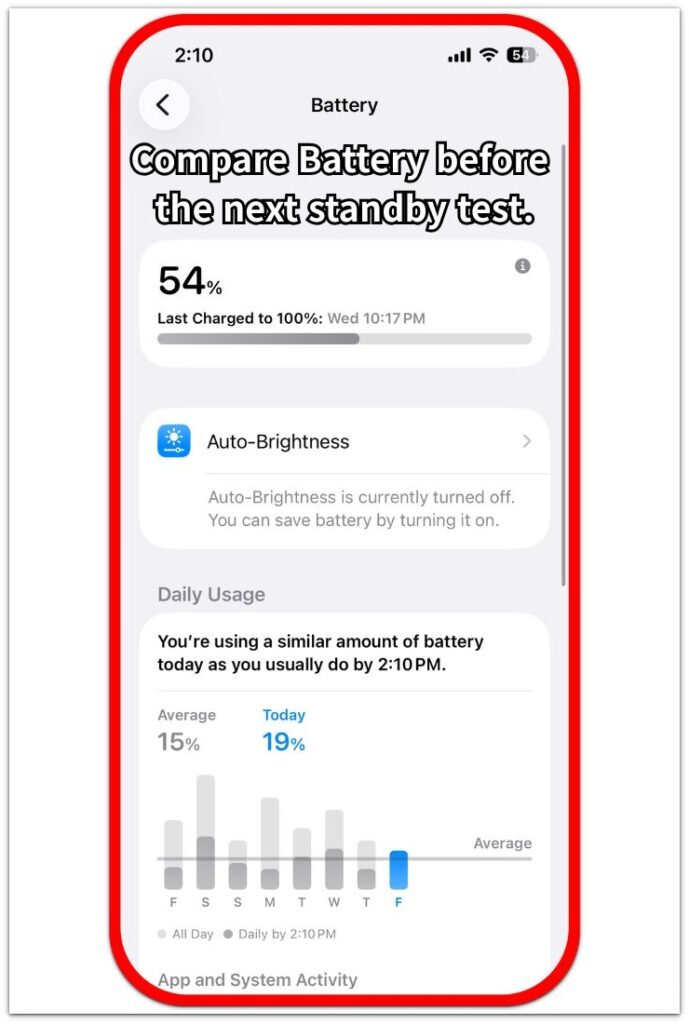
Step 2: Compare the Next Locked Break
Run the check again later in the day or the next day. Keep the break length, place, and connection state close to the first check, then leave the iPhone locked again.
Open Battery after the second break and compare the result with the first one. A similar loss gives you a better starting point before checking individual settings or apps.
Step 3: Check What Stayed On While the iPhone Was Locked
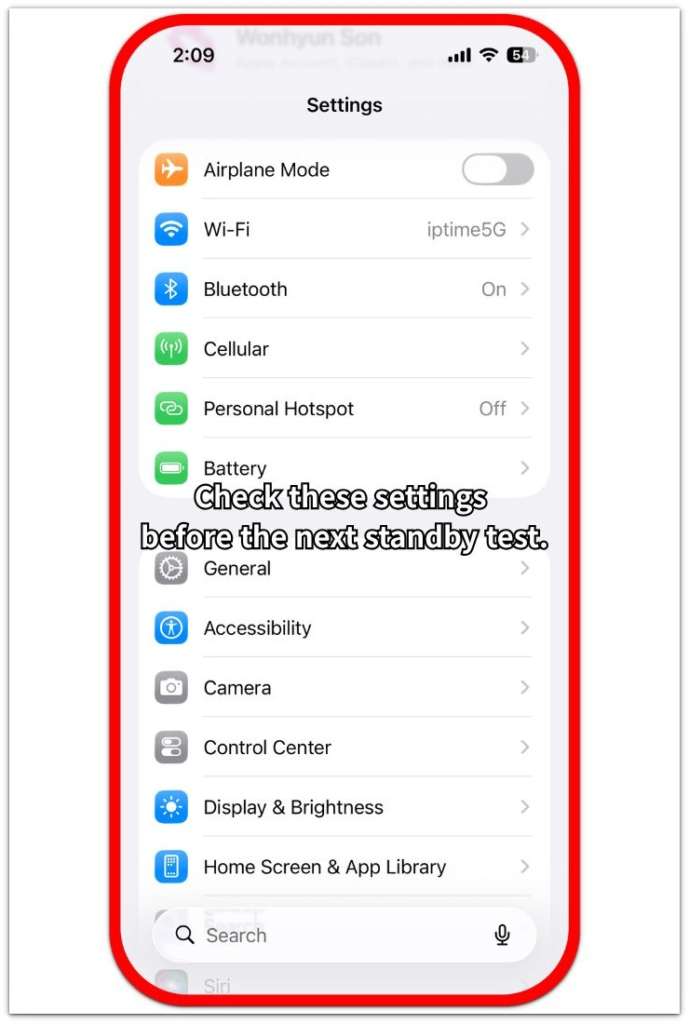
Before the next standby check, look at the settings that stayed on while the iPhone was locked. Check Wi-Fi, cellular data, Bluetooth, and Personal Hotspot first because these settings still matter while the screen is off.
Change only one condition for the next check. Leave the others alone, then compare the next result so you do not lose track of which setting matched the drop.
Troubleshooting
Troubleshooting 1: iPhone Battery Drain in Standby Changes by Location
The drop returns in one place, such as a bedroom, office desk, basement, parking area, or a room far from the router. The iPhone stays locked, but Wi-Fi or cellular signal keeps changing while it sits there.
Move the iPhone to a steadier place and keep the break length close to the first one. Open Battery again afterward. A smaller loss in a different spot points more toward signal strength or Wi-Fi stability than app settings.
Troubleshooting 2: Bluetooth Devices Make Standby Results Look Worse
A locked iPhone still stays connected to earbuds, a watch, a car system, or nearby speakers. Those devices reconnect during the break and make the battery result look different from a quiet standby check.
Move the iPhone away from the accessory, or turn off only that connection for one test. Keep Wi-Fi, cellular data, and charging state unchanged. Use that result before changing wider settings.
Troubleshooting 3: The Battery Falls Again After a Recent App or System Change
A recent app update, iOS update, account sync, or backup activity adds extra activity after the phone has been locked. No app screen is open, but Battery still shows app or system activity near that period.
After the break, check whether one app or system item appears near the drop. Limit only that item first, then repeat one close standby check before changing other battery settings.
Extra Section 1: One Weak Spot Makes the Locked Battery Drop Look Worse
The battery loss looks worse when the phone is left in one weak spot every time. A bedroom corner, office desk, basement, parking area, or a room far from the router leaves it with a less stable connection while the screen stays off.
Battery does not always show one heavy app during that period. The phone was locked, but the connection around it kept changing. A result from one spot matters less than a result that appears again in another quiet place.
The place matters before blaming apps. Loss that appears only in one room or corner points more toward signal or Wi-Fi stability than normal app use.
Extra Section 2: Overnight Loss Looks Bigger Than a Short Break
Overnight loss often looks bigger than a short daytime break because the phone stays locked much longer. A small amount of background activity looks minor during a one-hour break, but the same kind of activity stands out more after several hours.
Screen time still looks low overnight. Earbuds, a watch, Personal Hotspot, backup activity, or account sync stayed connected or active while the phone was left alone. Battery then shows activity that does not match what the user remembers doing on the screen.
The overnight number needs a cleaner comparison before wider battery changes. A short daytime check shows whether the drain belongs to the long night break or returns during a normal locked period too.
Official Source: Apple Explains Background Activity and Signal Strength
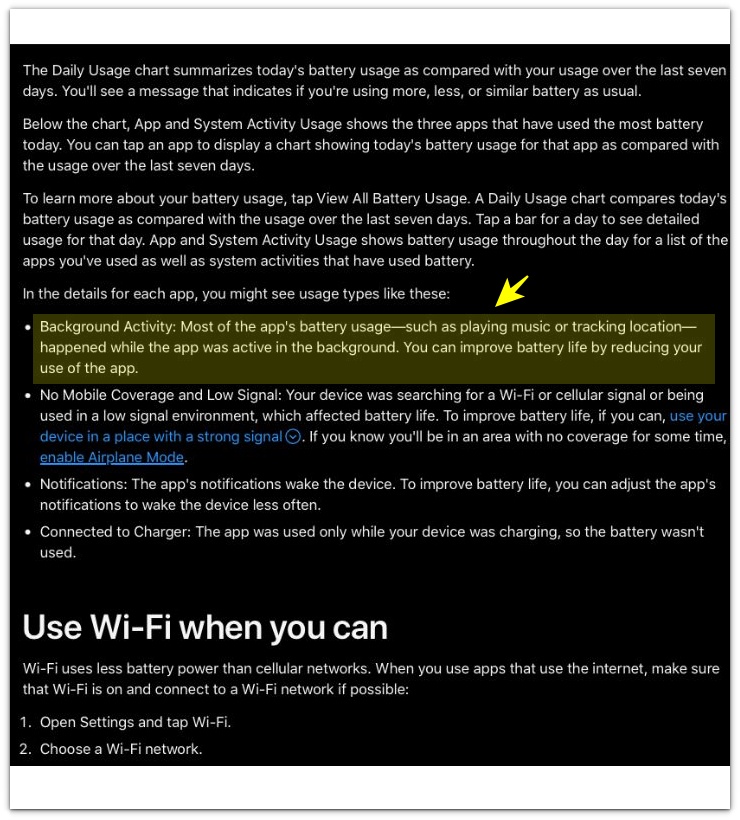
Apple explains that iPhone battery usage includes background activity, such as music, location tracking, syncing, or mail fetching. Apple also says Wi-Fi and cellular connections use less energy in places with stronger signal strength. This supports the standby check because a locked iPhone still uses battery through background work or unstable connections.
Additional Tips
A very short standby break gives a weak result. Use a break long enough to separate normal percentage changes from a real standby drop.
A warm iPhone changes the reading. Let the phone cool down first when the standby check starts after charging, gaming, navigation, or video calls.
Low Power Mode changes how some background activity works. Keep it in the same state during both standby checks so the result stays easier to compare.
Final Notes
iPhone battery drain in standby matters when the battery loss returns during a similar locked period. One lower number after one break is too weak, but repeated loss with low screen time deserves a closer Battery check.
The strongest result comes from a clean comparison. Keep the break length, place, connection state, and charging state close, then change only one condition at a time. A loss that follows the same place, connection, or background activity points to the right place to check before wider battery changes.
Checklist
- Record the first standby loss with the iPhone locked.
- Repeat the standby check with a similar break length.
- Compare Battery with screen time and recent activity.
- Keep Low Power Mode and connection settings unchanged.
- Change only one condition before wider battery changes.
Standby drain is only one part of the battery picture, so check the main iPhone battery drain guide when the drop also appears during normal use.