
Introduction
iPhone camera battery drain becomes noticeable when a short photo or video session seems to use more battery than expected. The Camera app is only open for a moment. The battery percentage still looks lower when you check it again later.
The drop often feels confusing because it does not always happen while the camera is still open. It shows up after you take the photo, record the clip, and lock the phone. The lower percentage stands out the next time you look at the battery.
Start by checking whether the faster drop keeps appearing around similar camera use, not after one busy photo session alone.
Step-by-Step Guide: iPhone Camera Battery Drain
Step 1: Repeat One Normal Camera Session
Start with the type of camera use that made the battery drop stand out. Take a few photos or record a short video. You can also open the Camera app a couple of times the way you normally would.
Keep this first check simple. Leave camera settings, brightness, background apps, and location settings as they are before the test. Too many changes make the battery drop harder to compare.
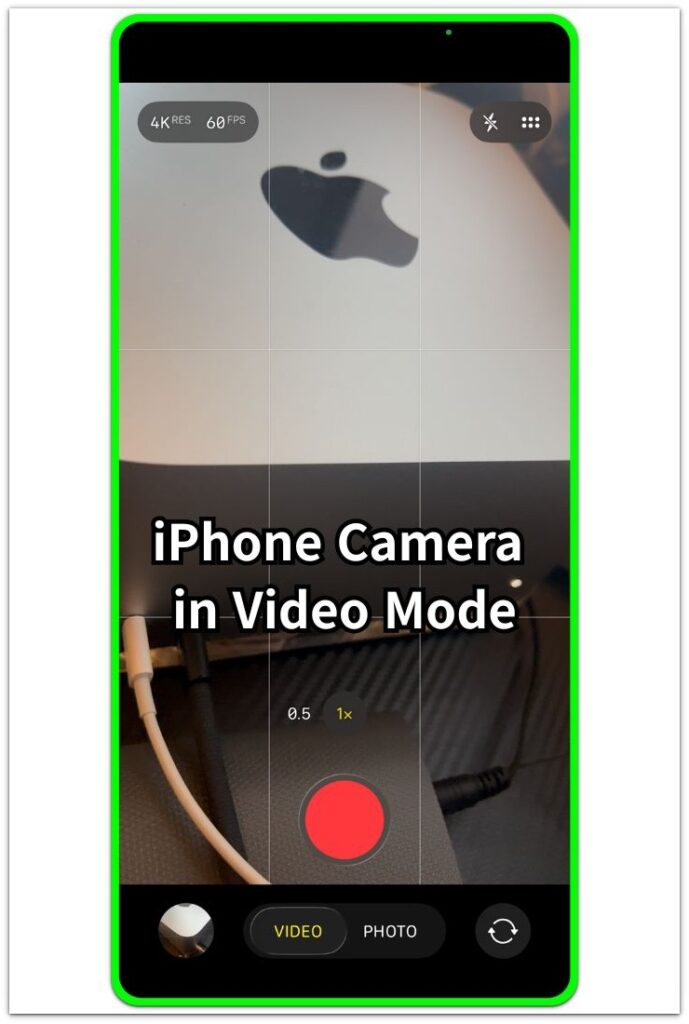
After the camera session, note the battery percentage and leave the phone in your normal routine. The goal is not to prove the Camera app is the only cause. This step gives you one clear camera session to compare against later.
Step 2: Check the Drop After the Camera Is Closed
Close Camera and use the iPhone normally for a short while. Lock the screen, return to your usual apps, or leave the phone alone the way you usually do after taking photos or videos.
Open Battery later and check whether the percentage kept falling faster after you closed the Camera app. That kind of drop often becomes easier to notice after the session ends, especially while the phone processes photos, videos, or recent image activity.
Keep this check light. One normal camera session followed by one normal battery check gives a cleaner result than changing several settings at once.
Step 3: Compare Camera Use With the Battery Screen
Go to Settings, then Battery, and look at the battery movement around the time you used the Camera app. Compare the drop with Screen On time, recent app activity, and the time when you finished taking photos or recording video.
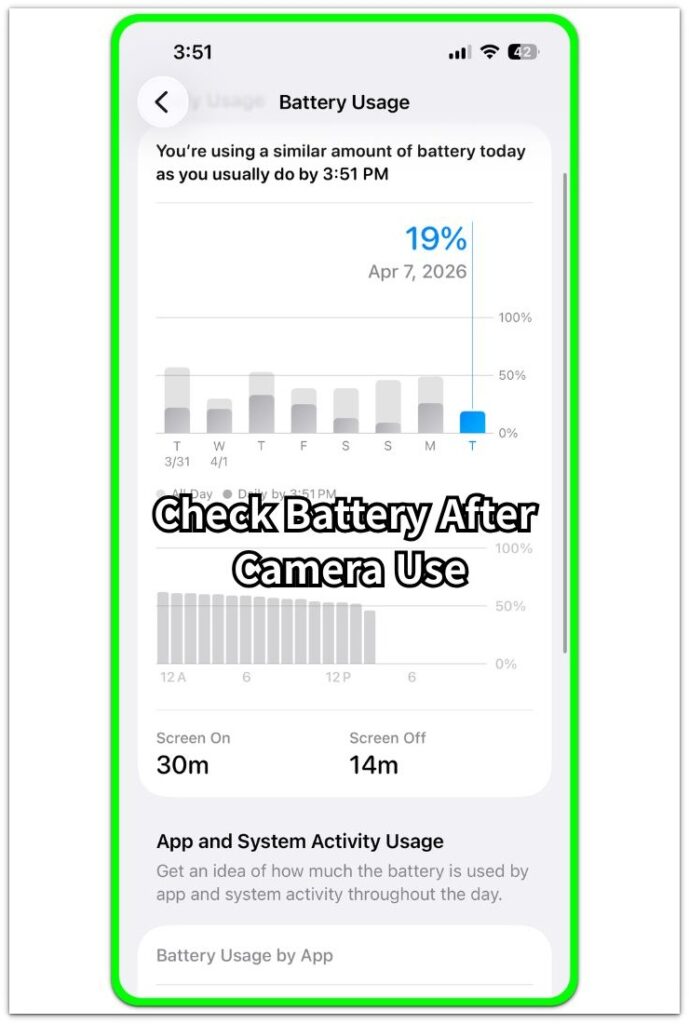
Keep the check centered on the Camera app first. A faster drop matters more when it keeps showing up near similar camera use, not when it appears once during a busy day with many apps open.
When that kind of session keeps lining up with the battery drop, review video length, screen brightness, location use, and background activity next.
Troubleshooting
Troubleshooting 1: The Battery Drops More During Video Recording
Video recording uses more battery than taking a few photos because the screen, camera sensor, microphone, and file saving all stay active at the same time. A short clip usually gives a cleaner clue than a long recording with bright screen use.
Record a shorter video on the next check and compare the battery drop with the previous session. Keep the same camera mode and similar lighting so the result is easier to read.
Troubleshooting 2: The Drop Looks Bigger After Taking Many Photos
Several photos taken close together can keep the iPhone busy after the Camera app closes. The phone still has to save recent shots, update previews, and handle photo activity in the background for a short time.
Check the battery again after you lock the phone for a short while. A drop that slows down after the photo session settles points more to recent camera activity than to a constant battery problem.
Troubleshooting 3: The Battery Drops Faster When Brightness Is High
Camera use often happens with the screen bright, especially outdoors or under strong light. The Camera app also keeps the display active while you frame the shot, switch modes, or record video.
During the next test, lower brightness slightly before opening Camera and compare the result with a similar photo or video session. A smaller drop after lowering brightness makes screen use the first place to adjust before changing other camera-related options.
Extra Section 1: Battery Drops After a Short Camera Session
A short camera session can still make the battery look worse later. You might take only a few photos, close the Camera app, lock the iPhone, and notice a lower battery percentage the next time you check the screen.
The timing makes the drop harder to connect to the Camera app. The Camera app is no longer open, so the drop does not feel connected to the photos you just took. Recent shots still need time to save, update previews, and sync with the photo library. That short activity can make the battery drop appear after the camera session instead of during it.
This kind of iPhone camera battery drain is easier to read when it repeats after similar photo use. One quick drop after a busy moment does not say much. When the drop returns after similar short photo sessions, review recent photo activity first. Do not treat the battery itself as the problem too early.
Extra Section 2: Camera Battery Drain Looks Worse During Outdoor Use
Outdoor camera use often makes the battery drop look larger. The iPhone screen stays bright while you frame each shot. The Camera app stays open, and the display stays active. You might also spend more time checking the scene before taking the photo.
This happens more during travel, walks, events, or short stops where the Camera app stays open between shots. The battery drop does not come from one photo alone. It builds while the screen, camera preview, and camera controls stay active during the whole session.
Compare this kind of camera use with another similar outdoor session, not with a quick indoor photo. When the larger drop keeps showing up outdoors, the longer camera preview time matters as much as the photo itself.
Official Source: Apple Explains Why Camera Apps Can Make iPhone Warm
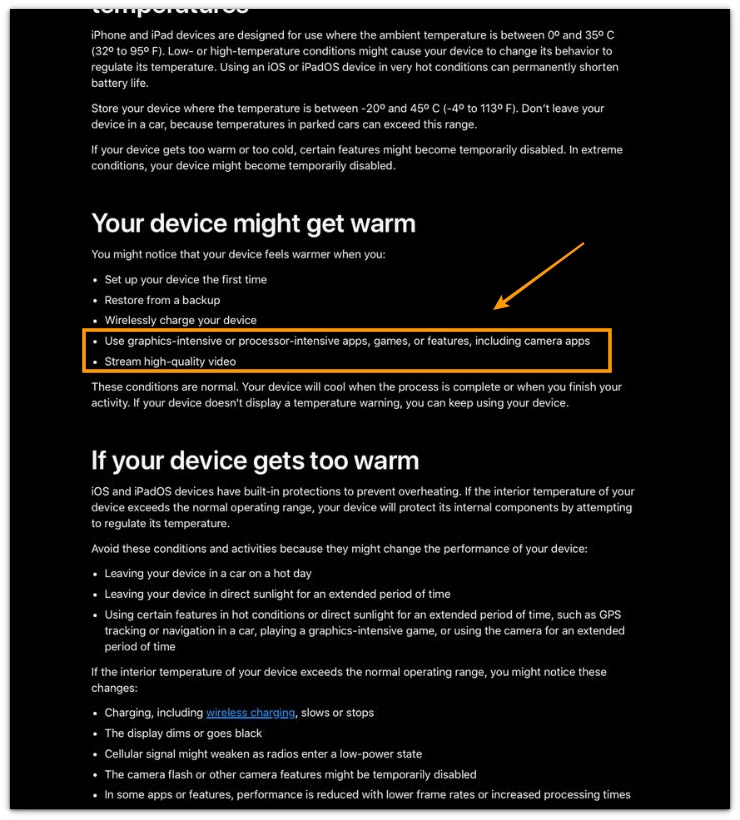
Apple explains that graphics-intensive or processor-intensive features, including camera apps, can make an iPhone feel warmer. It also lists high-quality video and camera use in hot conditions as situations that affect performance. This source supports the camera battery drain check without turning the article into a general overheating guide.
Additional Tips
Camera battery use can look different when the iPhone is already warm before you start taking photos. A warm car, direct sunlight, or a long outdoor session can make the same camera use feel heavier. The battery drop can look larger even when the camera use feels normal.
Live Photos can also change the result slightly because the iPhone saves a short moment around each photo. This matters more when you take many Live Photos close together.
Check a camera drop during a trip separately from normal daily use. Travel days often include maps, cellular signal changes, photos, videos, and brighter screen use in the same period.
Final Notes
iPhone camera battery drain matters when the faster drop keeps returning around similar camera use. One photo session, one warm outdoor moment, or one long video does not prove the Camera app is the main problem.
Repetition gives the stronger clue. Compare similar camera sessions and review Battery after closing Camera. Separate short photos from video recording, outdoor use, and warm conditions. When that drop keeps appearing near camera activity, camera use becomes the main battery clue. It no longer looks like a random one-time drop.
Checklist
- Repeat one normal camera session before judging the battery drop.
- Check Battery after closing the Camera app.
- Compare the drop with Screen On time and recent Camera activity.
- Separate short photo use from video recording and outdoor camera use.
- Check warm conditions separately when the iPhone was already warm.
For a broader battery check, use the main iPhone battery drain guide before changing several camera settings at once.