
Introduction
iPhone photos sync battery drain appears when the battery keeps dropping while Photos is still uploading in the background. The drop feels different because the screen is off, but the Photos app has not finished syncing yet.
Keep the check focused on that situation. Start by checking whether Photos is still working, then compare the battery drop with the sync status before changing other settings.
Step-by-Step Guide: iPhone Photos Sync Battery Drain
Step 1: Check Whether Photos Is Still Syncing
Open Photos first and look for a sign that the library is still uploading or syncing. Start there because this article checks unfinished photo work, not a general battery setting.
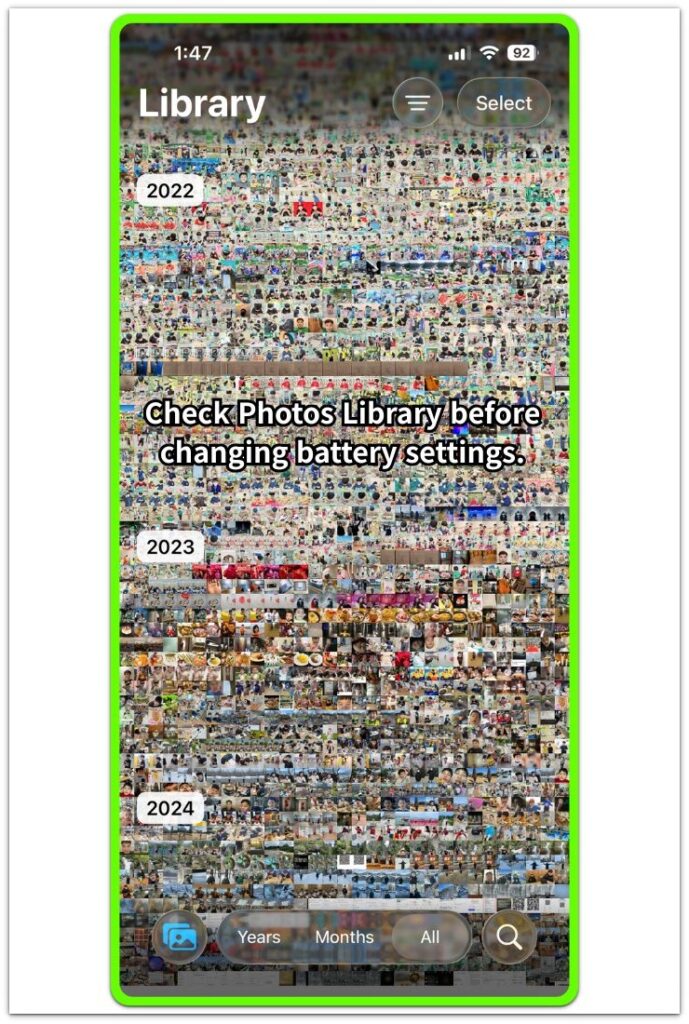
Leave the iPhone alone for a short quiet period afterward. Keep iCloud, Background App Refresh, Low Power Mode, and Battery settings unchanged for now. This first check only shows whether the battery loss starts during photo syncing.
Step 2: Compare the Drop After New Photos or Videos
Use the iPhone normally later and open Photos again after new photos, recent videos, or a library update. Check the battery percentage before you leave the phone alone, then check it again after a short normal period.
A repeated drop during this Photos activity is a stronger clue than one random battery change. Keep this step tied to Photos, not to unrelated battery settings.
Step 3: Check Battery Usage for the Same Time Period
Open Settings, then Battery, after the percentage drops faster than expected. Look at the part of the day when Photos was uploading or syncing and compare it with the battery graph.
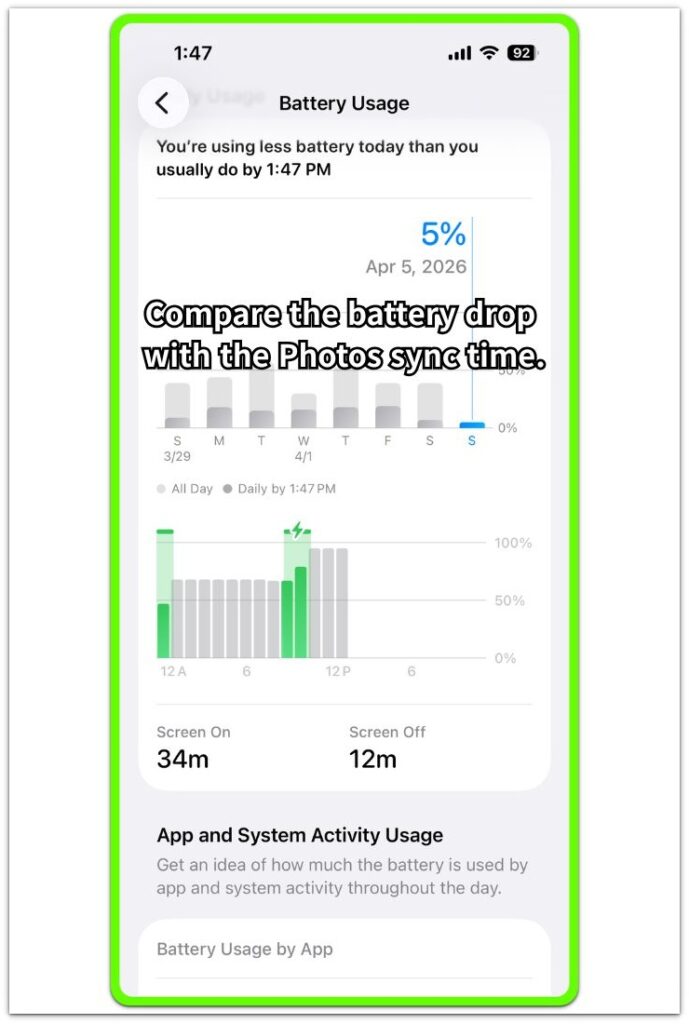
Check whether the faster drop matches the time when Photos was still working. When the graph lines up with that sync period, keep the next check focused on Photos and iCloud Photos first.
Troubleshooting
Troubleshooting 1: Photos Still Syncs After the Battery Check
Photos syncing does not always finish right after the first battery check. A large photo batch, several recent videos, or a slow connection leaves Photos active longer than expected.
Keep the iPhone on a stable Wi-Fi connection and connect it to power before the next check. Open Photos later and look at the sync message. A slower battery drop after the upload finishes points back to unfinished Photos work, not to a random battery setting.
Troubleshooting 2: Battery Drops Even When Photos Looks Finished
The Photos screen often looks quiet before iCloud Photos fully finishes recent uploads. The visible sync message disappears first, but the battery drop needs one more comparison before you change several settings.
Open Photos again first and see whether the library status has fully settled. Open Settings, then Battery, and compare the recent drop with the time you last added photos or videos.
Troubleshooting 3: The Drop Happens Only on Cellular Data
Photo syncing becomes harder to judge when the iPhone is using cellular data instead of Wi-Fi. Uploading recent photos or videos over a weak mobile connection makes the result less clear.
Connect to Wi-Fi, leave the iPhone on power, and let Photos finish the upload there. Check the battery again after the upload completes. A cleaner result on Wi-Fi gives a better clue than testing Photos sync while the mobile signal keeps changing.
Extra Section 1: A Large Photo Batch Keeps Photos Active Longer
A large photo batch changes how the battery drop looks. The iPhone looks idle on the table, but Photos still has work left when many recent photos or videos need to upload.
A trip, a long camera session, or several new videos can leave Photos working longer than expected. The battery drop looks confusing because the screen is off, yet the upload has not fully settled. Open Photos first and check the library status before changing iCloud Photos, Background App Refresh, or Low Power Mode.
Once the upload finishes, compare the next quiet period again. A slower drop after the large batch clears points back to unfinished Photos syncing, not to a random battery problem.
Extra Section 2: A Weak Connection Makes Photos Sync Harder to Judge
A weak connection makes iPhone photos sync battery drain harder to read. Photos keeps trying to upload, but the battery drop does not show whether the problem comes from Photos itself or from the unstable connection.
Away from home, weak Wi-Fi or a switch between cellular and Wi-Fi makes the check less clear. The Photos status might not settle cleanly, and the battery drop looks stronger than it does during a normal upload. Keep the next check simple by connecting to reliable Wi-Fi and leaving the iPhone on power.
Open Photos again after the connection stays stable for a while. A cleaner battery result gives a better clue than judging the drop while the signal keeps changing.
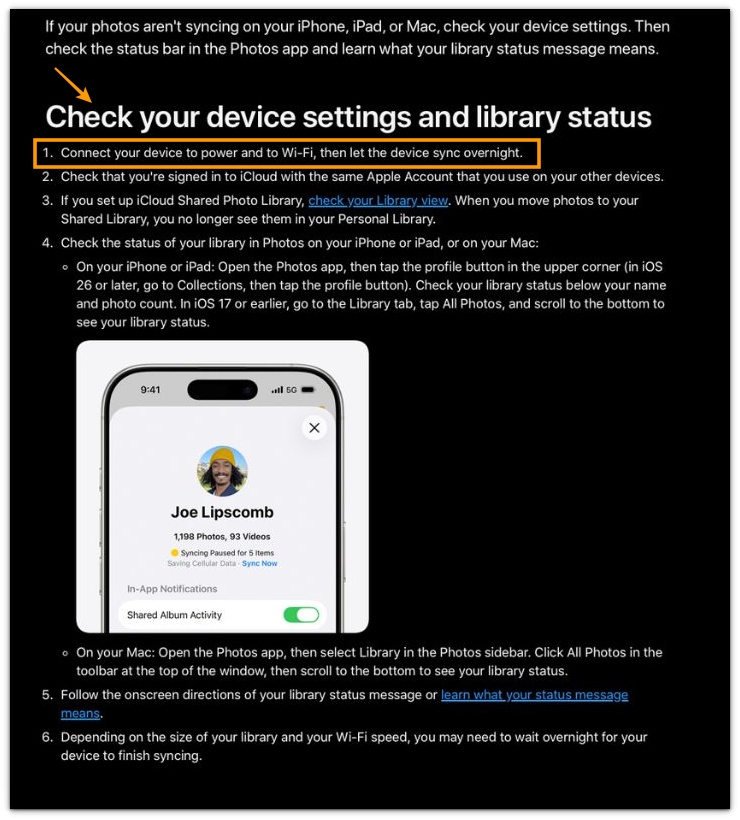
Official Source: Apple Says Photos Sync Needs Wi-Fi, Power, and Time
Apple explains that Photos shows sync status, and the iPhone should stay connected to Wi-Fi and power while syncing finishes. That fits this article’s main check: compare the battery drop with Photos sync status before changing unrelated battery settings.
Additional Tips
Keep the iPhone on power when Photos has a large upload left. This keeps the result easier to read because the sync can finish without another short charging break interrupting the check.
Use Wi-Fi for the next Photos sync check when the drain looked stronger on cellular data. A stable connection gives a cleaner result than a moving signal.
Check Photos again before changing several battery settings at once. One clear sync status is more useful than changing iCloud Photos, Background App Refresh, and Low Power Mode together.
Final Notes
iPhone photos sync battery drain starts with the Photos sync status. A faster drop during an active upload points to unfinished Photos work, especially after new photos, recent videos, or a large library update.
The final clue is what happens after Photos finishes. A slower drain during the next quiet period points back to the upload, not to a random battery setting.
Once Photos finishes and the battery still drops fast during a quiet period, check other battery areas next. Until then, Photos and iCloud Photos remain the main place to check.
Checklist
- Open Photos and look for a sync or upload status before changing battery settings.
- Keep the iPhone on Wi-Fi and power when Photos still has upload work left.
- Compare the battery result after Photos finishes syncing.
- Check Settings, then Battery only for the same time period tied to Photos activity.
- Use a stable Wi-Fi connection when the drop looked stronger on cellular data.
- A slower battery drop after syncing points back to the Photos upload.
- Move to other battery settings only when Photos finishes and the drain still stays fast.
For a broader iPhone battery check, use the main guide before changing several settings at once.