
Introduction
iPhone lock screen widgets battery drain becomes noticeable when quick Lock Screen checks start adding up through the day. You only glance at the screen for the time, weather, reminders, or battery widget, but the battery drop looks stronger than that light use should cause.
The check needs to stay on the Lock Screen setup first. Start by looking at which widgets stay visible there, then compare the battery drop after one short Lock Screen test.
Step-by-Step Guide: iPhone Lock Screen Widgets Battery Drain
Step 1: Check Which Widgets Stay on the Lock Screen
Review the widgets that stay visible on the Lock Screen throughout the day. Weather, reminders, calendar, battery, activity, and other quick-glance items matter most because they give you a reason to wake the screen again.
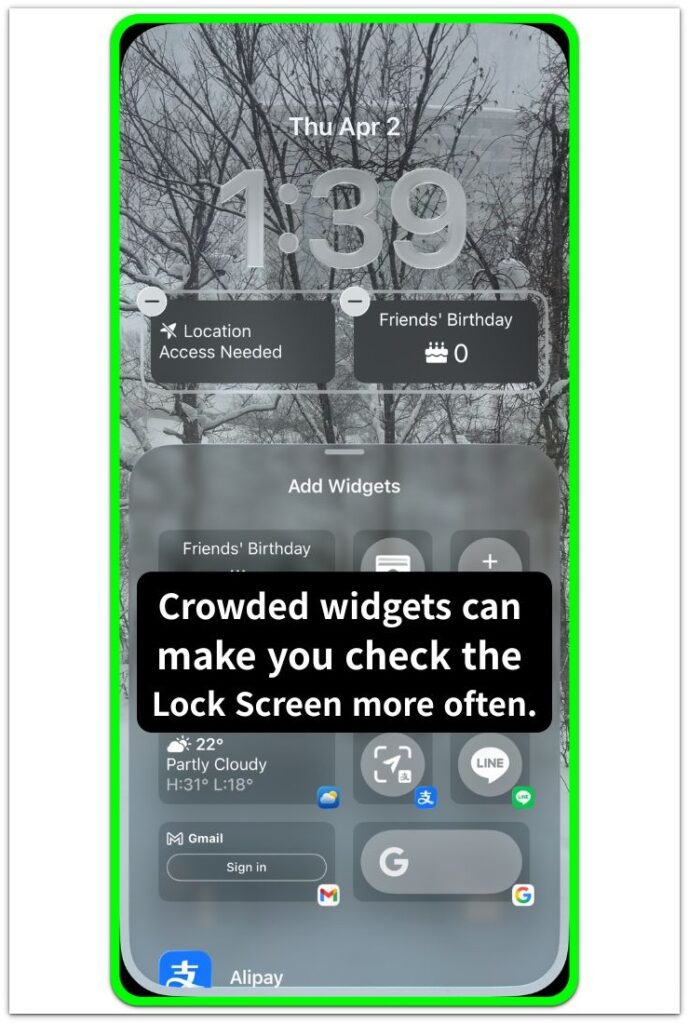
Use this first check to see whether the Lock Screen is crowded or simple. A crowded setup makes repeated glances more likely, so start with what stays on the screen before changing deeper battery settings.
Step 2: Remove One Widget That You Check Too Often
Choose one Lock Screen widget that makes you wake the screen more than necessary. Start with the widget you check most often, not the one that looks the largest.
Remove only that widget for the next test. Keep the rest of the iPhone setup the same so the change stays easy to compare later.
Use the iPhone normally for the next short test period. See whether you open the Lock Screen less often after that item is gone, then compare the battery drop with the earlier setup.
Step 3: Compare the Battery Drop Before Changing More Widgets
After the test period, compare the result with the earlier Lock Screen setup. Check whether the battery drop looks lighter when the widget you checked most often is no longer there.
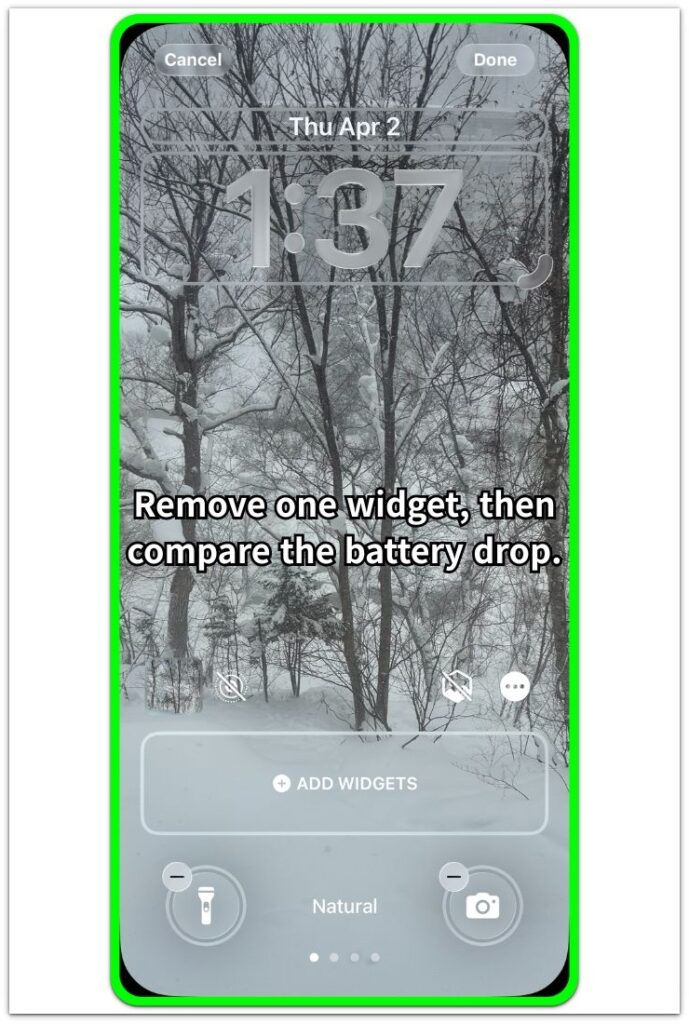
A lighter drop points to repeated Lock Screen checks as the stronger clue. A similar drop means the next check should stay small instead of removing every widget at once.
Troubleshooting
Troubleshooting 1: The Battery Still Drops After One Widget Is Removed
Removing one widget does not always change the result when the Lock Screen still has several quick-glance items. Weather, calendar, activity, and battery items all give you reasons to wake the screen again.
Go back to the Lock Screen edit screen and look at the remaining widgets. Remove the next widget you check most often, then use the iPhone normally for another short test period.
The result matters more than the widget count. A lighter drop after you remove the second widget makes the Lock Screen setup a stronger clue.
Troubleshooting 2: The Drop Looks Worse Only on Busy Days
Some days make Lock Screen widgets look more active than usual. Calendar events, reminders, weather changes, activity progress, deliveries, or frequent notifications make the Lock Screen more tempting to check.
Compare the battery drop on a normal day and a busier day before changing more settings. Keep the same widget setup during that comparison so the day itself is the main difference.
A worse drop only on busy days points more to repeated Lock Screen checks than to a broken widget. Remove the item you check most often on busier days first.
Troubleshooting 3: The Widget Is Useful but Still Gets Checked Too Often
A Lock Screen widget can be useful and still cause too many quick checks. The issue is the Lock Screen placement when that widget keeps making you wake the screen during the day.
Move that widget away from the Lock Screen instead of deleting it completely. Keep it on the Home Screen or inside the app, then check whether you wake the Lock Screen less often.
This keeps the useful information available while reducing the quick-glance habit. A lighter battery drop after that change shows that the Lock Screen placement was the stronger problem.
Extra Section 1: A Weather Widget That Keeps Pulling Attention Back
A weather widget can make iPhone lock screen widgets battery drain feel more noticeable when the forecast keeps changing through the day. You check the Lock Screen once for the temperature, then again for rain, wind, or the next hour’s forecast.
The weather widget is not the whole battery problem by itself. Its information stays available every time the screen wakes. One glance can turn into several more checks. After you remove it for a short test, the Lock Screen gives you fewer reasons to wake the screen again.
Extra Section 2: A Battery Widget That Makes Every Drop Stand Out
A battery widget can make each small drop feel larger because the number is always visible on the Lock Screen. You wake the screen to check the time, but the battery percentage catches your eye first.
That number pulls the next check closer. A drop from 82% to 80% during normal use feels more serious when the widget keeps showing it. The battery widget is useful, but it can also turn normal battery changes into repeated Lock Screen checks.
Official Source: Apple Says Lock Screen Widgets Show Quick Information
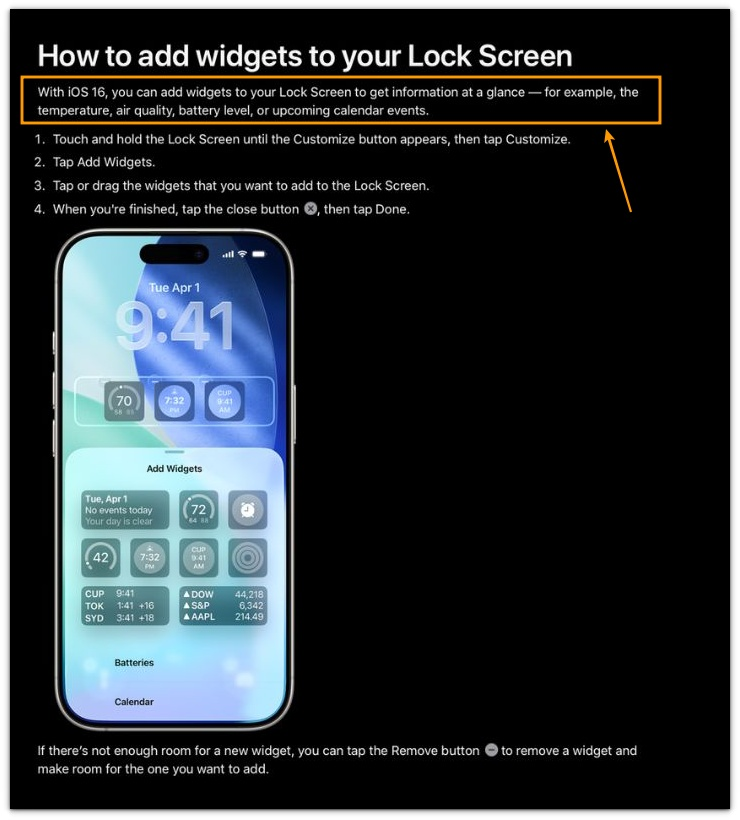
Apple says Lock Screen widgets show quick information at a glance, such as temperature, battery level, and upcoming calendar events. That supports the main point of this article: the widget is designed for quick checks, so the battery test should focus on how often it makes you wake the screen.
This does not mean every Lock Screen widget causes battery drain. The safer check is whether one visible widget makes you wake the screen more often than usual.
Additional Tips
Lock Screen widgets are easier to test during normal iPhone use. A heavy camera session, navigation, gaming, or hotspot use can hide the effect of quick Lock Screen checks.
Focus modes can also change the result. A quiet Focus setup reduces some alerts, but it does not remove widgets that stay visible on the Lock Screen.
Widget changes need a short comparison period. One quick test is enough to show a clear difference, but a full day gives a cleaner result when the battery drop changes only slightly.
Final Notes
iPhone lock screen widgets battery drain should be checked by how often the Lock Screen gets opened. The item itself is not always the main problem. The stronger issue is the habit it creates when weather, battery, reminders, or calendar information stays on the screen all day.
Start with the widget that pulls your attention most often, remove only that one, and compare the battery drop before changing anything else. A lighter drop after that test is enough reason to keep the Lock Screen simpler.
Checklist
- Check which Lock Screen widgets stay visible through the day.
- Remove the widget that pulls your attention most often first.
- Keep the rest of the iPhone setup the same during the test.
- Compare the battery drop before removing more widgets.
- Use a normal day for a clearer Lock Screen check.
- Keep the Lock Screen simpler when one removed widget clearly reduces quick checks.
Still not sure whether Lock Screen widgets are causing the drain? Start with the main iPhone battery drain guide, then come back and check the Lock Screen setup.