
Introduction
iPhone home and lock screen battery drain becomes noticeable when Battery shows a high Home and Lock Screen number after only a few short checks.
You pick up the iPhone, unlock it, return to the Home Screen, or wake the Lock Screen through the day, but the battery drop looks larger than those small moments should cause. The first check should stay on the time window when that number increased, not on random apps.
Start by comparing the battery drop with the part of the day when the iPhone kept waking, unlocking, or returning to the Home Screen.
Step-by-Step Guide: iPhone Home and Lock Screen Battery Drain
Step 1: Check Whether Home and Lock Screen Matches the Battery Drop
Open Settings, then Battery. Look for Home and Lock Screen under the battery activity list, and check the part of the day when the battery dropped faster than expected.
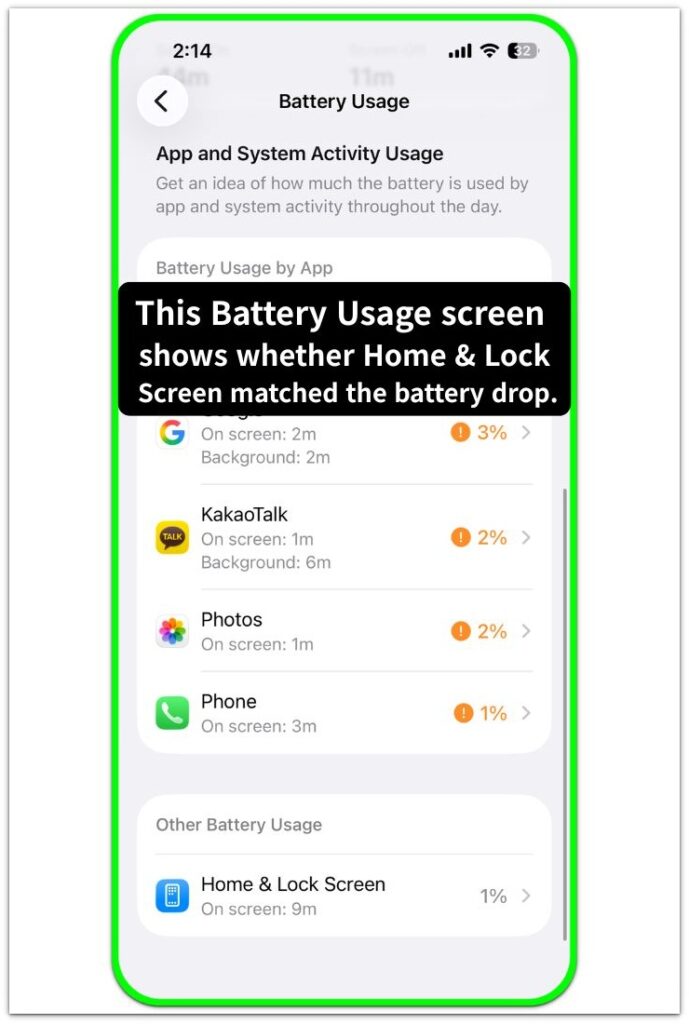
Use the time chart and that battery entry together. See whether it appears during the stretch when the battery level fell, not just whether it appears once.
Also compare the screen-on and screen-off time near the drop. A high Home and Lock Screen number matters more when the iPhone was picked up, unlocked, or woken often during that part of the day.
Step 2: Compare the Drop During Ordinary Pickups
Use the iPhone normally for a short part of the day. Pick it up, unlock it, check what you usually check, return to the Home Screen, and put it down again.
Go back to Settings, then Battery, and see whether that entry appears again during that ordinary pickup period. Keep the comparison focused on short use, not a long app session.
Compare the new battery drop with that pickup period. A repeated match between short pickups and Home and Lock Screen gives you a clearer reason to focus on wake-ups before blaming random apps.
Step 3: Check Whether the Day Looked Light in Battery Usage
Stay on the Battery page and look at Daily Usage. Compare the total battery drop with screen-on time, screen-off time, and the activity list below it.
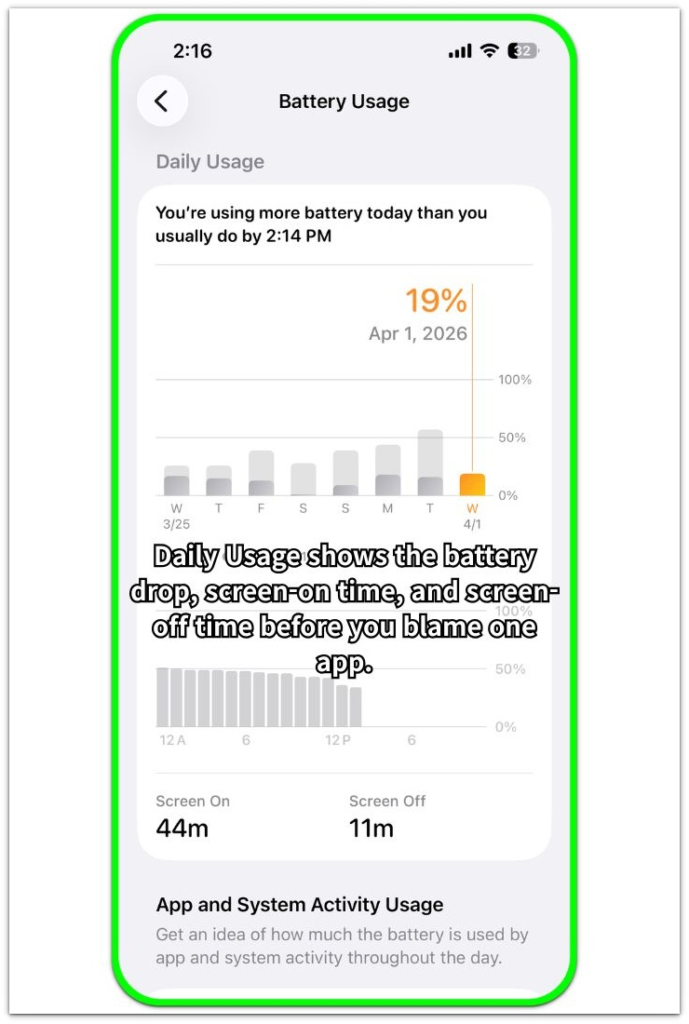
A light day should not show heavy app use, long video time, gaming, navigation, or hotspot use around that drop. Keep the comparison simple: battery level, screen time, and the Home and Lock Screen entry.
When the day looked light but Home and Lock Screen stayed high, focus on repeated waking, unlocking, Lock Screen checks, and Home Screen returns before changing unrelated app settings.
Troubleshooting
Troubleshooting 1: Home and Lock Screen Looks High Only After Many Notifications
Home and Lock Screen rises when the iPhone keeps waking for alerts, even when you do not open many apps. The clue is stronger when the battery drop lines up with a busy notification period, not with a long app session.
Check that part of the day in Battery, then look at whether messages, reminders, delivery alerts, calendar alerts, or app notifications kept lighting the Lock Screen. Focus on the alerts that wake the screen often.
Reduce the busiest notification source or use a quieter Focus setup for one similar period. Then check Battery again and compare whether Home and Lock Screen looks lower during that quieter stretch.
Troubleshooting 2: The Number Looks High Even When Screen Time Looks Low
Low screen-on time does not always keep the Home and Lock Screen number low. Short pickups, quick unlocks, Face ID checks, widget glances, and returns to the Home Screen add up without looking like one long session.
Go back to Battery and compare that entry with the timing of those short checks. A day with many tiny wake-ups leaves the screen-on number looking modest while Home and Lock Screen still stands out.
Leave the iPhone alone for one clean idle period, then check Battery again. A lower Home and Lock Screen number during that quiet stretch gives you a cleaner comparison than a day filled with quick pickups.
Troubleshooting 3: iPhone Home and Lock Screen Battery Drain Stays High After App Changes
App settings are not always the first place to change when Home and Lock Screen stays high. The number stays visible when the iPhone keeps waking, unlocking, showing widgets, or returning to the Home Screen throughout the day.
Review the Lock Screen setup, widgets, notification behavior, and pickup habits before changing more app battery settings. Keep the test simple by changing only one visible Home or Lock Screen trigger at a time.
After one normal test period, return to Battery and compare the same part of the day again. Use that result before changing more app settings or treating one app as the cause.
Extra Section 1: A Busy Morning Makes the Lock Screen Number Look Higher
A busy morning can make this number look worse even when the iPhone does not have one long app session. The battery drop often lines up with a short stretch filled with message alerts, calendar reminders, delivery updates, or other notifications that wake the screen.
The useful point is the morning time window, not the app list alone. Open Battery and review the morning drop again. When that stretch shows repeated wakes and a higher Lock Screen number, reduce the busiest alert source for one similar morning and compare the result.
Use that quieter morning as the comparison point before changing deeper battery settings or blaming unrelated apps.
Extra Section 2: A Quiet Evening Shows Whether Pickups Were the Real Cause
A quiet evening gives a cleaner comparison because fewer alerts interrupt the Lock Screen. The iPhone stays on the desk longer, and the battery result is easier to read when there are fewer quick checks mixed into the same time window.
Use one evening when messages, reminders, and app alerts are not busy. Keep the iPhone locked for longer stretches, then check Battery after that period. Compare the drop with the Home and Lock Screen number from the busier part of the day.
That evening check helps separate frequent pickups from background app use before you move to another battery item.
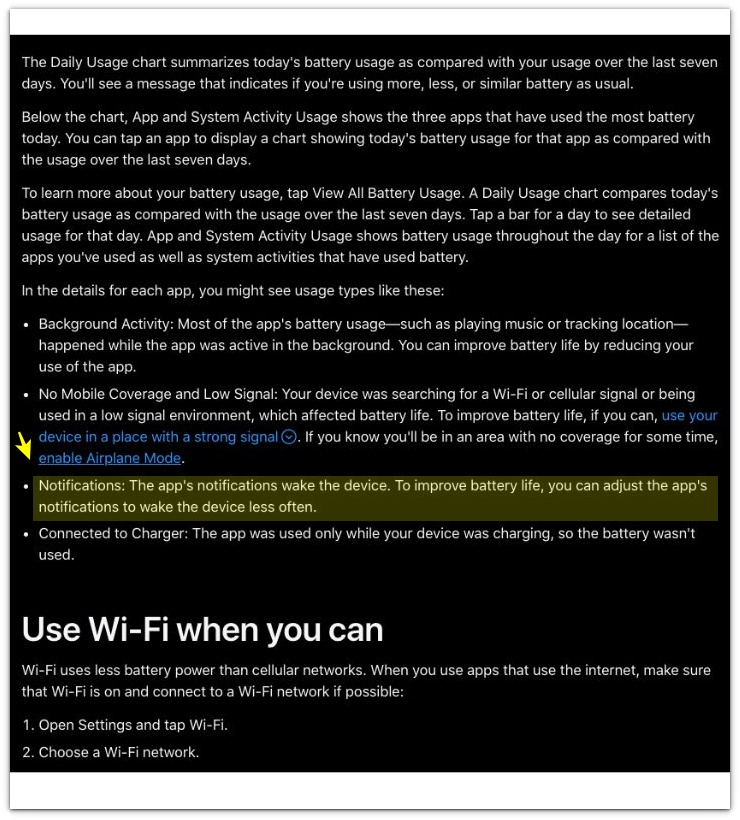
Official Source: Apple Explains Notification Battery Use
Apple states that notifications can wake the device and use battery, which supports checking busy alert periods when Home and Lock Screen looks high.
This source does not prove that every high Home and Lock Screen number comes from notifications. It only supports checking whether frequent alerts woke the iPhone during the same battery drop.
Additional Tips
The Home and Lock Screen number is easier to compare on a normal day than on a day with unusual phone use. A long camera session, navigation, hotspot use, or heavy video watching can hide the effect of short wakes and quick Home Screen returns.
A one-time spike is weaker than a repeated pattern. The number matters more when it rises during the same kind of busy alert period or the same kind of frequent pickup period more than once.
A Lock Screen with many widgets also changes the result. Weather, calendar, reminders, and activity widgets give you more reasons to wake the iPhone, so a crowded Lock Screen deserves a separate check before changing deeper settings.
Final Notes
iPhone Home and Lock Screen battery drain matters most when the number lines up with a real battery drop during repeated wakes, unlocks, notifications, or Home Screen returns. The entry alone is not the final answer, but the time window around it gives you the best place to start.
A lower number after fewer alerts or fewer pickups points back to screen activity. A similar drop after a quieter test points away from Home and Lock Screen and makes another battery item more important.
The strongest judgment comes from the repeat check. When the same time window keeps showing a high Home and Lock Screen number with light app use, treat repeated waking and Lock Screen activity as the first thing to reduce.
Checklist
- Check the Home and Lock Screen number during the same battery drop.
- Compare the time window before blaming random apps.
- Check whether repeated notifications woke the iPhone during that period.
- Compare short pickups, unlocks, and Home Screen returns with the battery drop.
- Use a quieter period to see whether the number falls.
- Reduce the busiest alert source or visible Lock Screen trigger first.
- Move to another battery item when the drop stays similar after a quieter test.
For a broader iPhone battery check, use the main battery drain guide alongside this Home and Lock Screen check.