
Introduction
iPhone battery drain background app refresh can feel wrong from the beginning. You check the battery again after light use, and the number is already lower than expected.
Screen time does not look high, but the drop still feels bigger than it should. Nothing heavy seems to be open on the screen, yet the phone does not feel truly idle.
With Background App Refresh on, some apps keep updating while the screen is off, so the number keeps moving even when you are not really using the phone.
Most people notice this mismatch before they know which setting caused it. Start by checking whether background activity matches the battery drop, not by changing random settings.
Step-by-Step Guide for iPhone Battery Drain Background App Refresh
Step 1: Check Whether the Battery Drop Starts While the Phone Looks Idle
Start by checking when the battery drop becomes noticeable instead of changing several settings at once.
Use the phone lightly the way you normally would, then leave it alone for a short time. Keep the screen off and avoid opening apps during that quiet period.
Check whether the battery still drops while the screen stays off and no app is open. This first test only checks whether the drain starts while the phone is sitting unused.
When the battery keeps falling during that quiet period, keep the focus on background activity for now. Compare it with Battery usage before blaming general phone use.
Step 2: Compare Battery Usage With What You Actually Did
Open Settings, then Battery. Look at the battery activity graph and the apps near the top.
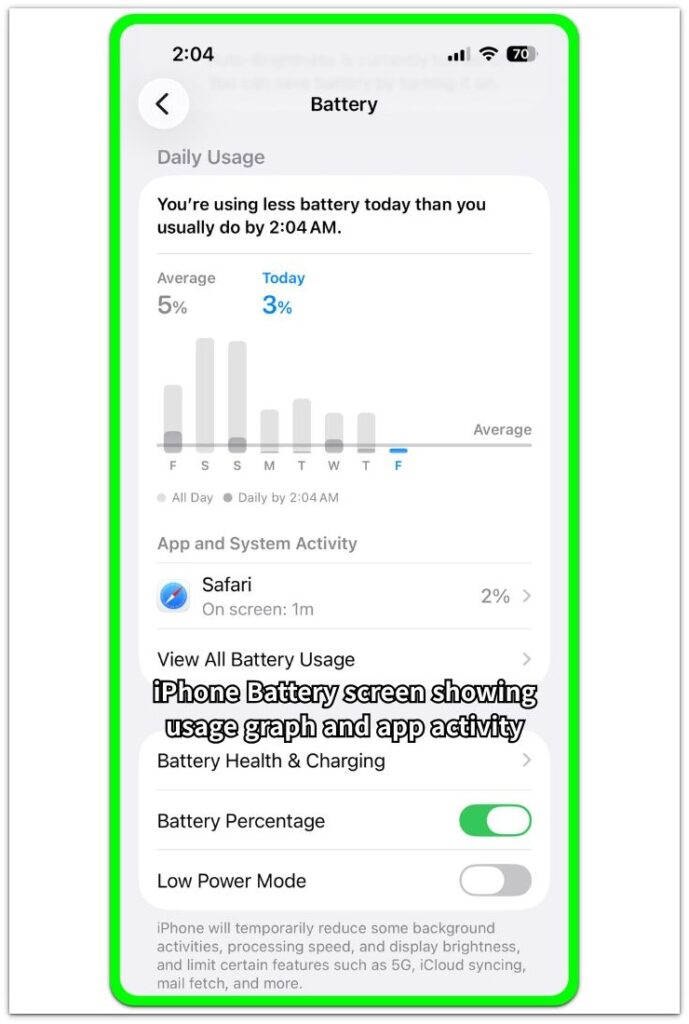
Check whether the battery drop feels bigger than the amount of screen time you actually had. A small drop after active use is different from a drop that continues while the phone looks idle.
Start with that difference first. This step is not trying to prove Background App Refresh yet; it only checks whether the Battery screen fits the way you actually used the phone.
Step 3: Check Which Apps Still Have Background App Refresh Enabled
Open Settings, go to General, then open Background App Refresh. Check the app list and look for apps that also appeared in Battery usage.
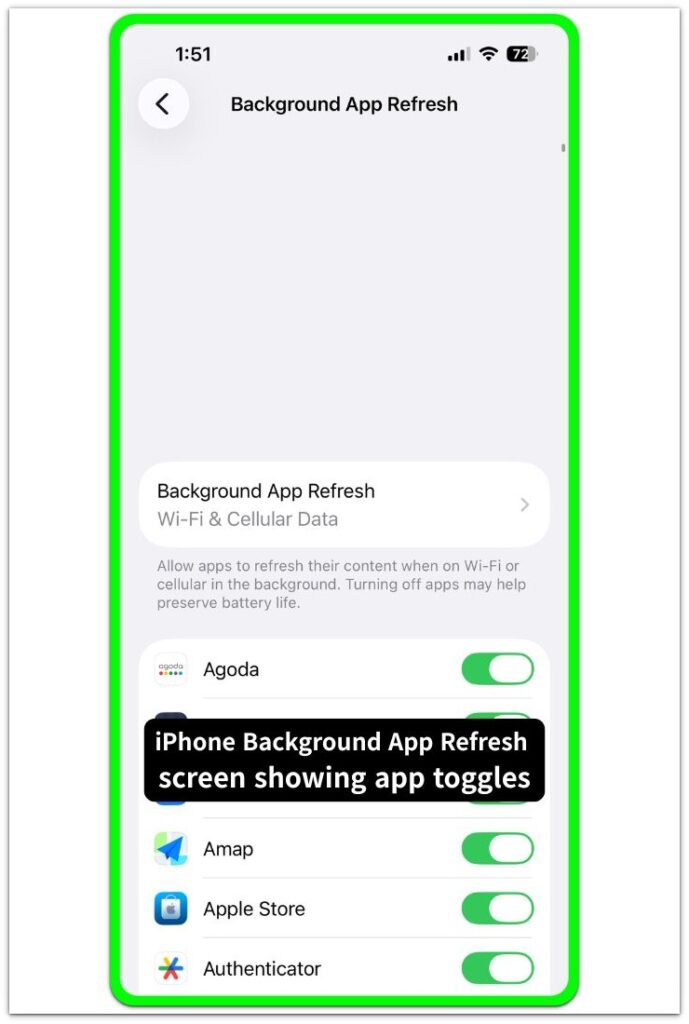
Avoid turning everything off right away. First compare the apps that showed activity in Battery with the apps that still have Background App Refresh turned on here.
When the same apps show up in both places, the battery drop stops looking random and starts pointing to a smaller group.
Troubleshooting
Troubleshooting 1: Battery Still Drops After Limiting Background App Refresh
After you turn Background App Refresh off for the main apps, a continued battery drop does not prove that setting caused the whole problem. Go back to Battery and check whether another app now shows more activity than before.
Sometimes the first app list changes after one group stops refreshing in the background. The battery drop can look unchanged even though the pattern has shifted to another app or service.
Keep checking the updated Battery list instead of turning off more settings at random. The goal is to see whether background activity moved to a different source.
Troubleshooting 2: Battery Usage Looks High, but No App Stands Out Clearly
iPhone battery drain background app refresh can still look confusing when the Battery screen does not point to one clear app. Chasing one app too early can miss several smaller apps working together.
A few apps doing small background work at the same time can still add up. Several apps or services can share the battery drop, so the Battery screen may not show one clear culprit.
Look at the apps as a group first. Several apps showing up during the same quiet period means you should not force the problem onto one app too early.
Troubleshooting 3: Battery Drop Happens Even During Idle Time With Little Screen Use
When the battery keeps dropping during idle time and the phone still looks quiet, stay with the idle pattern itself. Screen time, brightness, or normal daytime use should not take over the check too early.
Repeat the same quiet-period check once more and compare it with Battery usage again. A repeated drop with little screen use means screen activity no longer explains the problem by itself.
Check the apps and services that kept showing activity during the idle window. That gives you a clearer next target than changing display settings or deleting random apps.
Extra Section 1: When One Quiet App Kept Refreshing in the Background
One iPhone looked normal during the day because screen time stayed low and no heavy app stayed open for long. The battery still dropped more than expected after short, light use.
The first clue came from the Battery screen. One app kept appearing near the top even though the user had barely opened it on the screen.
The Background App Refresh list made the pattern easier to read. The same app still had Background App Refresh turned on, so the battery drop no longer looked like a general phone problem.
Only that app changed first. Then the phone sat through a quiet period, and the next Battery screen gave a cleaner comparison.
The result did not need to look perfect right away. The drop became easier to trace because one background app stopped standing out as much.
Extra Section 2: When Turning Off Too Many Settings Made the Test Harder
Another iPhone had a similar battery drop, but the first fix made the pattern harder to read. The user turned off several apps in Background App Refresh and changed a few other battery settings at the same time.
The battery looked slightly better the next day, but the result was not useful. There was no clear way to tell which change helped, or whether lighter use that day made the phone look better.
The cleaner test started again from the Battery screen. The user compared only the apps that kept showing activity during quiet periods with the Background App Refresh list.
One small group changed first. Then the phone sat through the same kind of idle window.
The next result was easier to read because only one thing had changed. Background App Refresh became easier to check once normal battery use no longer mixed with too many changes.
Turning off everything at once looked faster, but it blurred the next Battery screen.
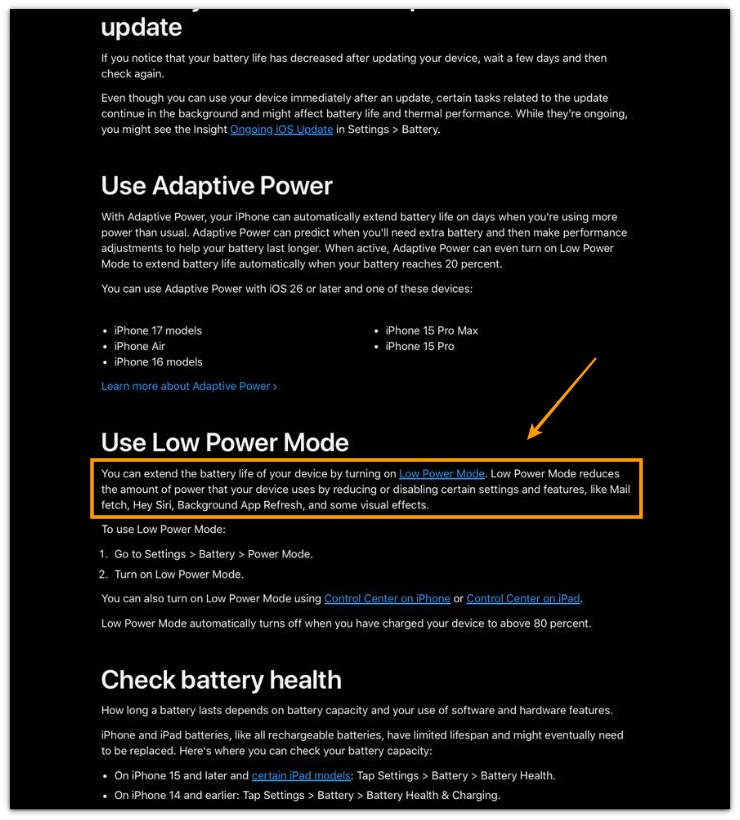
Official Source: Apple Says Low Power Mode Reduces Background App Refresh
Apple explains that Low Power Mode reduces background activity, including Background App Refresh.
Use the next checks to compare Background App Refresh with the battery pattern before changing more settings.
Additional Tips
Use Low Power Mode only as a short comparison check. A slower battery drop there means background activity needs a closer check before unrelated settings.
Avoid turning off every app in Background App Refresh at once. When too many apps change together, the next Battery screen becomes harder to read.
Leave Background App Refresh on for apps that need timely updates, such as maps, banking alerts, or messaging. Limit the apps that keep appearing in Battery without a clear reason.
Final Notes
Use one simple question to judge iPhone battery drain background app refresh: did the battery drop more than it should for how much you used the phone?
When screen time stays low, the phone looks quiet, and the same apps keep appearing after idle periods, normal screen use is not the problem. Background activity is the stronger clue.
Avoid changing every battery setting at once. Find the apps that match the battery pattern, limit those first, and compare the same quiet period again.
Checklist
- Check the battery drop during a quiet period
- Compare screen time with the battery drop
- Check Battery for apps that stayed active during quiet periods
- Check Background App Refresh for the same apps
- Keep changes small instead of turning everything off at once
- Check the same battery pattern again after one change
When background app refresh does not explain the full drop, the main iPhone battery drain guide can help you compare other idle battery patterns.