
Introduction
iPhone battery drain wifi on becomes suspicious when the iPhone loses power while Wi-Fi stays enabled and the screen stays off. The battery drop usually shows up during standby, overnight, or a quiet desk period, so the setting still looks normal and the drain is easy to miss on the first check.
A weak router connection, repeated reconnection, notification checks, account sync, or cloud activity keeps the phone working even while the display stays dark. Before changing several settings at once, compare one connected quiet period with another quiet period disconnected.
iPhone Battery Drain WiFi On Step-by-Step Guide
Step 1: Check Whether the Drain Continues During Screen-Off Time
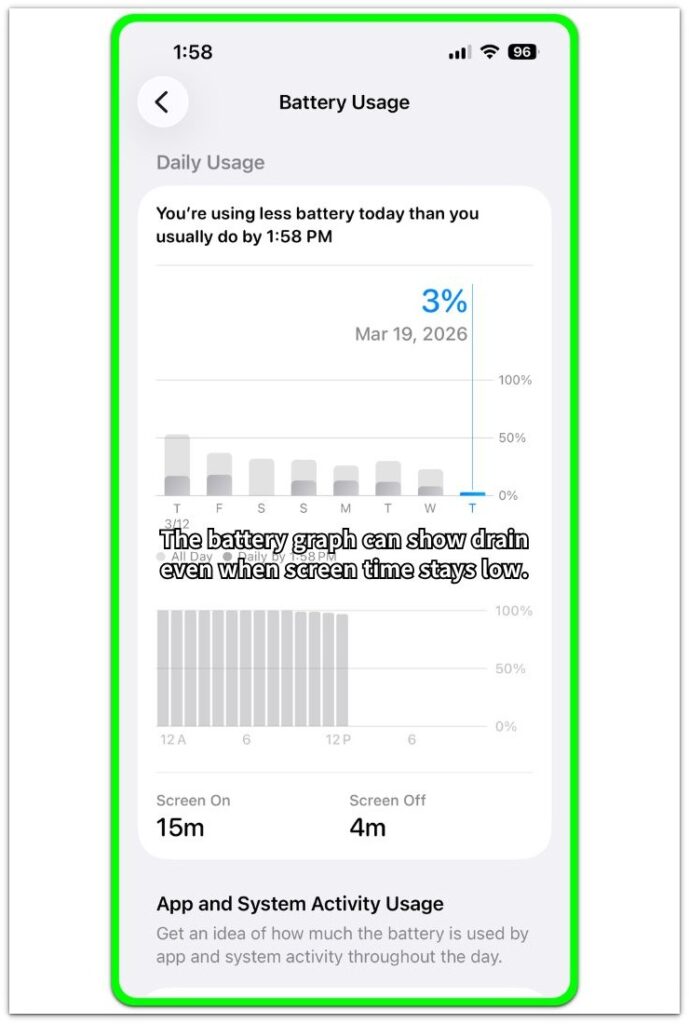
Open Settings → Battery and check the battery usage graph before changing network, app refresh, or notification settings. Focus on the period when the iPhone stayed locked with the screen off.
A battery level drop during that quiet period does not come from normal screen use. This first check matters because Wi-Fi-related activity usually shows up while the phone looks idle, not while you are actively browsing.
Use the graph to see whether the iPhone was still using power during screen-off time instead of judging the problem from the battery percentage alone.
Step 2: Check Whether the Connection Stays Active in the Background
Stay in the battery section and look at what appears during the drain period instead of judging the drain only from the switch.
A connected network still lets the iPhone receive notifications, refresh account data, check cloud activity, and reconnect when the signal is unstable. Battery does not always show one clear app causing the drop, so check whether the iPhone stayed connected during the same screen-off period.
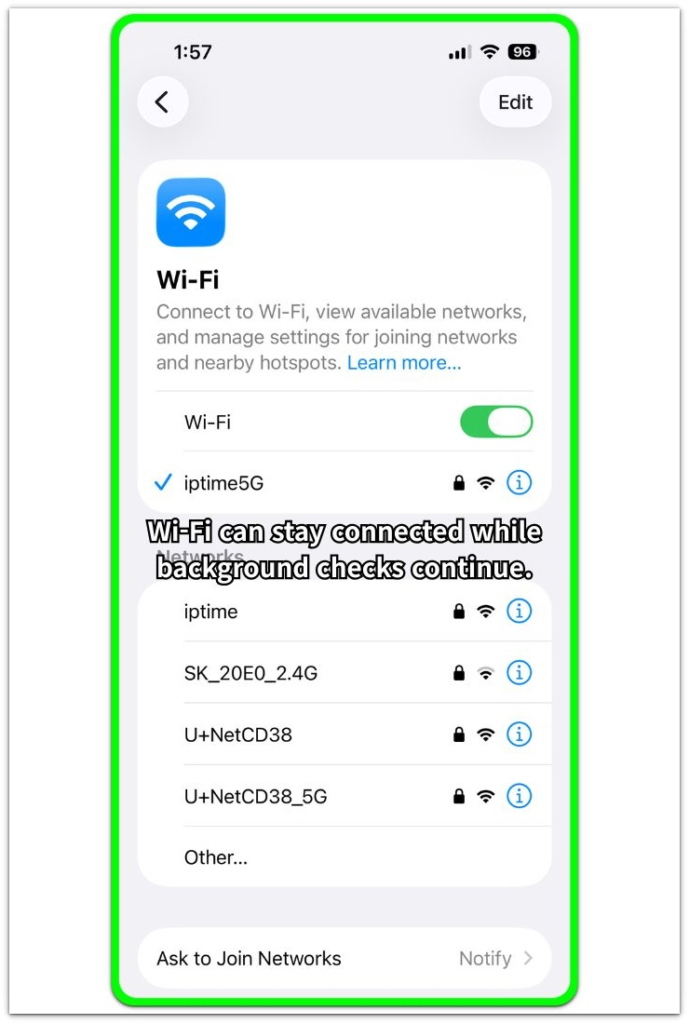
The drain often appears as background network activity instead of one obvious app using power. Open Settings → Wi-Fi and check whether the iPhone stays connected to the same network during the quiet period.
A drain that keeps happening while connected needs one more comparison. Turn Wi-Fi off and run the same test again.
Step 3: Compare One Idle Period With the Connection Off
Leave the iPhone locked for another quiet period, but turn Wi-Fi off for this test. Use the same kind of timing you checked earlier, such as a desk break, standby period, or overnight window.
Keep app refresh, notifications, location, and cellular settings unchanged during this test. After the test period, open Settings → Battery and compare the battery drop against the earlier connected period.
A clearly smaller battery drop after turning Wi-Fi off points to standby activity, router reconnection, or background network checks. A battery drop that stays almost the same points to a wider battery issue, not Wi-Fi alone.
Troubleshooting
Troubleshooting 1: Battery drops only in one weak signal spot
A Wi-Fi drain problem shows up more clearly in one room, one desk area, or one side of the house. The iPhone stays connected, but the weak signal keeps the connection working harder than it should.
This is different from normal idle drain because the battery drop changes with location, not with app use. Check whether the same drop happens when the iPhone sits closer to the router, then leave it in the weak-signal spot again and compare the next quiet period.
A drop that gets worse only in that weak area points to unstable standby activity, not general battery wear.
Troubleshooting 2: iPhone Battery Drain WiFi On After Notifications and Sync Resume
The battery looks calmer right after turning Wi-Fi off, but the drop returns once the iPhone reconnects to Wi-Fi. The connection is only the path, while the background work is the part using power.
Mail, iCloud, messaging apps, calendar sync, and app notifications start working again once the phone has a network path. Leave most notifications alone at first, then check the apps that update most often.
Compare another screen-off period after limiting only one area.
Troubleshooting 3: Turning the connection off does not reduce the drain
A battery drop that stays almost the same with Wi-Fi off points away from the connection as the main cause. This keeps you from blaming the wrong setting.
Look again at Battery and check whether Home & Lock Screen, system activity, location, Bluetooth, or a recently updated app appears near the drain period. Also check whether the phone recently updated iOS, restored data, or finished a setup process.
Those tasks make the phone look idle while battery use continues in the background. Wi-Fi off making no real difference means the next check should move beyond Wi-Fi instead of repeating the same Wi-Fi test.
Extra Section 1: When Wi-Fi Lets Overnight Sync Keep Running
Overnight drain looks strange when the iPhone sits on the table all night, barely used before sleep. The battery looked stable in the evening, but the next morning shows a larger drop than the short screen time explains.
That connection gives Mail, iCloud Photos, messages, calendar data, and cloud backups a path to catch up while the phone stays locked. One night may stay calm because little account data moves in the background, while another night drops harder because several accounts refresh, sync, or finish queued activity while connected.
The useful clue is not the switch by itself. It is whether the overnight drop gets worse on nights when account and cloud activity have more work waiting.
Extra Section 2: When a Weak Signal Spot Makes Idle Drain Worse
A desk near the router gives a different result from a bedroom on the far side of the house. The iPhone still shows a connection, so everything looks normal on the screen, but the overnight drop gets worse only when the phone sits in that weaker spot.
The real difference comes from the place where the phone stays overnight. An extender, a saved network, or a weak corner of the house makes the iPhone hold the connection less cleanly during idle time.
This kind of drain is easy to miss because the icon still looks normal. A battery drop that changes by location points to a Wi-Fi placement problem before it points to the battery itself.
Official Source: Apple Says Strong Connections Use Less Power
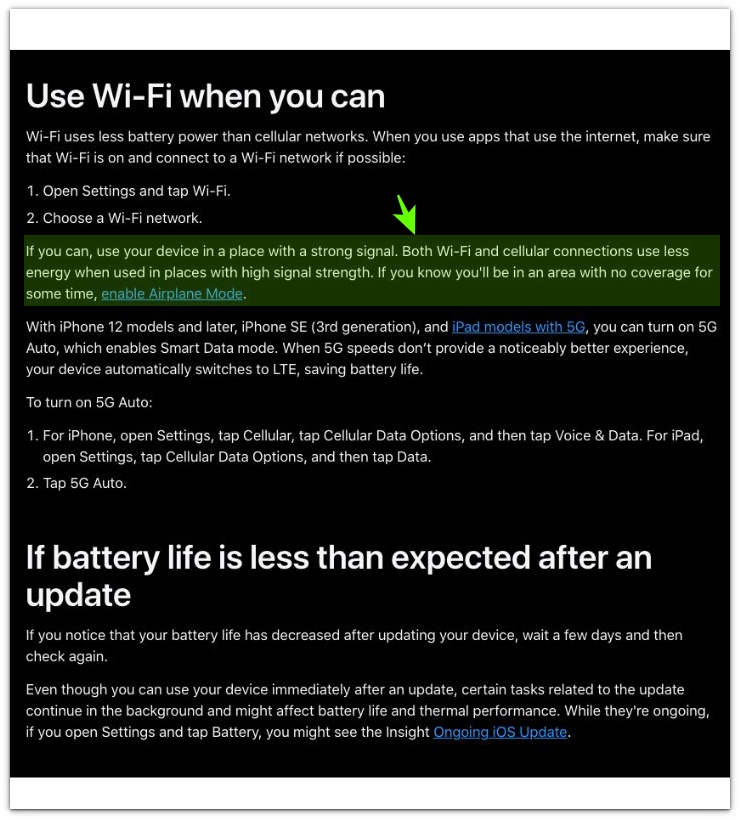
Apple explains that Wi-Fi and cellular connections use less energy in places with strong signal strength, which supports the weak-signal part of this test.
That point does not prove Wi-Fi is always the cause. Compare the same idle period near the router and in the weaker spot before blaming the battery.
Additional Tips
A small drain test works best when the iPhone stays in one place each time. Two overnight results are only useful when the location does not change.
Weak signal, router distance, and repeated reconnecting change the result even when the phone looks idle. Check the network name before each test so the iPhone is not switching between your home network, an extender, or a nearby saved network.
Also watch whether the drain happens only after certain apps send alerts, refresh inboxes, or update cloud data.
Final Notes
iPhone battery drain wifi on should not come from the Wi-Fi switch alone. The real clue comes from what happens during the quiet period while the iPhone stays locked, connected, and unused.
A battery drop that changes with Wi-Fi signal strength, saved networks, or background sync activity points to idle network behavior. Turning Wi-Fi off with no real difference means the next check should move to the wider battery usage picture.
A real Wi-Fi-related drain leaves a difference between connected idle time and disconnected idle time. Without that difference, the problem is not Wi-Fi alone.
Checklist
- Open Settings → Battery and check the screen-off period.
- Compare the battery drop with low screen activity.
- Check whether the iPhone stayed connected to Wi-Fi during the quiet period.
- Repeat the same idle test with the connection turned off.
- Keep the iPhone in the same place when comparing connected and disconnected idle time.
- Treat the issue as Wi-Fi-related only when connected idle time drains more than disconnected idle time.
Use the main guide for wider battery drain checks after you finish this Wi-Fi idle test.