
Introduction
iPhone Safari data cleared but storage not reduced becomes noticeable when the iPhone Storage screen still shows space after you remove browsing data. The Safari screen looks clean, but the storage number does not drop as expected.
This feels confusing because you already cleared the data inside Safari settings. The first check is whether the Storage screen is still showing the old number or space remains somewhere else.
Step-by-Step Guide: iPhone Safari Data Cleared but Storage Not Reduced
Step 1: Check The Main Safari Clear Data Screen
Open Settings → Safari and scroll to Clear History and Website Data. This screen is the first place to check because it removes browsing history and cookies, but it does not explain every number shown under iPhone Storage.
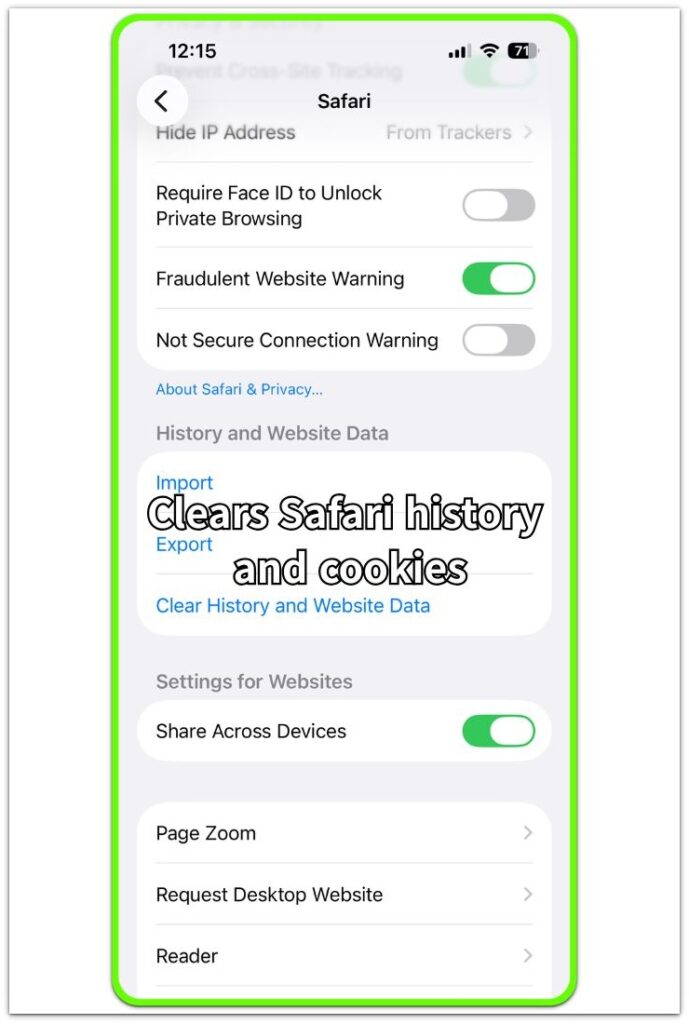
Check whether the storage number still looks high after clearing the data. A number that stays the same does not mean the clear action failed. The next check needs to separate normal browsing history from stored website data.
Step 2: Check Website Data Separately
Open Settings → Safari → Advanced → Website Data. Look at the site list and check whether large site entries still appear after you clear history.
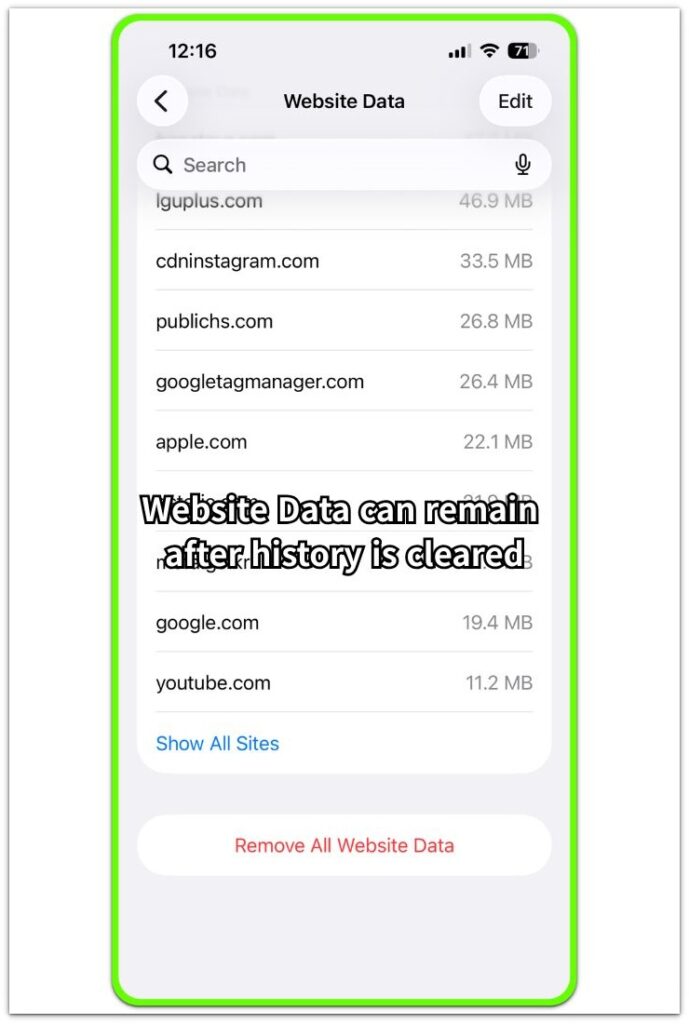
Website Data shows cached site resources that stay listed separately from the main history removal screen. A few large sites near the top keep storage visible even after the screen looks clean.
Step 3: Compare Storage After The Page Reloads
Return to Settings → General → iPhone Storage and open the Safari entry again. Wait for the storage screen to finish loading before judging the number, because the iPhone Storage list takes time to refresh after data removal.
Compare the number with the list you just checked. If large site entries are still taking space, use Remove All Website Data there, then reload iPhone Storage instead of deleting unrelated apps.
Troubleshooting
Troubleshooting 1: Safari Storage Still Looks High After You Clear History
The storage number still shows use after you clear History and Website Data. The browser history looks removed, but the number under iPhone Storage does not drop right away.
Open Website Data and check whether large site entries still remain in the list. History and website data do not always clear from the same place, so the remaining list becomes the next place to inspect.
Troubleshooting 2: Website Data Keeps Coming Back After Removal
The list looks smaller at first, then site entries appear again after you open Safari. This happens after the same sites reload and store new resources again.
Remove Website Data again, then keep Safari closed for a short test. Return to iPhone Storage before reopening the same sites and compare the number before new browsing data appears again.
Troubleshooting 3: iPhone Storage Still Shows The Old Number
You cleared Safari data and removed Website Data, but iPhone Storage still shows the old number. The Storage page is likely still showing an older calculation, not the current size.
Close Settings, reopen Settings → General → iPhone Storage, and wait for the list to finish loading. Compare again after the app list and category numbers stop changing.
Extra Section 1: Why Safari Looks Clean But Storage Still Shows Data
The page looks clean after browsing history is cleared, but iPhone Storage reports space from its own storage screen. The settings screen shows the visible browsing cleanup, while iPhone Storage still reports space used on the device.
This is where iPhone Safari data looks cleared, but the storage number still feels confusing. The browser history is gone, but the storage screen still reflects site data or cached resources.
The storage screen often keeps showing separate Safari space while the visible history area looks empty. That mismatch is not a reason to start deleting apps. It only means the next check should stay inside Safari-related data until the iPhone Storage number reloads and settles on the screen again.
The number needs a separate check in iPhone Storage after the list finishes loading. This keeps the problem tied to the storage check instead of sending the check toward unrelated apps.
Extra Section 2: Why Website Data Returns After Safari Opens Again
Website Data returns after Safari opens because fresh site data starts building again. A cleaned list does not stay empty after the same pages load, especially when those pages use images, login sessions, scripts, or saved resources.
This is different from a failed clear action. The old entries were removed, then new browsing data appeared after the same sites loaded again.
The timing matters when checking the storage number. Compare the number before reopening the same websites, not after a new browsing session has already created fresh data.
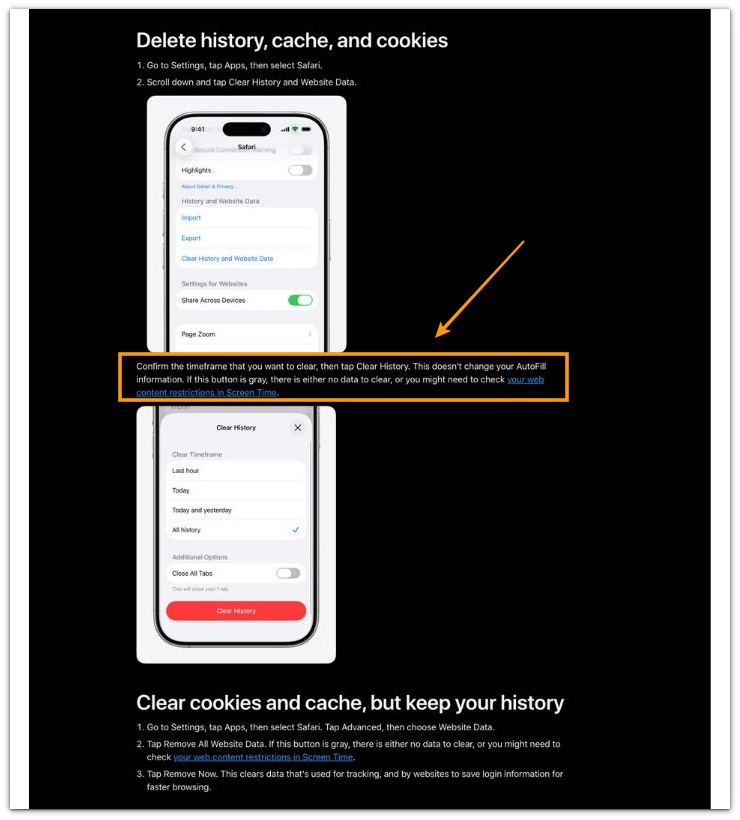
Official Source: Apple Safari History, Cache, and Website Data
Apple shows Safari history, cache, cookies, and Website Data as items managed from Safari settings. This supports checking Website Data separately when Safari storage still appears in iPhone Storage.
Additional Tips
Private Browsing does not leave the same visible history trail, but normal tabs still create data when sites load again.
Signed-in websites often rebuild data faster than simple pages. Shopping, banking, video, and news sites are more likely to return to the Website Data list after reuse.
A storage number that changes after opening again points to new browsing data, not the same cleared data coming back.
Final Notes: iPhone Safari Data Cleared But Storage Not Reduced
This issue needs two checks together: Website Data and iPhone Storage. The main clear button removes visible browsing data, but the remaining number needs a separate check when the storage screen still shows space.
When the same storage pattern continues after clearing Safari data, the next fix path is clear. Check Website Data first, remove remaining site entries there, then reload iPhone Storage before opening Safari again.
Checklist
- Check Website Data after clearing history.
- Compare the entry inside iPhone Storage after the list loads.
- Remove remaining site entries from Website Data.
- Check storage before reopening the same websites.
- Treat returned Website Data as new browsing data after opening again.
- Reload iPhone Storage before deleting unrelated apps.
If Safari is already clear but iPhone Storage still looks high, check the main guide above.