
Introduction
iPhone Messages taking up too much storage stands out when the app stays large even after you delete old chats, photos, or videos. The number does not always drop the way it should after a basic cleanup, and the message list alone does not show where the remaining space sits.
Attachments still remain inside Messages storage even when they are hard to find from the conversation screen. Start from iPhone Storage and check where the space sits before deleting more conversations.
Step-by-Step Guide: iPhone Messages Taking Up Too Much Storage
Step 1: Find Messages Inside iPhone Storage
Open Settings → General → iPhone Storage, then wait for the app list to finish loading. Scroll down until you find Messages and look at the storage number shown beside it.
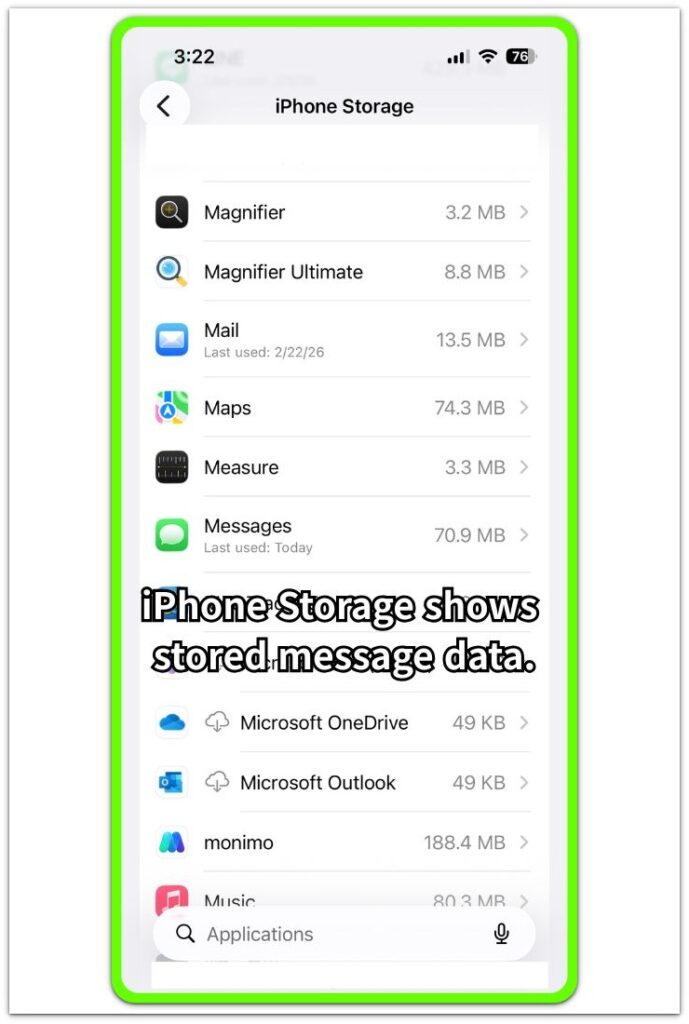
Use this screen to confirm that Messages is the app taking up space. The number in iPhone Storage reflects stored message data, not only the length of the conversation list inside the Messages app.
Step 2: Open The Messages Storage Details
Tap Messages from the iPhone Storage list and check App Size and Documents & Data separately. App Size is usually small, while Documents & Data shows the stored message content that still takes space.
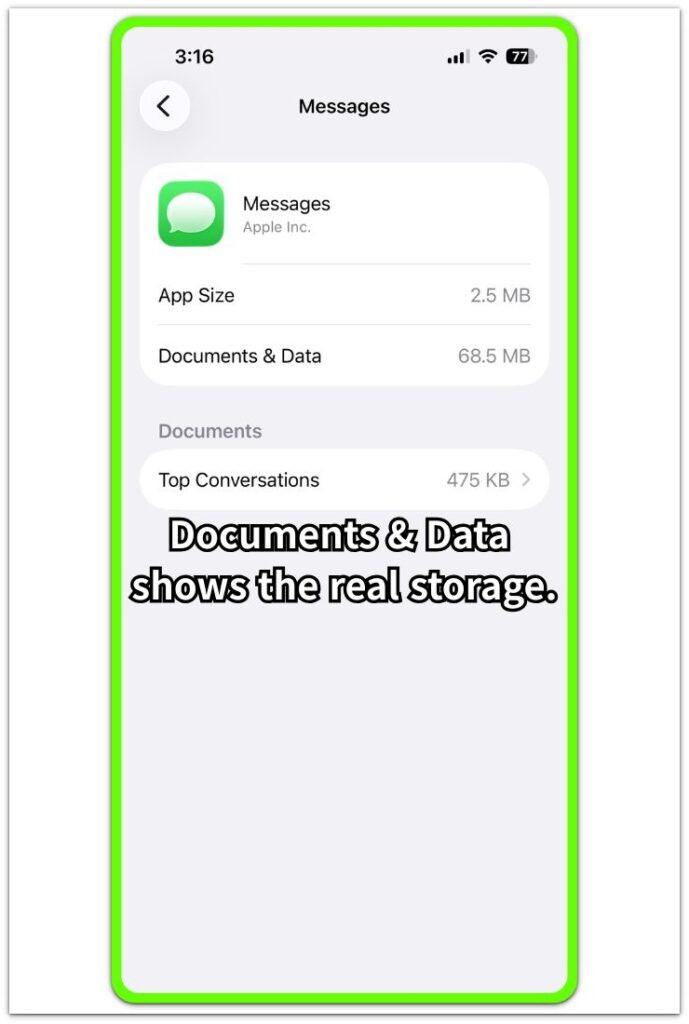
A large Documents & Data number points to saved message data, including attachments, media, and conversation-related files that still remain.
Step 3: Check Top Conversations Before Deleting More Messages
On the Messages screen, open Top Conversations when it appears. Review the largest conversation entries first instead of deleting random chats from the Messages app.
This keeps the cleanup focused on the place where iPhone Storage still sees message data. Remove large conversations or attachments from that screen first, then return to iPhone Storage and check whether the number changes.
Troubleshooting
Troubleshooting 1: Deleted Photos Still Leave Messages Storage High
Photos or videos disappear from the conversation, but the Messages number stays high in iPhone Storage. The chat screen looks cleaner, while the stored message data still takes up space.
Go back to Settings → General → iPhone Storage → Messages and check the number again after the page reloads. A high number there means the cleanup did not reach the stored message data that iPhone Storage still counts.
Troubleshooting 2: Top Conversations Looks Smaller Than Documents & Data
Top Conversations looks small while Documents & Data remains much larger. This makes the Messages screen confusing because the visible conversation list does not explain the full number.
Use Documents & Data as the main check, then see whether photos, videos, links, and other attachments still sit inside older conversations. The largest visible conversation is not always the only place holding Messages storage.
Troubleshooting 3: iPhone Messages Storage Drops Once And Comes Back
Storage drops after cleanup, then grows again when new messages, shared media, or restored conversations return. The number also changes while iCloud Messages finishes syncing recent attachments back onto the phone.
Check the number again after iCloud Messages has finished syncing. A repeated rise after cleanup points to returning message data, not a failed iPhone Storage screen.
Extra Section 1: Deleted Attachments Still Leave Storage Behind
A user opens an old conversation, removes several photos and videos, and the chat finally looks lighter. The visible thread no longer shows the large media, so storage looks ready to drop.
The problem shows up when iPhone Storage still lists the app as one of the larger apps. The cleanup changed what the user sees inside the conversation, but the screen still finds message data connected to that app. The Messages detail page inside iPhone Storage gives the better answer, not the cleaner-looking chat screen.
Deleted attachments do not finish the check by themselves. Return after the cleanup and read the number again.
Extra Section 2: iCloud Messages Brings Storage Back After Cleanup
A user cleans up Messages and sees the number drop once. The result looks fixed at first because iPhone Storage no longer shows the same large number from before.
Later, the number rises again even though the user did not delete the wrong conversation or restart the cleanup from the beginning. iCloud Messages, restored chats, or newly downloaded attachments bring message data back onto the phone while the page updates.
This situation is different from a cleanup that never worked. The first drop shows that space changed, but the later rise needs another look after syncing settles. Read the number again later and compare whether the increase comes from returning message data instead of the original cleanup step.
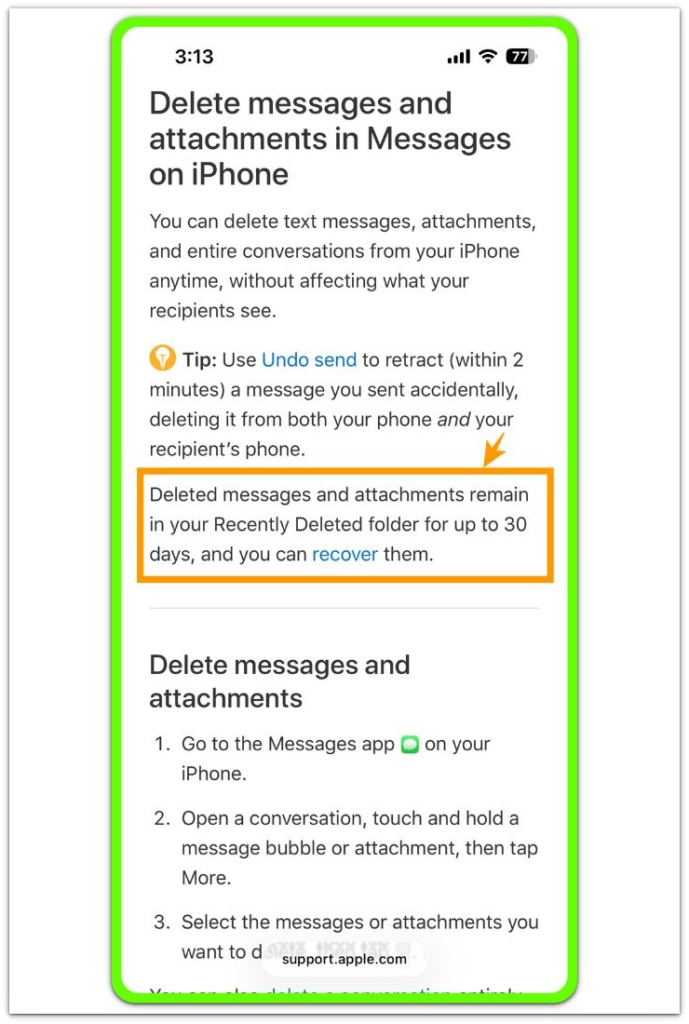
Official Source: Deleted Messages And Attachments Stay In Recently Deleted
Apple says deleted messages and attachments remain in Recently Deleted for up to 30 days. After cleaning up Messages, check iPhone Storage again instead of judging the result only by the cleaner-looking conversation screen.
Additional Tips
Recently Deleted changes the result after a cleanup. Deleted messages and attachments stay there for a while, so the number in iPhone Storage is the better place to confirm the real change.
Shared links and older attachments also make the app look larger than the visible chat list suggests. When Documents & Data stays high, check media-heavy conversations before clearing small text-only chats.
iCloud Messages moves the number again after cleanup. A second check gives a clearer result once syncing and restored attachments settle.
Final Notes
Use iPhone Storage for iPhone Messages taking up too much storage, not the conversation list alone. A cleaner-looking chat does not always mean storage has dropped.
The strongest check is the detail page inside iPhone Storage. App Size tells little in most cases, while Documents & Data and Top Conversations show where the stored message data still sits.
A real cleanup result shows up when the number changes after deleting large conversations, attachments, or recently deleted message data. Use that number for the final judgment, not how empty the app looks.
Checklist
- Check Messages inside iPhone Storage first.
- Open the Messages storage details and compare App Size with Documents & Data.
- Review Top Conversations before deleting random chats.
- Check Recently Deleted when deleted messages or attachments still affect storage.
- Recheck the number after cleanup.
- Use the number as the final result, not the cleaner-looking chat list.
Need a bigger storage fix? Use the main iPhone storage guide to compare Messages with Photos, apps, System Data, and other hidden storage areas.