
Introduction
iPhone storage increased after iOS update becomes noticeable when the Storage screen shows more used space right after the update. The storage bar, System Data, or app list looks different from before the update, even though the phone has already restarted.
Start with the iPhone Storage screen, wait for it to finish loading, and check where the increase appears before comparing it with the next reading.
Step-by-Step Guide: iPhone Storage Increased After iOS Update
Step 1: Check Where The Storage Increase Appears
Open Settings → General → iPhone Storage, then wait until the storage bar and app list finish loading. Look at the used storage amount, the colored storage bar, iOS, System Data, and the largest app entries.
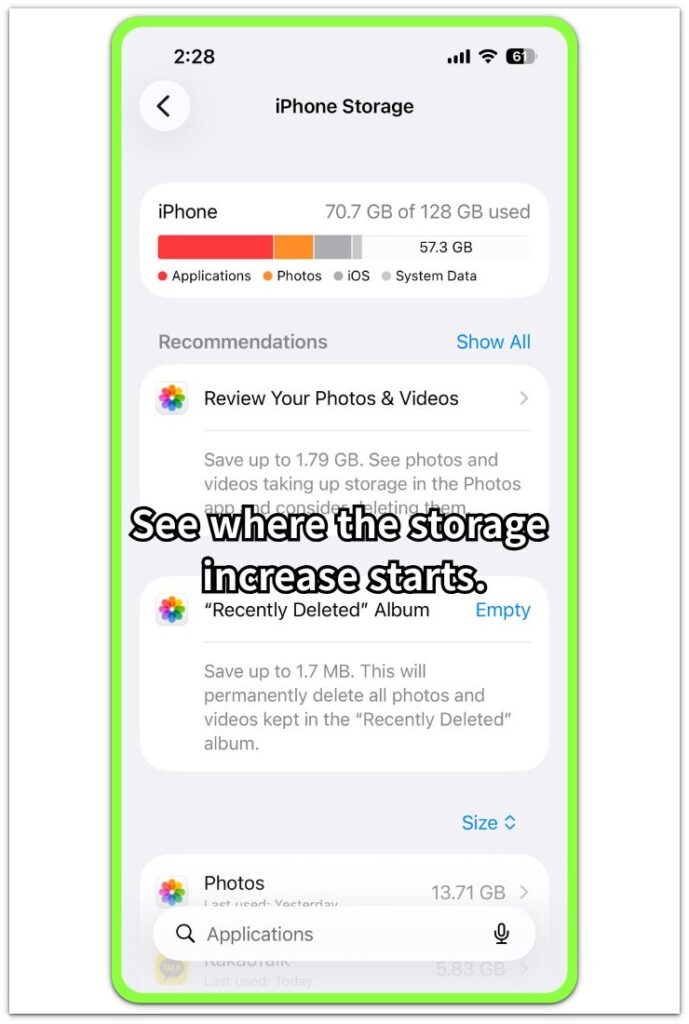
Use the first check to see where the increase appears. Read a rise near iOS or System Data separately from a rise in Photos, apps, downloads, or message files.
Step 2: Wait And Recheck The Same Storage Screen
Leave the iPhone plugged in or idle for a while after the update, then return to Settings → General → iPhone Storage. Wait for the page to load again before reading the amount.
Compare the new reading with the first one, then check whether iOS, System Data, or the app list changed again on the same Storage screen.
Step 3: Compare System Growth With User Content
Check whether the larger space sits in system-related areas or in user content. Photos, videos, messages, downloaded files, and large apps point to content growth, while iOS and System Data point to update-related storage activity.
Keep the comparison tied to the same screen. Separate system-related areas from user content before moving to the next check.
Troubleshooting
Troubleshooting 1: iPhone Storage Increased After iOS Update and System Data Gets Bigger Again
System Data looks smaller once, then grows again during the next storage check. The update already finished, but that area still moves between checks.
Leave the iPhone idle a little longer, then compare System Data and iOS with the last reading. Keep this check focused on the system area instead of reading the whole storage bar again.
Troubleshooting 2: Apps Look Larger Even Without New Downloads
Some apps look larger after the update even though the user installed no new app. Photos, Messages, Safari, music apps, or cloud apps hold more local data after the phone starts using them again.
Open the largest app entry inside iPhone Storage and check whether the space sits in the app itself or in Documents & Data. A larger Documents & Data area points to app content growth, not just the iOS update.
Troubleshooting 3: The Storage Bar Changes But The App List Does Not Match
The colored storage bar changes, but the app list does not explain it clearly. The used storage number, category colors, and largest app entries do not line up during the first checks.
Close Settings and open iPhone Storage again. Match the used storage amount with the largest visible entries before making the next comparison.
Extra Section 1: Temporary System Storage After The Update
The first storage check after an iOS update often looks worse than the storage change really is. The update has already finished, but iPhone Storage is still sorting that area, the app list, and the colored bar in the background.
A user sees iOS or System Data take more space than expected right after the restart. The user added nothing new to the phone, installed no large app, and still sees the change on the Storage screen.
This is different from a normal app or photo increase. The change stays close to the system area, so the first reading works better as an early update check, not the final result.
Extra Section 2: App Data Looks Bigger After Normal Use Returns
The storage increase does not always stay in iOS or System Data after an update. Once the user starts using the phone again, some apps begin filling local space with messages, browser data, photo previews, music files, or cloud content.
The confusing part is that the larger app entries appear after the update, so they look connected to the update at first. Photos, Messages, Safari, and cloud apps stand out because they hold content the user opens again.
This is different from temporary system storage. The increase moves toward app entries and user content, so it points to app data returning after normal use, not just iOS update growth.
Official Source: Apple Explains System Data And Cached Storage
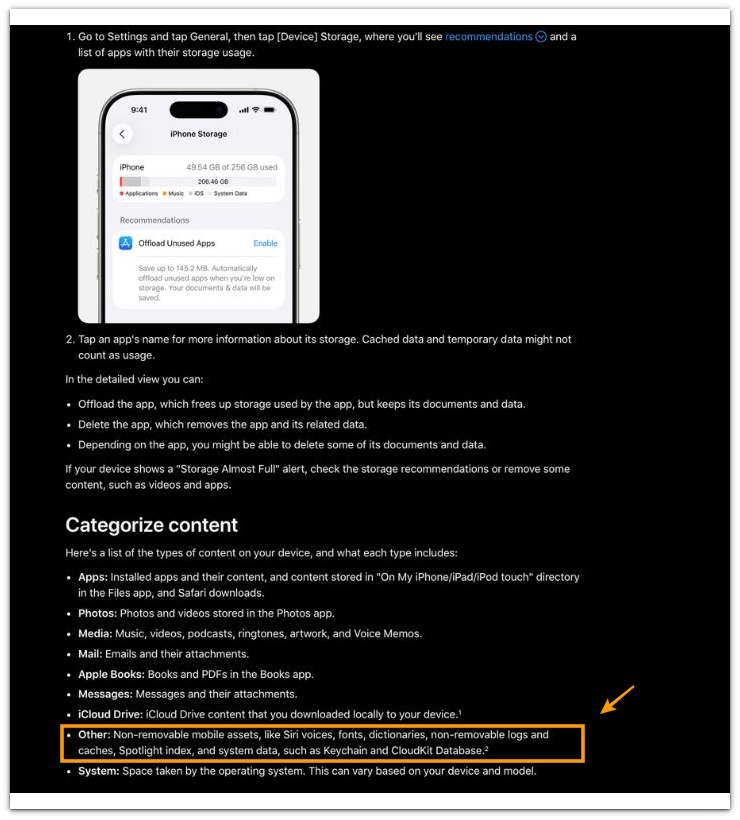
Apple explains that iPhone Storage separates apps, photos, media, messages, iCloud Drive, Other, and System. Apple also lists caches, logs, system data, and other non-removable mobile assets under storage categories.
This supports the main point of this article: a storage increase after an iOS update does not always come from new photos, apps, or downloads. Part of the increase sits in system-related storage or cached data while iPhone Storage updates its reading.
Additional Tips
Storage often looks different right after an iOS update because iPhone Storage does not always settle at the same moment as the restart. A small change in System Data or the colored bar matters less than where it stays after the next reading.
Cloud apps also make the result harder to read. Photos, Messages, Safari, music apps, and file apps show more local data once the phone starts opening content again.
A cleaner check comes from comparing the same iPhone Storage screen before moving between the storage bar, app list, and separate app screens.
Final Notes
iPhone storage increased after iOS update needs a clear comparison, not a quick deletion. The first storage reading after the update is only the starting point because iOS, System Data, and app entries still change during the next checks.
A system-side change points toward update-related activity. A larger app entry points toward local app data, files, messages, or downloaded content returning after normal use.
Where it stays matters more than the first storage number. Growth near iOS or System Data points to system-related storage first. Growth inside apps, photos, messages, or downloads points to user content or app data instead of the update alone.
Checklist
- Check where the storage increase appears inside iPhone Storage.
- Compare iOS, System Data, and the largest app entries separately.
- Recheck the same iPhone Storage screen after the first update reading.
- Separate system-related storage from photos, messages, downloads, and app data.
- Use Documents & Data when a large app entry explains the increase.
- Judge the problem from where the storage growth stays, not from the colored bar alone.
Use the main iPhone storage guide when the increase keeps spreading into System Data, app data, photos, messages, or failed installs after the update.