
Introduction
────────────────────
Your iPhone uses a USB-C cable, but the battery still rises slowly.
That feels wrong because the newer cable looks stronger and faster than the old one.
The charging icon appears.
The cable fits.
Nothing looks broken on the screen.
The confusing part is that the cable shape does not decide charging speed by itself.
iphone charging slow with usb-c cable happens when the cable, charger, port, or power source does not support the speed you expected.
This guide focuses on why the connection does not always mean faster charging, even when everything looks normal on the screen.
────────────────────
Step-by-Step Guide
────────────────────
────────────────────
Step 1: Check the charger before blaming the cable
────────────────────
Start with the power adapter, not the cable.
A cable cannot charge faster than the charger allows.
Look at the charger plugged into the wall.
If it is an older low-power adapter, the iPhone can still charge slowly even with a newer cable connected.
Keep the same cable in place and test a stronger wall adapter that supports faster charging.
Do not change the cable, outlet, and charging spot all at once.
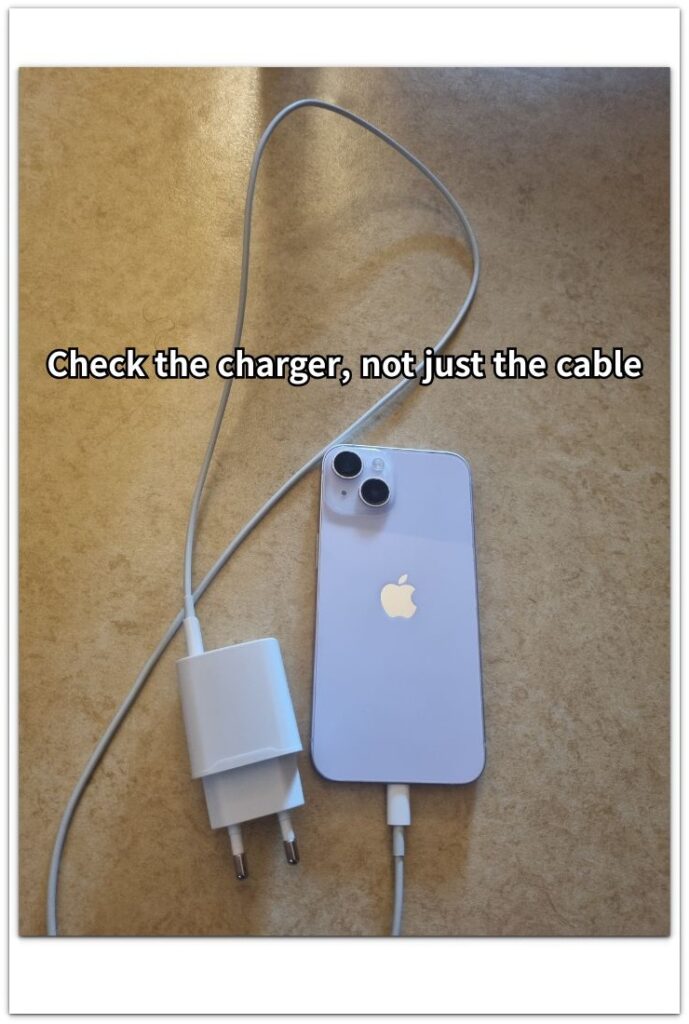
A newer cable can still charge slowly when the power adapter is the real limit.
────────────────────
Step 2: Check whether the cable supports more than basic charging
────────────────────
Not every cable is built for the same charging speed.
A basic cable can show the charging icon without delivering the faster charge you expected.
Two cables can look almost the same while handling power differently.
Check the cable that came with the iPhone first, or use a cable from a brand you trust.
Avoid judging by the connector shape alone.
When iphone charging slow with usb-c cable happens with one cable but not another, keep the cable in the test.
────────────────────
Step 3: Compare wall charging with another power source
────────────────────
Keep the iPhone and cable the same for this check.
Plug the phone into a wall charger and watch the battery percentage for a short charging period.
Then compare it with a laptop port, car USB port, hub, monitor port, or power bank.
Do not expect every port to behave like a strong wall charger.
A port built for data, accessory power, or convenience can still charge the phone slowly.
Change only the power source during this check.
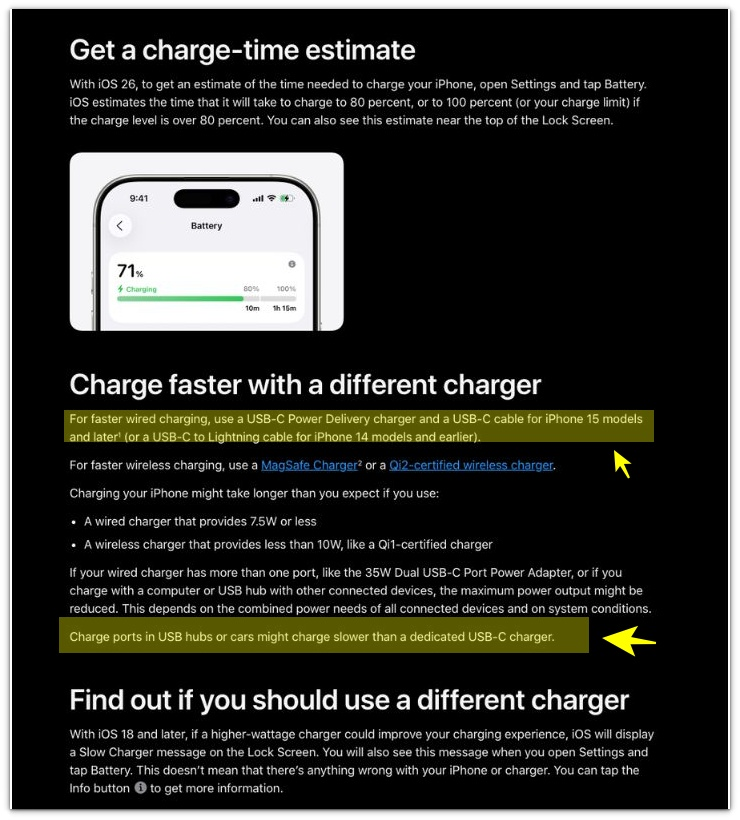
Apple is pointing to the same limit shown in this check: the cable can be connected, but the power source can still hold back the charging speed.
Once the power source is separated from the cable, the next step is to check the situations where charging still looks slow even after the connection seems normal.
────────────────────
Troubleshooting
────────────────────
────────────────────
Troubleshooting 1: The charging icon appears, but the percentage barely moves
────────────────────
The iPhone shows the charging icon, so the cable looks connected.
But the battery percentage barely moves during the same short charge.
That can make the cable look suspicious, even when the screen shows no accessory warning.
This is the misleading part of iphone charging slow with usb-c cable.
Do not read the icon by itself.
Watch the percentage during the same charging period.
────────────────────
Troubleshooting 2: The same cable feels fast with another device
────────────────────
The same USB-C cable can charge another device without looking slow.
That can make the cable look proven before the iPhone setup is checked again.
But another device does not prove the same charger, port, and cable will work well with this iPhone.
The iPhone still needs to be tested with its own charger, port, and charging spot.
Keep the iPhone, charger, port, and charging spot unchanged, then test the cable again.
Do not let a different device decide the result.
────────────────────
Troubleshooting 3: USB-C charging slows down after the first few minutes
────────────────────
Charging can start normally, then slow down after a few minutes.
That makes the cable look weak because it stays connected the whole time.
The cable is not the only part to check when the phone warms up or stays active.
Check whether the iPhone feels warmer than it did at the start.
Check whether the screen stayed on, or whether a backup, update task, or active app was still running.
Do this during the same charge before changing the cable again.
If charging slows down again even with a stable charger and cable, the battery and charging port should be checked more closely.
────────────────────
Additional Tips
────────────────────
A USB-C cable can look like the fastest part of the setup, but the charger label matters more than the connector shape.
For iphone charging slow with usb-c cable, do not compare the cable by appearance alone.
A short, trusted cable usually makes testing easier than a long cable with no clear rating.
Avoid testing while the iPhone is hot, the screen is on, or several apps are active in the background.
Those conditions can make a good charging setup look weaker than it really is.
Keep one charger and one cable aside as your clean test setup, so future slow-charging checks are easier to compare.
────────────────────
Final Notes
────────────────────
USB-C does not make every iPhone charge faster by itself.
The cable, charger, port, and power source all need to work together before faster charging shows up in real use.
If iphone charging slow with usb-c cable keeps happening across different chargers and power sources, the cable is no longer the only part to question.
Look at the iPhone’s heat, port fit, battery behavior, and charging pattern before replacing random accessories.
A better cable helps only when the rest of the charging setup can deliver enough power.
────────────────────
Checklist
────────────────────
□ Check the charger output before blaming the cable.
□ Test the same cable with a stronger wall adapter.
□ Check whether the cable came with the iPhone or has a clear charging rating.
□ Compare wall charging with one other power source.
□ Keep the iPhone and cable unchanged when testing another power source.
□ Watch the battery percentage, not only the charging icon.
□ Check heat, screen use, and background activity during the same charge.
□ Treat slow charging across several setups as a setup or phone-side issue, not just a cable problem.
For the wider charging setup, use the main guide after this checklist, but keep reading the examples below before replacing the cable.
────────────────────
Extra Section 1
────────────────────
A new USB-C cable did not fix one slow-charging iPhone I checked.
The owner had replaced the cable first because the old one looked like the weakest part.
The new cable fit better, and the charging icon appeared right away.
But the battery percentage still moved slowly during the same short charge.
That made iphone charging slow with usb-c cable feel like a cable problem, even after the cable had already been changed.
The missing part was the charger.
The iPhone was still using the same low-power adapter as before.
The cable was new, but the iPhone was still getting power from the same weak adapter.
────────────────────
Extra Section 2
────────────────────
The desk setup made another iPhone look slower than it really was.
The same cable stayed plugged into a monitor port.
The connection looked normal, and the charging icon appeared every time.
But the battery percentage moved much more slowly there than it did from a wall charger.
Nothing about the cable changed.
The confusing part was the port.
That monitor port was useful for connection and convenience, but it did not behave like a strong charging source.
Once the phone was moved back to a proper wall adapter, the cable no longer looked like the problem.