
Introduction
────────────────────
What is other in iphone storage refers to a storage category that represents space allocated by the operating system rather than files created directly by the user.
When users open Settings → General → iPhone Storage, the storage bar divides space into several visible categories such as apps, photos, media, and system data.
Among these categories, “Other” appears as a block that does not correspond to any user-managed files.
The operating system creates this storage portion when it reserves internal space for background processes, temporary system containers, and runtime data structures used during normal operation.
The user interface shows the final allocation result, but the internal file structures responsible for that allocation operate beneath the storage interface visible to the user.
Because these internal allocations belong to the system layer, the user cannot directly identify or manage the individual files that compose the “Other” category.
User control ends at the storage interface displayed inside the iPhone Storage screen.
The internal allocation blocks that form the “Other” category operate inside the non-user allocation layer of iOS, beyond the boundary of direct user control.
────────────────────
Step-by-Step Guide
────────────────────
────────────────────
Step 1: Open the iPhone Storage interface
────────────────────
Open Settings → General → iPhone Storage.
The storage screen helps illustrate what is other in iphone storage by showing how device capacity is divided into visible storage categories.
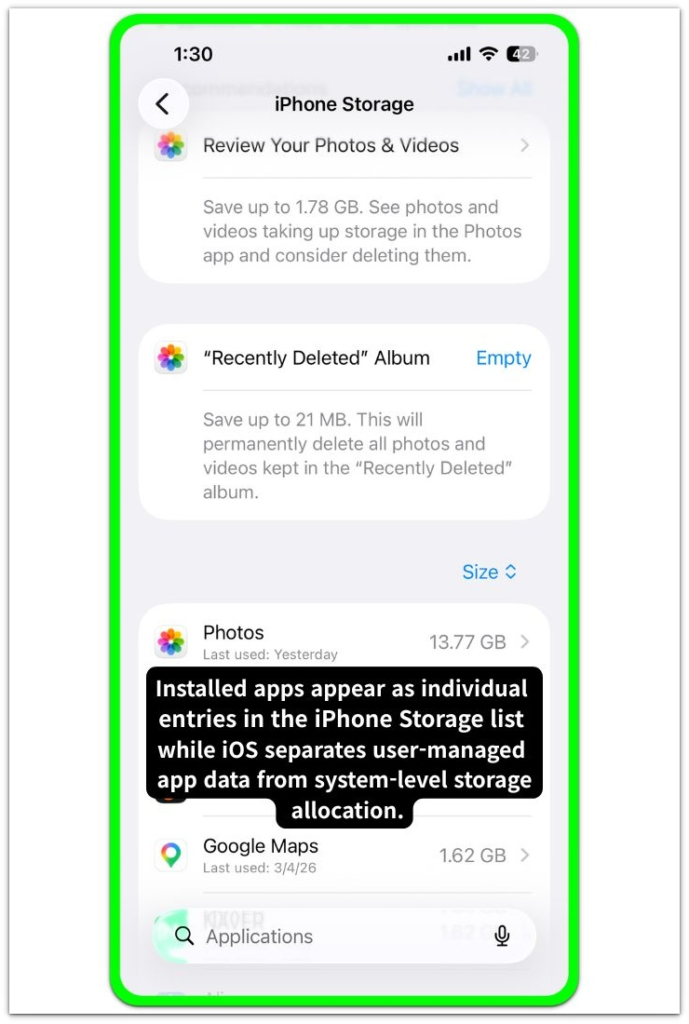
These categories normally include apps, photos, media, iOS, and system data.
“Other” appears inside the system-managed portion of that allocation bar.
This screen does not display individual files that belong to the Other category because those files exist inside internal system storage layers rather than user-accessible directories.
────────────────────
Step 2: Observe how the storage categories are grouped
────────────────────
Inside the storage bar, user-managed content such as apps, photos, and media appears as clearly defined segments.
These segments correspond to files that the user can directly remove or manage through apps and system settings.
The “Other” category does not correspond to a single file type.
It represents a combined allocation created by system processes such as cache storage, diagnostic logs, temporary containers, and background indexing data.
Because these files belong to internal operating system processes, they remain grouped inside the system allocation layer rather than the user-managed storage categories.
────────────────────
Step 3: Understand where user control ends
────────────────────
The iPhone Storage interface also helps explain what is other in iphone storage by separating user data from system-managed allocations.
Users can remove apps, photos, and media directly from this screen.
However, the files grouped under “Other” are created and managed internally by iOS system services.
Those services allocate and recycle storage blocks automatically according to system activity, updates, caching behavior, and background processing.
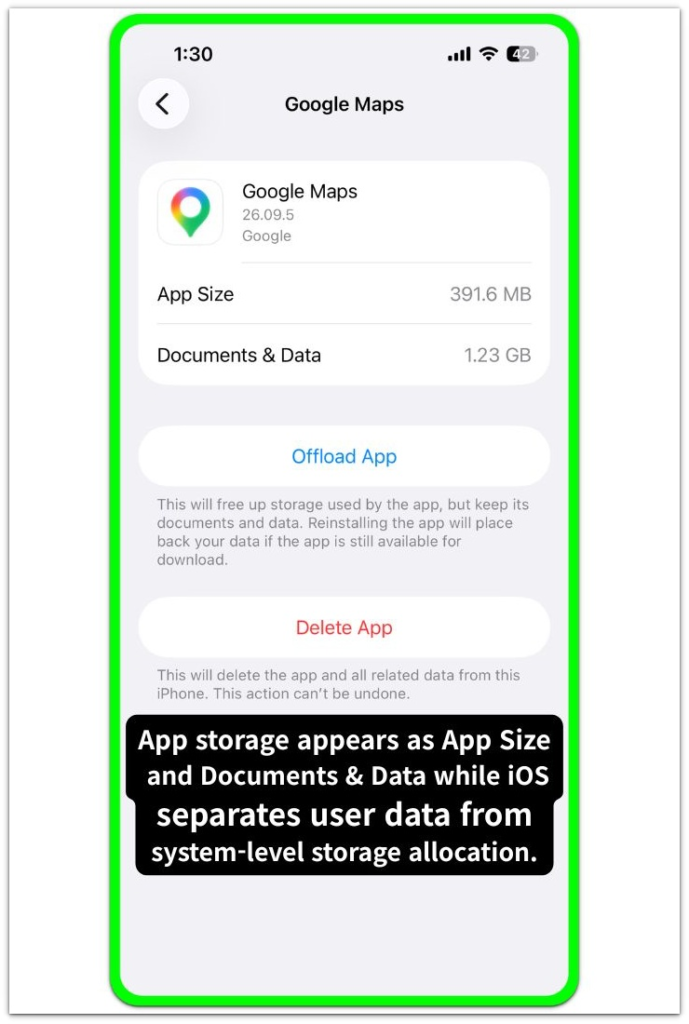
The storage interface shows the final allocation state, while the internal mechanisms that generate the “Other” category operate inside the system storage layer beyond the boundary of user control.
For additional reference, the screenshot below shows the official Apple support explanation of the “Other” storage category.

────────────────────
Troubleshooting: what is other in iphone storage
────────────────────
────────────────────
Troubleshooting 1: The “Other” category appears unusually large
────────────────────
Users sometimes notice that the “Other” section occupies a large portion of the storage bar even when the device contains only a small number of apps or media files.
This situation usually reflects accumulated system allocation rather than visible user data.
Temporary containers, cache layers, indexing records, and runtime diagnostic logs can occupy storage blocks.
These blocks are grouped inside the “Other” category.
These allocations expand when system activity increases, such as after system updates, background indexing operations, or extended application use.
The storage interface only presents the final allocation result.
The internal processes that generate these allocations operate inside system-level storage management layers that are not directly visible to the user.
────────────────────
Troubleshooting 2: The size of “Other” changes over time
────────────────────
The storage value associated with what is other in iphone storage does not remain fixed.
System services continuously allocate and recycle storage blocks depending on background activity, cache usage, and internal file management.
As these processes create or release temporary data, the amount of storage grouped under “Other” can expand or shrink.
This behavior reflects the dynamic allocation structure used by the operating system to maintain system stability and background processing capability.
Because these allocations belong to system storage layers, their internal files do not appear inside user-accessible storage directories.
────────────────────
Troubleshooting 3: “Other” cannot be opened like normal storage categories
────────────────────
Unlike apps, photos, or media libraries, the “Other” category does not represent a user-accessible folder.
The storage interface groups multiple internal file structures into a single category that represents system-level allocation.
These internal structures include cache segments, system runtime containers, log records, and indexing databases created by background services.
The user interface therefore shows the presence of this storage block but does not provide a method to browse the individual files that compose it.
Access to those internal structures remains restricted to the operating system layer.
If the issue still persists after checking everything above, this usually indicates a system-level storage allocation condition.
────────────────────
Additional Tips
────────────────────
The phrase what is other in iphone storage describes a storage section that behaves differently from user-managed storage.
Apps, photos, and media correspond to visible files stored inside directories that the user can manage directly.
The “Other” category instead reflects storage blocks reserved by internal operating system processes.
These blocks support background activities such as caching, logging, indexing, and temporary file handling required for system operation.
Because these processes operate continuously, the size of this category can vary depending on system workload and device activity.
────────────────────
Final Notes
────────────────────
what is other in iphone storage refers to space allocated by internal system processes rather than files created directly by the user.
The storage interface displays the result of that allocation, while the underlying files remain managed inside system-level storage layers.
This structure explains why the category cannot be opened, browsed, or directly controlled from the storage screen.
The visible storage interface marks the boundary of user control, while the internal allocation blocks that compose the “Other” category remain managed by the operating system itself.
The “Other” category therefore represents a system allocation structure rather than a traditional file storage category.
────────────────────
Checklist
────────────────────
☐ Open Settings → General → iPhone Storage to view the storage allocation bar
☐ Identify how storage is divided between user content and system-managed categories
☐ Recognize that the “Other” category represents internal system allocation rather than user files
☐ Understand that these allocations operate inside the system storage layer beyond direct user control
This storage category reflects internal system allocation rather than files created directly by the user.
────────────────────
Extra Section 1
────────────────────
Many users first notice the “Other” category when the storage bar suddenly shows a large gray section that does not match any visible files.
In actual device use, this moment usually happens after installing updates, restoring a backup, or using apps that generate temporary content such as browsers, messaging apps, or streaming platforms.
From the user perspective, nothing obvious has been added to the device.
Photos remain the same.
Apps remain the same.
Documents appear unchanged.
However, the storage bar shows that available space has decreased.
What users are seeing in that moment is not a hidden folder filled with personal files.
Internal system allocations created during background activity accumulate inside the “Other” category.
Caches created by apps, temporary processing containers, search indexing records, and diagnostic logs can occupy storage blocks.
These blocks eventually appear inside the “Other” category.
Because these files belong to internal operating system services, they are grouped together rather than displayed as individual file types.
For many users, this situation creates the impression that storage space disappears without a visible cause.
The storage interface reveals the result of those allocations, while the underlying system activity remains outside the normal file management view.
────────────────────
Extra Section 2
────────────────────
Real-world device behavior also shows that what is other in iphone storage can change in size without direct user action.
Users sometimes observe that the category becomes larger after system updates or after installing several applications in a short period of time.
Later, the size may gradually decrease after normal device use continues for several days.
This pattern reflects how the operating system manages temporary storage internally.
Background services create temporary data while performing tasks such as indexing files, caching frequently accessed content, and recording diagnostic information.
When those tasks complete or the system refreshes internal storage allocations, the system clears some temporary data automatically.
From the user side, the storage interface only shows the total amount currently reserved for these internal processes.
The interface does not show which internal services created the files or when the system recycles them.
This behavior explains why the “Other” category often feels unpredictable to users.
What appears as unexplained storage usage is usually the visible result of system-level processes maintaining internal data required for normal device operation.