
Introduction
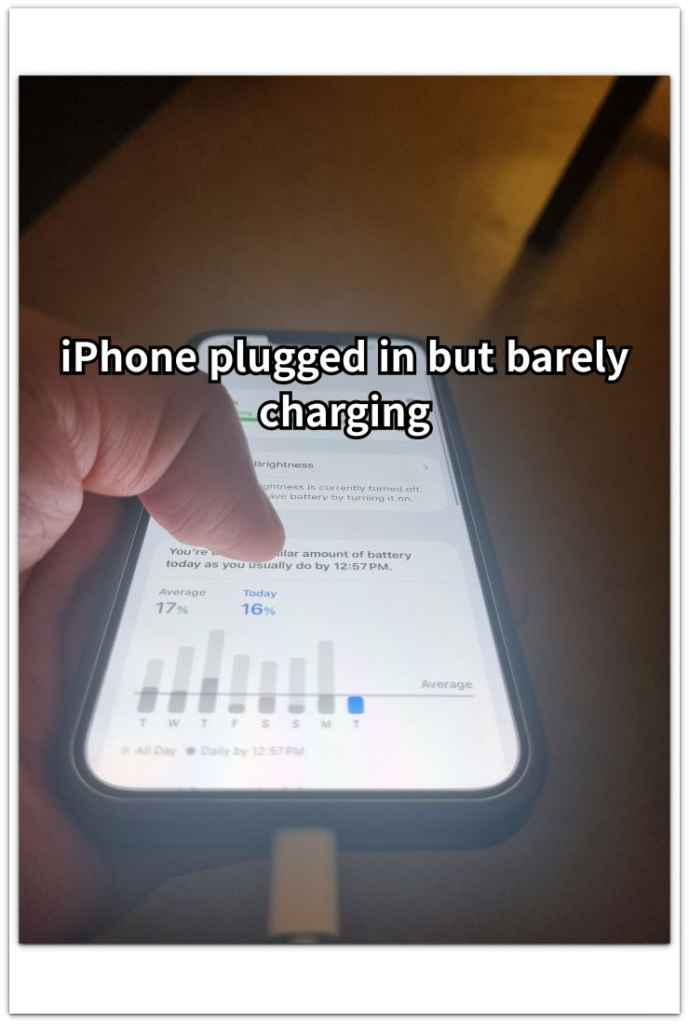
iPhone charging slow while using phone is easier to notice when you connect the charger, see the charging icon, and the battery level still barely moves.
You keep using the iPhone and check again, but the battery barely rises during that charging time. This feels different from normal slow charging because the iPhone shows power connected while the level stays almost the same.
The important difference is between a charging sign and a battery level that actually rises during use.
Step-by-Step Guide: iPhone Charging Slow While Using Phone
Step 1: Check the Charging Level During Use
Keep the iPhone on the same charger and use it the way you were using it when the battery barely moved. Check the battery level once, then keep the screen on for a short normal use period.
Use only one situation for the first check. Keep the charger, app, brightness, and location the same so the result is easier to read.
Check the level again after the short use period. This gives you a cleaner first reading because the charger stays the same and active use is the only part you compare.
Step 2: Lock the Screen and Compare the Increase
Leave the iPhone on the same charger, lock the screen, and stop using it for a short period. Keep the charger and location the same as Step 1.
Check the battery level again after the screen-off period. A stronger increase after you lock the screen points to active use taking more of the incoming charge.
This comparison matters because the iPhone stays on the same charger during both tests. The difference comes from what the phone is doing while it charges, not from the charging icon alone.
Step 3: Check Heat Before Changing the Charger
Touch the back of the iPhone and the area near the charging port. A warm phone charges more slowly during active use, especially when the screen has been on for a while.
Move the iPhone away from direct sunlight, remove a thick case, and let it cool before checking again. Keep the same charger connected so the next result is easier to compare.
Check the battery level again after the phone cools down. A better increase after cooling points to heat during use. A weak increase after cooling means you should check the charger, cable, or power source next.
Troubleshooting
Troubleshooting 1: The Battery Still Barely Moves With the Screen Locked
A screen-off test gives a cleaner result because the display and active use are out of the way. When the level still barely moves with the screen locked, check the charger, cable, or power source next.
Try another wall charger or cable before changing battery settings. Keep the iPhone locked for the next check, then see whether the charge rises faster with the other charger or cable.
Troubleshooting 2: The iPhone Gets Warm Again After Cooling Down
Cooling the iPhone once does not solve much when heat returns as soon as you start using it again. The phone is still working too hard or charging in a warm setup.
Close the active app, move the iPhone to a cooler place, and charge it without the case for a short period. Check the level again before reopening the same app.
Troubleshooting 3: The Battery Rises Only When You Stop Using the iPhone
The screen-off result gives you a clear clue when the iPhone charges normally while locked, but barely rises during use.
Lower the screen brightness and stop the heaviest app first. Keep the same charger connected, then check whether the battery rises better during lighter use.
Extra Section 1: The Charging Icon Appears During Heavy Use
A common case starts when the iPhone stays plugged in while a video app, game, or navigation screen remains open. The charging icon appears, so it looks like the battery should climb normally. After several minutes, the number barely changes because the screen, app, speaker, network, and heat are all using part of the incoming charge.
After you close the heavy app and let the phone cool down, the battery level often starts rising more clearly during lighter use. This result shows the charger was still supplying power, but active use was using too much of that power at the same time.
Extra Section 2: The Slow Charge Continues After the iPhone Is Left Alone
Another case starts after you stop using the iPhone. You lock the screen, close the heavy app, and give the phone time to cool down, but the battery level still rises only a little. Active use is no longer the main explanation here.
The charging setup becomes the next place to check. A weak wall charger, worn cable, loose connection, or low-power USB port lets the iPhone show the charging icon while the battery climbs slowly. When the phone sits unused and the increase still stays weak, check the charging source before looking for another app problem.
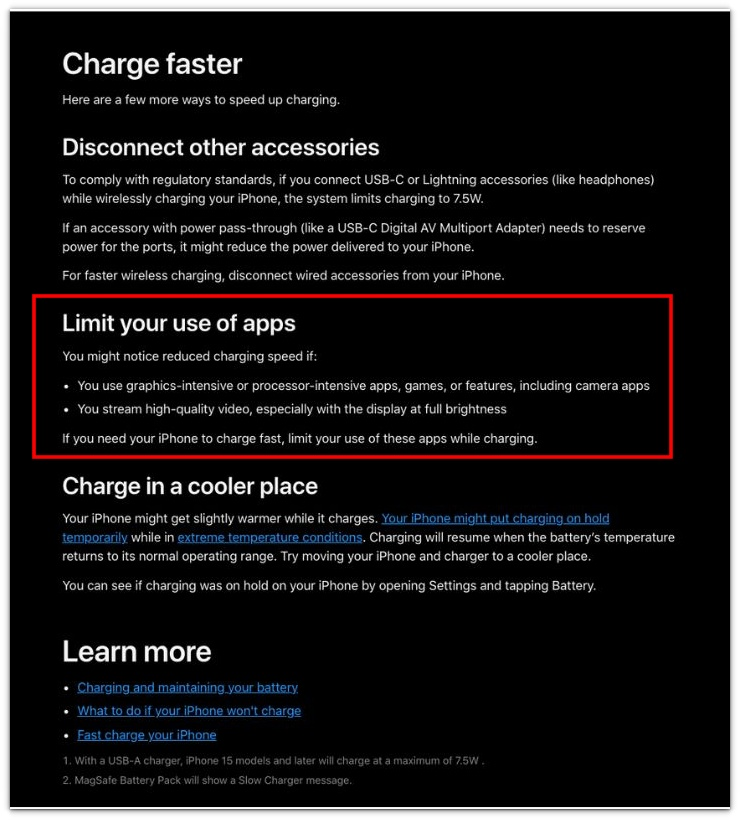
Official Source: Apple Says Heavy Apps Can Reduce Charging Speed
Apple explains that charging speed can slow down while using graphics-intensive apps, processor-intensive apps, games, or high-quality video, especially with the display at full brightness.
Use this source only for heavy app use while plugged in. Charger, cable, and power-source problems belong to the screen-off charging check earlier in the article.
Additional Tips
Charging checks are easier to read when the iPhone stays in one setup for each test. Changing the charger, app, brightness, and location at the same time makes the result harder to read.
A short comparison is enough for this issue. The goal is not to measure a full charge cycle, but to see whether the battery rises more clearly during lighter use or with the screen locked.
Wireless charging also needs a clean setup. A thick case, poor alignment, or extra accessories slow the result, so use the simplest charging setup when the number barely moves.
Final Notes
iPhone charging slow while using phone points to a simple split. A better rise after the screen locks means active use is taking too much of the incoming charge. When the level still barely moves after the iPhone sits unused and cools down, check the charger, cable, or power source next.
The charging icon only shows that the iPhone has power connected. The real answer comes from the increase you see during use, after cooling, and during a screen-off check. This comparison gives you a clear direction before you replace the battery or focus on the wrong cause.
Checklist
- Check the battery level while using the iPhone on the same charger.
- Lock the screen and compare whether the charge rises faster.
- Let the iPhone cool down before changing chargers or battery settings.
- Check heat, screen brightness, and heavy apps when the battery barely rises during use.
- Move to the charger, cable, or power source when the level still barely moves with the screen locked.
- Use the charging icon as a starting clue, not the final answer.
Use this guide when the iPhone shows the charging icon but barely gains charge while you keep using it.