
Introduction
iPhone Maps battery drain becomes noticeable when navigation stays open during a normal drive and the battery drops faster than it usually does on that route. The screen stays active, Maps keeps updating the route, and location tracking continues while the trip is in progress.
The faster battery use becomes easier to notice on a familiar route. Start with the drive itself, then check when the faster drop begins, whether Maps stays open the whole time, and what else stays active during navigation.
Step-by-Step Guide: iPhone Maps Battery Drain
Step 1: Check the Battery Drop During One Normal Maps Drive
Start with one route that feels normal for you. Use a route you already know, not a longer trip, a heavy traffic day, or a drive with extra stops.
Open Maps the way you normally do and keep navigation running during the drive. Watch whether the battery starts dropping faster while the route stays open.
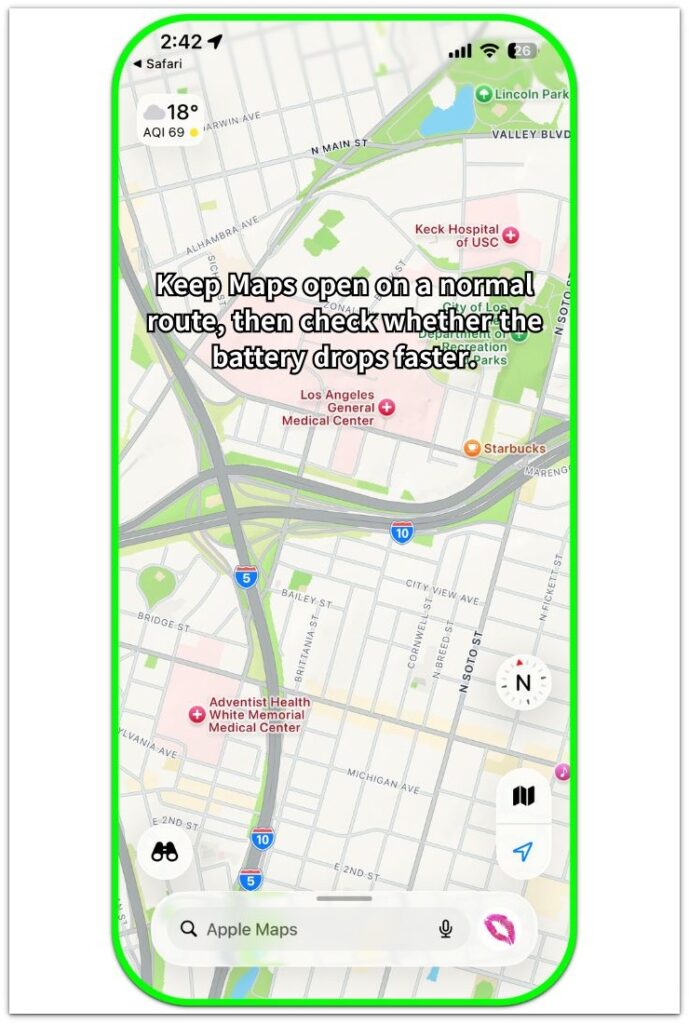
Keep this first check simple. Change nothing else before the drive, so the result stays tied to Maps navigation, screen use, and location tracking during that trip.
Step 2: Repeat the Check on a Similar Drive
Use Maps again on another drive that is close to the first one in length and pace. Keep the phone use as similar as possible during the trip.
Leave navigation open and avoid testing other settings at the same time. The goal is to see whether the faster drop returns during another Maps drive.
A repeated result gives you a stronger clue than one unusual trip. Once the result shows up again, move to what stayed active during navigation.
Step 3: Check What Stayed Active During Navigation
Open Settings, then Battery, and review battery use after the drive. Look at the time around the trip and compare it with how the iPhone behaved during navigation.
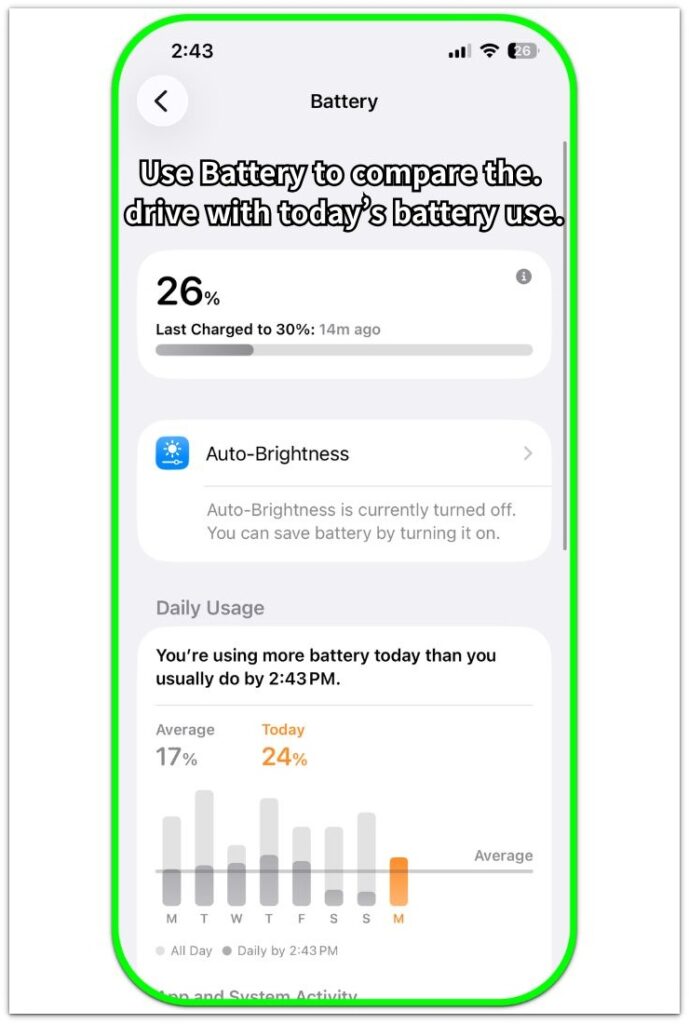
Check whether the screen stayed on longer, Maps remained open the whole time, the phone charged in the car, or another active connection was still in use. These details help separate Maps navigation from other battery use during the same drive.
Keep the final check focused on what stayed active during the route. This makes it easier to decide whether to check location, screen, or connection settings next.
Troubleshooting
Troubleshooting 1: The Battery Drop Only Happens on Some Routes
Some Maps drives use more battery because the route puts more work on navigation. Heavy traffic, missed turns, rerouting, tunnels, or weak signal areas can keep Maps updating more often during one trip.
Compare that route with another Maps trip in a steadier area. A drop that only appears on one difficult route points more to the driving condition than to Maps alone.
Troubleshooting 2: The Battery Drops Faster When the Screen Stays On
Maps uses more power when the screen stays bright for most of the drive. Daytime driving, a dashboard mount, or a long route can keep the display active longer than expected.
Check whether the faster drop lines up with longer screen time during navigation. Compare it with a shorter Maps drive where the screen does not stay active as long, then keep the next check focused on display use.
Troubleshooting 3: The Drop Continues After Navigation Ends
Maps should not keep draining battery at the same rate once navigation is over. A continued drop after the route ends usually means something else stayed active on the iPhone.
Close Maps, lock the screen, and check Battery again later. Look for background activity, another location app, Bluetooth, CarPlay, or a mobile signal issue before treating the finished Maps route as the main cause.
Extra Section 1: A Familiar Drive Used More Battery Than Usual
A familiar route makes iPhone Maps battery drain feel confusing because the trip looks normal at first. The driver opens Maps as usual, follows a regular road, and expects the battery drop to stay close to the usual result. The difference shows up when that drive has more stops, slower traffic, missed turns, or rerouting than usual.
During that kind of trip, Maps keeps checking the route more often. The iPhone also keeps location tracking active while the car moves slowly, waits at lights, or changes direction. The battery drop then feels like a Maps problem, but the stronger clue is the driving condition around that specific route.
A better check is to compare that route on a steadier day. When the battery drop looks closer to normal during the cleaner drive, the first trip points more to the driving conditions than to Maps alone. Keep the comparison tied to the route before changing several iPhone settings at once.
Extra Section 2: Maps Stayed Open With Other Car Features Active
Maps does not work alone during many drives. The iPhone often keeps the screen bright, stays connected to Bluetooth, plays audio, or runs through CarPlay while navigation stays open. Battery then drops faster during the trip, even though Maps is the app the driver notices first.
This situation is easy to miss because the Battery screen often points attention back to Maps. That drive had several active features running at the same time. The display stayed on, the car connection stayed active, and navigation kept using location while the phone handled audio or directions.
A cleaner check is to keep Maps open on the next comparable drive but reduce one car feature at a time. Lower the screen brightness, pause extra audio, or disconnect an unneeded accessory before the next comparison. A slower drop after that change points to the full driving setup, not Maps alone.
Official Source: Apple Maps Needs Internet and Precise Location
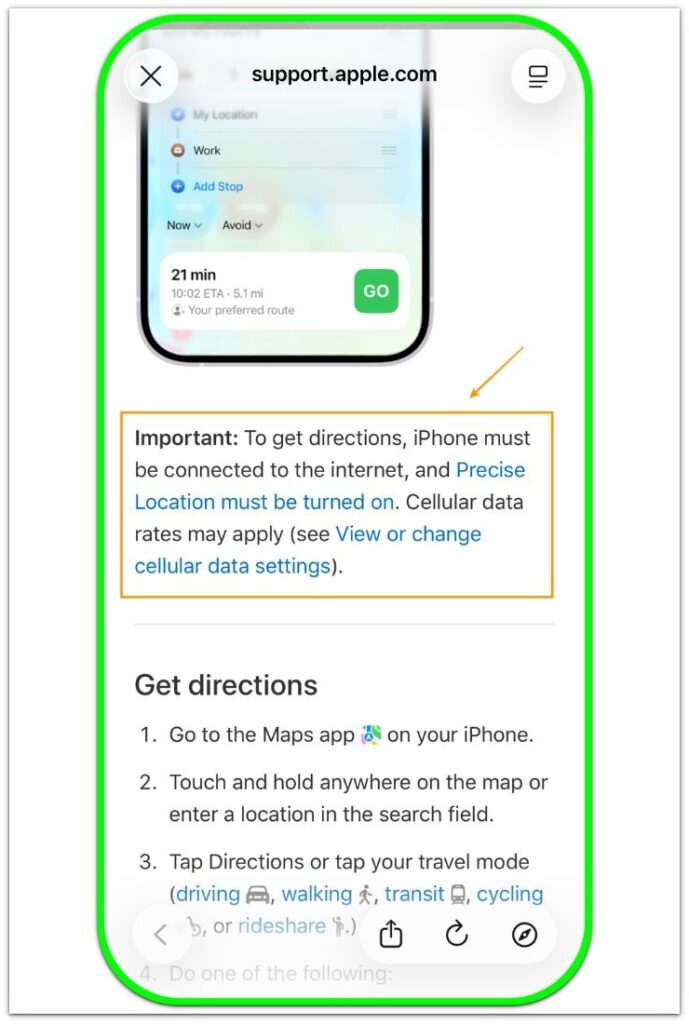
Apple Support states that iPhone needs an internet connection and Precise Location turned on to get directions in Maps. This supports the article because Maps navigation relies on location and connection activity while the route stays open.
Additional Tips
A very short drive is not enough to judge Maps battery use. Use a normal-length route before deciding that Maps is the main reason for the drop.
Heat inside the car also matters. A warm dashboard, direct sunlight, or a closed car can make the iPhone lose battery faster during navigation.
Charging during the drive does not erase Maps activity from the Battery screen. It only changes how the battery percentage looks during the trip.
Final Notes
iPhone Maps battery drain deserves attention when the faster drop repeats on normal drives, not when it appears once during an unusual route. A single traffic-heavy trip, long screen-on session, or active car connection gives only part of the answer.
The stronger check is whether the same drop keeps coming back. Compare similar drives, review Battery after the route, and look at what stayed active while navigation was open. When the faster drain returns during Maps navigation, location use, screen time, and car connections become the main places to check next.
Checklist
- Use one normal Maps drive as the first battery check.
- Repeat the check on a similar drive before treating Maps as the only cause.
- Review Battery after the route and compare it with screen time, location use, and car connections.
- Check difficult routes separately from normal routes.
- Compare the next drive after reducing only one active car feature.
For a broader iPhone battery check, start with the main battery drain guide first, then narrow the problem down to Maps.