
Introduction
────────────────────
Iphone storage not accurate appears when the storage number stays the same even after deleting apps, photos, or files on the device.
Users usually notice this after removing large data and checking storage again.
The number does not decrease as expected.
The value can look inconsistent with what remains on the device.
Start by reopening Settings → General → iPhone Storage and wait a few seconds.
This confirms whether the value updates or stays fixed.
iOS separates the value shown on the screen from the internal allocation process.
Cache rebuilding, indexing, and system data updates continue after user actions.
This situation indicates a reporting delay between visible data and actual allocation rather than a simple storage issue.
────────────────────
Step-by-Step Guide
────────────────────
────────────────────
Step 1: Check Whether Storage Value Matches Visible Data
────────────────────
Open Settings and navigate to General.
Select iPhone Storage to view the current storage breakdown shown on the device.
Compare the total storage value with the actual apps, photos, and files currently visible on the device when iphone storage not accurate appears.
This step confirms whether the displayed value reflects visible data or includes hidden system allocation.
────────────────────
Step 2: Reopen Storage Screen to Trigger Recalculation
────────────────────
Exit the storage screen and reopen Settings → General → iPhone Storage.
Wait a few seconds without interacting so the system can refresh the storage calculation layer.
Observe whether the storage value changes or remains the same after reopening the screen when iphone storage not accurate appears.
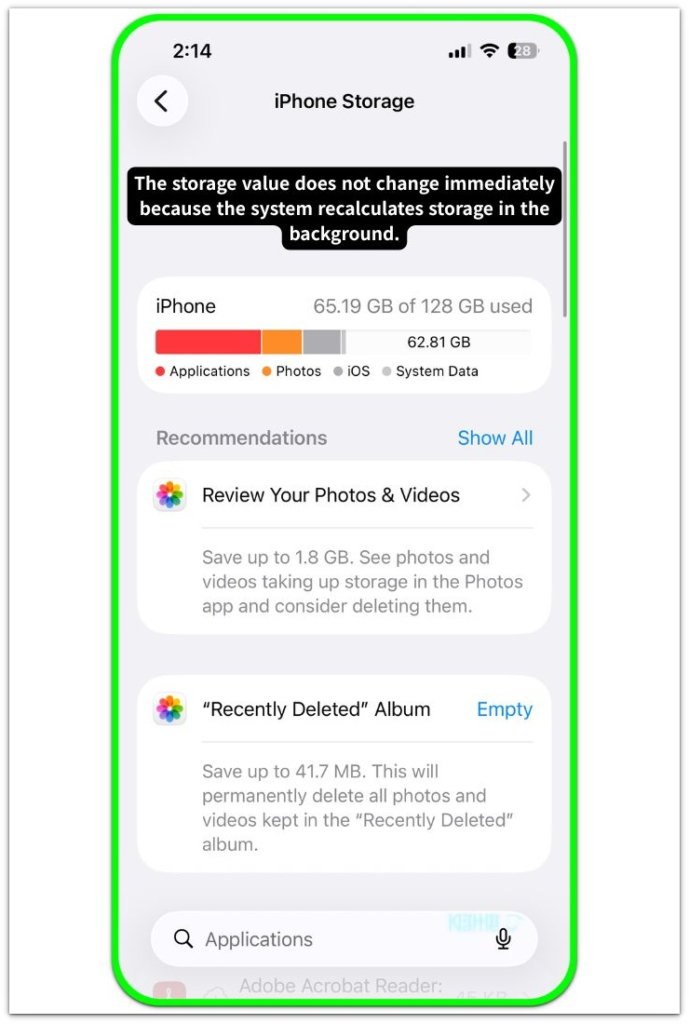
This step checks whether the mismatch comes from delayed reporting rather than from actual storage usage.
────────────────────
Step 3: Verify Whether System Data Occupies Hidden Space
────────────────────
Scroll through the storage list and locate System Data or Other categories displayed on the device.
Check whether these categories occupy a larger portion of storage compared to visible apps and media.
If system data appears disproportionately large, the mismatch likely comes from internal allocation layers such as cache, logs, or indexing records.
These are temporary system data that stay on the device even after files are deleted.
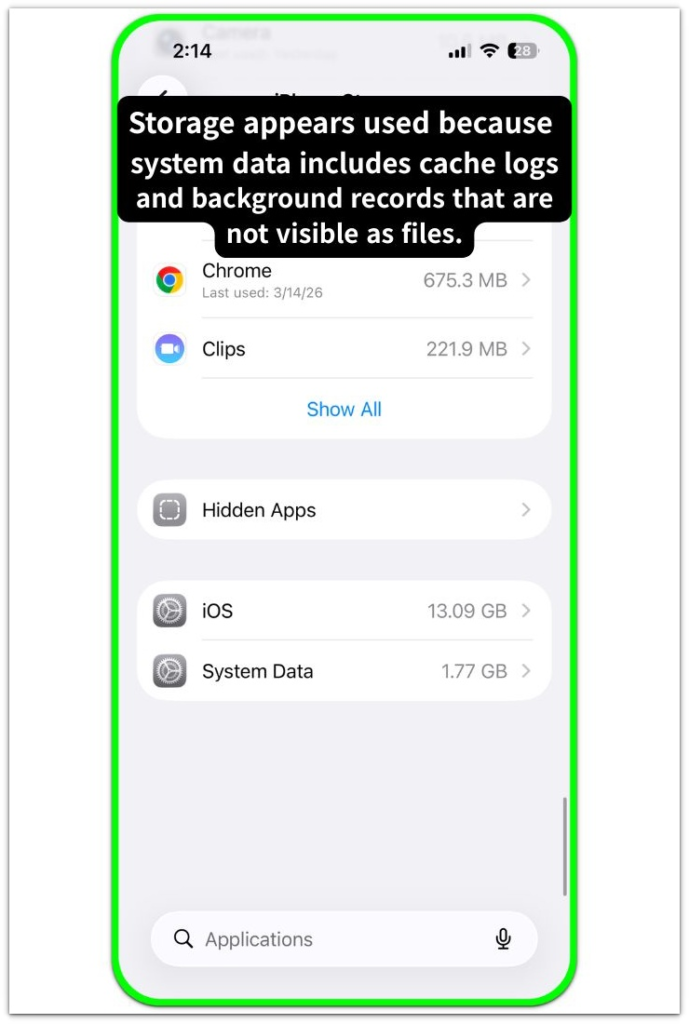
Refer to the screenshot below for how system data is categorized.
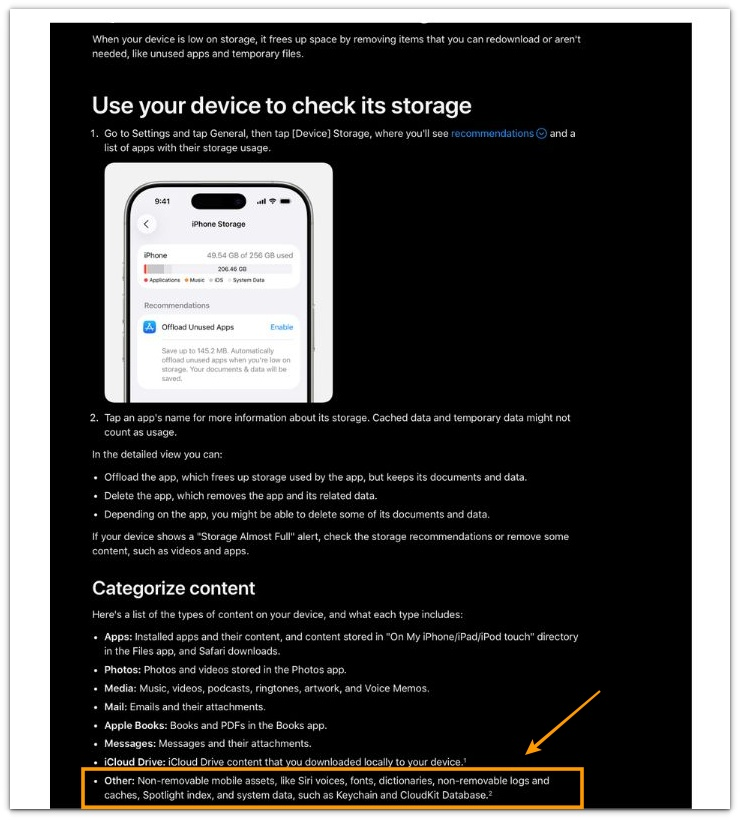
────────────────────
Troubleshooting: Iphone storage not accurate
────────────────────
────────────────────
Troubleshooting 1: Storage calculation delay in system layer
────────────────────
The reported value can remain unchanged because the calculation layer has not refreshed yet.
iOS does not update storage values instantly after deleting data.
The system recalculates storage in the background, and the reporting layer may show outdated values for a period of time.
This gap happens because the storage calculation depends on internal indexing and cache validation processes.
Until these processes complete, the visible number may not reflect the current allocation.
The mismatch is not caused by remaining files.
It happens because the storage number shown on the screen updates later than the actual space used by the system.
────────────────────
Troubleshooting 2: System data expansion from cache and logs
────────────────────
When iphone storage not accurate appears, system data may occupy a larger portion than expected.
This includes cache files, temporary records, and system logs generated during normal device usage. These are created automatically while using apps and are not shown as normal photos or files.
These records are not visible in the file system but still occupy storage space.
Apps and system services continuously generate and reuse these records.
When cleanup timing is delayed, the storage value can appear higher than expected.
The reported mismatch reflects internal data accumulation rather than missing or hidden files.
────────────────────
Troubleshooting 3: Background indexing and allocation mismatch
────────────────────
Background indexing can temporarily increase system allocation during normal system activity.
iOS maintains search indexes, media analysis data, and system metadata to improve performance.
These processes run in the background and update storage allocation independently from user actions.
So the storage number can change even when you are not doing anything.
The actual space used by the system may increase while the number shown on the storage screen still reflects an earlier value.
This results in a visible mismatch even though the system is functioning as designed.
This usually requires a deeper check beyond basic settings.
────────────────────
Additional Tips
────────────────────
If iphone storage not accurate appears, focus on identifying whether the issue comes from reporting delay or actual storage usage.
Avoid repeatedly deleting files expecting immediate changes.
The system requires time to complete internal recalculation processes.
Keep the device idle for a short period after making changes.
Background processes complete more reliably when the system is not actively used.
If the storage value remains unchanged over time, compare system data size rather than visible files.
This helps determine whether the issue is related to internal allocation.
────────────────────
Final Notes
────────────────────
The storage mismatch seen when iphone storage not accurate appears is not a direct indication of unused or hidden files.
It reflects how iOS separates the number shown on the screen from the actual space used inside the system.
The mismatch is a reporting delay created by how iOS separates storage calculation and allocation, not a reflection of actual space usage.
The visible number can lag behind actual changes because internal processes update at different speeds.
This behavior defines a system boundary rather than a user-controlled setting.
Storage mismatch is a reporting structure difference, not a storage error.
────────────────────
Checklist
────────────────────
☐ Reopen storage screen and wait for recalculation
☐ Compare visible data with total storage value
☐ Check system data size instead of only apps and media
☐ Allow time for background indexing to complete
The issue remains a timing and structure difference, not a file problem.
────────────────────
Extra Section 1
────────────────────
Many users notice this situation after cleaning up their device.
Photos are deleted, unused apps are removed, and large files are cleared.
The storage number drops after the cleanup finishes.
After some time, the number stops changing or slowly increases again.
This often leads to confusion.
There are no large files left, and nothing new was added.
This usually happens after heavy activity on the device.
Importing photos, restoring backups, or using apps that process large amounts of data can trigger it.
After these actions, the system continues organizing data in the background.
Cache files are rebuilt, search data is updated, and temporary records are created again.
These changes are not visible as normal files.
The storage value reflects internal activity rather than user actions.
Many users assume something is hidden.
The system is simply finishing background work that started earlier.
────────────────────
Extra Section 2
────────────────────
Another common experience appears when users check storage repeatedly when iphone storage not accurate appears.
The number looks slightly different each time the screen is opened.
This creates the impression that storage is unstable.
Some users try deleting more files or restarting apps to force a change.
The difference often comes from how the system refreshes values.
The storage screen does not always show a fixed number.
Small variations can appear as the system updates its internal records.
These changes do not always reflect new data being stored.
Users who check storage frequently notice these shifts more clearly.
The more often the screen is opened, the more inconsistent the number may appear.
This behavior is tied to how the system reports values rather than how storage is actually used.