Introduction
Other in iPhone Storage shows up when the used space does not match Photos, Apps, Messages, Videos, or Downloads. The screen lists those main sections first, then groups the remaining amount under Other.
That amount is not a folder inside Files or Photos. It usually comes from cache, temporary data, indexes, update records, logs, and app support files that iPhone keeps behind the main storage list.
This label helps explain why storage still looks used even after the main file sections look normal. It refers to background storage, not to one file users directly open, select, and delete.
Step-by-Step Guide: What Is Other in iPhone Storage
Step 1: Check The iPhone Storage Screen
Open Settings, tap General, then open iPhone Storage. Look at the storage bar, visible sections, and app list on the same screen.
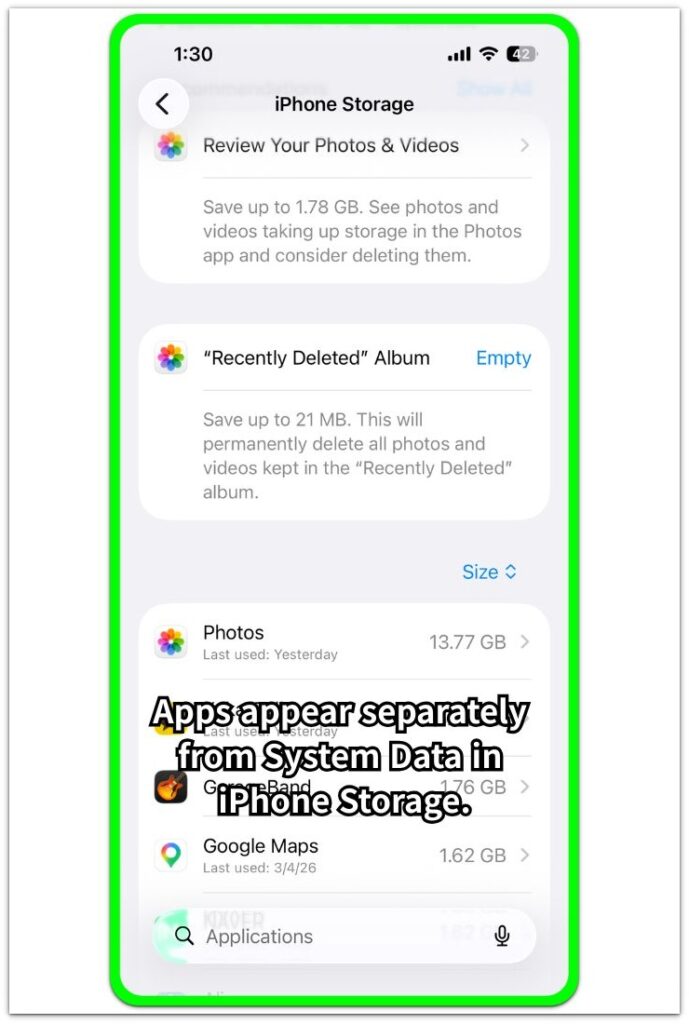
Photos, installed apps, videos, messages, and downloads appear as separate entries. Other or System Data needs a separate check because it does not behave like a normal file category.
Step 2: Compare App Size With Documents & Data
Tap a large app in the iPhone Storage list. The app detail screen separates App Size from Documents & Data.
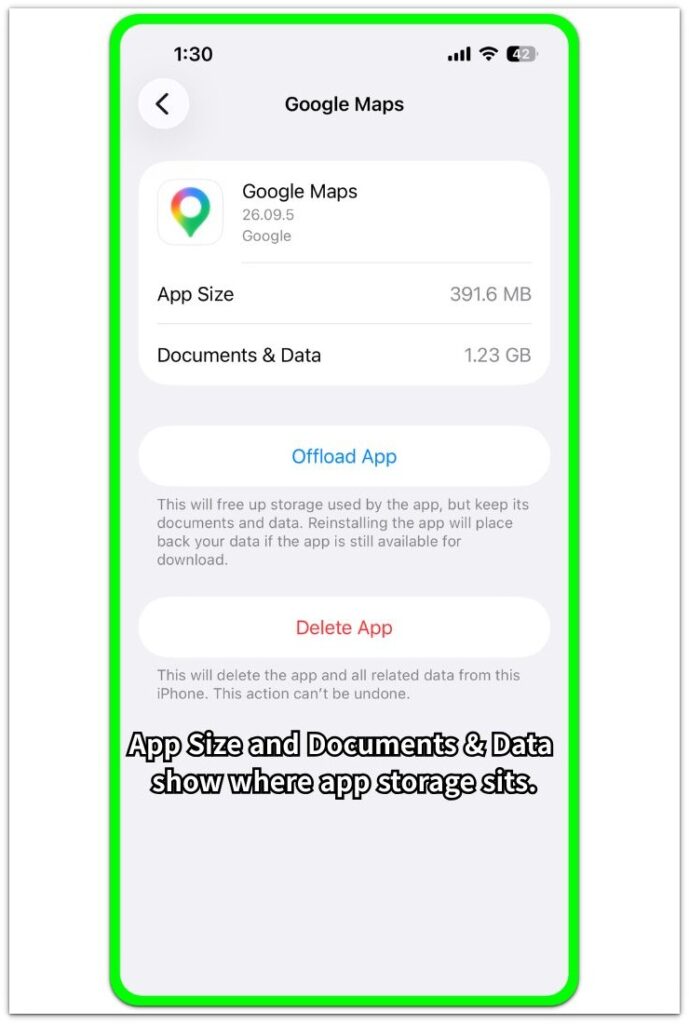
App Size shows the installed app itself. Documents & Data shows saved app content, cache, offline data, account files, and support data linked to that app. This helps you tell whether the large number comes from one app or from background storage.
Step 3: Match Other With Background Storage
After you review the main sections and large app data, the remaining amount usually belongs to background storage. Cache, temporary files, indexes, logs, update records, and app support data sit there.
The label does not lead to one delete button. Start by reducing large app data, offline downloads, saved media, and recently deleted items before judging Other as a system problem.
Troubleshooting
Troubleshooting 1: Storage Number Still Looks Too High
After the iPhone Storage list finishes loading, open the largest app and check Documents & Data. When one app holds most of the space, review offline content, saved maps, downloaded videos, or large in-app files inside that app first.
Return to iPhone Storage afterward and wait for the list to refresh. Once the app number drops but the label barely changes, another background source is still holding the remaining space.
Troubleshooting 2: The Label Says System Data
System Data appears instead of Other on some iPhone storage screens. When the label appears below the main file groups, read it as the same background storage area.
The wording changes by iOS version, but the purpose stays the same. The label still refers to storage that iOS counts separately from normal photos, apps, messages, and downloads.
Troubleshooting 3: Number Changes After Update Or Sync
After an iOS update, app update, photo sync, or indexing, reopen iPhone Storage once recalculation finishes. The number often moves while update records, indexes, and temporary files settle.
Leave the iPhone idle for a while before comparing the number again. When the main sections stay the same while this label changes, the movement comes from background activity rather than a new photo, app, or download.
Extra Section 1: Other Looks High After Deleting Photos
After deleting hundreds of photos and videos, iPhone Storage still shows a high used amount. The Photos category looks smaller, but Other or System Data still takes up space, so the cleanup feels unfinished.
Photo deletion does not always update every storage record at the same moment. Recently Deleted, thumbnails, search data, and sync records still affect the storage number while the phone recalculates the list.
When Photos drops first but the total number still looks high, background cleanup is still affecting the count. The deleted pictures are not necessarily sitting in the normal photo library.
Extra Section 2: Other Grows After iOS Update
After an iOS update, iPhone Storage often shows a larger Other or System Data number than before. You did not add new photos, apps, or downloads, but the used space still looks higher, so the update feels like it created a storage problem.
Update records, temporary install files, app cleanup, and storage recalculation push the number up for a while. The phone is still sorting system files, app data, and leftover update items after the update finishes.
After the iPhone stays idle and connected to power, the number becomes easier to compare against Apps, Photos, and Messages. If those categories did not grow, the change is more likely from post-update cleanup than from a new file taking space.
Official Source: What Apple Says About Other Storage
Apple explains that Other includes non-removable mobile assets, logs, caches, Spotlight index, and system data such as Keychain and CloudKit Database. This supports reading Other as background storage rather than one normal folder inside Files or Photos.

Additional Tips
Check storage again after the iPhone stays idle for a while, especially after a large update, photo cleanup, or app sync.
Restart the iPhone once when the storage screen keeps showing the same number after you remove large items.
Open the largest apps first because app data often explains part of the difference before system storage becomes the main issue.
Keep some free space available before updating iOS because update files and recalculation need temporary room.
Final Notes
Other in iPhone Storage works as background storage that iPhone counts outside the main file groups. Apple lists logs, caches, Spotlight index, and system data under this area, so the number does not belong to one normal folder inside Files or Photos.
A high Other number needs context before judging it as a storage problem. Compare Photos, Apps, Messages, and large app data first, then check whether the remaining amount changes after update cleanup, photo processing, or idle recalculation.
When the visible categories stay normal, Other usually reflects background storage activity rather than one file waiting to be deleted.
Checklist
- Storage screen shows the main file categories separately.
- Other or System Data appears apart from the main file groups.
- Largest app data explains part of the remaining storage number.
- Recent photo deletion, app sync, or update activity affects the comparison.
- Apple’s logs, caches, Spotlight index, and system data explanation matches the storage reading.
For a broader storage guide, see the main article above.