
Introduction
iPhone storage full after update becomes confusing when the warning appears right after iOS finishes installing. The phone had enough space before the update, but the storage bar now looks tighter than expected.
The System Data or iOS section looks larger than before, while apps, photos, and videos do not match the sudden change. The steps below check the bar, compare System Data, and separate temporary update files from real app or media storage.
Step-by-Step Guide: iPhone Storage Full After Update
Step 1: Check The iPhone Storage Screen First
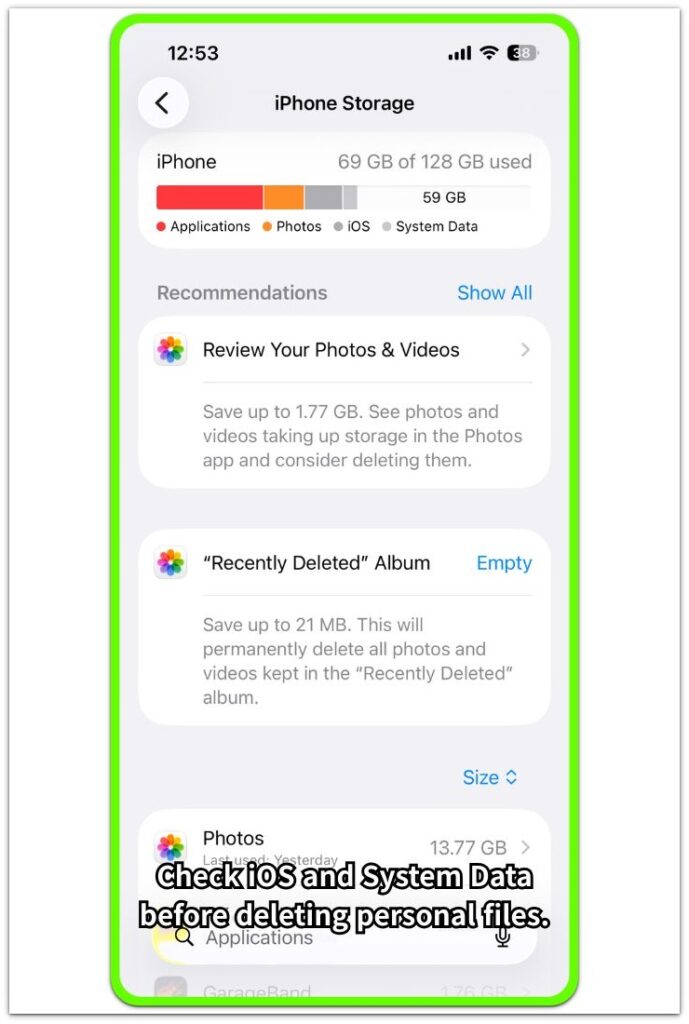
Open Settings → General → iPhone Storage and wait for the bar to finish loading. Check whether the warning appears after the update and look at the iOS and System Data sections before deleting apps, photos, or videos.
Use this screen as the reference point. The goal is to see whether the change comes from system-managed space instead of personal files.
Step 2: Compare System Data With Personal Storage
Look at the largest visible categories on the bar. Compare System Data and iOS with apps, photos, and videos so you do not judge only by the total number.
When System Data or iOS looks larger after the update, keep the check focused on that section. This separates post-update system file growth from normal app or media space.
Step 3: Recheck After The Update Cleanup Finishes
Leave the iPhone connected to power and use it normally after the update. Then return to Settings → General → iPhone Storage and check whether the bar changes after background cleanup finishes.
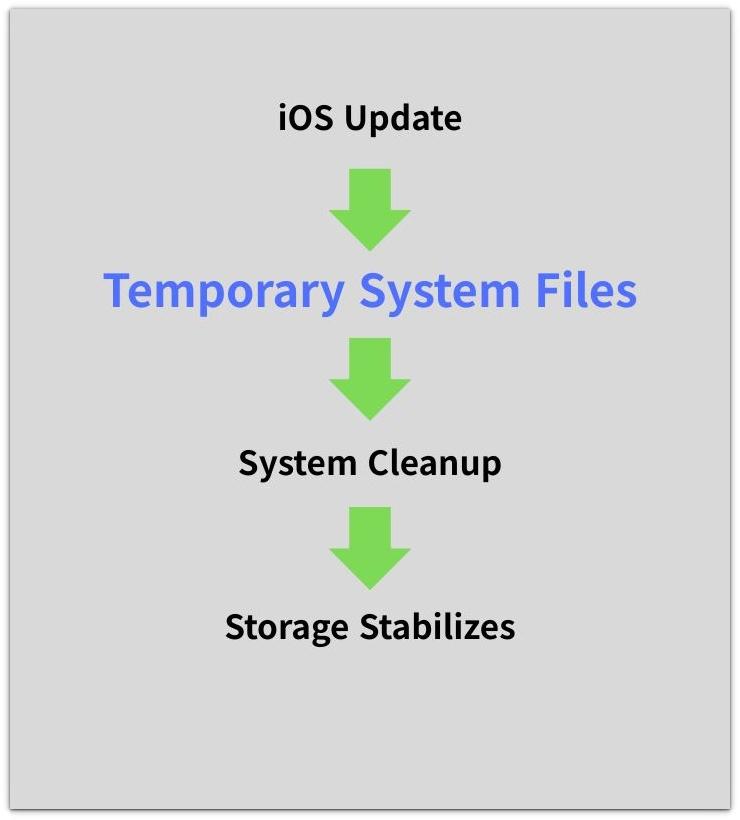
The update process creates temporary system files first, then iOS cleanup reduces part of that space after the phone finishes background work. Compare the same screen again before removing personal files.
Troubleshooting
Troubleshooting 1: iPhone Storage Full After Update Still Shows After A Day
The warning matters more when it stays after the iPhone runs normally for a full day. The update has already finished, but the bar still looks tight and the iOS or System Data section still takes a large part of the screen.
Return to Settings → General → iPhone Storage and compare the same screen again. When iOS or System Data still explains most of the change, check that section before removing apps, photos, or videos.
Troubleshooting 2: Apps And Photos Do Not Match The Sudden Space Change
The full warning becomes confusing when apps and photos look almost the same as before. The total number changed after the update, but the visible personal categories do not explain the difference.
Check the largest categories first and compare them with iOS and System Data. When personal files do not match the increase, treat the issue as a system-managed space check instead of starting with large deletions.
Troubleshooting 3: The Bar Changes After Rechecking
The bar looks different after the iPhone finishes background work. System cleanup reduces temporary update files after the phone stays powered on and connected for a while.
Recheck the same page later and compare the bar, not only the top number. When the system sections shrink and free space returns, the issue matches post-update cleanup rather than a permanent file problem.
Extra Section 1: Why Storage Looks Full Right After An Update
The warning often feels strange when it appears right after the iPhone restarts from an iOS update. The same apps are still installed, the photo library does not look larger, and you did not add large videos, but the storage bar suddenly looks closer to full.
The iPhone already left the update screen, so the update looks finished from the outside. Behind that finished screen, the phone still sorts system files, update leftovers, and storage records from the update session. The warning feels different from a normal storage problem caused by newly added apps, photos, or videos.
Extra Section 2: What To Check Before Deleting Personal Files
After an update, personal files look like the easiest target. Photos, videos, and large apps are visible, so they feel like the first things to remove when the storage bar looks tight.
That is not always the right order after an iOS update. If the photo library, apps, and videos were already on the iPhone before the update, deleting them first removes files that did not cause the change.
The safer check is to look for what actually changed. A real personal storage problem usually shows a clear increase in photos, videos, messages, downloads, or one large app. When those areas look close to the same as before, treat the full warning as an update-related storage change before treating personal files as the problem.
Official Source: Apple Explains iPhone System Storage
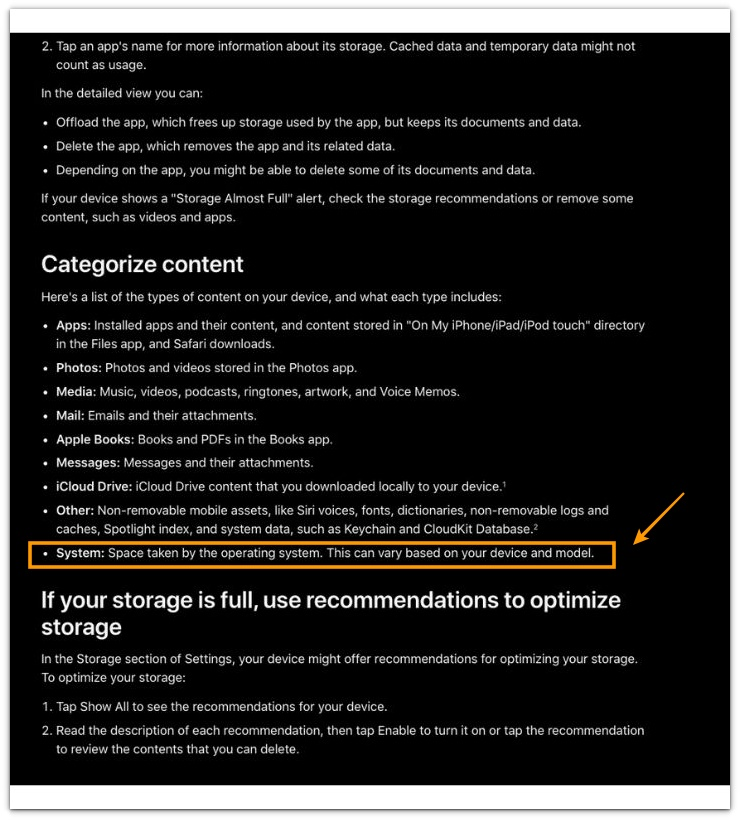
Apple says System is the space taken by the operating system, and the amount changes by device and model.
Additional Tips
A smaller iPhone storage capacity makes an update warning feel more serious because the same system change leaves less free space behind.
Keep the iPhone on Wi-Fi and power after a large iOS update so the phone finishes background storage work without interruption.
Check Recently Deleted only when Photos still looks large, because deleted photos and videos stay there before the space fully returns.
Large games, offline maps, and downloaded streaming files are better targets than random small apps when personal storage really increased.
Final Notes
iPhone storage full after update needs a system-first check, not a fast deletion decision. The bar often looks tighter after iOS changes system space, update records, and category totals.
When apps, photos, and videos did not grow, judge the warning from the system side first. When personal categories clearly increased, remove the largest real files instead of guessing. The right answer comes from the category that changed, not from the warning alone.
Checklist
- Check iPhone Storage after the iOS update finishes.
- Compare iOS and System Data with apps, photos, and videos.
- Recheck the same storage page after normal use.
- Look for the category that actually increased.
- Check Recently Deleted only when Photos still looks large.
- Remove large personal files only when personal storage clearly increased.
On real devices this pattern frequently appears for several hours after a major iOS update while the system finalizes background initialization tasks.