
Introduction
System Data bigger than apps on iPhone becomes noticeable when the iPhone Storage screen shows System Data taking more space than the installed apps. They do not look large enough to explain the low free space.
The bar points to System Data instead of a single large app. The next check is whether that space changes after the screen reloads.
Step-by-Step Guide: System Data Bigger Than Apps on iPhone
Step 1: Check The Bar Before Opening Apps
Open Settings → General → iPhone Storage and look at the storage bar at the top. Compare Apps with System Data before opening anything from the list.
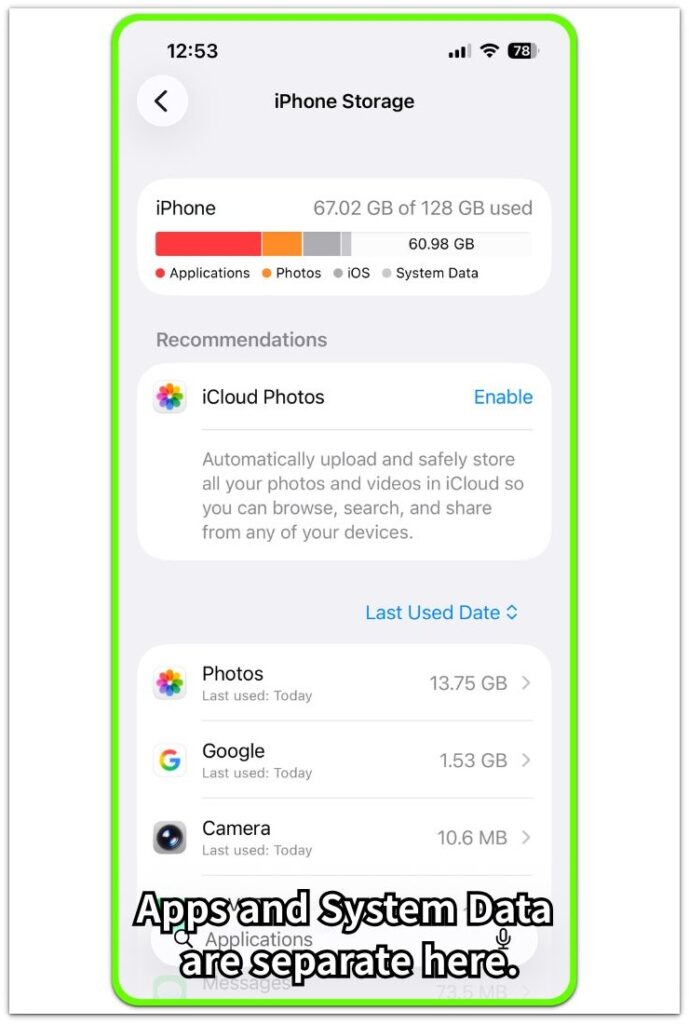
The app list below only shows visible storage. System Data taking the larger share keeps the first check on the categories instead of one app to delete right away.
Step 2: Check Whether One App Explains The Storage Pressure
Scroll through the app list after the category check. Look for one app that clearly takes more space than the rest.
A single large app points to app storage, not System Data. When the app list looks normal but free space is low, the storage bar is the part that matters.
Step 3: Reopen iPhone Storage And Compare The Number Again
Close Settings, wait a few minutes, then return to Settings → General → iPhone Storage. Do not delete apps during this check, because the result needs to show whether the System Data number changes after the screen reloads.
A lower number points to temporary allocation settling. The same large number keeps the focus on logs, caches, and system-managed storage.
Troubleshooting
Troubleshooting 1: System Data Bigger Than Apps on iPhone After Storage Reloads
The iPhone Storage screen reloads, but System Data stays larger than the app list. You already checked the bar, so the issue is no longer about one visible item taking most of the space.
Open the largest apps in the list and check their App Size and Documents & Data. Large Documents & Data points to files inside that app. A normal app list keeps the check focused on System Data.
Troubleshooting 2: Free Space Drops Again After You Clear App Storage
Some free space returns after deleting files inside an app, but the bar fills again later. The cleanup worked, but the System Data number still grows separately.
Return to Settings → General → iPhone Storage after you use the phone normally for a while. A rising System Data number after cleanup points to system files building again, not the same app problem.
Troubleshooting 3: System Data Stays Large After a Restart
The iPhone restarts, but System Data takes the larger share on the iPhone Storage screen. A restart clears some temporary activity, but it does not always remove what appears under System Data.
Open iPhone Storage again after the phone finishes loading the list. A lower number points to temporary allocation settling after the restart. The same large number means repeated app deletion is not the right next move.
Extra Section 1: Why System Data Looks Bigger Than Apps on iPhone
System Data looks bigger than the installed apps because the iPhone Storage screen is not only comparing visible storage. The app list shows visible app storage, while the storage bar also includes space managed by iOS.
This system-managed space includes temporary files, logs, caches, and other items the phone uses while updates and background tasks run. It does not always appear under one app name, so the app list looks normal even when the storage bar points to System Data.
When no single app explains the low free space, the gap between the app list and the bar points to a system category problem first, not one app to delete right away.
Extra Section 2: Why Deleting Apps Does Not Always Lower System Data
Deleting apps lowers the storage tied to them, but System Data is a different category on the iPhone Storage screen. App Size and Documents & Data belong to the app list, while System Data belongs to space managed by iOS.
Deleted apps no longer explain the low free space when the list becomes smaller but the system category stays large. Cleanup only reduces the storage attached to that app.
System Data does not shrink the same way as App Size or Documents & Data because it does not sit under one app name. When that category stays large, repeated app deletion is not the right next move.
Official Source: What Apple Includes Under System Data
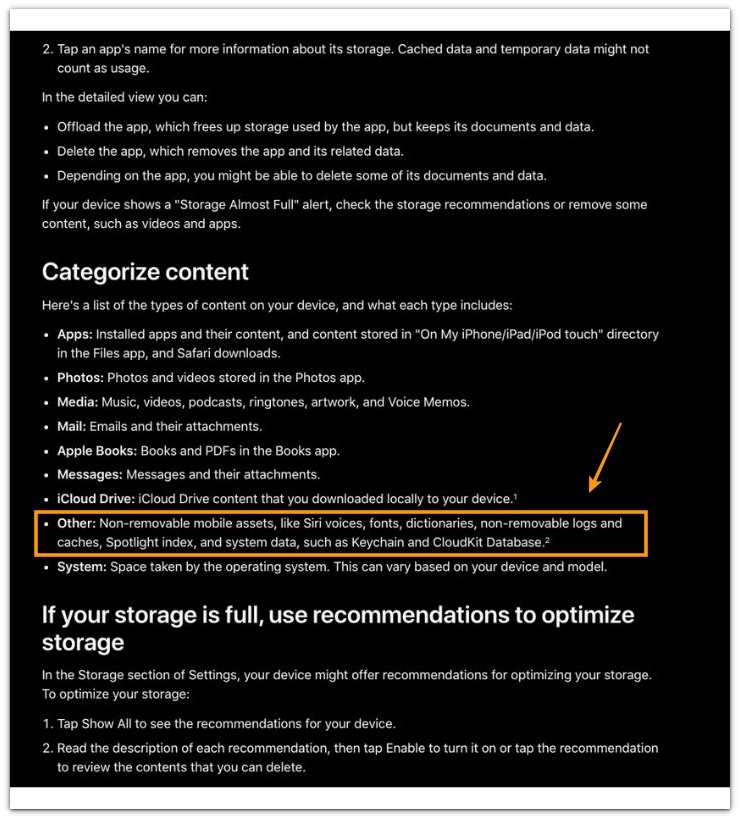
Apple lists logs, caches, Siri voices, fonts, dictionaries, and other items under System Data. This explains why deleting apps does not always lower that category right away.
The app list does not show everything stored on the iPhone. Apple lists the items included under System Data below.
Additional Tips
A large Messages history hides storage pressure behind photos, videos, and attachments. Check Messages separately when conversations are part of the daily use pattern.
Downloads and offline files also affect the comparison. Open Files and check Downloads when the iPhone Storage list does not match the app list.
A pending iOS update keeps extra space in use before or after installation. Finish the update check first, then compare the same screen again later.
Final Notes
System Data bigger than apps on iPhone is not a count problem. The key sign is the gap between the storage bar and the app list.
A single oversized app points to app storage. A normal app list with a large System Data number points to iOS-managed space, including logs, caches, and temporary files.
Repeated deletion becomes the wrong move once the app list no longer explains the low free space. Compare the storage category again, separate app storage from System Data, and treat the warning as a category problem once no single app explains it.
Checklist
- Compare Apps and System Data first
- Open App Size and Documents & Data
- Reload iPhone Storage before deleting more apps
- Check Messages and Downloads separately
- Stop deleting when no single app explains it
For the full storage check, start with the main iPhone storage guide before deleting more apps.