
Introduction
iCloud sync not freeing up iPhone storage becomes confusing when photos, messages, or backups look finished, but the iPhone says it is almost full. The space does not drop the way you expect, even after iCloud seems to have done its job.
The same items take up space on the phone after they appear in iCloud. The storage screen and sync status often show different results before you delete photos, messages, or app data.
Step-by-Step Guide: iCloud Sync Not Freeing Up iPhone Storage
Step 1: Check iCloud Photos Sync Status First
Open Settings → Photos and check the iCloud Photos setting. Look at the option below it, especially Optimize iPhone Storage.
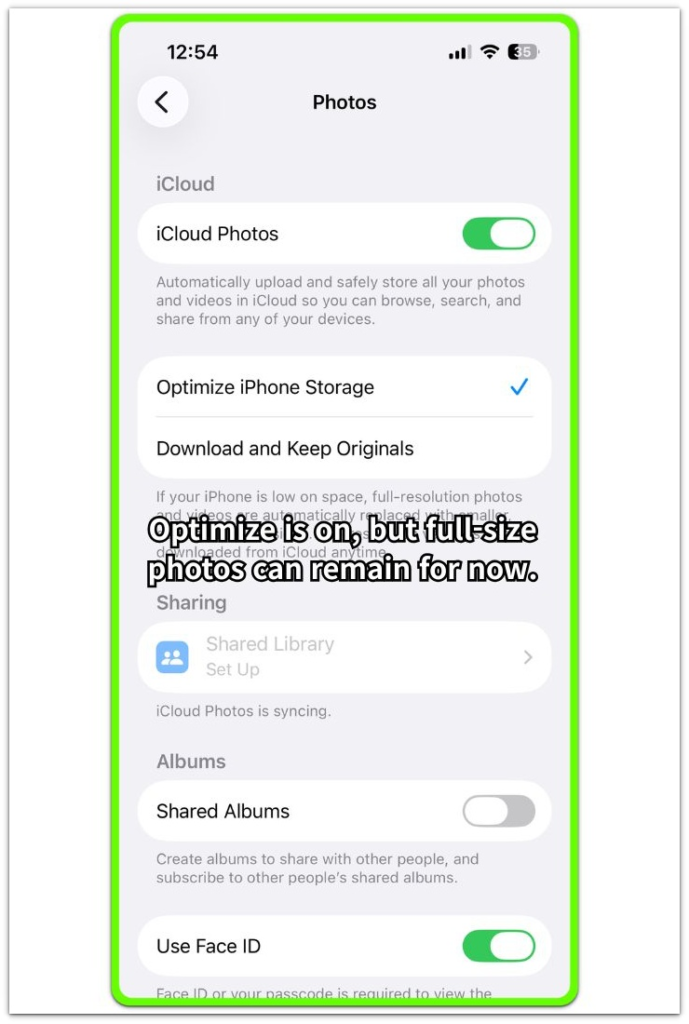
Optimize iPhone Storage helps reduce full-size photo storage on the iPhone, but it does not always remove local space right away. Photos and videos remain on the device while iCloud finishes syncing or until the iPhone needs more local space.
Use this screen only to confirm the sync setup. Do not delete photos yet, because deleting from the wrong place can remove them from iCloud too.
Step 2: Compare Photos Inside iPhone Storage
Open Settings → General → iPhone Storage and wait for the storage list to finish loading. Check whether Photos still shows a large number after iCloud sync looks complete.
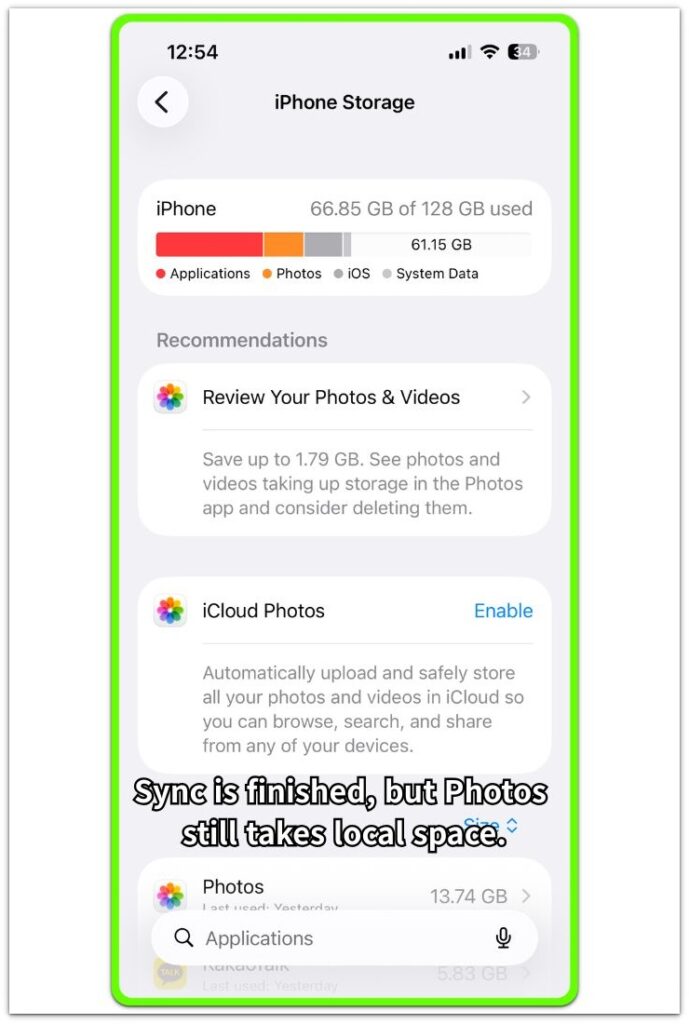
A finished sync does not always mean Photos has stopped using space. The iPhone still keeps recent photos, videos, thumbnails, edited files, or full-size copies until storage pressure changes.
Use the Photos number on this screen as the main result. A high Photos number points to files sitting on the iPhone, even when iCloud has uploaded them.
Step 3: Check What Still Takes Space Before Deleting Anything
Stay in iPhone Storage and review the largest items before deleting photos, messages, or app data. Start with Photos, Messages, and large apps because these areas often keep local copies even when iCloud looks finished.
Open the largest section first and check whether the space belongs to photos, videos, attachments, or app documents. This keeps the fix focused on the item instead of deleting random files.
Delete only the item that clearly holds local space. Then return to iPhone Storage and compare the number again after a short wait.
Troubleshooting
Troubleshooting 1: iCloud Sync Not Freeing Up iPhone Storage After Photos Finish
Photos look synced in iCloud, but the Photos number stays high. The upload looks complete, but the phone keeps local photo space.
Return to Settings → General → iPhone Storage after a short wait and check Photos again. A high number there means the phone holds local photo space, even if the iCloud Photos screen looks finished. Review large videos, recent photos, and downloaded originals before deleting anything from iCloud.
Troubleshooting 2: iPhone Storage Still Looks Full After Messages Sync
Messages look backed up or synced, but attachments take space on the iPhone. The message list alone does not always show where large photos, videos, or files remain.
Open iPhone Storage and check Messages from the app list. Review large attachments from that screen first. Remove only the attachment or conversation that clearly holds space, then return to iPhone Storage and compare the number again.
Troubleshooting 3: Drops For A Moment Then Looks Full Again
The storage number drops briefly, then the iPhone looks full again after apps reload, photos update, or iCloud status changes. The cleanup looks finished too early when the list has not settled yet.
Wait for the iPhone Storage list to reload fully before making another deletion. Check the largest category again and confirm whether Photos, Messages, apps, or System Data increased. Keep the next fix focused on the category that grew back instead of clearing unrelated files.
Extra Section 1: Why iCloud Photos Uses iPhone Storage
iCloud Photos looks finished when the same pictures appear across devices. The iPhone Storage screen shows a large Photos number when recent pictures, edited versions, thumbnails, and some full-size copies remain on the device.
Each screen answers a different question. iCloud Photos shows whether photos sync across devices. iPhone Storage shows how much photo space remains on the phone.
The Photos number is the number to trust before removing anything. A finished-looking upload does not always mean the iPhone has already cleared local photo space.
Extra Section 2: Why Synced Apps Hold Space On The iPhone
Messages and apps do not stop using space just because iCloud sync is on. A message thread stays visible across devices while its photos, videos, and files still sit inside Messages storage on the phone.
Apps work the same way. A backup or sync status only shows that account data has a copy in iCloud. It does not clear saved documents, offline files, drafts, downloads, or cached data that the app keeps for normal use.
The issue often sits inside the app’s own storage area. The iCloud account looks current, but the local app number still shows what the phone is carrying.
Official Source: Apple Explains iPhone and iCloud Storage
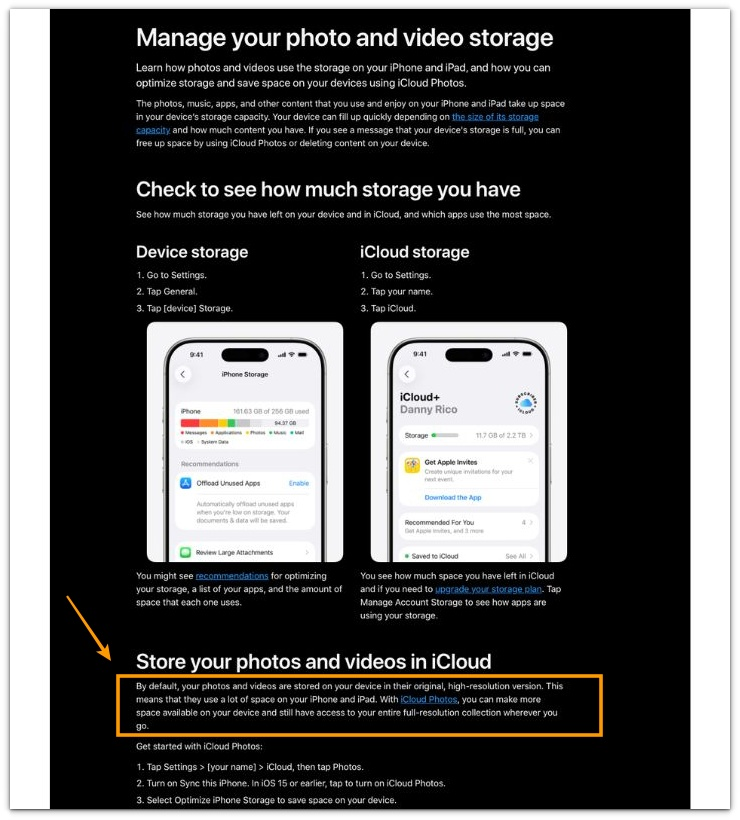
Apple explains where to check device and cloud storage separately, and says Optimize iPhone Storage helps save space on the device when you use iCloud Photos.
This matters because the iCloud screen and the iPhone Storage screen do not always change at the same time.
Additional Tips
A very large photo library often needs more time before the number settles. Compare the same iPhone Storage screen again after the phone stays connected to Wi-Fi and power for a while.
Recently deleted videos matter more than small pictures. A few long videos sitting in Recently Deleted keep more space than hundreds of small images.
A weak connection slows the final update. The phone shows finished-looking sync details before the local number has fully updated.
Final Notes
Check iCloud sync not freeing up iPhone storage from the phone’s storage screen first. The account status alone does not prove that local space has already cleared.
The strongest answer is the number inside Settings → General → iPhone Storage. When Photos, Messages, or an app shows a large number there, the space is on the device.
Treat that number as the final check before changing the cleanup target. Clear the item that holds local space, then return to the same storage screen and confirm the drop.
Checklist
- Make sure iCloud sync has finished
- Check the Optimize iPhone Storage setting
- Open iPhone Storage and see which category is large
- Restart the iPhone once after a large sync
- Leave the iPhone on Wi-Fi and power before checking again
- Stop turning iCloud Photos or Messages off and on
For broader storage problems, use the main guide to compare this iCloud sync issue with other iPhone storage patterns.