
Introduction
iPhone charging slow on original charger can feel confusing when the charger looks right, but the battery level barely moves. You plug in the cable you normally trust, leave the phone alone, and come back expecting more progress.
The charger itself is not always the problem. Heat, the cable, the adapter output, the charging port, or an iOS charging limit can still slow charging, so start by checking what the phone is doing before blaming the original charger.
iPhone Charging Slow on Original Charger Step-by-Step Guide
Step 1: Check Heat Before You Change the Charger
Start with the iPhone as it is. Keep the original charger connected and touch the back of the phone to see whether it still feels warm before changing any other settings.
The result is easier to judge when you check heat first. A warm phone should cool down before you test the same charger again.
Step 2: Check the Cable and Adapter Output
Look at the cable first. A cable can look normal from a distance but still have a bent end, loose fit, or worn connector.
Check the adapter with the same cable before changing the whole setup. Some older Apple adapters charge more slowly than newer higher-output adapters, even when the charger is genuine.
Use one setup for the first check so the result stays clear.
Step 3: Check the Charging Port and iOS Charging Limits
Look inside the charging port before you decide the charger is the problem. Dust or a loose fit can make the phone charge more slowly, even when the cable still shows the charging icon.
Open Battery settings and check whether a charging limit, Optimized Battery Charging, or a charging notice is affecting the charge. The icon at the top of the screen is not enough by itself, so use the actual battery level and charging estimate before blaming the original charger.
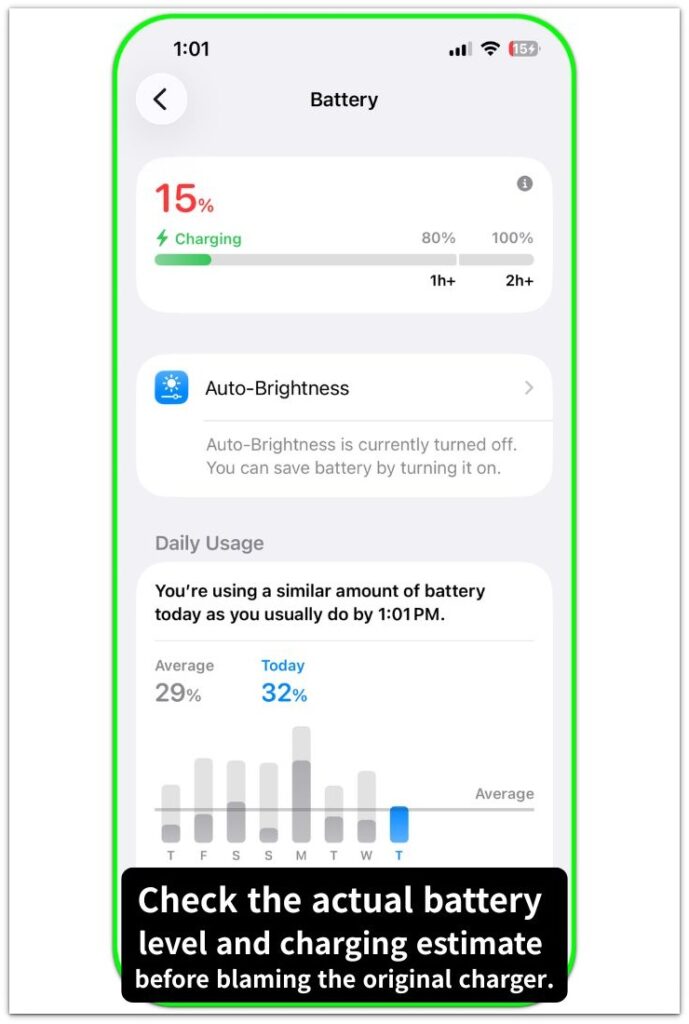
A better check is simple. See whether the battery level rises normally after the phone cools down and the cable fits firmly.
Troubleshooting
Troubleshooting 1: The Charger Looks Right, But The Battery Still Barely Moves
The original charger can still look normal while the phone barely gains power. Start with a short, quiet charge while the screen stays off instead of relying only on the charging icon.
A warm phone is an important clue. The problem becomes clearer when the icon says charging, but the battery barely rises during that quiet test.
Troubleshooting 2: The Phone Charges Better After You Stop Using It
A weak charge can look worse while the phone is being used. Video, games, navigation, hotspot, or a bright screen can use power while the charger is trying to raise the battery level.
Put the phone down for a short while and check whether the battery level rises faster. A cleaner result comes from testing while the phone sits untouched, and charging that improves in this quiet state means the original charger was not the only cause.
Troubleshooting 3: The Charge Improves Once, Then Slows Down Again
One better charge does not prove the problem is gone. The phone can charge faster after cooling down, then slow again when heat builds back up or a charging limit starts working.
Test it again later under normal conditions. Look for the moment when the speed starts dropping, not just the first few minutes after plugging in. That timing helps separate a weak charger from heat, port fit, or iOS charging behavior.
When that slowdown returns under the same clean conditions, the battery health check becomes the next better step.
Extra Section 1: The Charging Icon Was Not Enough Proof
I trusted the original charger too much at first. The cable was the one I normally used, and the charging icon appeared right away, so the charge looked normal before I checked the battery level again.
Later, I picked up the phone and saw that the battery level had barely moved. The problem looked different once I stopped treating the charging icon as proof and started checking whether the battery level actually went up before blaming the battery, the cable, or the charger.
Extra Section 2: The Same Charger Gave Different Results
The same charger gave me two different results on the same day. The first charge looked slow while the phone was still warm and I was still using it, so I almost treated that as proof that the charger was bad.
I put the phone down, removed the case, and left it alone for a while. When I checked again, the battery level rose more normally with the same cable and adapter. The charger felt less like the main problem once the phone was cooler and not working hard in the background.
Official Source: Apple Says iPhone Charging Can Pause in Extreme Temperatures
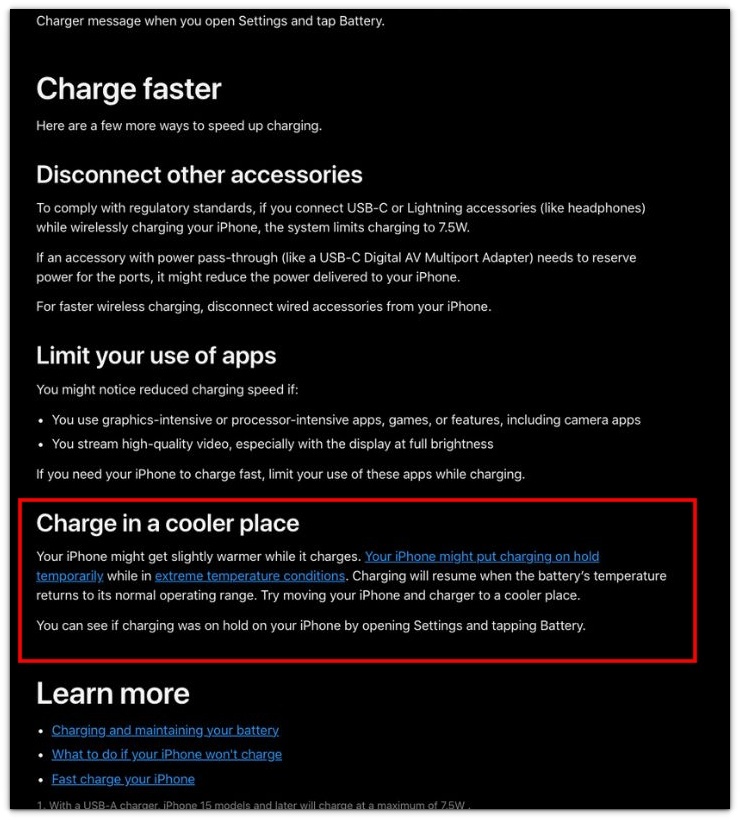
The screenshot below is from Apple’s official iPhone charge speeds guide and shows that iPhone charging can pause temporarily when the battery temperature is outside its normal range.
Keep the next checks focused on charging conditions, not the name alone.
Additional Tips
Use the same outlet for the first check because changing the outlet, cable, adapter, and phone position at the same time makes the result harder to read. Remove a thick case if the iPhone feels warm while charging.
After 10 to 15 quiet minutes, compare the number instead of watching it every few seconds. iPhone charging slow on original charger is easier to understand when you compare two quiet charging checks.
One slow charge is not the final answer. A better sign is whether the same slow result happens again after the phone cools down and the cable fits firmly.
Final Notes
iPhone charging slow on original charger does not automatically mean the charger failed. A real check starts with the phone, not the charging icon, because heat, a worn cable end, a loose port fit, an older adapter, or a charging limit can all make a real charger look weaker than it is.
Let the phone cool down before judging the result again. The original charger becomes a stronger suspect only when charging stays slow after the phone cools down and the cable fits firmly.
Checklist
- Check whether the iPhone feels warm while using the original charger.
- Use the same outlet before changing the cable or adapter.
- Look for a bent cable end, loose fit, or worn connector.
- Check the charging port for dust or a loose connection.
- Open Battery settings and check for a charging limit or slow charging notice.
- Compare the number after 10 to 15 quiet minutes.
- Judge it only after the phone cools down and the cable fits firmly.
For a wider check, use the main iPhone charging guide to compare slow charging, heat, battery limits, and cable issues in one place.