
Introduction
────────────────────
iPhone Battery Health Peak Performance Capability becomes confusing when the Battery Health screen says the phone supports normal performance.
You open the page to check the battery, but the message does not clearly say whether the battery is still fine.
It also does not show right away whether the battery is starting to wear down.
Even the battery percentage can look normal at first.
The Peak Performance Capability line can still confuse you when you read it like Maximum Capacity.
Start by reading that message as a performance status first. Then compare it with Maximum Capacity.
────────────────────
Step-by-Step Guide
────────────────────
────────────────────
Step 1: Read The Peak Performance Message Before You Judge The Battery
────────────────────
Start with the message under Peak Performance Capability.
Read the line first without treating it like the same result as Maximum Capacity.
If the screen says the iPhone is supporting normal peak performance, the phone is not showing a performance management warning on that screen.
That does not mean the battery is new.
Use that line to judge whether performance management is active, not whether the battery is still like new.
────────────────────
Step 2: Compare It With Maximum Capacity Separately
────────────────────
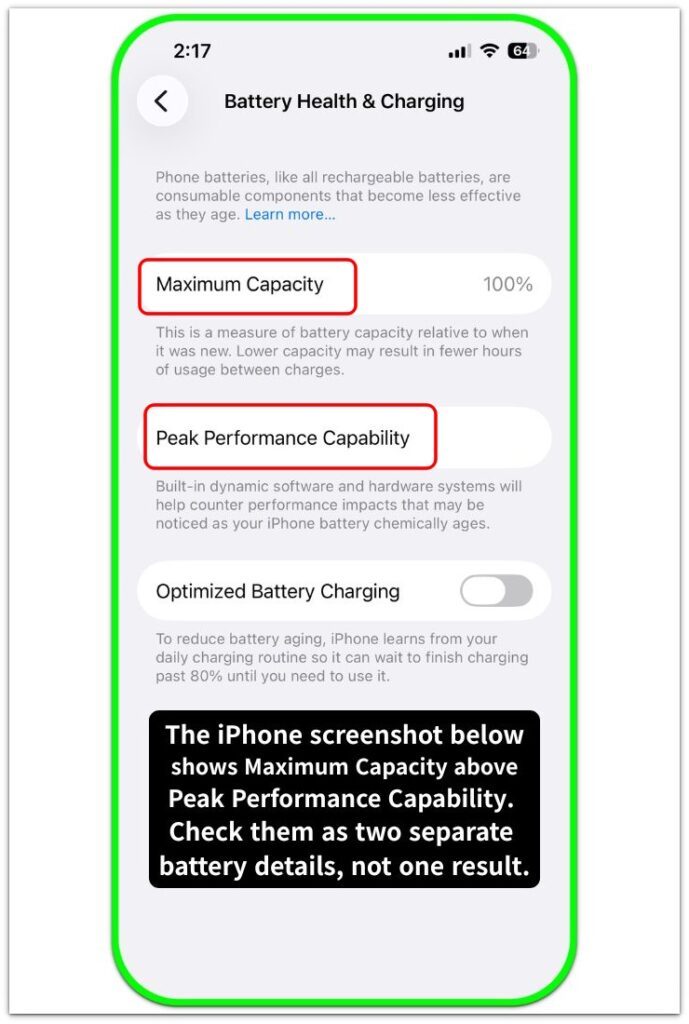
Now look at Maximum Capacity on the same Battery Health page.
iPhone Battery Health Peak Performance Capability makes more sense when you check it beside Maximum Capacity, not as a replacement for it.
Maximum Capacity shows the battery’s current capacity compared with when it was new.
Peak Performance Capability tells you whether the phone can still support normal performance.
Do not mix those two lines into one judgment.
────────────────────
Step 3: Check Whether Any Warning Text Appears Under Peak Performance
────────────────────
Look under the Peak Performance Capability line again and check the exact message.
A normal message is different from a warning that says performance management has been applied.
If the screen only says the phone supports normal peak performance, treat it as a status message first.
If warning text appears there later, read that warning first instead of relying on the earlier normal message.
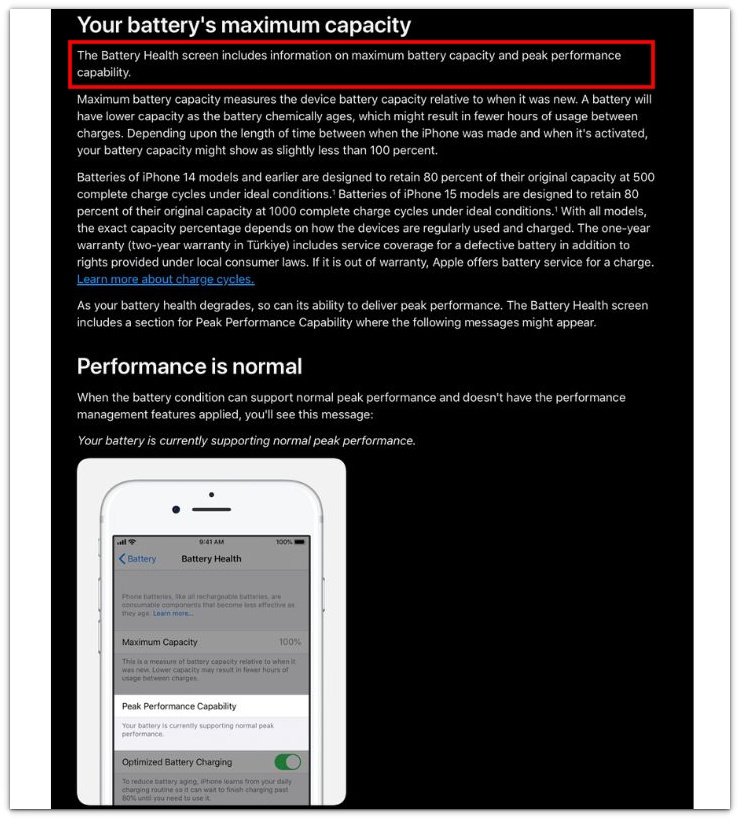
The screenshot below is from Apple’s official iPhone battery and performance page. It shows that the Battery Health screen includes both Maximum Capacity and Peak Performance Capability, so the two lines should be read separately.
────────────────────
Troubleshooting
────────────────────
────────────────────
Troubleshooting 1: The Message Looks Normal But The Battery Still Feels Weak
────────────────────
A normal Peak Performance Capability message does not prove the battery is still strong.
The screen can say the iPhone supports normal peak performance while the battery still drains faster than expected during ordinary use.
Check whether the weak battery behavior appears again outside the Battery Health screen.
That separate check tells you whether daily use is pointing to a problem the Peak Performance line does not catch.
────────────────────
Troubleshooting 2: The Percentage Looks Low But No Performance Warning Appears
────────────────────
Maximum Capacity can look lower while Peak Performance Capability still shows a normal message.
That does not mean the screen is wrong.
iPhone Battery Health Peak Performance Capability works as a performance warning check, not as a replacement for the battery percentage.
When the percentage looks low, judge that line separately before you assume the phone should already show a warning.
────────────────────
Troubleshooting 3: The Message Changes After A Later Check
────────────────────
A later check can show a different message on the same Battery Health page.
The screen can look fine at first, then show a warning after another shutdown or performance issue.
Read the new warning text before you rely on what the page said earlier.
Use the new warning as the current status, not the older normal message.
If the warning message changes after a later check, a deeper battery check gives you a stronger reason to trust the new warning over the older normal message.
────────────────────
Additional Tips
────────────────────
Do not read Peak Performance Capability by itself.
Check it beside Maximum Capacity on the same Battery Health page.
iPhone Battery Health Peak Performance Capability is a performance status line, not a full battery condition report.
A normal message is still useful, but it does not replace what you see in daily battery use.
Recheck the page later if the phone shuts down, slows down badly, or starts showing battery warnings.
────────────────────
Final Notes
────────────────────
Treat iPhone Battery Health Peak Performance Capability as a performance status line, not as the full battery health result.
Read it as the phone’s current performance status first.
Then compare it with Maximum Capacity and what the battery does during normal use.
A normal message is helpful, but it does not mean the battery is still strong in every situation.
Use the message as one check, not as the whole battery answer.
Trust the message for performance status, but do not let it replace the way the battery actually behaves.
────────────────────
Checklist
────────────────────
☐ Checked the Peak Performance Capability message.
☐ Compared it with Maximum Capacity on the same Battery Health page.
☐ Treated the message as performance status, not the full battery result.
☐ Checked whether daily battery use still feels weak.
☐ Looked for warning text before trusting the section name.
If you want the wider battery view first, the guide above helps you read the Battery Health percentage before judging the Peak Performance message.
────────────────────
Extra Section 1
────────────────────
I used to look at the Peak Performance Capability line first because it sounded like the main battery result.
The message looked normal, so I treated the whole Battery Health page as fine at first.
I did not pay much attention to Maximum Capacity because it sat on the same screen and looked like part of the same answer.
Then I looked at both lines again and realized they were not telling me the same thing.
Peak Performance Capability was about whether the phone could still support normal performance.
Maximum Capacity showed the part of the page that was about battery wear.
iPhone Battery Health Peak Performance Capability became clearer once I stopped reading the whole page from that one line.
After that, I used it as one part of the check, not the final answer.
────────────────────
Extra Section 2
────────────────────
The Battery Health screen can look normal while the phone still feels weaker in normal use.
You open an app, use the camera, or leave the phone unplugged for a while, and the battery drops faster than you expected.
That normal Peak Performance message can make the first check feel less serious.
The screen looks fine, but the phone still does not feel the same during ordinary use.
I would slow down there and separate the screen message from daily battery use.
The message can tell you that the phone is not showing a performance warning on that screen.
Daily use can still tell you the battery is not holding up as well as you expected.
That gap between the screen and daily use is the part I would not ignore.