
Introduction
────────────────────
iPhone battery health warning starts feeling harder to ignore when you open Battery settings and see a message instead of the usual battery health screen.
You go in to check the battery condition.
Then you notice a warning that makes battery replacement sound closer than expected.
Many people move straight to battery replacement at that point.
Check the full warning text first.
Then see whether it appears as a service message or a battery condition alert.
────────────────────
Step-by-Step Guide
────────────────────
────────────────────
Step 1: Read The Full Warning In Battery Settings First
────────────────────
Open Settings and go to Battery.
Open Battery Health if the warning appears there.
Read the full message before you do anything else.
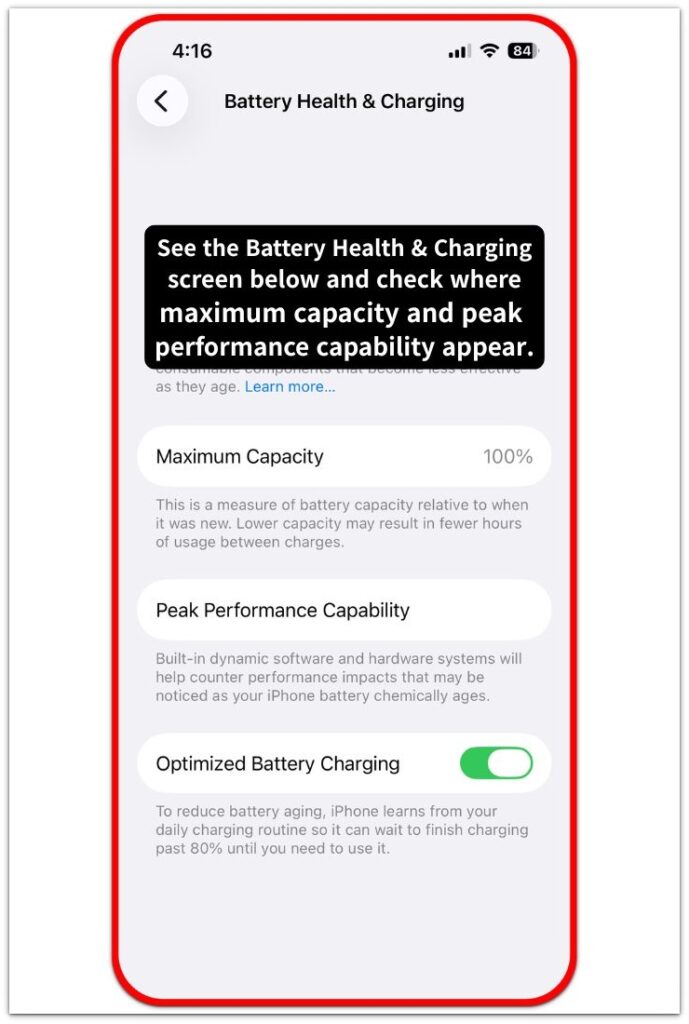
Do not react to one word by itself.
Check the whole line or message box and see whether it mentions service, reduced battery condition, or another battery notice.
That gives you the exact warning first before you start thinking about battery replacement.
────────────────────
Step 2: Check The Same Battery Screen Again Before You Decide Anything
────────────────────
Leave that page and open the same battery area again.
Stay on the same screen instead of moving through other menus.
You are not trying to fix the phone yet.
You are checking whether the same message is still sitting in the same place with the same wording.
iPhone battery health warning is harder to brush off when the same message is still there on the same battery screen after you return.
Seeing the same warning again on the same screen gives you a clearer reason not to rush into battery replacement.
────────────────────
Step 3: Compare The Warning With What The Phone Has Been Doing
────────────────────
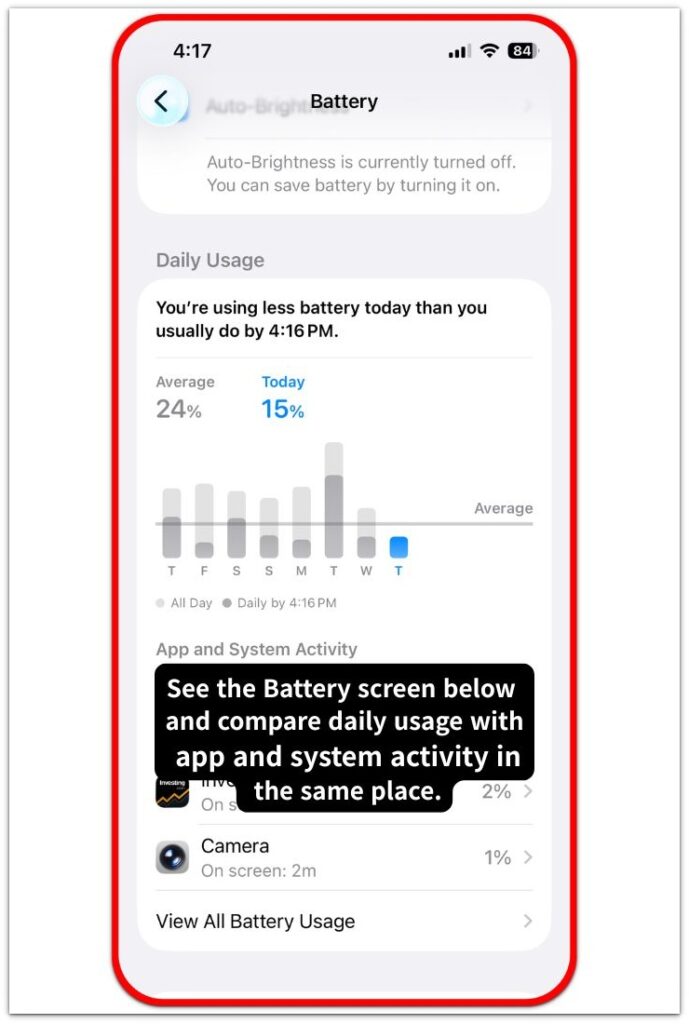
Now match the message with recent battery behavior.
Think about what pushed you into Battery settings in the first place.
The phone can shut down earlier than expected.
The battery percentage can fall faster than before.
Charging can also feel less steady during normal use.
Use that real behavior as the next check.
When the warning matches the way the phone has been acting, you have a stronger reason to take battery replacement seriously.
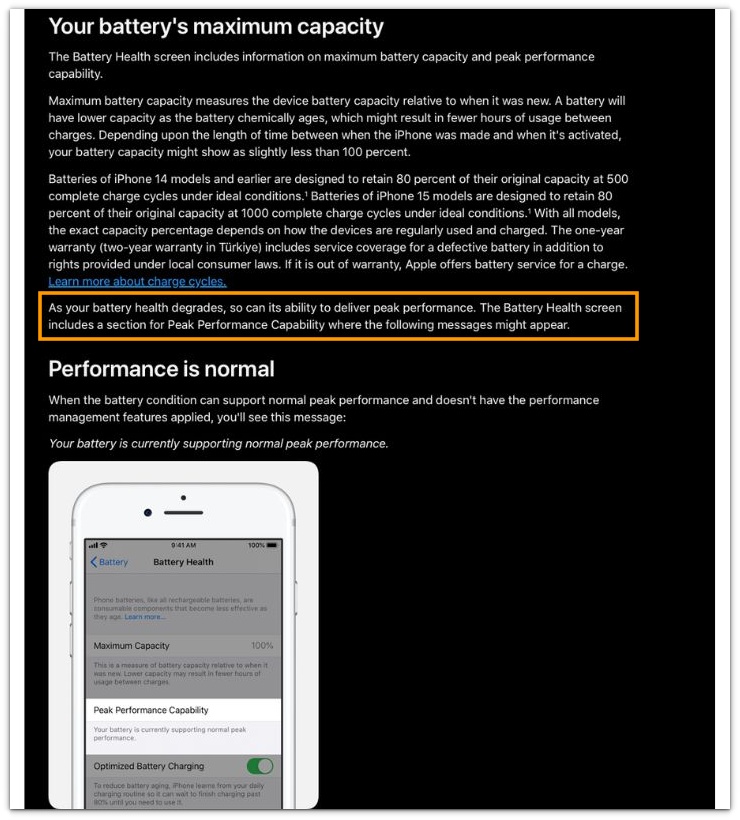
See the official Apple screenshot below showing that Battery Health can display Peak Performance Capability messages.
────────────────────
Troubleshooting
────────────────────
────────────────────
Troubleshooting 1: The Warning Stays On The Screen Before Daily Use Starts Looking Different
────────────────────
The phone can still seem normal when you are using it, but the warning remains on the Battery screen.
That is where people often put too much weight on how the phone feels that day.
Go back to the same battery area and read the full warning again instead of brushing it off too early.
iPhone battery health warning is worth taking seriously when the same message stays there before the battery problem becomes obvious in daily use.
A warning that keeps showing on the same screen is worth taking seriously even before shutdowns, faster drops, or uneven charging become clear.
────────────────────
Troubleshooting 2: The Battery Looks Fine While You Use It, Then Drops More After You Put It Down
────────────────────
The phone can look normal while you are using it, then look worse when you check it later.
You come back after a break and find a bigger drop than expected, a lower battery percentage by the end of the day, or charging that no longer looks steady.
That is when the warning starts lining up with what the phone is actually doing.
Check what changed after the phone sat idle, after it charged, or after it stayed off the charger for a while.
When the warning matches what shows up later, battery replacement starts looking like a decision you need to take seriously.
────────────────────
Troubleshooting 3: The Battery Looks Better For A Day, Then The Same Problem Shows Up Again
────────────────────
One better stretch can make the warning look less urgent.
Then the same battery problem comes back.
The phone shuts down early, the battery percentage falls harder, or charging looks uneven again after a short stretch that seemed fine.
Do not treat one better day as the end of it.
When the same problem returns after a short break, the warning is not something to keep putting aside before replacement.
If the same battery problem comes back after a short stretch that seemed fine, battery replacement should be considered seriously.
────────────────────
Additional Tips
────────────────────
Keep the check simple.
Do not compare the warning after changing several things at once.
Look at the same Battery area, read the same message, and match it with what the phone has been doing in normal use.
iPhone battery health warning becomes clearer when you stop changing the setup and check the same thing the same way.
If replacement is already on your mind, wait until the screen message and the real battery signs point in the same direction.
────────────────────
Final Notes
────────────────────
iPhone battery health warning does not mean you need to rush into battery replacement.
Read the full message first.
Check the same screen again.
Then compare that warning with what the phone has actually been doing.
When the warning stays in place and the battery problem keeps showing up in daily use, you have a stronger reason to take replacement seriously.
────────────────────
Checklist
────────────────────
☐ Open Settings and check the full warning text in Battery.
☐ Read the same warning again on the same Battery screen.
☐ Match the warning with recent battery behavior before you decide on replacement.
☐ Check whether shutdowns, faster drops, or uneven charging have also started showing up.
☐ Treat battery replacement more seriously only after the warning and daily battery signs line up.
Check the guide above before you decide whether battery replacement is the right next step.
────────────────────
Extra Section 1
────────────────────
I have seen that warning show up before the phone starts causing the same level of trouble in daily use.
The screen message can appear first, while shutdowns, faster battery drop, or uneven charging do not stand out as clearly.
iPhone battery health warning can show up before the battery problem becomes clear in normal use.
Go back to the same battery screen one more time.
Then compare that warning with what the phone has actually been doing.
That gives you a firmer reason to replace the battery or wait a little longer.
────────────────────
Extra Section 2
────────────────────
I have had days when the phone seemed normal for a while and the warning still ended up mattering.
The phone seems fine for a while, and that can make the problem look finished too early.
Then the battery trouble shows up again after that quiet stretch.
The battery percentage drops harder than expected, charging stops looking steady again, or the phone shuts down earlier after looking fine for a short time.
Do not treat that brief break as the end of the problem.
Check the same battery screen again and compare it with what happened after that better day.
That gives you a firmer reason not to put replacement aside too early.