
Introduction
────────────────────
App Clips taking storage on iPhone appears when the iPhone Storage screen shows App Clips using space even though no full application related to those clips is installed on the device.
Users often notice this after checking iPhone Storage and seeing a small entry connected to App Clips while the App Library does not display a corresponding app.
Before assuming that the storage system is behaving incorrectly, review recently used App Clips and check whether temporary clip data remains stored on the device.
App Clips operate through temporary runtime containers created when a clip launches from sources such as Safari links, QR codes, NFC tags, or location-based triggers.
When those runtime containers remain stored after the clip session ends, the storage screen may still display the allocated space even though the user cannot manage the clip like a normal installed application.
────────────────────
Step-by-Step Guide
────────────────────
────────────────────
Step 1: Check the iPhone Storage List for Recent App Clip Entries
────────────────────
Open Settings and select General.
Tap iPhone Storage to open the device storage overview.
Scroll through the application list and look for entries related to App Clips or apps recently launched through them.
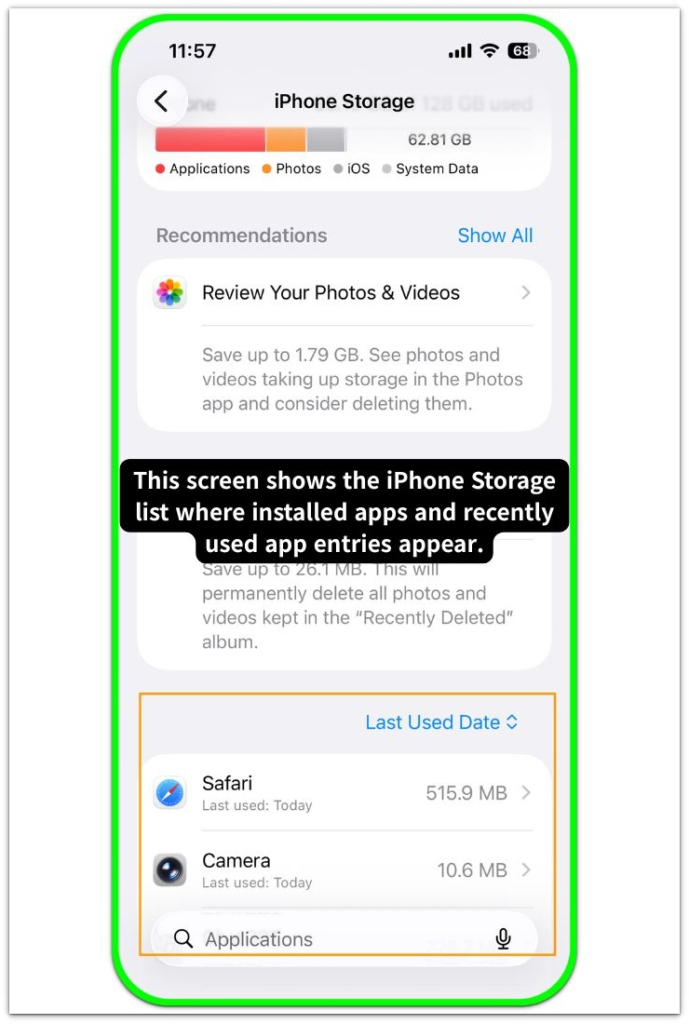
This step confirms whether app clips taking storage on iphone corresponds to a visible storage entry inside the system storage list.
The storage screen reflects allocations recorded by the iOS runtime environment rather than only full installed applications.
────────────────────
Step 2: Review Recent App Clip Usage Sources
────────────────────
App Clips usually launch from external triggers rather than from the home screen.
Typical sources include Safari links, QR code scans, NFC tags, Maps integrations, or location-based suggestions.
Open Safari history or review recent interactions where a lightweight version of an app may have been launched.
When app clips taking storage on iphone appears shortly after those interactions, the stored data usually belongs to the runtime container created during that session.
The container stores temporary execution data that allows the clip to start quickly if the user launches it again.
────────────────────
Step 3: Remove Temporary App Clip Data by Restarting the Runtime Environment
────────────────────
Restarting the device refreshes several temporary runtime containers maintained by the operating system.
Press and hold the side button and either volume button, then power off the device.
Turn the iPhone back on after a short pause and reopen the iPhone Storage screen.
If the stored container was temporary session data, the system may release part of the allocated space after the runtime environment initializes again.
When the storage entry remains unchanged after this step, the remaining space usually belongs to a persistent container managed by the system rather than a temporary session record.
This boundary introduces the deeper storage structure explained in the next section.
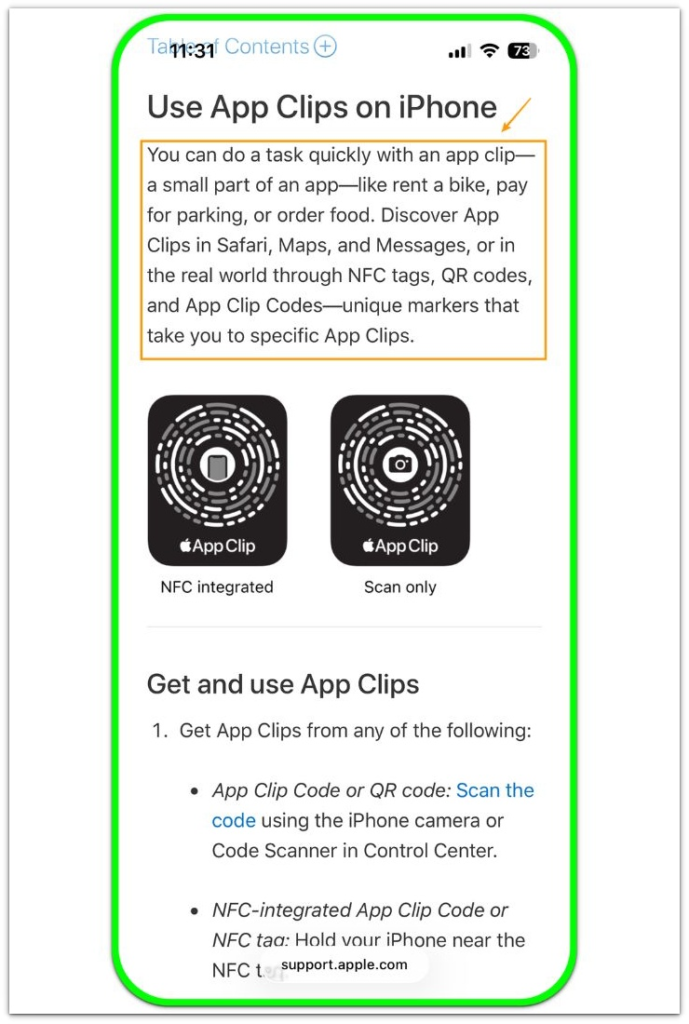
Refer to the official Apple support screenshot below.
────────────────────
Troubleshooting: App Clips taking storage on iPhone
────────────────────
────────────────────
Troubleshooting 1: App Clip Runtime Containers Remaining After Use
────────────────────
App Clips are designed to launch quickly without installing a full application on the device.
To achieve that behavior, iOS creates a small runtime container when the clip runs for the first time.
This container stores temporary execution data such as launch resources, short-term preferences, and minimal interaction records required for the clip session.
When the clip closes, the runtime environment does not always remove that container immediately.
The container may remain stored for a period of time so the clip can reopen quickly if the user triggers it again.
This design explains why app clips taking storage on iphone can appear inside the storage list even though the user cannot find a corresponding full application.
The storage interface reflects the runtime container allocation rather than an installed app package.
────────────────────
Troubleshooting 2: Runtime Container Persistence Managed by the System
────────────────────
App Clip containers are managed directly by the iOS runtime layer rather than through normal app management tools.
Users cannot open, delete, or manage these containers from the Home Screen or App Library.
The storage value shown for the clip represents system-managed runtime data rather than user-controlled application storage.
In many cases the container remains until the system decides the clip is no longer likely to be launched again.
That decision depends on system activity patterns, device storage pressure, and background maintenance cycles.
Because of this behavior, app clips taking storage on iphone may remain visible even after the user no longer interacts with the clip source.
────────────────────
Troubleshooting 3: Storage Reporting Reflects Runtime Allocation Rather Than Visible Apps
────────────────────
The iPhone Storage screen summarizes storage usage across several internal allocation layers.
Some categories correspond to visible files or installed applications, while others represent internal runtime allocations maintained by the operating system.
App Clips belong to this runtime layer.
The storage bar displays the container size even when the clip itself is not visible in the application interface.
This difference between the visible app layer and the runtime allocation layer often creates the impression that unexplained storage is present on the device.
The reported value simply reflects the container currently reserved for the clip session environment.
If the storage entry remains after these checks, deeper inspection of the App Clip runtime container may be required.
────────────────────
Additional Tips
────────────────────
App Clips are designed to remain lightweight and temporary.
Most runtime containers occupy only a small amount of storage compared with full applications.
When app clips taking storage on iphone appears in the storage list, the value typically represents a minimal container reserved for quick launch capability.
The system usually removes unused clip containers during background maintenance or when the device requires additional free space.
If the container size remains small and the device still has available storage capacity, the presence of that runtime container rarely affects normal device operation.
Users who frequently scan QR codes or interact with location-based services may accumulate several clip containers temporarily as the system manages those sessions.
────────────────────
Final Notes
────────────────────
The appearance of App Clips storage does not indicate a malfunction in the storage system.
The reported space represents a runtime container created by iOS to support temporary app clip sessions.
This behavior reflects a structural distinction between visible applications and the runtime environment that allows lightweight apps to launch instantly.
The storage value represents a container maintained by the system rather than user-managed application files.
The storage entry is a structural result of the App Clip runtime design rather than an unexplained storage anomaly.
────────────────────
Checklist
────────────────────
☐ Check the iPhone Storage screen to confirm whether App Clips appear in the application list
☐ Review recent QR code scans, Safari links, or NFC interactions that may have launched an App Clip
☐ Restart the device to refresh temporary runtime containers
☐ Reopen the iPhone Storage screen and observe whether the container size changes
☐ Allow the system maintenance cycle to remove unused clip containers when storage pressure increases
Different iPhone models and iOS versions may manage App Clip runtime containers slightly differently, so the storage entry can appear or disappear at different times depending on system activity.
────────────────────
Extra Section 1
────────────────────
App Clips storage entries are often noticed after real-world situations where users interact with temporary services instead of installing full apps.
A common example is scanning QR codes at restaurants, parking meters, ticket machines, or vending systems.
These services launch lightweight App Clips rather than directing the user to download a full application.
After the interaction ends, the clip disappears from the screen.
Many users assume that nothing remains stored on the device.
Later, when checking the iPhone Storage screen, a small App Clips entry may still appear.
No corresponding app is visible in the App Library.
This pattern is more noticeable for users who frequently scan QR codes while traveling or using transportation services.
Several temporary runtime containers can build up over the course of a day as different App Clips open and close.
Because those containers may remain cached for faster relaunch, the iPhone Storage screen can still show a small App Clips allocation.
────────────────────
Extra Section 2
────────────────────
Users who rarely interact with QR-based services may never notice App Clips storage entries.
The situation appears more often for people who regularly interact with location-based services, quick payment links, or short-term service tools.
Many users notice the storage entry after several App Clip sessions occur within a short period of time.
For example, a user may scan a parking payment QR code, open a temporary food ordering clip, and launch a transit information clip during the same day.
Each interaction can create a small runtime container managed by the system.
When app clips taking storage on iphone appears in this context, the storage value usually represents those short-term runtime environments.
The storage entry reflects temporary session containers created during everyday interactions rather than a hidden application.