
Introduction
iPhone photos using too much storage shows up when deleting pictures and videos does not return much space. In iPhone Storage, Photos stays near the top and available space barely changes.
Large videos, screen recordings, Recently Deleted items, local iCloud Photos files, thumbnails, previews, and media that other apps store add to the Photos number. The visible library looks smaller, but the storage screen still counts photo-related files outside the main album view.
Step-by-Step Guide: iPhone Photos Using Too Much Storage
Step 1: Open iPhone Storage And Find Photos
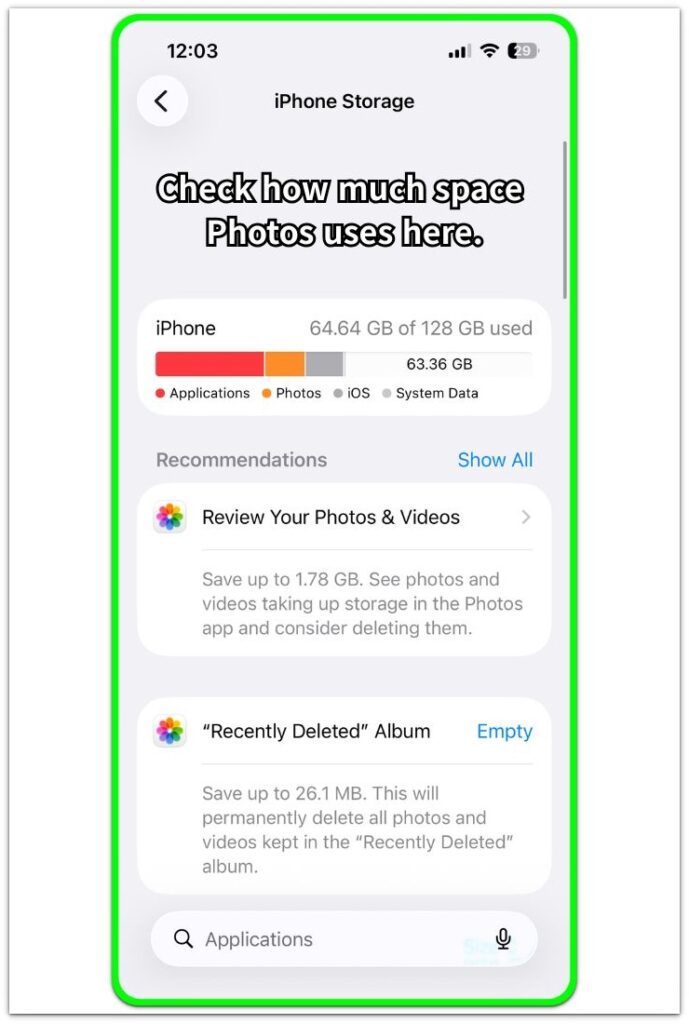
Open Settings, tap General, then open iPhone Storage. Wait until the storage bar, recommendations, and app list finish loading.
Find Photos in the storage bar or open the Review Your Photos & Videos recommendation. Use this screen to check how much space Photos still uses before deleting more files.
Step 2: Review Large Photo And Video Categories
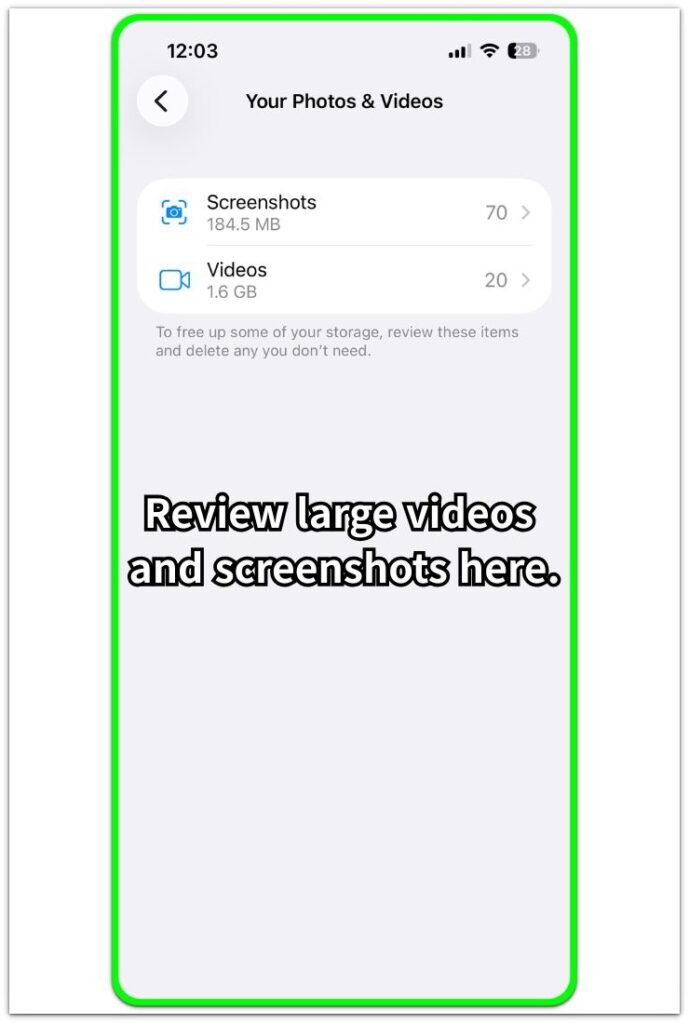
Tap Review Your Photos & Videos when it appears. Open the listed categories, such as Videos and Screenshots, and start with the largest group.
Long videos, repeated screen recordings, and large screenshot groups reduce storage faster than small single photos. Remove files you no longer need, then return to the storage screen and check Photos again.
Step 3: Empty The Recently Deleted Album
Open the Photos app, tap Albums, then open Recently Deleted under Utilities. Select the deleted pictures and videos you want to remove, then delete them permanently.
Deleted media still uses space until you clear Recently Deleted. After emptying the album, reopen Settings and check Photos again after the storage screen reloads.
Troubleshooting
Troubleshooting 1: iPhone Photos Using Too Much Storage After Cleanup
Close Settings and the Photos app, then restart the iPhone. Open Settings again, go to General, then iPhone Storage, and wait for the storage bar and app list to finish loading.
The reading stays unchanged while the iPhone recalculates deleted media, previews, thumbnails, and app data. Checking too quickly often shows the old reading, so reload the storage page after the restart and compare the result again.
If the used space still looks the same, check Recently Deleted once more. Deleted pictures and videos keep using storage until you remove them from that album.
Troubleshooting 2: iCloud Keeps Local Copies
Open Settings, tap your Apple Account name, tap iCloud, then open Photos. Check Sync this iPhone and look for the storage option under iCloud Photos.
Select Optimize iPhone Storage when the device needs more local space. Download and Keep Originals stores full-size files on the iPhone, so the local library stays much larger.
Connect the iPhone to Wi-Fi and power after you change the setting. The iPhone adjusts local copies, previews, and full-resolution files in the background.
Troubleshooting 3: Another App Holds The Same Media
Open Settings, tap General, then open iPhone Storage. Check large apps near the top of the list, especially Messages, WhatsApp, Instagram, cloud drives, video editors, and file apps.
Those apps keep images, videos, exports, downloads, and message attachments inside their own app data. Removing a picture from the main library does not remove a copy that another app stores.
Open the large app and delete media that it keeps. Then return to the storage page and compare the used space with the app list to see where the space still remains.
Extra Section 1: Live Photos And Burst Shots Increase iPhone Photos Storage
Live Photos and burst shots often make the Photos library look smaller than the storage number suggests. A single picture in the album view holds movement, sound, or several similar frames behind one moment, especially after taking photos of children, pets, food, or moving scenes.
The problem becomes harder to notice after one event fills the library with Live Photos, bursts, and repeated shots. The album still looks like a normal photo collection, but the storage screen counts the extra media behind those shots.
Open Photos and review Live Photos, burst groups, and repeated shots from one shoot. Keep the best version, remove extra frames or similar shots, then clear Recently Deleted so the iPhone has less photo and video data left to count.
Extra Section 2: Edited Photos And Videos Leave Extra Copies
Edited photos and trimmed videos often keep more storage than expected after cleanup. A long screen recording, travel video, or saved clip still takes space when the original file remains beside the edited version.
The problem appears after cropping a photo, adjusting an image, trimming a video, or saving a shorter clip from a longer recording. The library looks cleaner, but Photos still holds the original media or a new edited copy, so the storage number stays higher than the visible library suggests.
Check recently edited pictures, trimmed videos, and saved clips from the same event. Remove the version you no longer need, then clear Recently Deleted so the iPhone has less photo and video data left to count.
Official Source: Apple iCloud Photos And Device Storage
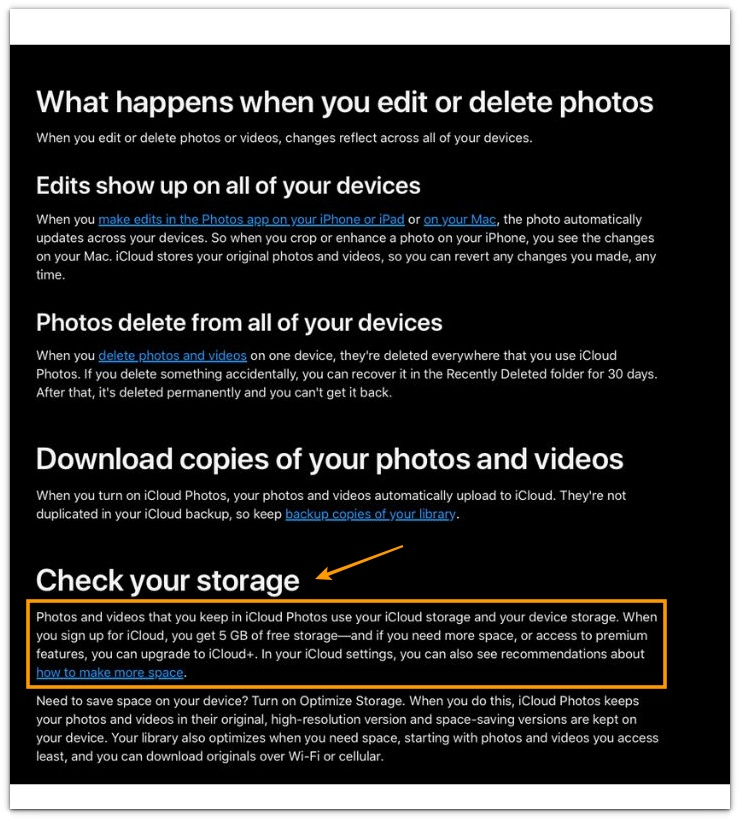
Apple says, “Photos and videos that you keep in iCloud Photos use your iCloud storage and your device storage.”
This explains why Photos still uses local iPhone storage after you turn on iCloud Photos.
Additional Tips
Large file formats make the same library grow faster. ProRAW, ProRes, 4K video, slow-motion clips, and long screen recordings take far more space than standard pictures, so check camera settings when storage rises again after a short time.
Imported albums and synced folders also need review when the main library seems clean. The storage number becomes clearer after you compare recent captures, imported media, and synced folders instead of checking only the album grid.
AirDrop files, saved downloads, and imported videos need another check when the same media appears in more than one place. A copy in Files or a video editor still takes space after the Photos library looks smaller.
Final Notes
iPhone photos using too much storage usually comes from media that stays beyond the first album view. Large videos, deleted items, local iCloud files, edited copies, Live Photos, bursts, and app-held media all keep the number higher than expected.
The strongest fix is to use iPhone Storage first, remove the largest media groups, clear deleted items, then review the cases that keep extra copies behind the visible library.
Checklist
- Open iPhone Storage and check the Photos number first.
- Review large videos, screen recordings, screenshots, and saved clips.
- Clear Recently Deleted after removing pictures or videos.
- Turn on Optimize iPhone Storage when local iCloud files take too much space.
- Check Live Photos, burst groups, and repeated shots from one shoot.
- Remove extra edited versions, trimmed clips, and copies inside other apps.
For wider storage problems beyond the Photos app, see the main iPhone storage guide linked above.