
Introduction
iPhone logs taking up storage becomes confusing when iPhone Storage shows less free space, but the change does not clearly appear under Photos, Videos, or large apps. The number feels larger than expected, while the visible personal categories do not explain the storage change.
The issue needs a focused check on logs, diagnostic data, and background allocation before removing personal files. This guide follows that storage change and checks whether iPhone logs are taking up space through background diagnostic allocation.
Step-by-Step Guide: iPhone Logs Taking Up Storage
Step 1: Check iPhone Storage First
Open Settings → General → iPhone Storage and wait for the list to load. Check whether Photos, Videos, or large apps explain the sudden space change.
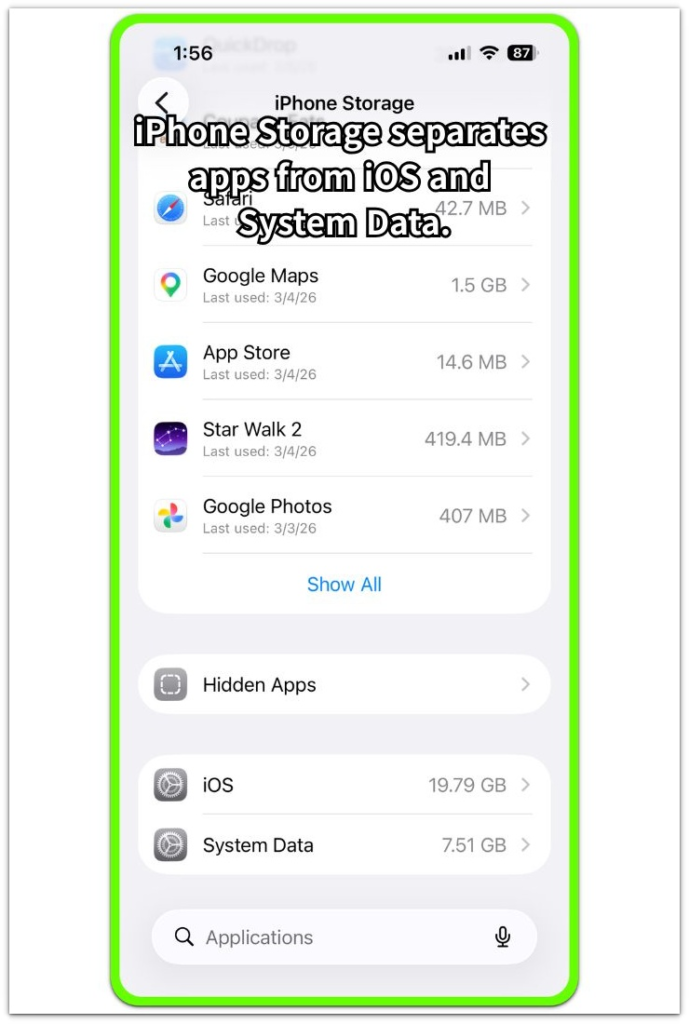
Look near the lower part of the list where iOS and System Data appear separately. When personal categories do not match the increase, keep the check focused on system-level space before deleting personal files.
Step 2: Open The Diagnostic Data List
Go to Settings → Privacy & Security → Analytics & Improvements → Analytics Data. Check whether the list contains repeated Analytics files.
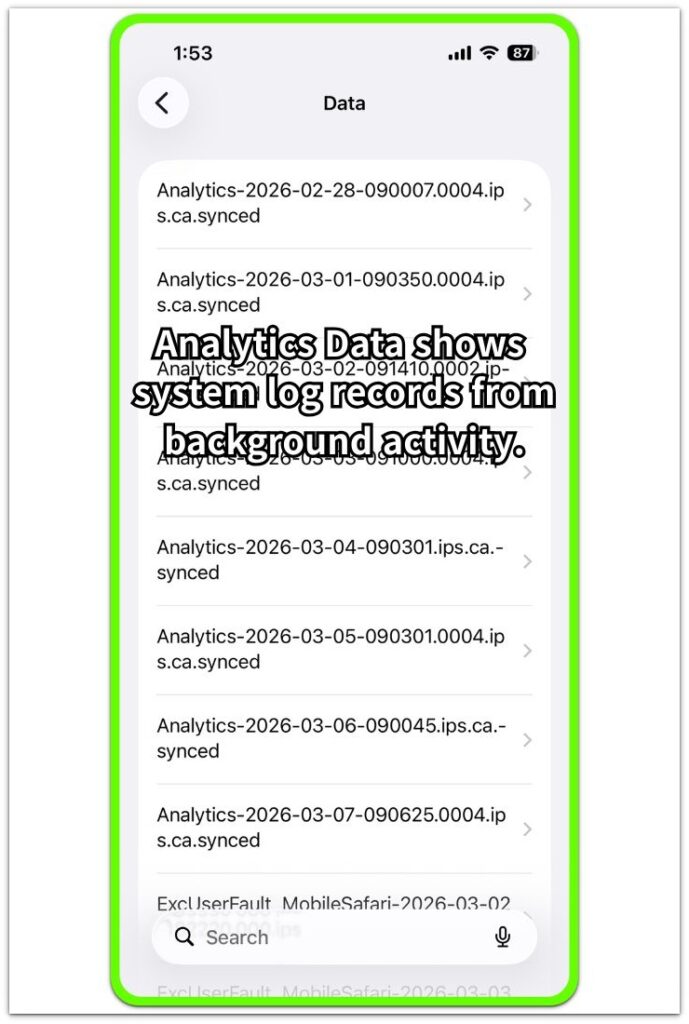
These files show diagnostic records created during background system activity. The goal is not to remove each file manually, but to confirm whether log records appear alongside the space change.
Step 3: Compare Logs With System Data
Return to iPhone Storage and compare the diagnostic data check with iOS and System Data. If the visible app list does not explain the increase, treat it as a background diagnostic allocation check first.
Keep the iPhone on power and Wi-Fi, then recheck the same page later. If System Data becomes smaller after iOS finishes background work, the change fits temporary system allocation rather than personal files.
Troubleshooting
Troubleshooting 1: Analytics Files Return After Normal Use
The Analytics Data list shows fresh entries after you use the iPhone for a while. Photos, videos, and large apps still look almost unchanged, so the visible file categories do not explain the tighter space.
Check the dates in Analytics Data and compare them with the same iPhone Storage page. When recent log entries appear near the same time as the space change, keep the check on background diagnostics and System Data before removing personal files.
Troubleshooting 2: System Data Still Looks Large After The Log Check
System Data still takes a large part of the iPhone Storage page after Analytics Data shows repeated diagnostic entries. The app list loads normally, but no single app or media category matches the larger number.
Compare the large System Data number with the visible app list again. If no personal category grew, the issue still belongs in a system-managed storage check.
Troubleshooting 3: The Visible Categories Do Not Match The Missing Space
Photos, videos, and large apps look too small to explain the missing space. The total looks tight, but the biggest visible categories do not match the change.
Wait until the app list finishes loading, then compare iOS and System Data again. When those sections remain the main unexplained area, continue checking logs and diagnostic allocation before deleting user files.
Extra Section 1: Why iPhone Logs Look Different From Personal Files
Analytics files often attract attention because the list looks long and keeps growing over time. The entries appear one after another, which makes them look similar to stored files that take up user space.
Diagnostic logs are different from personal content. Photos, videos, downloads, and app files usually grow because the user saves or creates more content. Diagnostic entries appear because iOS records background activity, system events, and troubleshooting information.
A long Analytics Data list only shows repeated records, not proof that iOS used the same amount of storage as personal files. When iPhone logs taking up storage becomes the concern, the better question is whether the storage change matches visible personal categories.
If those categories stay almost the same, the log list serves as a clue that the storage change comes from background system activity instead of newly added personal files.
Extra Section 2: When The Storage Problem Is Not From Logs
Not every storage warning comes from logs or diagnostic data. A large photo library, downloaded videos, offline files, or one oversized app still needs a normal storage check when that category clearly increased.
The log check matters most when the visible personal categories do not explain the missing space. Once Photos, Files, Messages, or a large app matches the storage change, that category becomes the main target instead of Analytics Data.
The decision stays simple. Logs belong in the check only when System Data remains the unexplained area after you compare the visible categories. If one category clearly grew, that category becomes the real storage target.
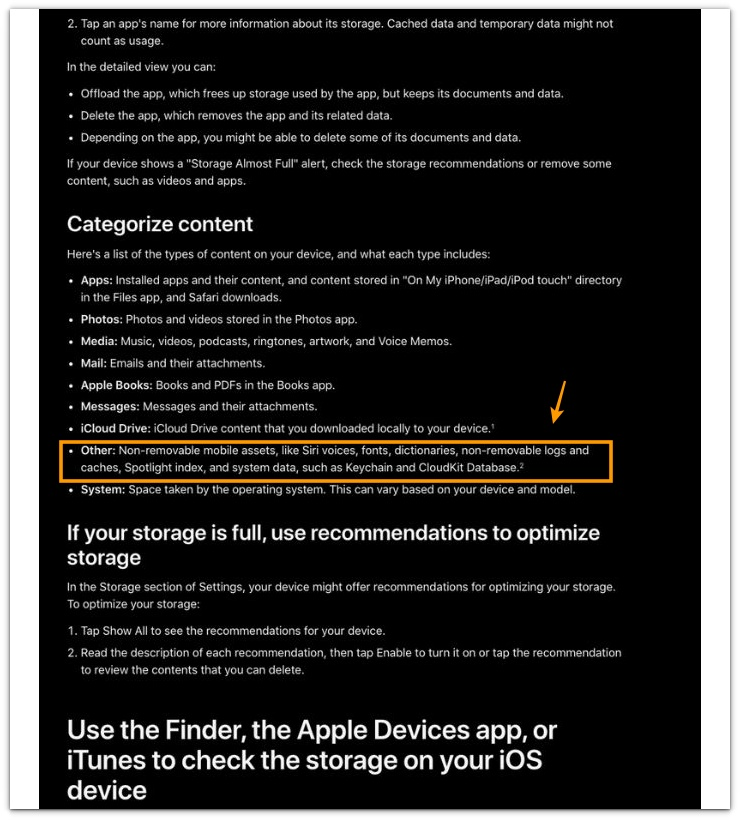
Official Source: Apple Lists Logs Under Other Storage
Apple explains that Other storage includes non-removable logs and caches, along with system assets such as Siri voices, fonts, and dictionaries.
Additional Tips
Restart the iPhone after checking both iPhone Storage and Analytics Data, so the first comparison stays clear. Keep a few GB of free space available during large updates, because iOS needs room for temporary system work.
Avoid third-party cleaner apps for iPhone logs, because iOS controls diagnostic records and system storage cleanup. Check downloaded streaming files separately when one media app suddenly grows outside Photos or Files.
Final Notes
iPhone logs taking up storage needs a system-first check before deleting personal files. The Analytics Data list is only a clue, not the final storage answer.
Use iPhone Storage, Analytics Data, and System Data together. When personal categories stay almost the same and System Data remains the unexplained area, treat the change as system-managed storage first. When a personal category clearly increased, review that category instead of blaming logs.
Checklist
- Check iPhone Storage before deleting personal files.
- Open Analytics Data and look for repeated log entries.
- Compare Photos, videos, downloads, and large apps with the storage change.
- Check iOS and System Data when personal categories stay almost the same.
- Recheck iPhone Storage after background system work has time to finish.
- Review personal files only when one visible category clearly increased.
For more detail, check the iPhone storage guide above.